

Self-hosted operations
On your own install, the person who operates Thulu updates the version, decides when to go back, takes backups and cleans up what is left on the host. Thulu never changes its own version: the “Updates” screen reports what is available and gives the command, and the change is run by hand with the thulu CLI on the machine that administers the install.
Everything on this page applies only to self-hosted installs. On SaaS the Thulu team does it.
Update a Docker install
Section titled “Update a Docker install”-
Check whether there is a new version. When there is one, the sidebar footer shows a blue dot next to the version. Click it, or go to “Settings” → “Updates”.

Only the operator sees the blue dot: it means there is a newer version in the allowed channels. -
Read the “Version” panel and the “Available versions” list. Each version says how many migrations it brings, which versions you can jump from, whether going back needs a database restore and which new variables it requires. “Check now” forces a check; otherwise Thulu checks every 12 hours.
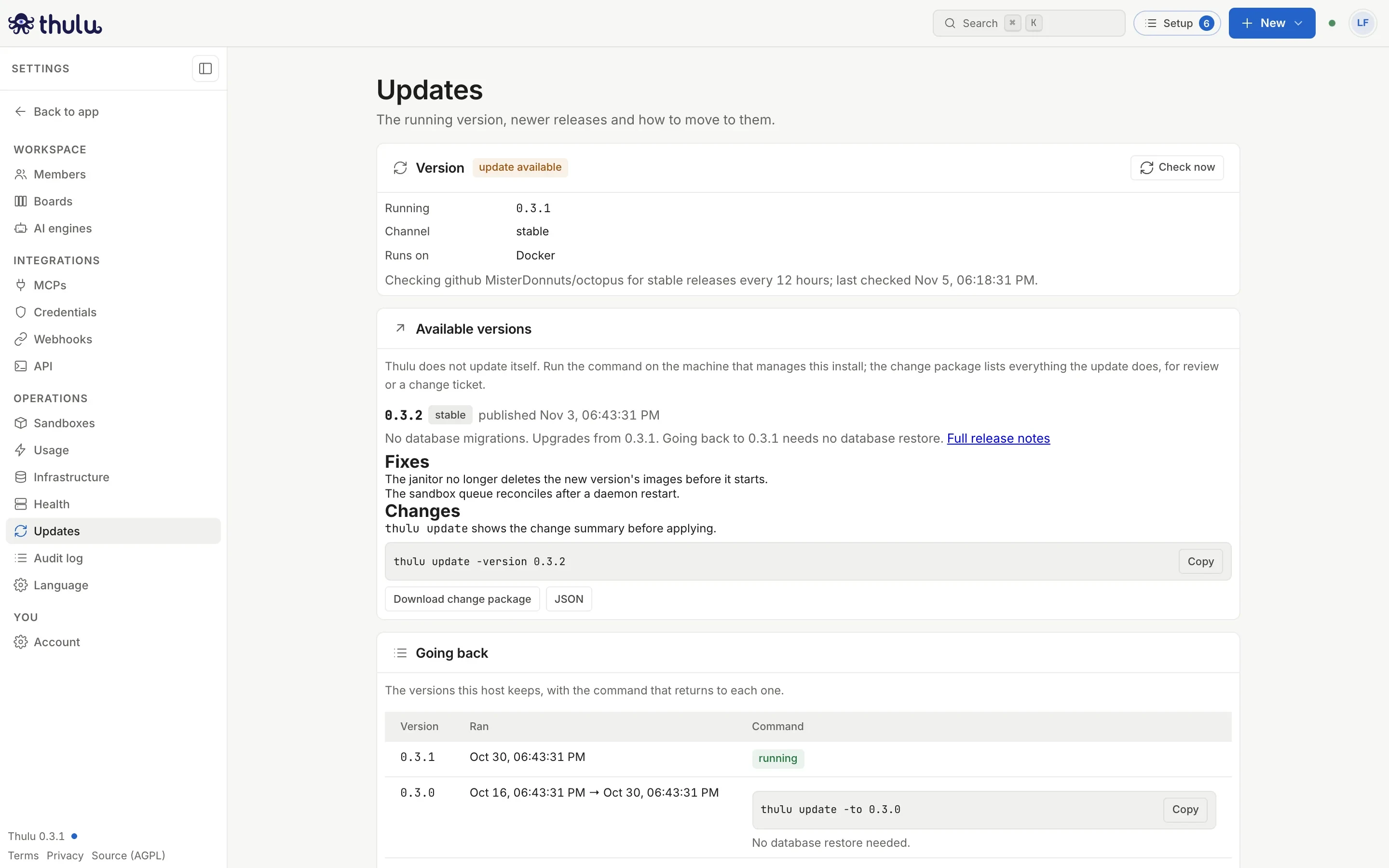
0.3.2 has no migrations and going back to 0.3.1 needs no database restore. The command is ready to copy. -
Download the change package with “Download change package” (Markdown) or “JSON”. It is the document to review or attach to the change ticket: versions, each image by digest, migrations, required variables, manual steps, the execution plan and how to go back. The download is recorded in the audit log.
-
Copy the command with “Copy” and open a terminal on the install’s host, in the directory where
deploy/is. -
If you want, generate the package from the terminal to also see which
deploy/files change (the UI has no access to the disk to compare that):Terminal window thulu update -check -version 0.3.2 -o change-0.3.2.md -
Run the update and confirm when it asks “Update now?”:
Terminal window thulu update -version 0.3.2 -api-key-file ~/.thulu-operator-keyWith
-api-key-file(orOCTOPUS_API_KEYset) the result reaches the history.-operatorchanges the name shown in the “By” column. If the version has manual steps, the CLI asks you to confirm them with-ack-manual-steps. With an external database, which the CLI can’t reach, it asks for-backup-confirmedto record that you took your own backup. -
Go back to “Updates” and look at the “History”. Each run appears with its result and who ran it; the daemon’s start on the new version appears separately.
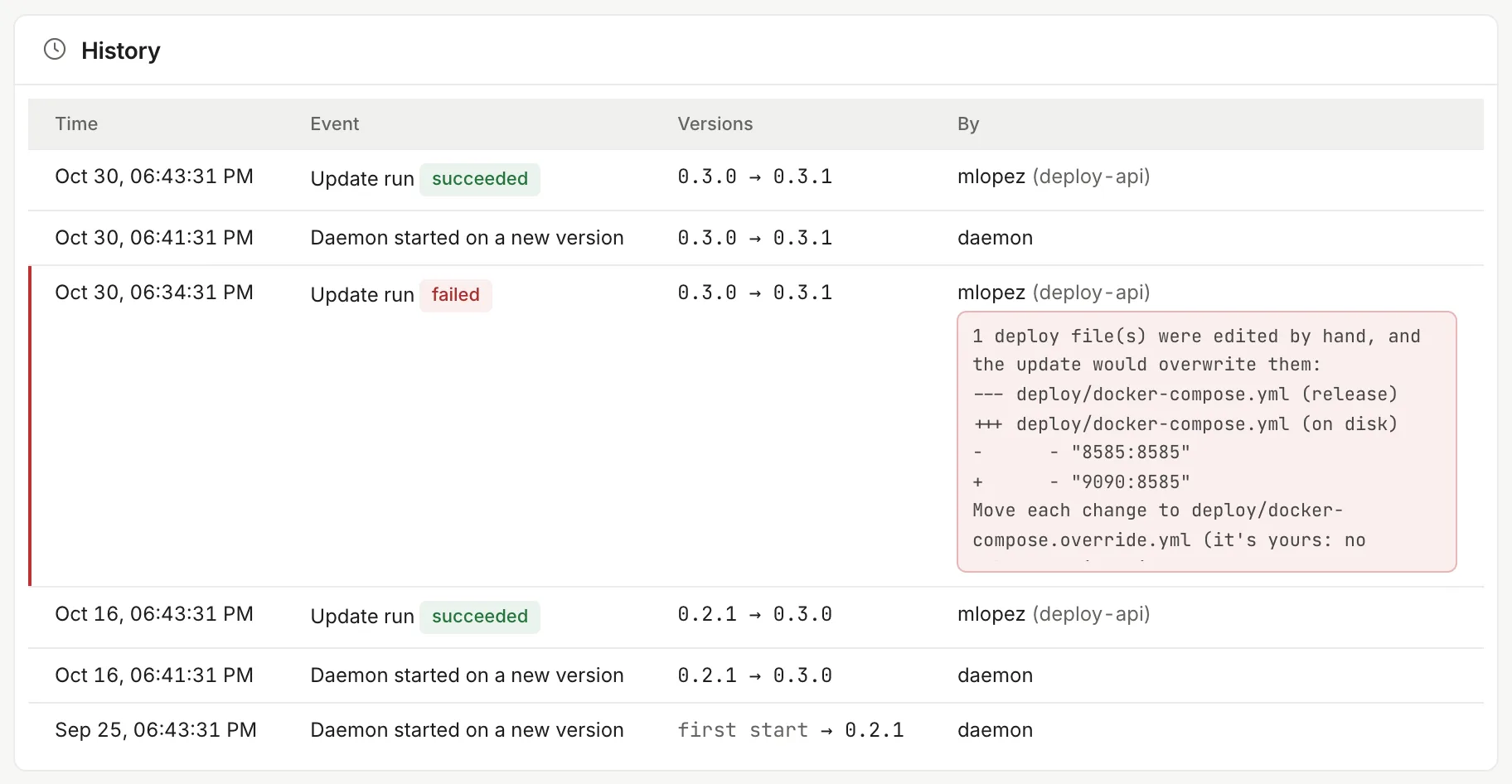
The first run on October 29 failed because someone had edited deploy/docker-compose.yml by hand. The next one, nine minutes later, succeeded.
What thulu update -version X does
Section titled “What thulu update -version X does”The command writes the target version and runs thulu apply, which follows this order. If something fails before step 5, nothing changed; if it fails after, it goes back to the previous version on its own.
| Step | What it does |
|---|---|
| 1. Verify | Downloads the release manifest and verifies its signature with the key embedded in the binary. Each image and the chart are named by digest, and each one’s signature is verified before it is downloaded. |
| 2. Use the target version’s CLI | Version X’s CLI applies version X: it downloads it, compares its sha256 with the manifest and hands over control. |
| 3. Preflight | The jump is allowed, all required variables are present, manual steps are confirmed, nobody edited a deploy/ file by hand, there is disk space and no other update is running. |
| 4. Backup | With the bundled Postgres, a snapshot (pg_dump plus /data) in backups/, tied to the version you are leaving. |
| 5. Change | Pulls the images by digest, rewrites the deploy/ files, writes the managed block of deploy/.env and recreates the stack. Your docker-compose.override.yml is always applied on top. |
| 6. Confirm | Waits for /health/ready and checks that /info reports the new version. Starting with the old image counts as a failure. |
| 7. Report | Writes deploy/.octopus-update.json and sends the result to the audit log. If sending fails it is a warning, not a failed update. |
You can jump from the last two minor versions. An older install goes first through the oldest supported minor; apply rejects the jump if the release doesn’t allow it. Expect an outage of about a minute while the daemon’s container is recreated.
Go back to an earlier version
Section titled “Go back to an earlier version”A Docker install keeps the images and the snapshot of the last 3 versions, counting the running one (OCTOPUS_KEEP_VERSIONS), so going back doesn’t need the registry. “Going back” lists them with the exact command for each.
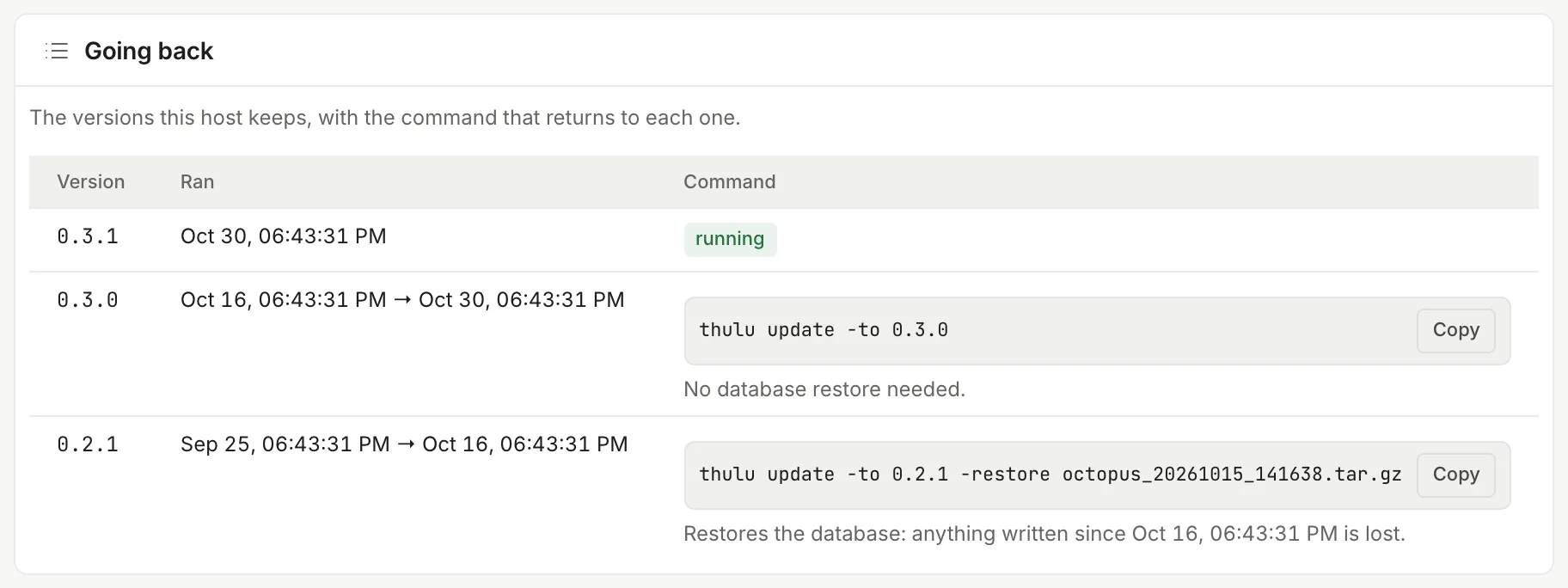
- In “Settings” → “Updates” → “Going back”, find the version and click “Copy”.
- In the host’s terminal, run the command. There are two cases:
thulu update -to 0.3.0: the version is therollback_toof the running one. The current version’s migrations only add things that version knows how to read, so the images change and the database stays as it is.thulu update -to 0.2.1 -restore octopus_20261005_141610.sql: any other kept version. The database returns to the snapshot taken when you left that version, and everything written since is lost.
- Confirm when it asks “Go back now?”. The terminal first shows which images change and what happens to the database.
From the terminal, thulu update -rollback returns to the previous version, thulu update -kept lists the kept versions with their command, and thulu update -keep 0.3.0 pins one so it is never deleted (-unkeep releases it). With an external database, you restore it yourself and pass -restore external.
Update on Kubernetes with Helm
Section titled “Update on Kubernetes with Helm”On Kubernetes the process is the same command, run from a machine with helm, access to the cluster and the install directory that thulu init left:
thulu update -check -version 0.3.2 -o change-0.3.2.mdthulu update -version 0.3.2The CLI verifies the signature of the chart and of each image, and runs helm upgrade --install octopus <chart> --namespace octopus --wait --atomic --timeout 10m with each image pinned by digest. The old pods keep serving until the new ones are ready, and if they never are, Helm rolls back on its own. To go back, thulu update -to <version> uses Helm’s history; on Kubernetes “Going back” doesn’t list versions and you take the version to return to from the “History”.
Installs without internet access
Section titled “Installs without internet access”On a machine that reaches GitHub and the registry, thulu mirror 0.3.2 -to registry.example.com/octopus -dir /srv/thulu-releases verifies the release and copies images (with their signatures), chart, signed manifest, deploy bundle and binaries. On the install, OCTOPUS_UPDATE_SOURCE points to that directory (https://… or file://…) and OCTOPUS_IMAGE_REGISTRY to the internal registry. Signatures are verified the same as with the originals. OCTOPUS_UPDATE_SOURCE=off turns lookups off and the screen shows “lookups off”.
Backups
Section titled “Backups”thulu update takes its own snapshot before changing anything. For periodic backups there is deploy/backup.sh, which builds a .tar.gz with a pg_dump and the data directory (worktrees, repos, attachments, usage counters), readable only by its owner.
OCTOPUS_COMPOSE_FILE=deploy/docker-compose.yml ./deploy/backup.sh /var/backups/thuluSchedule it in cron, for example every day at 3:
0 3 * * * cd /opt/thulu && OCTOPUS_COMPOSE_FILE=deploy/docker-compose.yml ./deploy/backup.sh /var/backups/thulu >> /var/log/thulu-backup.log 2>&1As root on the node, it reads the chart’s local volume and runs pg_dump inside the Postgres pod:
OCTOPUS_BACKUP_SOURCE=kubernetes ./deploy/backup.sh /var/backups/thulu| Variable | What it is for |
|---|---|
OCTOPUS_BACKUP_KEEP |
How many snapshots are kept in total, the script’s and the updater’s together. Default 5. The snapshot of each kept version is never deleted. |
OCTOPUS_BACKUP_REMOTE |
user@host:dir: copies each file with rsync over ssh. A local backup doesn’t survive losing the disk. |
OCTOPUS_BACKUP_REMOTE_KEEP |
How many copies stay at the remote destination. Default 14. |
OCTOPUS_BACKUP_AGE_RECIPIENT |
Encrypts the remote copy with age (not the local one). |
The dump holds the stored credentials encrypted with OCTOPUS_SECRETBOX_KEY, and not the key. Keep the key somewhere else: without it, a restored backup can’t read the credentials.
The “Backups” panel in “Updates” reads the result each script run leaves: the last backup with its file and size, how many snapshots are kept against OCTOPUS_BACKUP_KEEP, whether the off-host copy worked, and the command to restore it. If it never ran, the panel says so.
To restore by hand: stop the daemon (docker compose -f deploy/docker-compose.yml stop octopus), run RESTORE=1 OCTOPUS_COMPOSE_FILE=deploy/docker-compose.yml ./deploy/backup.sh <file.tar.gz> (it asks for confirmation before overwriting the data directory), bring the stack back up and check /health/ready. Restoring overwrites /data: whatever was written after the backup is lost.
Cleanup and retention
Section titled “Cleanup and retention”Thulu deletes what it creates. Each container, pod, volume and network it starts carries a Thulu label, and cleanup always selects by label, so it doesn’t touch other projects on the same host or cluster.
| What | When it goes |
|---|---|
| An agent’s container | When its run finishes processing. If one is left over, the janitor deletes it 2 h after it exited. |
| Chat container | After the idle time, when the chat is deleted or restarted, or 2 h after it exited. |
| Sandbox | When the task reaches a final stage, when the task is deleted, or 6 h after the task ended up failed, blocked or out of turns. |
| The task’s worktree | At a final stage or when the task is deleted. A task stuck for retention.stuck_worktree_days days is “parked”: pending changes are committed to the task’s branch and the checkout is deleted. Relaunching it resumes the work. |
| A task’s attachments, logs, outputs, usage and keys | When the task is deleted. |
| Everything in a workspace | When the workspace is deleted (see Workspaces and team). |
| Old Thulu images | On each janitor pass, except those of the kept versions. |
The janitor runs every hour, on Docker and on Kubernetes. It also checks the data directory’s free space every 5 minutes and, below the threshold, cleans up right then.
Retention periods
Section titled “Retention periods”The operator changes them in “Settings → Health → Retention and cleanup”, with the value in days (0 = forever; an empty field goes back to the default). The panel also shows the janitor’s last pass and the free disk. Through the API it is PUT /settings/<key>:
curl -X PUT https://thulu.example.com/settings/retention.run_logs_days \ -H "Authorization: Bearer $OCTOPUS_API_KEY" -H "Content-Type: application/json" -d '60'| Key | Default | What it covers |
|---|---|---|
retention.run_logs_days |
30 | Run logs and outputs, chat transcripts |
retention.sessions_days |
90 | Per-run usage rows. The aggregated daily cost is kept. |
retention.webhook_deliveries_days |
30 | Webhook delivery log |
retention.run_keys_days |
7 | Expired or revoked run and chat keys. People’s and operator keys are not deleted. |
retention.sandbox_rows_days |
30 | Rows of sandboxes and chats already torn down |
retention.stuck_worktree_days |
14 | When a stuck task’s worktree is parked |
retention.cache_metrics_days |
90 | Dependency cache history (see Infrastructure) |
janitor.disk_free_min_percent |
10 | Percentage of free disk that triggers a cleanup; 0 turns it off |
audit.retention_days |
unset | Audit log; optional (see Security and audit) |
A log is deleted at 30 days and its usage row at 90, so on an old run the link to the log stops working first.
thulu gc
Section titled “thulu gc”Lists what Thulu left on the host that nothing uses: stopped containers, old images, build cache, snapshots outside retention. Each list is grouped under “Containers”, “Images”, “Volumes” and “Networks”, with a “Keeping” section that says why each image is kept.
thulu gc # only showsthulu gc -apply # deletes what is listedthulu gc -unclaimed # also lists Thulu images no version claimsMove a workspace to another install
Section titled “Move a workspace to another install”thulu export packs a workspace into a .tgz: boards with their stages and types, projects with their environments and the current init script, metrics and dashboards, tasks with attachments, comments, reports, events and test cases, the catalog of agents and skills, the registered MCPs and the install’s settings. Ids are preserved, so cross references keep resolving.
Secrets don’t travel (credentials, LLM keys, ingest tokens), nor do people and their permissions, API keys, the audit log, usage and costs, chats or run logs. The bundle comes with a checklist of the secrets you have to load again.
With the CLI downloaded, export and import go into the daemon’s container on their own (docker compose exec, or kubectl exec on Kubernetes), where the database and the attachments are, so the stack has to be running.
-
On the source host, export.
-workspaceaccepts the id or the slug, and with a single workspace you can omit it (thulu workspace listlists them):Terminal window thulu export -workspace andean-cloud -out andean-cloud.tgz -
On the destination host, create the workspace if it doesn’t exist yet. By default the import uses the bundle’s workspace; if that id doesn’t exist here, it stops and asks for
-workspace:Terminal window thulu workspace create -name "Andean Cloud" -slug andean-cloud -owner-email <email> -
Copy the file to the destination host and import it:
Terminal window thulu import -workspace andean-cloud andean-cloud.tgzThe import respects dependency order and can be repeated: tasks, projects and comments that already exist stay as they are, so a second attempt finishes an interrupted import. Boards and MCPs that already exist are overwritten with the bundle’s. The source install’s settings are applied only with
-with-settings, because they reach every workspace on the destination. At the end it prints a summary with what it wrote, the warnings and the list of secrets to load again;-jsongives the counts as JSON. -
Load each secret on the checklist again by hand in Credentials and engines, reissue the ingest tokens and set
ingest.public_urlto the new host’s address (the import skips it on purpose).
Uninstall
Section titled “Uninstall”thulu uninstall # shows everything that would be deletedthulu uninstall -yes # brings the stack down and deletes Thulu's containers, images, network and configurationthulu uninstall -yes -purge-data # also the database, the data volumes, deploy/.env and the backupsWithout -purge-data the data volumes, deploy/.env (it has the database password and the key that encrypts credentials) and the backups stay, so a reinstall opens them again. -purge-data can’t be undone: export what you need first. On a Helm install it prints the helm uninstall and kubectl delete namespace commands instead of running them. The thulu binary isn’t deleted; the command prints its path.
Common problems
Section titled “Common problems”- “Not offered because they failed verification”: the signature of those versions’ manifest doesn’t match the embedded key. It happens with a mirror someone modified or with preview builds without
cosignin thePATH. Don’t install them. - “Could not look for releases”: the daemon didn’t reach the release source. Behind a proxy, the daemon respects
HTTPS_PROXY. With a private repo,OCTOPUS_UPDATE_GITHUB_TOKEN. - The preflight stops with a file difference: someone edited
deploy/docker-compose.yml. Move the change todocker-compose.override.ymland run the update again. - The history doesn’t show the run you made: the host didn’t have an operator
OCTOPUS_API_KEY, or the key lacks the admin role or thesettingspermission. The CLI warns about it at the end. - “No version kept yet”: the list of kept versions starts with the first
thulu apply. An install that was never updated with the CLI has nowhere to go back to without a backup.