

Settings
Settings is the sidebar mode where the workspace and install settings live. You enter with “Settings”, bottom left, and go back with “Back to app”. This page covers the sections that have no page of their own: Webhooks, API, Audit log, Health, Updates, Language and Account, plus the “Beta access” panel the SaaS operator sees. Members, Boards, AI engines, Credentials, MCPs, Sandboxes, Usage and Infrastructure are explained on their own pages (see Related).
Almost everything requires the admin role. Health, Updates and the telemetry address belong to the whole install: the full detail is seen by an admin of the operator workspace (on self-hosted, the one OCTOPUS_OPERATOR_WORKSPACE names; in dev mode, anyone). To understand what each role does and what each key protects, see Security and audit.
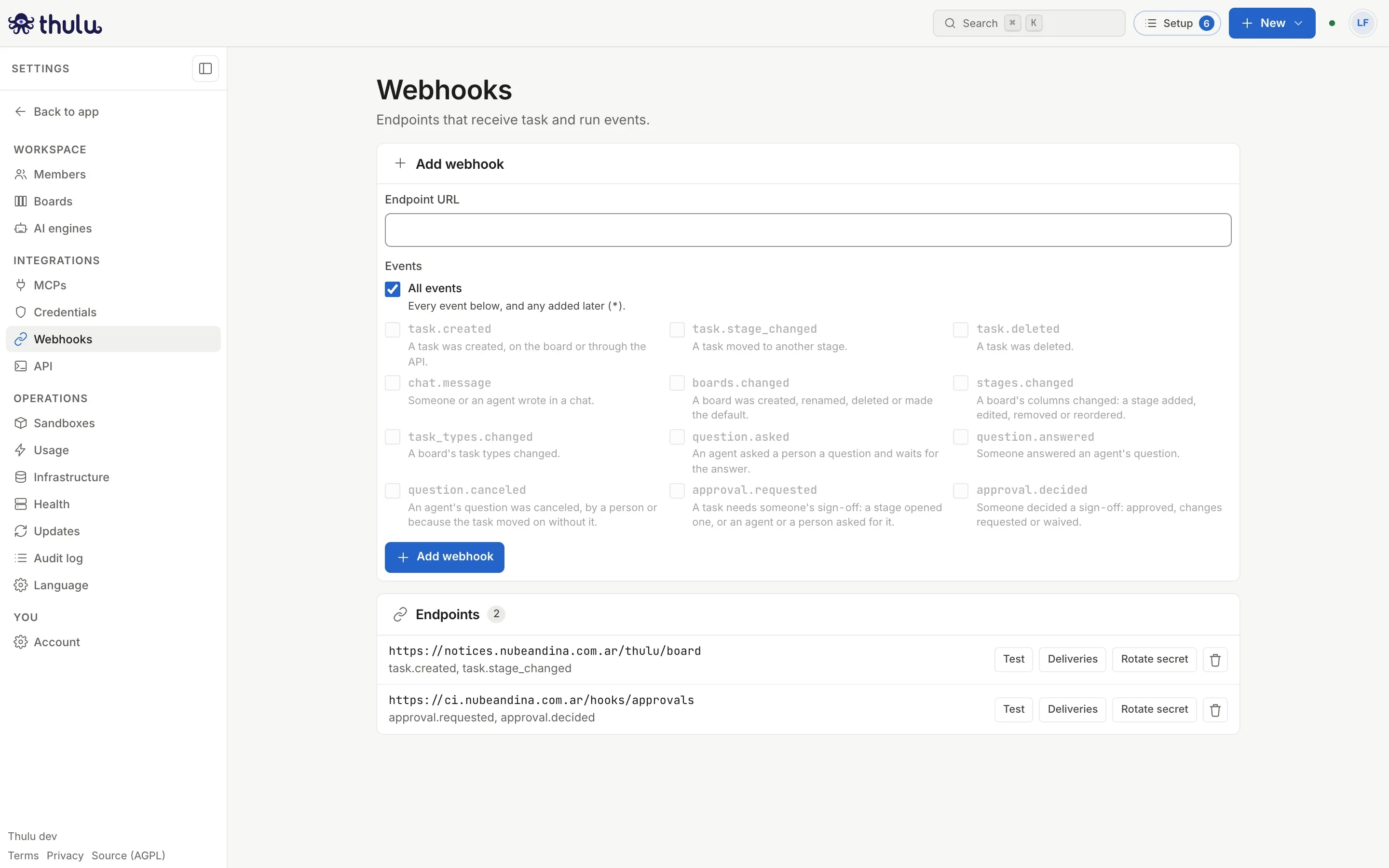
Recommended flow: set up an integration
Section titled “Recommended flow: set up an integration”The order that usually works to connect Thulu with another tool (n8n, a CI pipeline) is: a webhook so Thulu notifies, an API key so the tool can answer, and a look at the audit log to confirm what happened. You need the admin role in the workspace and the URL where the other tool receives webhooks.
-
Open “Settings → Webhooks”. Under “Endpoint URL” paste the address the other tool gave you. It has to be public: Thulu rejects private or loopback addresses (“destination blocked by the egress policy”).
-
Under “Events” leave “All events” ticked or untick it and pick the ones you care about; the label changes to “2 events”. Click “Add webhook”.
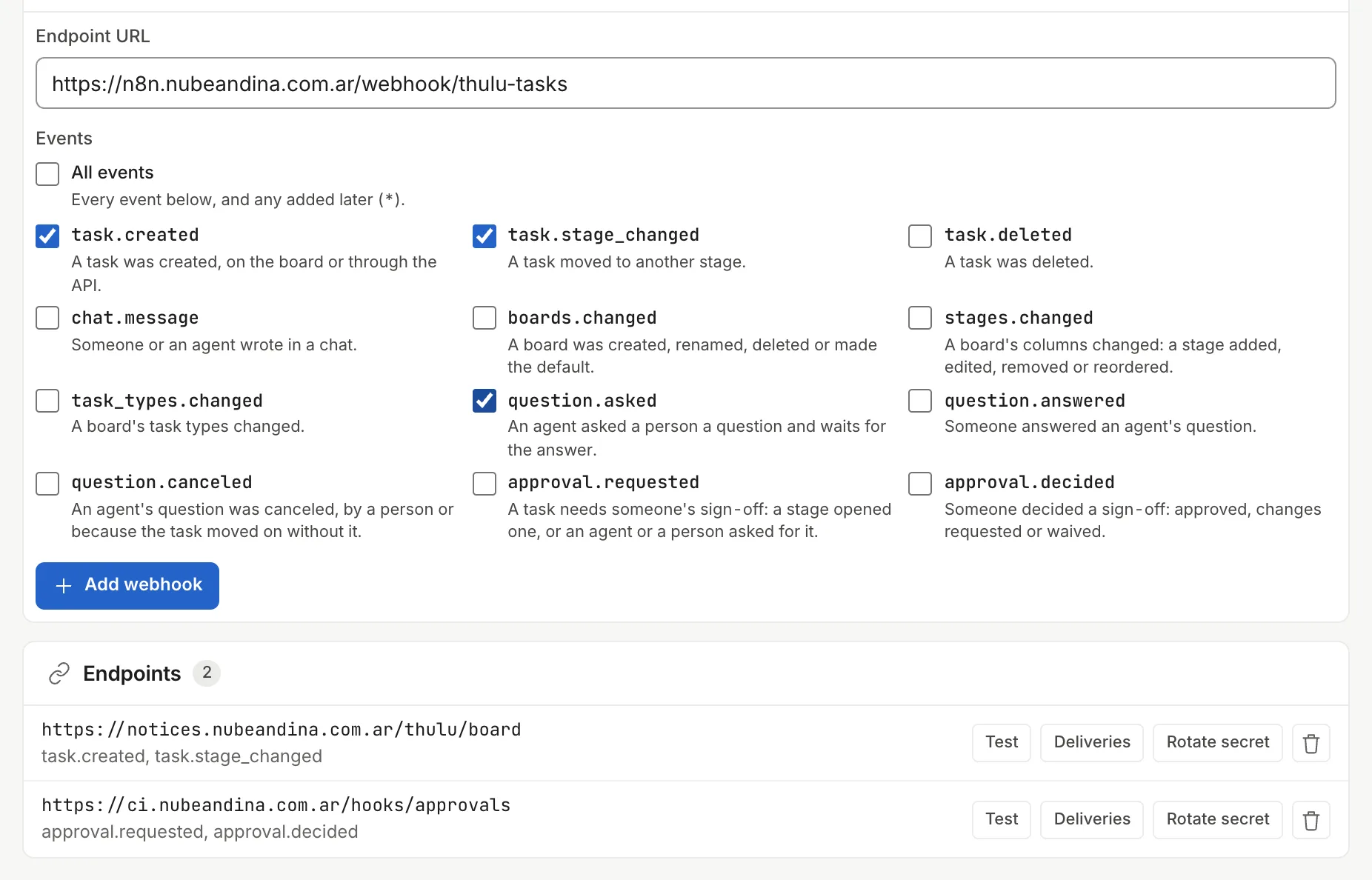
Each endpoint shows which events it is subscribed to, with the Deliveries, Test, Rotate secret and delete buttons. -
Copy the signing secret that appears above the list (“Copy it now: it will not be shown again”) and load it into the receiver. Each delivery travels signed in the
X-Octopus-Signature: sha256=<hmac>header, an HMAC-SHA256 of the body with that secret.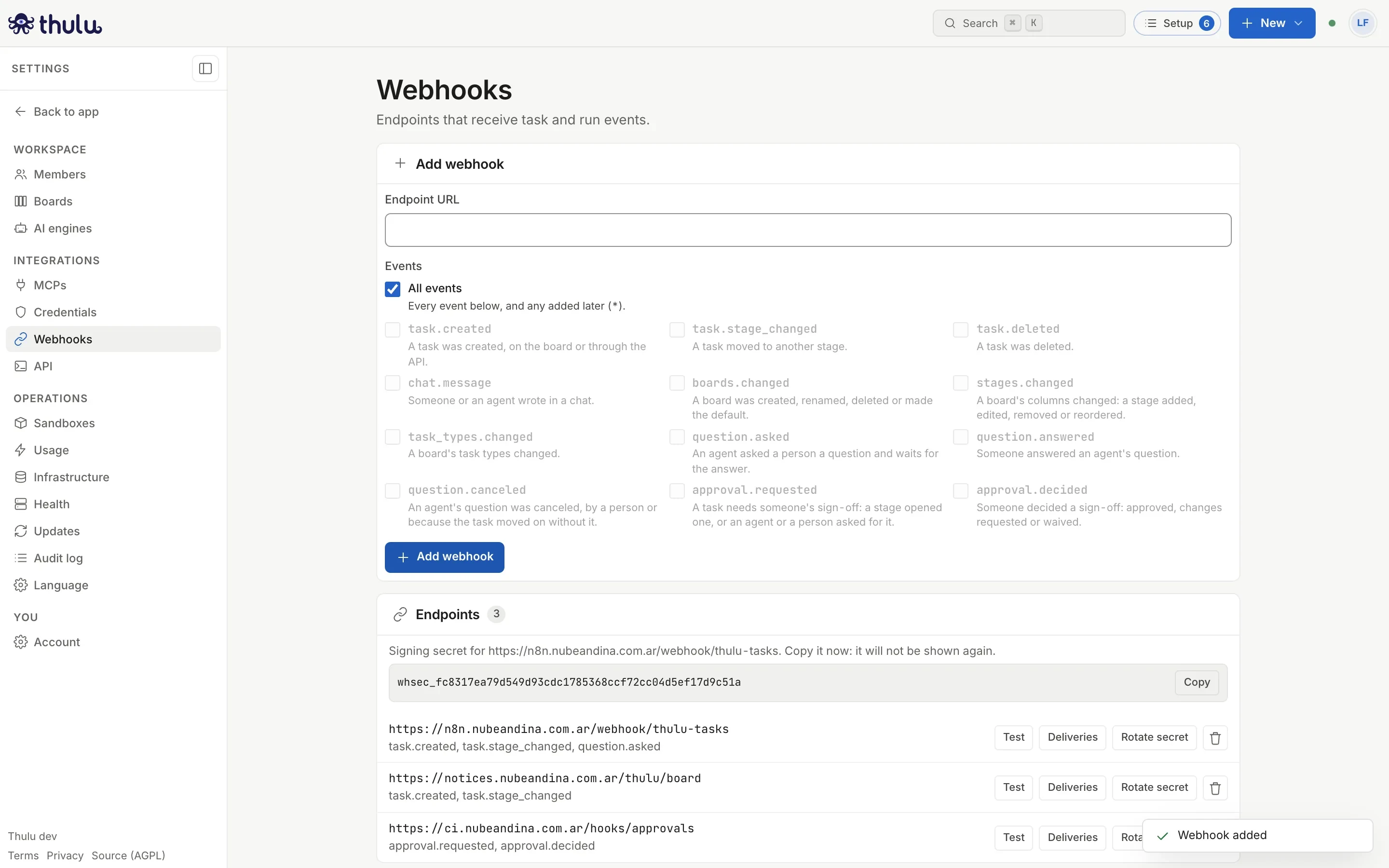
The secret is shown only once. If you lose it, rotate it. -
Click “Test” in the row: Thulu sends a test delivery and reports “Test delivery OK: HTTP 200 in 85 ms”, or the code or reason it failed with.
-
Go to “API” and generate a key for the tool (details in API keys). Copy it right away: it isn’t shown again either.
-
Open “Audit log” and confirm that the webhook creation and the key creation are listed.
Webhooks
Section titled “Webhooks”A webhook is an external endpoint Thulu sends a POST to every time something happens in the workspace. There are 12 events to choose from:
| Event | When it fires |
|---|---|
task.created, task.stage_changed, task.deleted |
A task is created, changes stage or is deleted |
chat.message |
A message arrives in a chat |
boards.changed, stages.changed, task_types.changed |
A board is created, renamed or deleted (or the default changes), its columns are edited or its task types change |
question.asked, question.answered, question.canceled |
An agent asks something on a task, someone answers or the question is canceled |
approval.requested, approval.decided |
An approval is requested or someone decides it |
There is no event for comments, PRs or failed runs. If a delivery fails (network error or a response outside 2xx), Thulu tries it up to 5 times in total, waiting 2, 4, 8 and 16 seconds, and then marks it as failed. The delivery history is kept for 30 days: “Deliveries”, on each endpoint’s row, shows the latest attempts with when, event, result and time, and “Retry” queues a delivery again.
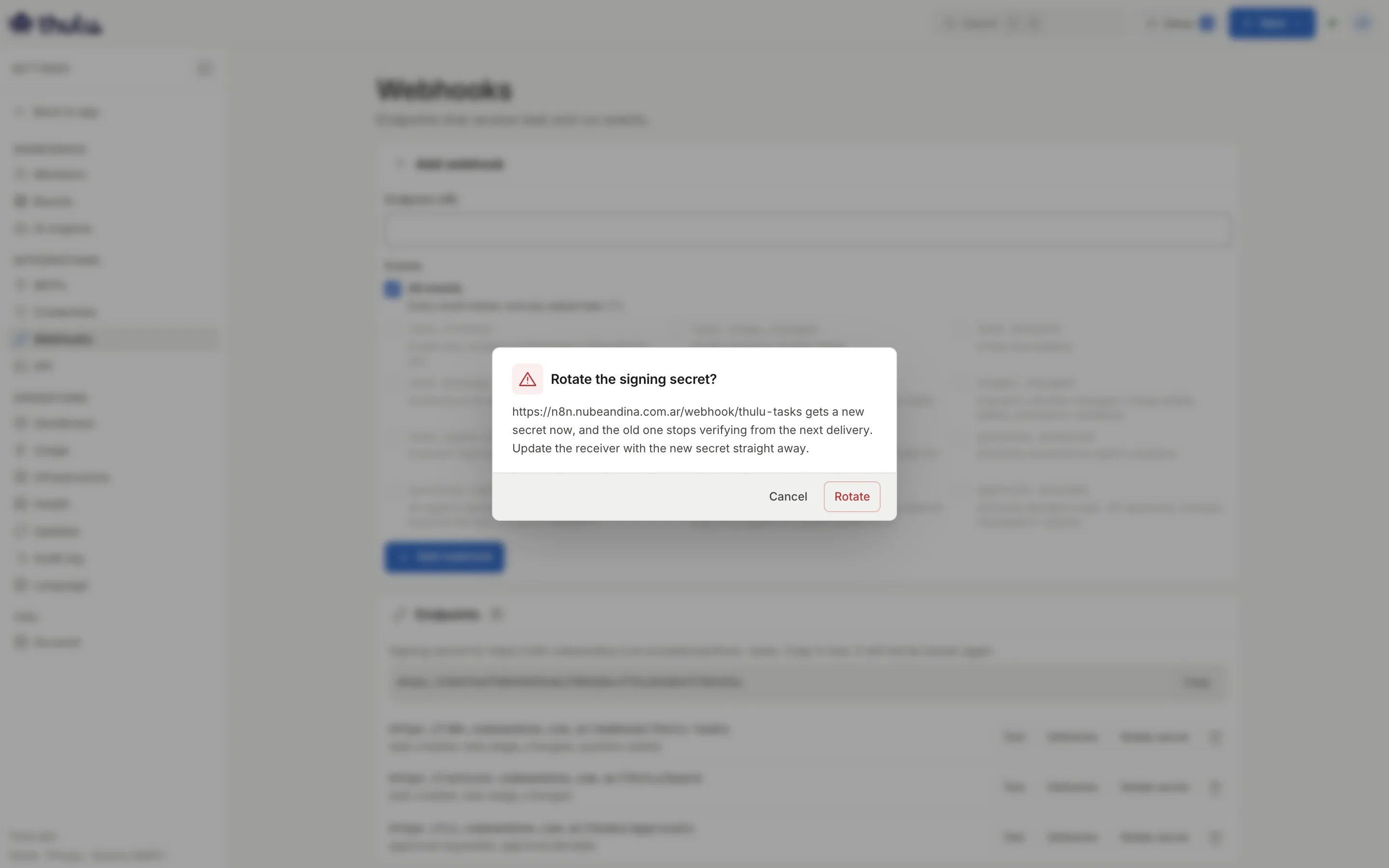
“Rotate secret” asks for confirmation and generates a new secret: the old one stops verifying from the next delivery, so have the receiver at hand to update it right away. The trash can deletes the endpoint without asking.
The API section has four panels.
OpenAPI spec
Section titled “OpenAPI spec”“openapi.json” opens the specification of the whole REST API (OpenAPI 3.1) and “Copy URL” copies its address so you can import it into Postman, Insomnia or a client generator.
Telemetry address
Section titled “Telemetry address”The public URL through which a deployed application reaches this Thulu to send it metrics. Agents that set up telemetry read it from here. Below the field you see the full address they will send to (“Applications will send to https://…/ingest”). If you don’t know which one it is, leave it empty: agents are told the address is unknown instead of a wrong one. It is an install value: only the operator saves it; other admins see it locked. More context in Metrics and dashboards.
API keys
Section titled “API keys”An API key gives access to the API without a session, for CI, scripts or integrations. Each key belongs to the workspace where you created it and has three limits that add up:
| Field | What it decides | Notes |
|---|---|---|
| Name | How you recognize it in the list and in the audit log | If you leave it empty it is “API Key” |
| Role (“viewer”, “developer”, “admin”, “owner”) | How much authority it has | Never more than your own role: higher roles appear disabled |
| Permissions | Which parts of the API it acts on | Read and write per group (Tasks, Boards & stages, Projects, Agents, Runs & usage, Credentials, Settings, Members), plus “Mint keys” and “Service routes” |
| Expiry (days) | When it stops working | Starts at the install’s maximum (90 days by default, OCTOPUS_API_KEY_MAX_TTL); blank is also the maximum |
A call has to pass both: the role is enough for that route and the permission covers that group. Presets fill in the checkboxes and then you can adjust them:
| Preset | What it ticks |
|---|---|
| “Read-only” | Read on everything except credentials |
| “CI” | Tasks (read and write), Projects and Runs (read) |
| “Agent” | Tasks (read and write), Boards and Projects (read), Runs (read and write), Service routes |
| “Everything” | All the checkboxes |
-
Under “API key” type a name that says who uses it (“Nightly metrics exporter”).
-
Pick the role and a preset, and untick what is left over.
-
Adjust the expiry if you want less than the maximum and click “Generate key”.
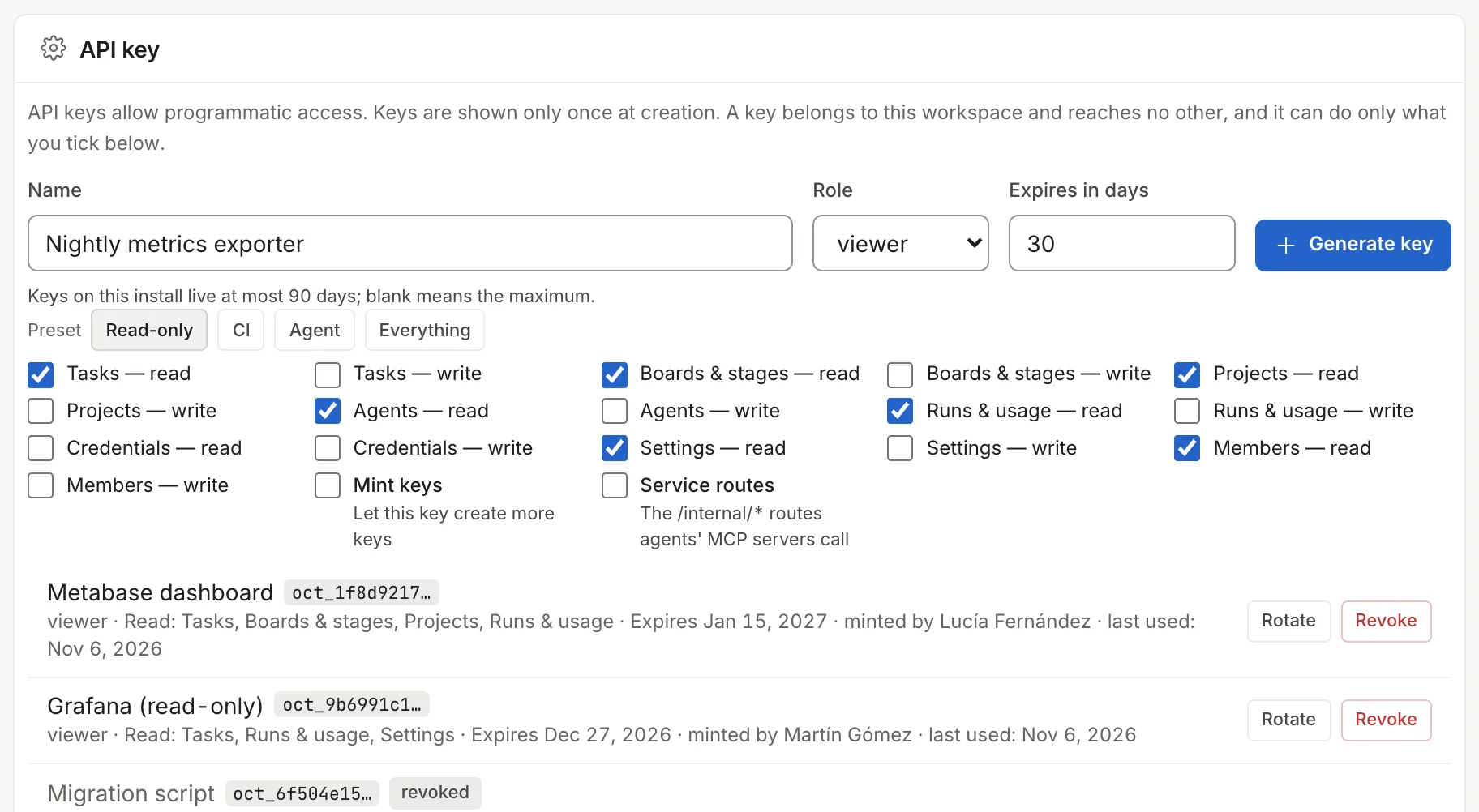
The preset ticks checkboxes; what is sent is what stays ticked. -
Copy the key (
oct_…) with “Copy”. Below, Thulu says what it granted and until when.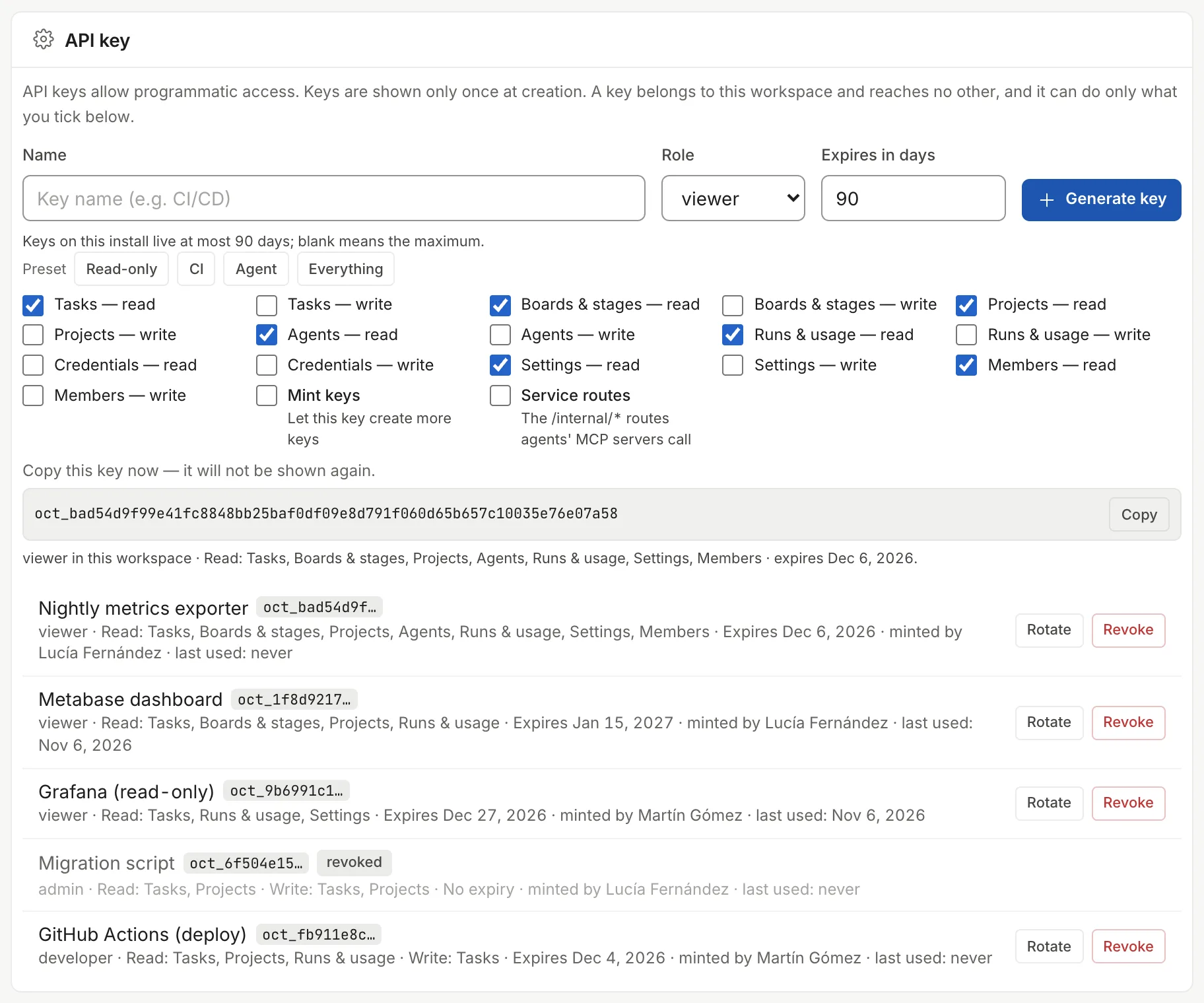
Each row in the list shows role, permissions, expiry, who minted it and its last use.
If you ask for something your role or the key’s role doesn’t allow, the daemon rejects it and explains in red below the form, for example: “a viewer key cannot use flows:write, projects:write, … — they need a higher role”. It also warns if you go over the maximum number of days.
To change a key without cutting off the tool that uses it, click “Rotate” on its row: Thulu creates a new key with the same name, role and permissions and shows it only once. Under “The current key keeps working” you choose how long the old one lasts (ends now, 1 hour, 24 hours, 3 days or 7 days); meanwhile the row says “Works until” and the date.
To retire a key click “Revoke” on its row and confirm. It can’t be undone; it stays in the list marked “revoked”.
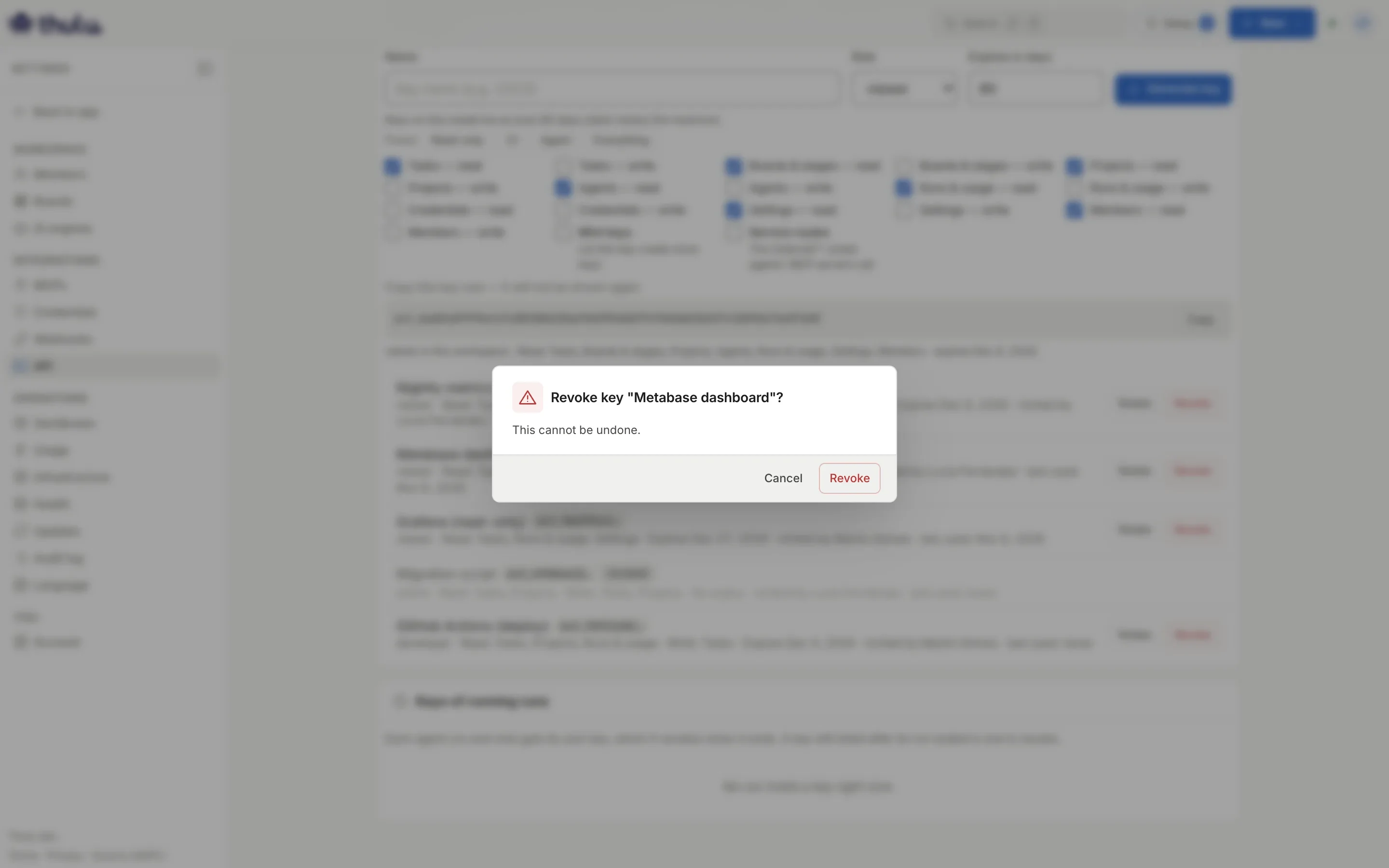
Keys of running runs
Section titled “Keys of running runs”Each agent run and each chat receives its own key, which Thulu revokes when it ends. This panel lists the ones that are alive right now, and they don’t appear in the list above. If a key is still here after its run ended, revoke it: the run loses API access on the spot.
Audit log
Section titled “Audit log”It lists what happened in the workspace, newest to oldest: sign-ins, member and key creation and removal, tasks, approvals, questions, changes to agents and credentials, updates. Columns: “Time”, “Event”, “Actor”, “Resource” and “Summary”. The selector filters by family (task.*, auth.*, approval.* and others), “Load more” brings the next page and the reload button refreshes it.
Actor says who did each thing: the person, the API key by its name, an agent’s run or Thulu itself. When the resource still exists, the Resource column is a link to it.
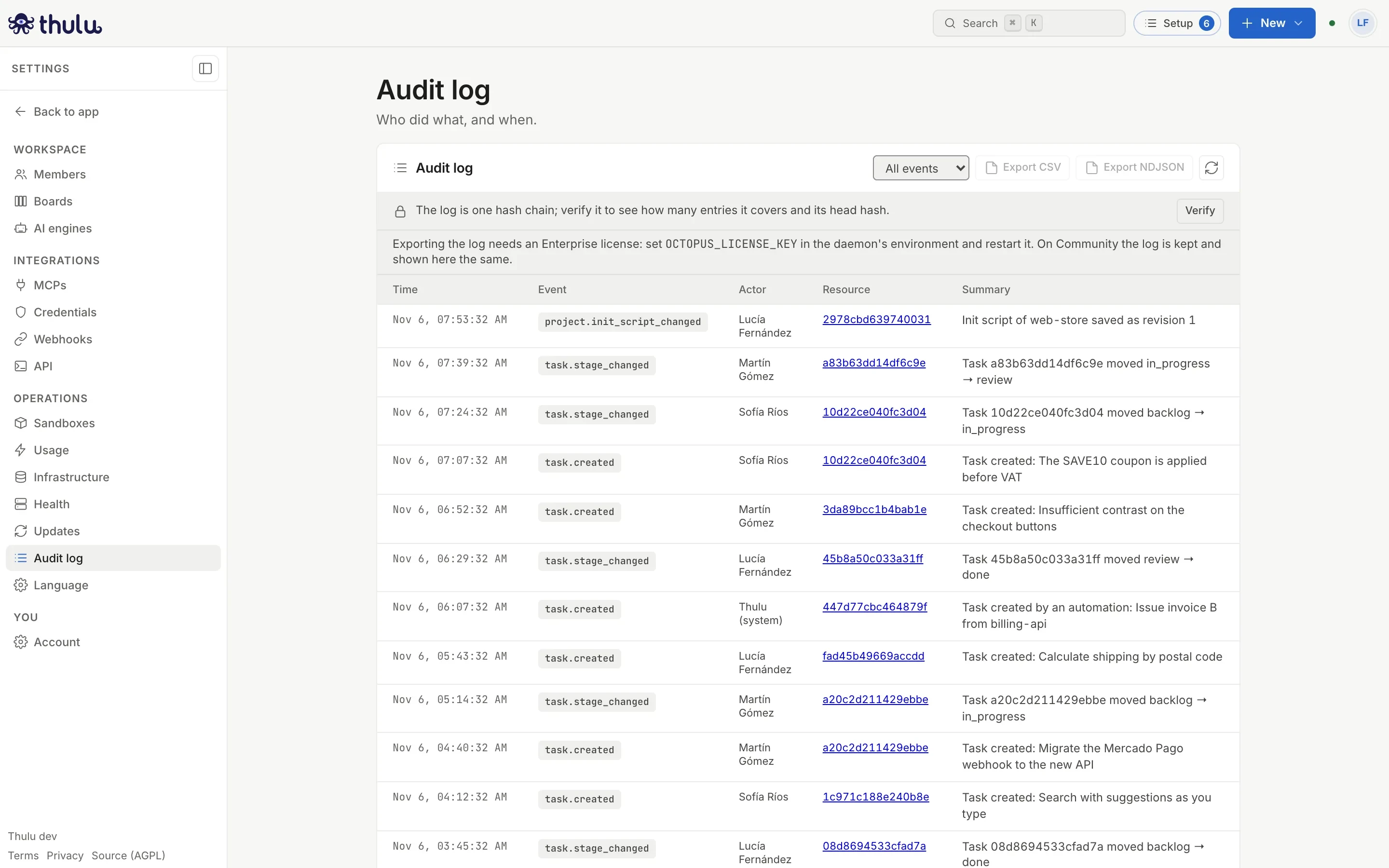
“Verify” recomputes every entry’s hash and says how many the chain covers and what its head hash is; if it finds a broken one, “Go to the entry” shows it.
“Export CSV” and “Export NDJSON” download everything that matches the current filter, with no page limit. NDJSON is one JSON entry per line, ready for a SIEM. Exporting requires an Enterprise license on the install (OCTOPUS_LICENSE_KEY); without it the section explains so and the log is stored and shown anyway. How to verify the log’s integrity and ship it off the machine is in Security and audit.
Health
Section titled “Health”“Health” shows a check for each part of the database, Docker and disk, the uptime and, under “System”, the Go version, the goroutines and the free GB. The indicator at the top summarizes everything (“ok”) and the reload button asks again. Only the operator sees the full report; an admin of another workspace gets the overall status.
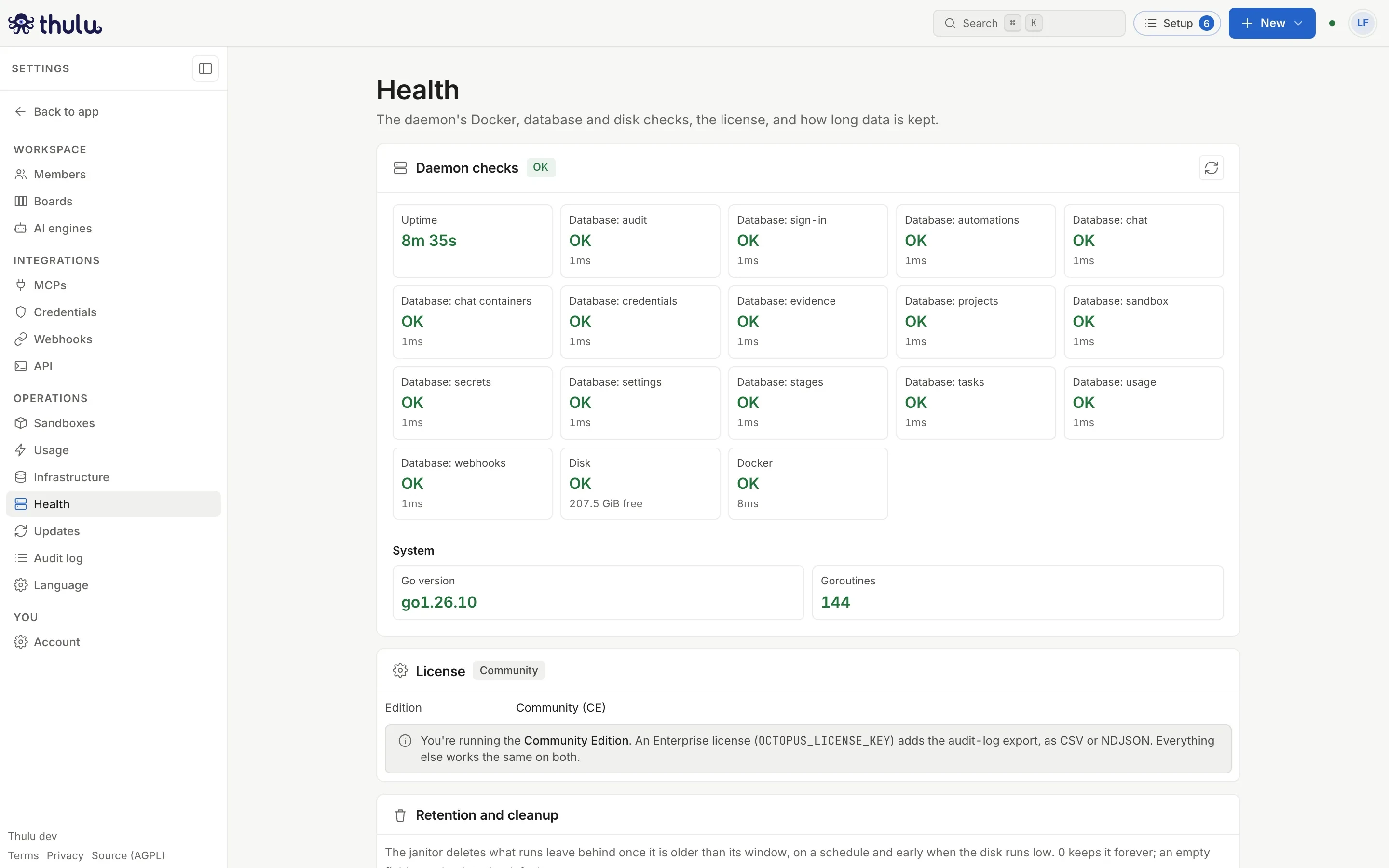
The “License” panel shows the edition (Community or Enterprise) and, with a license, the licensee, the expiry with the days remaining and the enabled features. On a Docker install, the Enterprise license adds audit export; the Kubernetes runtime requires it too (see Self-hosted operations).
The “Retention and cleanup” panel sets how long what runs leave behind is kept before the janitor deletes it. 0 keeps it forever and an empty field goes back to the default value. The periods are in Security and audit.
Updates
Section titled “Updates”It shows the running version, the channel and whether it runs on Docker or Kubernetes, how often Thulu looks for new releases and the result of the last check. Thulu doesn’t update itself and this screen changes nothing: it gives the commands.
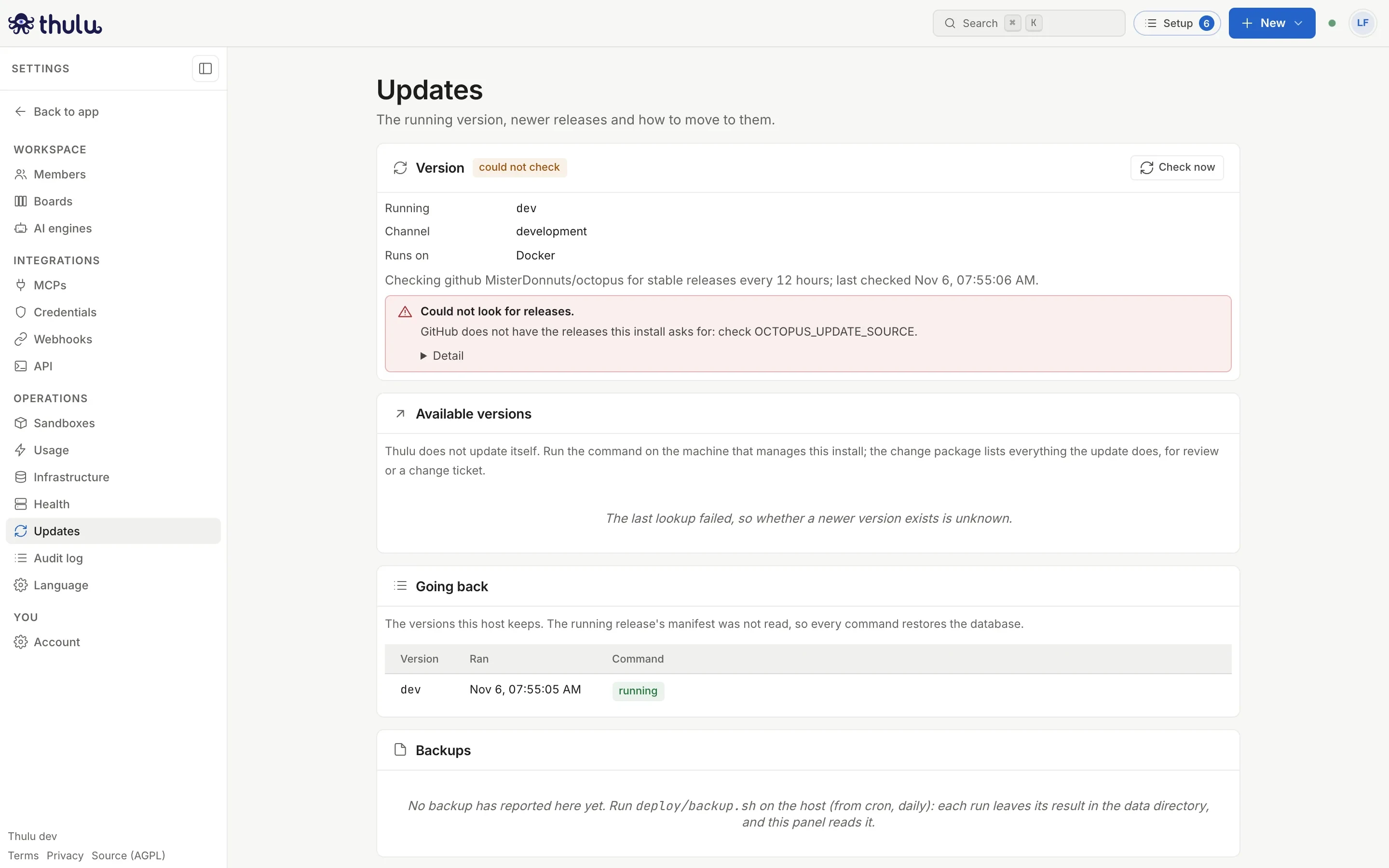
| Panel | What it has |
|---|---|
| “Version” | Version, channel, runtime, the “Check now” button and known security notices for the running version |
| “Available versions” | Each newer release with date, migrations, whether going back requires restoring the database, new variables, manual steps, the command to copy and “Download change package” (Markdown or JSON, for a change ticket) |
| “Going back” | The versions kept on the host with the command that returns to each one (on Kubernetes, thulu update -to <version>) |
| “History” | Each start on a new version and each update run, with who did it |
- Open “Updates” and click “Check now” if you don’t want to wait for the next automatic check.
- On the release you care about, click “Download change package” to review what it will do.
- Copy the command and run it on the machine that administers the install. The CLI verifies the release’s signature, takes a database snapshot and rolls back on its own if something fails. Details in Self-hosted operations.
- Go back to the screen: “History” records the change.
On the SaaS only the operator sees this section; for everyone else it says the version is “shown only to an admin of the operator workspace”.
Language
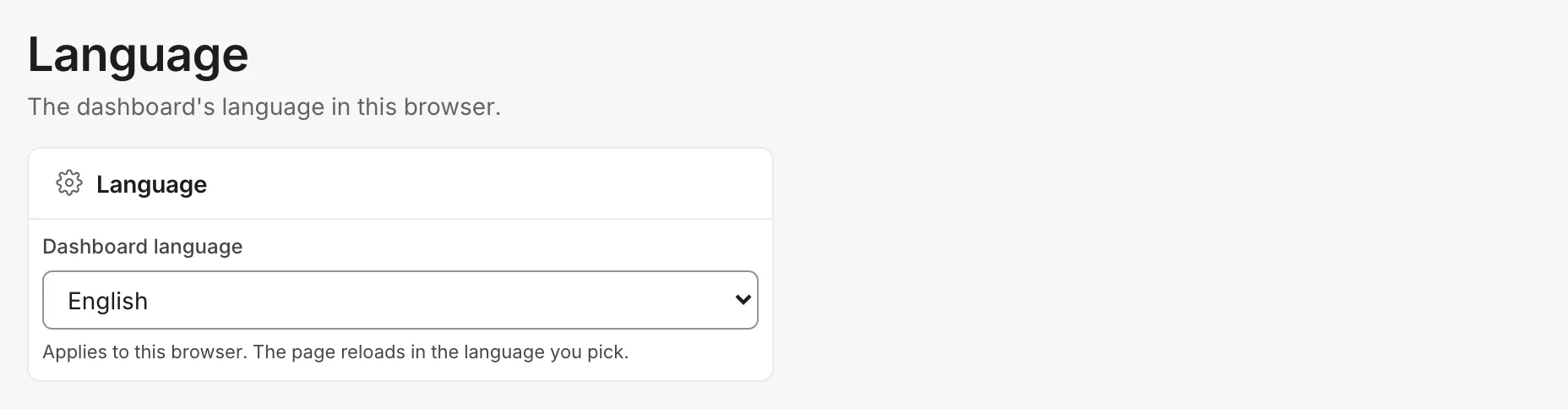
Section titled “Language”One selector, “Dashboard language”, with Spanish and English. Picking one reloads the page in that language. It applies to this browser: it is stored in a cookie, not in your account. The texts the daemon writes (task comments, audit summaries, API errors) follow the install’s language, which on self-hosted is changed with OCTOPUS_LOCALE=es.
Account
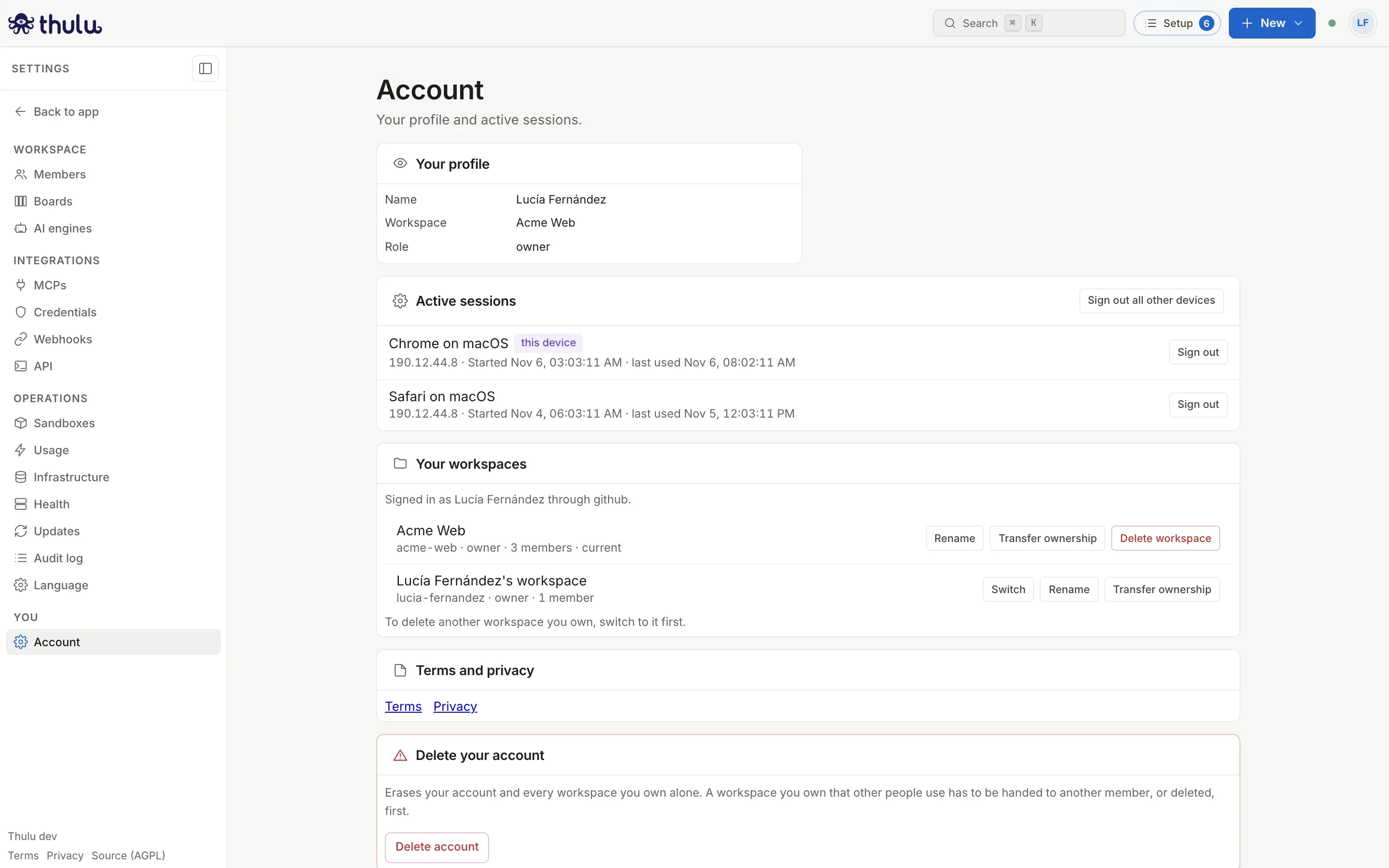
Section titled “Account”It appears only when there is sign-in (not in dev mode). It has:
- “Your profile”: email, name, current workspace and role.
- “Active sessions”: each browser or device with your session open, when it started and its last use, with “Sign out” per row and “Sign out all other devices” (it asks for no confirmation; the current session stays).
- “Your workspaces”: which provider you signed in with, your workspaces with “Rename” and, on the one you own, “Transfer ownership” and “Delete workspace”. They are explained in Workspaces and team.
- “Terms and privacy” and “Delete your account”, which also deletes the workspaces where you are the only member and asks you to type your email to confirm.
There is no password or second factor to configure here: your identity provider handles them.
Beta access (SaaS)
Section titled “Beta access (SaaS)”On the SaaS, the operator sees one more panel in “Members”: “Beta access”. While the install is in allowlist mode (OCTOPUS_SIGNUP_MODE=allowlist), only the emails on this list can create an account, and only if the identity provider verified that email. Members of the operator workspace always get in.
- Open “Settings → Members” and scroll down to “Beta access”.
- Type the email and, under “Note”, who they are and why they are getting in.
- Click “Invite”. The row shows who added it and when.
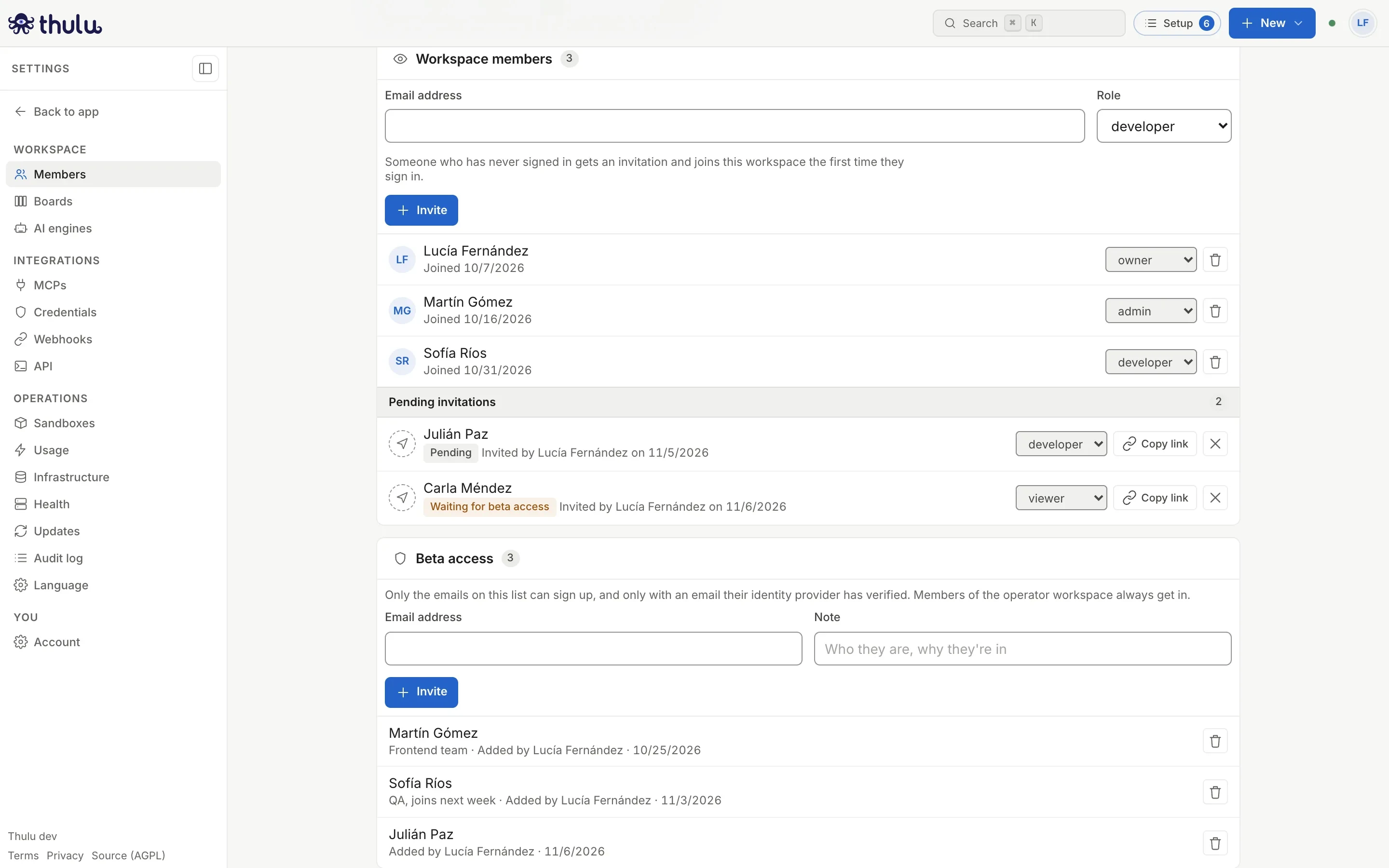
The trash can removes access: the person can’t sign in again and their open sessions end within minutes. If a workspace invited someone the list doesn’t admit yet, they appear under “Waiting for access” with the “Give access” button.
Common problems
Section titled “Common problems”- “Account” or “Members” don’t appear: the install runs without login (dev mode).
- Updates says “unavailable”: you aren’t an admin of the operator workspace.
- I can’t export the audit log: the install has no Enterprise license.