

Agents
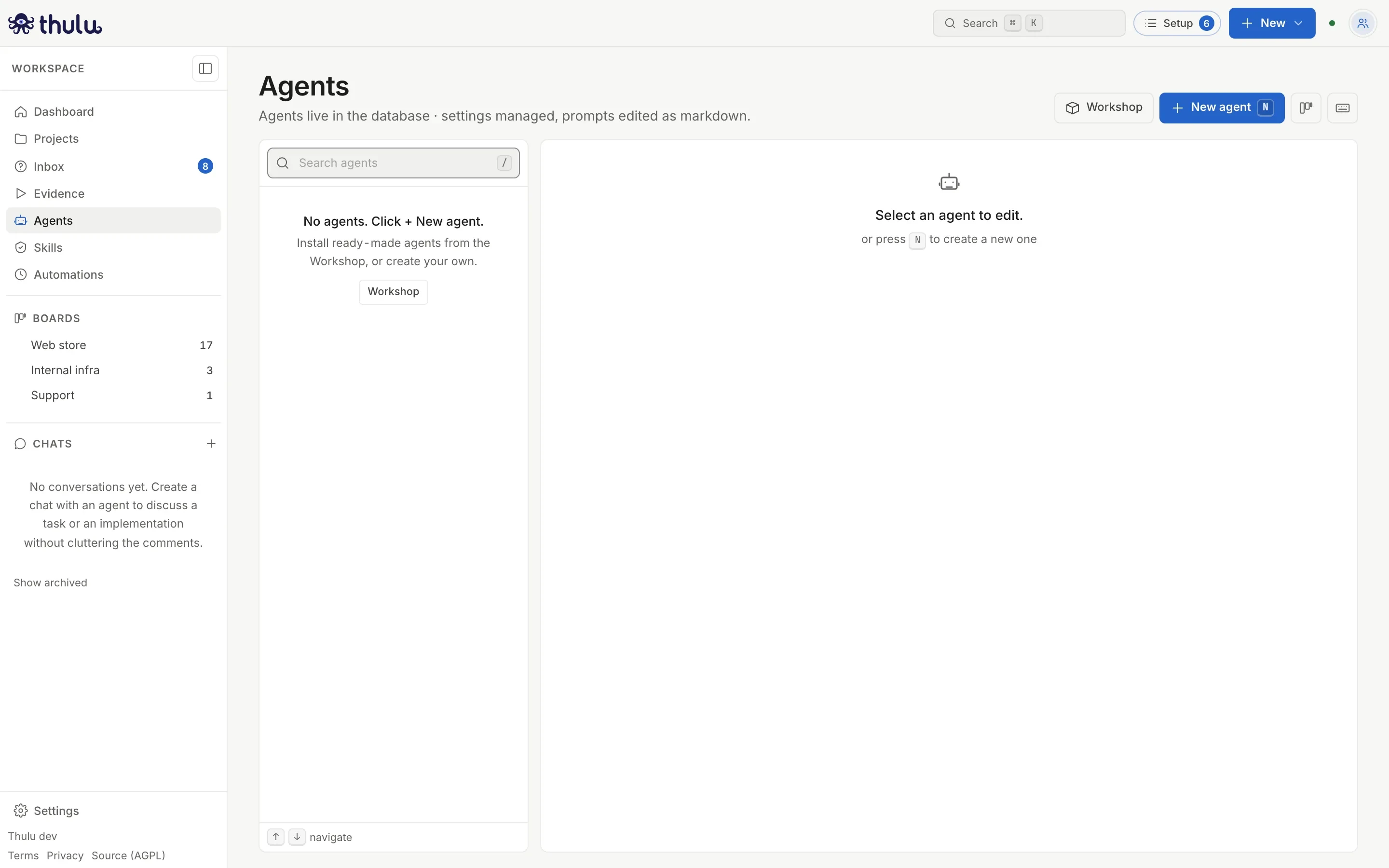
An agent is a definition saved in the workspace: which stages it works on, with which model and credential, which skills and MCP servers it gets on each stage, and the prompts it reads when it starts. Thulu ships no agents: every workspace starts with an empty catalog, and the team writes its own in “Agents”, installs them from the Workshop or imports them from another workspace.
An agent doesn’t run just because it exists. A task assigns it to a stage (by hand or from the project’s template), and when the task enters that column Thulu starts the run with what you defined here.
Before you start
Section titled “Before you start”- Workspace admin role. Any role sees the page, but only an admin creates, configures and writes prompts. With the developer role the page says so at the top and only lets you change the model profile; with viewer, everything is read-only.
- A key for the engine in “Settings → AI engines” (Credentials and engines). Without it you can create the agent, but it has nothing to call the model with.
- For it to work a board column, that column has to be set to run an agent (Boards and stages). The board a new workspace comes with has no such column.
- The workspace’s skills (Skills) and the MCP servers (MCPs) you want to give it. You can add them later.
Create an agent ready to work
Section titled “Create an agent ready to work”This is the full path for an agent to work a board column, answer mentions and open chats. Settings, Skills and MCP share the bar at the bottom: “Save settings” saves what is in the three tabs together, and you can switch between them without saving. Above the tabs, the “What it still needs to run” box lists stages, prompt, credential and assignment, each with a link to what is missing.
-
In “Agents”, click “New agent” (or press N).
-
Type the “Name” and the “Description”, tick the “Stages” where it will run and, if you want, the “Default skills” (they apply to every ticked stage). Click “Create”. The name is lowercase, with digits, hyphen or underscore and up to 64 characters (
backend,pr-reviewer): it is how you @mention it and how it appears on tasks. It can’t beuser,system,auditororautomation, and it can’t be changed later. The modal flags an invalid or duplicate name as you type and, if it has capital letters, offers the lowercase version.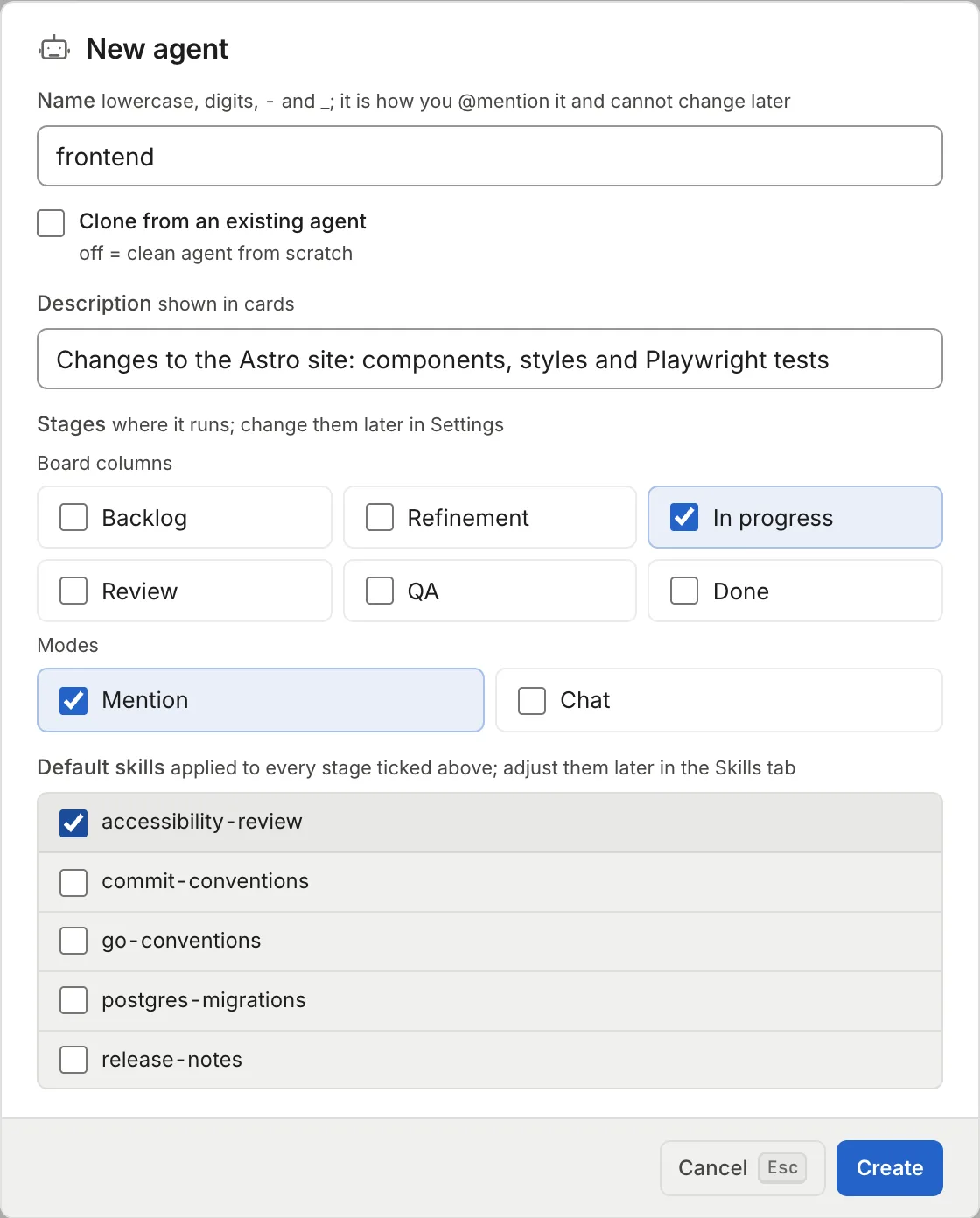
The modal. Leave “Clone from an existing agent” off to start from scratch. When you create it, if the default board has projects and a column that runs an agent, the notice offers “Use in” that column: it adds the stage to the agent and sets it as that column’s default agent in the template of those projects (the same as step 8).
-
In the “Settings” tab, review “Valid stages”. Under “Board columns” you can set a turn limit next to each one (empty = 20). Under “Modes”, tick “Mention” if you want it to answer when someone @mentions it in a comment, and “Chat” if you want to open conversations with it (in “Chat”, 30 turns per message).
-
Review “Model & credentials” (the next section explains it) and click “Save settings”. “Settings saved” appears at the bottom right.
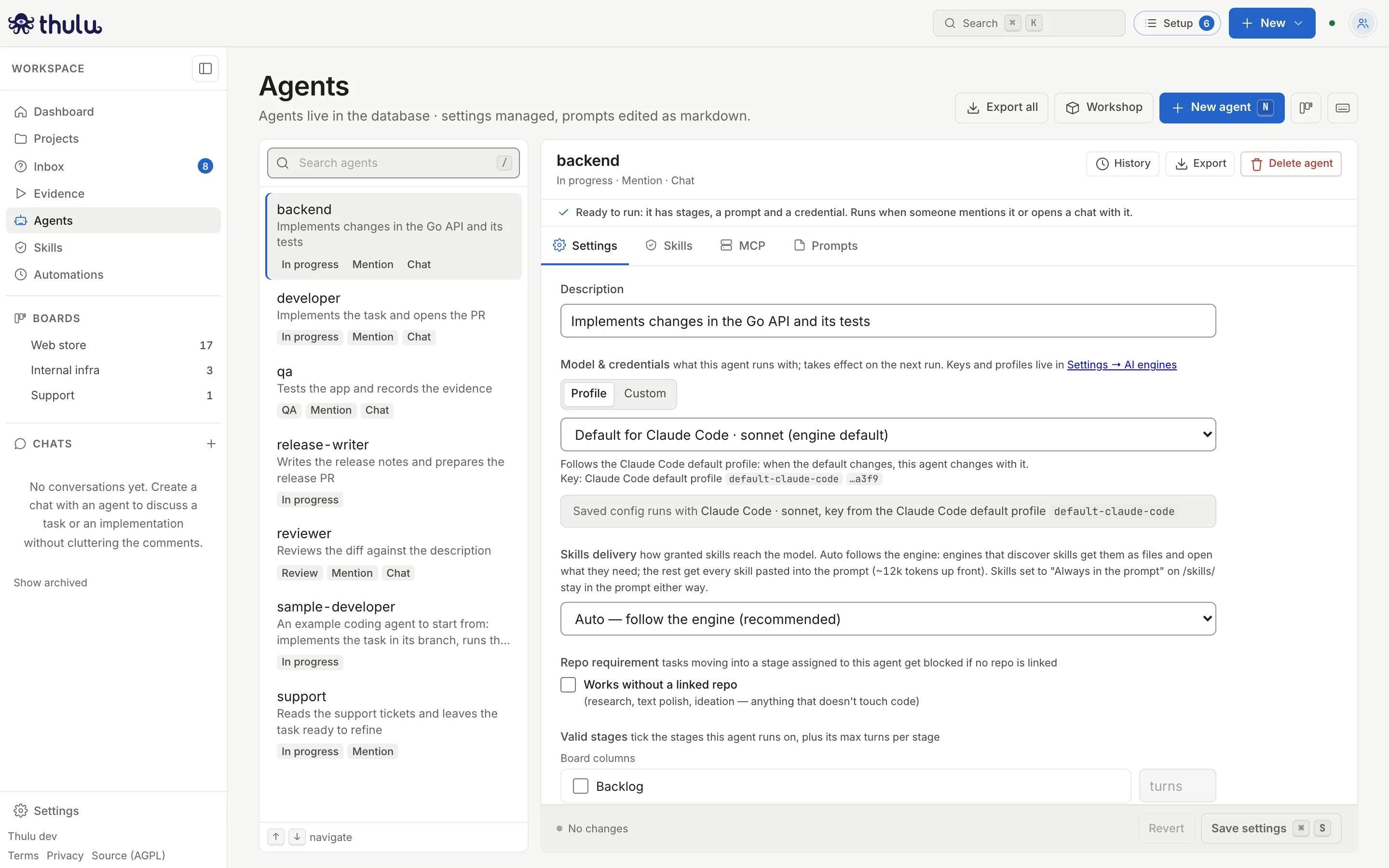
The backend agent, which runs in In progress (40 turns), Mention and Chat. The gray box says which model and key the saved settings run with. -
Go to “Skills” and, inside each stage’s block, tick the workspace skills it has to read. “Copy to the other stages” repeats one block’s selection on the agent’s other stages (it overwrites what they had). Save.
-
Go to “MCP” and, on each stage, tick the servers the agent can use. Save. The section MCP servers per stage explains what the tick grants and how to limit it to some tools.
-
Go to “Prompts” and, in the “General prompt” row, click “Create main.md”. Write the agent’s identity and rules in markdown and click “Save” (or ⌘ S). That file is the prompt for every stage that doesn’t have its own. If you had unsaved changes in Settings, Skills or MCP, entering Prompts asks whether to discard them.
-
Assign the agent outside this page. For all new tasks of a project: in the project’s settings, “Stage template” table, pick it as the stage’s “Default agent” (Projects); the table only lists columns that run an agent. For a task that already exists: in its panel, click the “Agent” row and pick it for the stage (Tasks). Mentions and chat need no assignment.
If the task enters a column that runs an agent and has no agent assigned there, Thulu leaves a system comment and launches nothing. If the agent has no prompt for that stage and no main.md, the run fails with “the agent has no prompt for this stage”.
Model and credentials
Section titled “Model and credentials”The “Model & credentials” box in “Settings” has two modes. Changes apply from the next run.
| Mode | What you pick | What happens when something changes in Settings |
|---|---|---|
| “Profile” with “Default for Claude Code” | Nothing else | The agent follows the engine’s default profile: if someone changes that profile, the agent changes with it |
| “Profile” with a named profile | A profile from the “Profiles” list | Engine, model and key come from that profile; editing it changes every agent that uses it |
| “Custom” | “Engine”, “Model” (free text with suggestions: sonnet, opus, haiku) and “Effort” (low, medium, high) | The key still comes from the engine’s default profile; empty fields use that profile’s values |
Keys are never saved in the agent. Profiles and their keys are created in “Settings → AI engines” (Credentials and engines); if there are no named ones yet, the box says so with a link.
Below, the gray box “Saved config runs with” shows the final result: engine, model, effort and where the key comes from. If it says it has no key, runs don’t start. On a self-hosted install with no profiles it can say “the daemon host’s credential”, if the operator enabled that credential.
Other Settings options
Section titled “Other Settings options”| Option | What it does |
|---|---|
| “Description” | Text shown in the agent list and on the cards |
| “Skills delivery” | “Auto — follow the engine” (recommended), “Native” (skills arrive as files and the model opens the ones it needs) or “Inline” (all of them are pasted into the prompt, about 12k more tokens per run) |
| “Works without a linked repo” | For research or text agents. Off, a task with no linked repo is blocked when it enters a stage of this agent |
| “Valid stages” | “Board columns”, with the turn limit for each, and “Modes”: “Mention” and “Chat” |
| “Auditor per stage” | Tick a stage so that, when the run ends, another container reviews the work. “Engine”, “Turns” (empty = 5), “Model” and “Skills” (comma-separated names) are optional. By default the auditor runs on the agent’s engine, with the agent’s key. If you pick another engine, it uses that engine’s default key and its models; neither Codex nor OpenCode has a turn limit. If the auditor cannot start, for example because that engine has no key, or ends without a verdict, the task is blocked instead of moving on. It uses the “Auditor prompts” |
| “Large reads” | “Off” mode (the factory default), “Suggest” or “Enforce”, and the engine and model that read large files on the agent’s behalf. It uses the workspace’s default credential for that engine. “Enforce” only works on Claude Code agents. We don’t promise it lowers cost: measured with Opus, it saved nothing |
If you delete a board column the agent had ticked, “⚠ orphaned per-stage config for deleted stage(s)” appears with a “Clean up” button, which deletes that configuration and the prompts for that stage.
Skills per stage
Section titled “Skills per stage”The “Skills” tab has one block per valid stage. At the top, the workspace skills (the ones created in Skills); below, “System skills”.
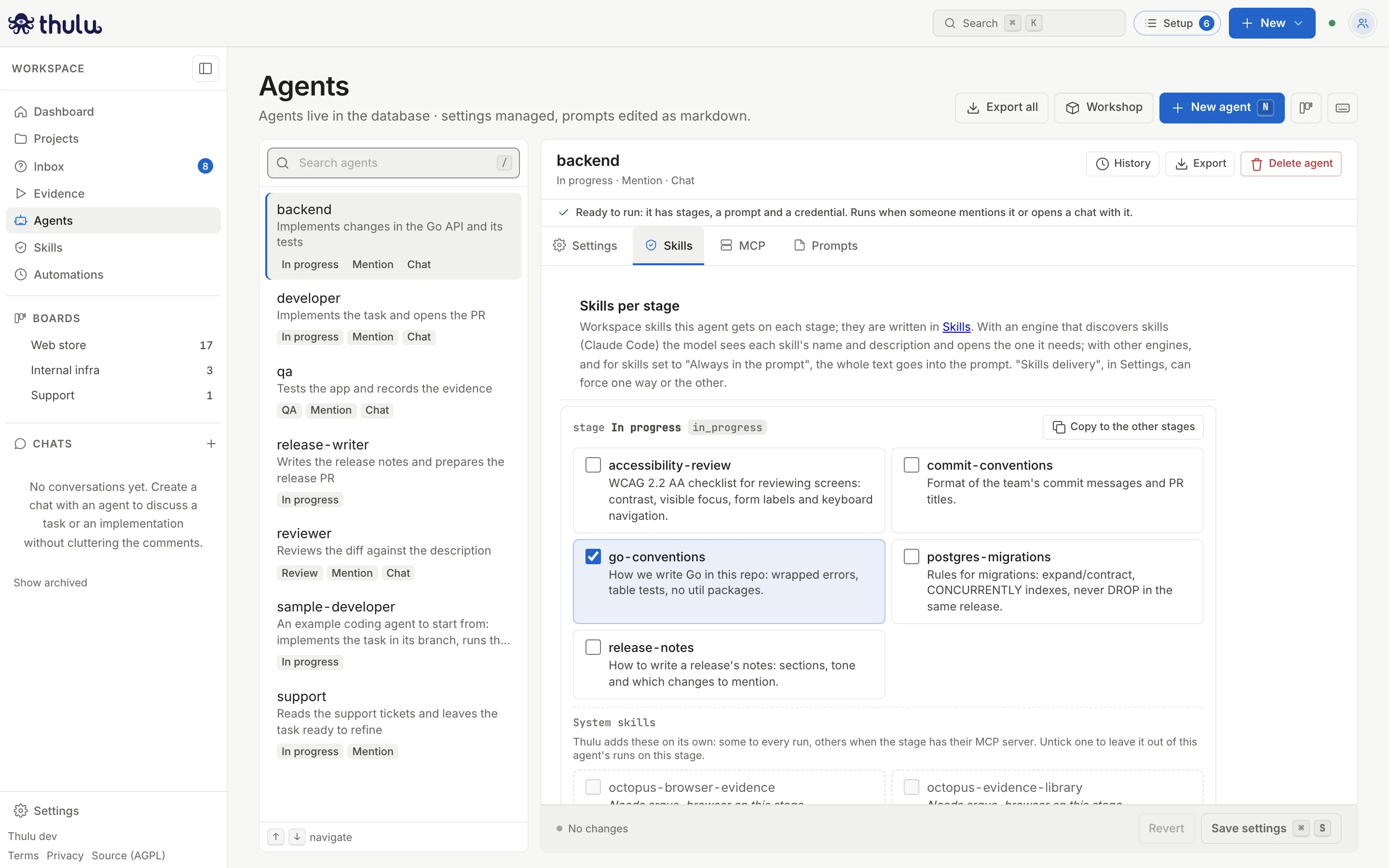
System skills ship with Thulu and teach the agent to work in Thulu. They are not granted: they arrive on their own when the stage has the MCP server they depend on. Each one says why it is there:
| Skill | Arrives when |
|---|---|
octopus-run |
“Every run” |
octopus-task-workflow, octopus-refinement, octopus-test-cases, octopus-observability |
The stage has octopus-api |
octopus-browser-evidence, octopus-evidence-library |
The stage has argus-browser |
octopus-sandbox |
The stage has argus-sandbox |
octopus-token-optimizer |
The agent has “Large reads” turned on |
The ones that say “Needs … on this stage” don’t apply: they show unticked and can’t be touched. To turn off one that does apply, untick it and save: it stays out of that agent’s runs on that stage (including mentions, chat and resumed runs; the auditor keeps its own).
MCP servers per stage
Section titled “MCP servers per stage”The “MCP” tab repeats, for each valid stage, the list of the workspace’s MCP servers. Each row has a checkbox for the whole server and a “Tools” button with how many tools are granted. Below, a line says what the stage grants (“On this stage it grants read and write”, plus any named by hand).
Ticking the server grants what its default scope covers: read on octopus-api and argus-cloud, read and write on argus-github. Tools that move things outside the task belong to no scope and are granted only by name: pr_merge, run_dispatch and deployment_approve on argus-github (“Deploy”), and the ones that read or change tasks on other boards on octopus-api (“Other boards”). That is why, by default, no agent merges: an admin decides whether to grant pr_merge on a stage.
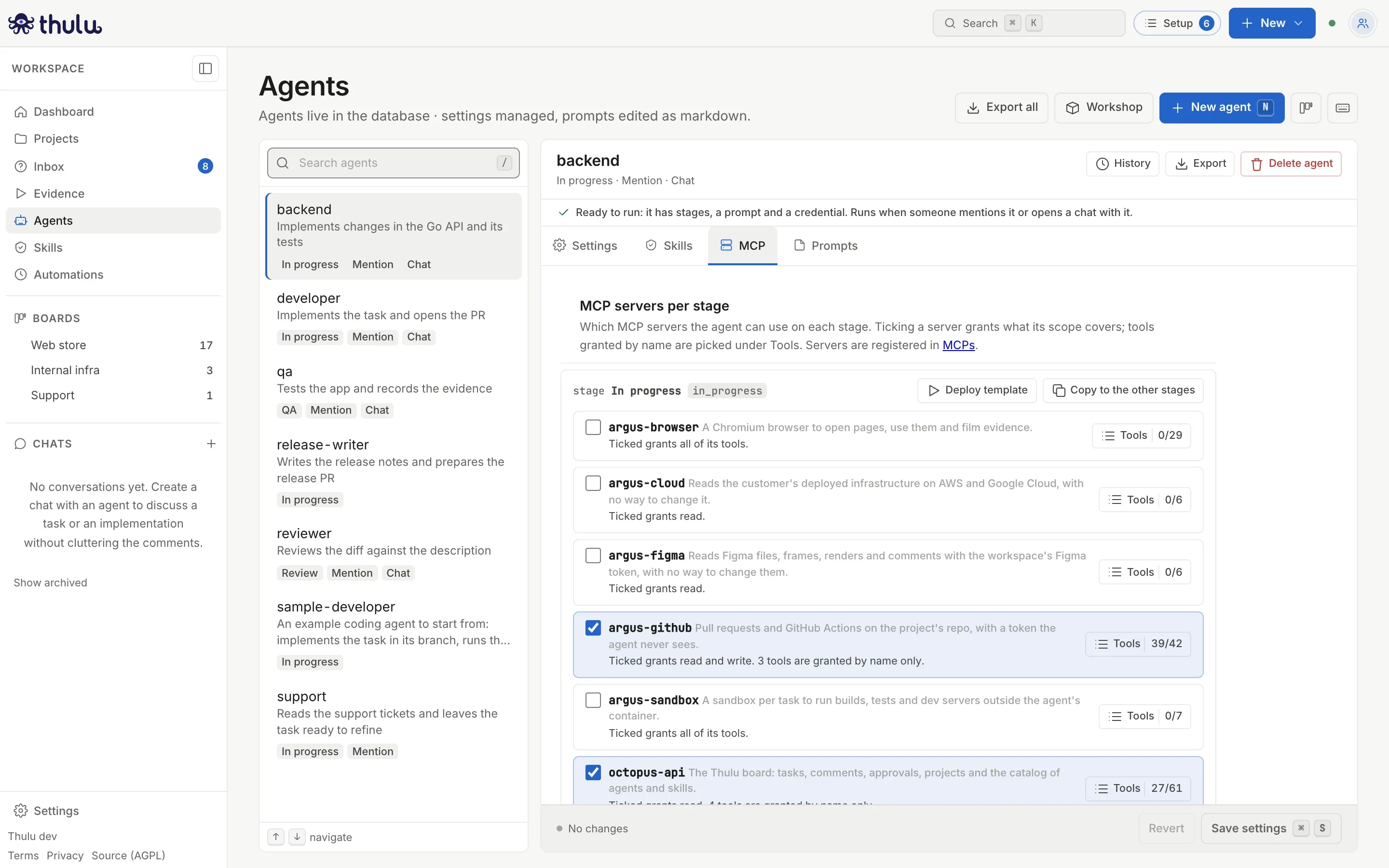
To choose tools:
-
Click “Tools” in the server’s row, inside the stage you want to limit.
-
In the side panel, the tools appear grouped under “Read”, “Write” and the groups granted by name. Untick “All, except the ones granted by name” and tick the ones you need, one by one. The counter shows “n/61 selected”.
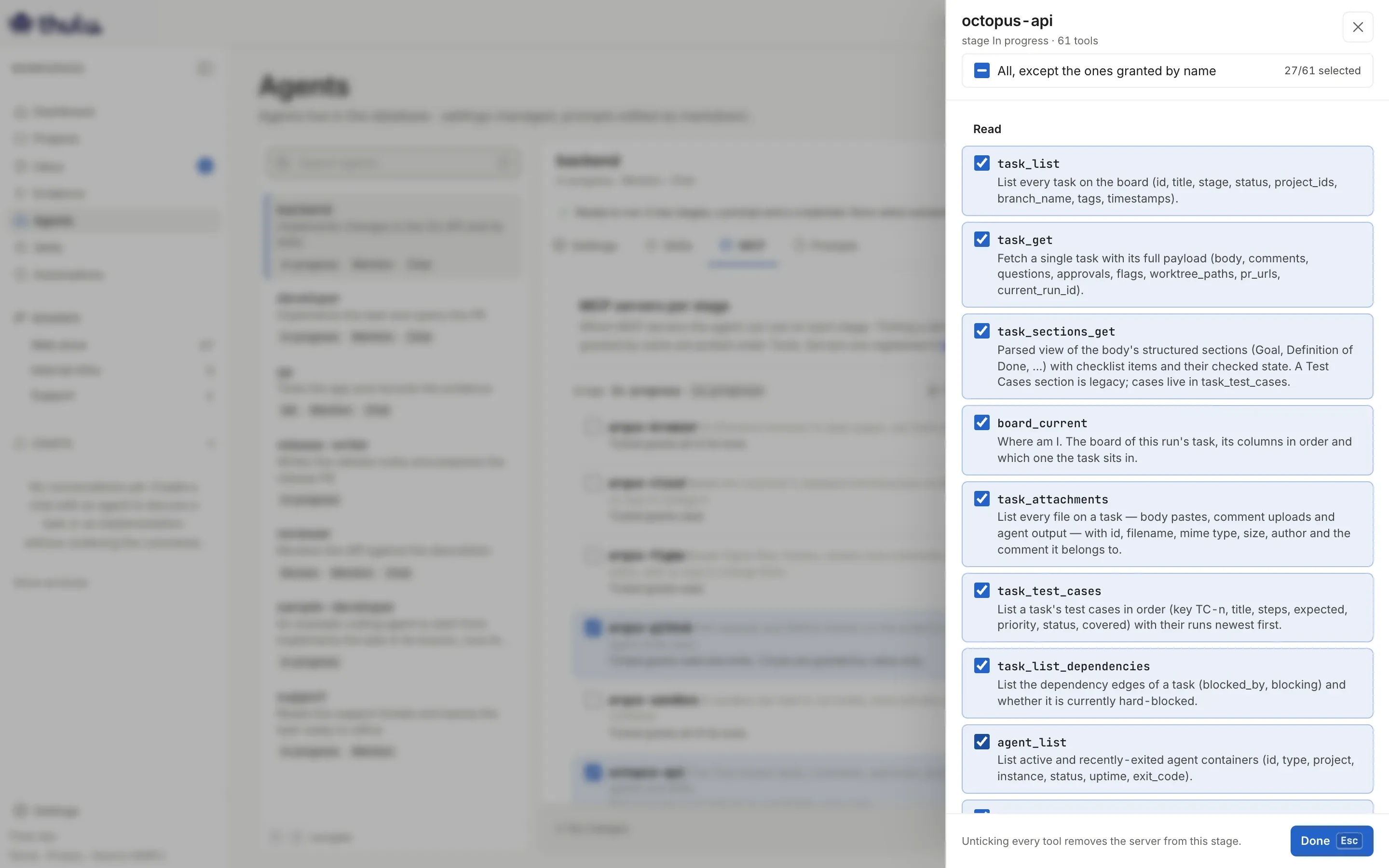
The octopus-api panel on the In progress stage. -
Click “Done” (or Esc) and then “Save settings”. If you untick all of them, the server leaves that stage.
-
To repeat it on the agent’s other stages, use “Copy to the other stages”.
For a stage that deploys with GitHub Actions, “Deploy template” grants argus-github@read plus run_dispatch, run_watch and run_logs. run_dispatch needs the Actions: write permission on the GitHub App.
If a server shows “default scope (unknown)” and “?/N”, the stage has it granted by bare name and Thulu doesn’t know which tools that gives; the server applies its own default. Pick tools, or untick and tick the server again. If it says “all tools” instead of “Tools”, the daemon couldn’t read the server’s tool list (it may be down) and the whole server is granted. See MCPs.
Prompts
Section titled “Prompts”The “Prompts” tab lists the files the agent reads, grouped under “Agent prompts” and “Auditor prompts”.
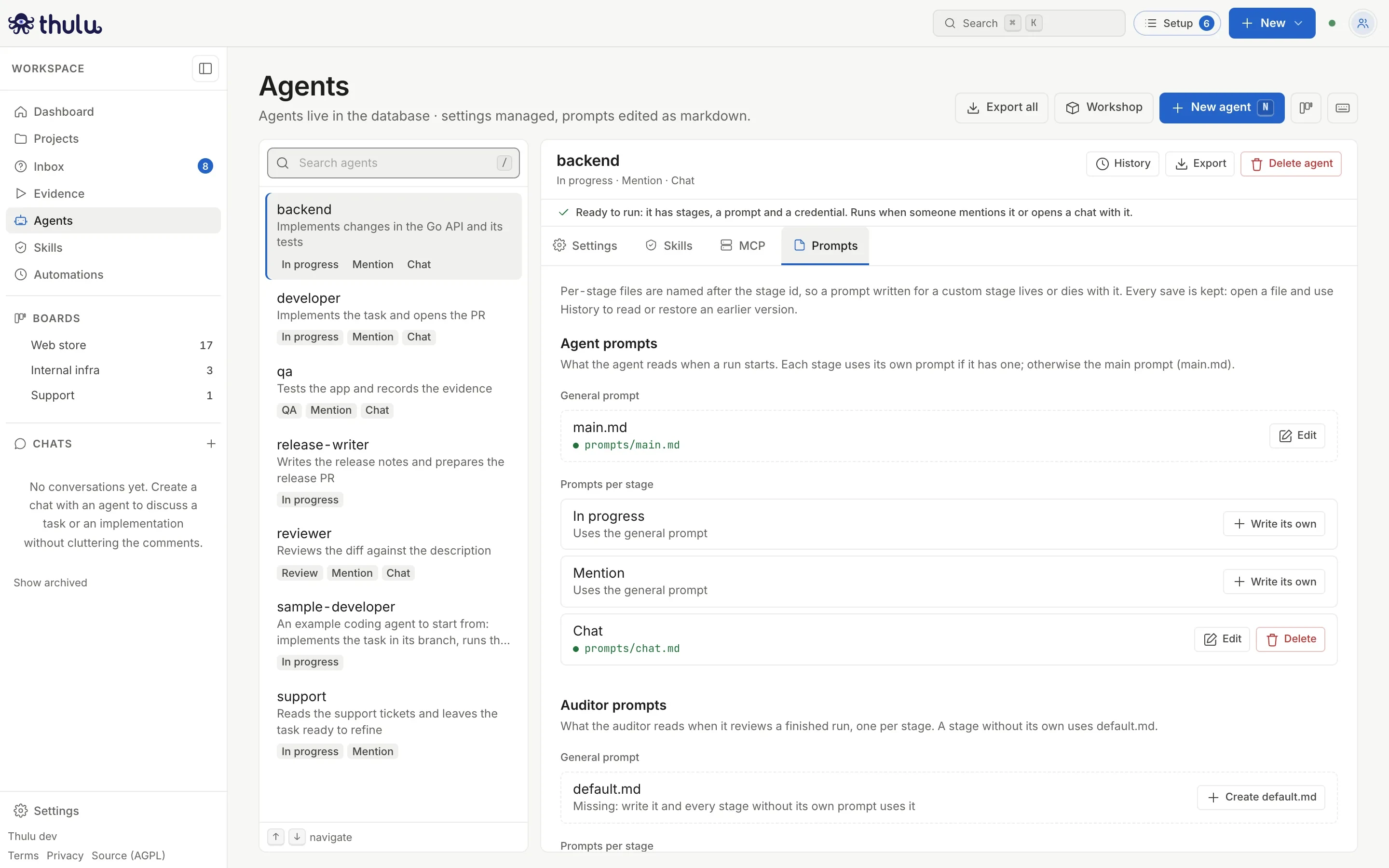
| Row | What it is for |
|---|---|
“General prompt” (main.md) |
The prompt for every stage that doesn’t have its own. Without it, stages with no prompt of their own have no prompt |
| A stage under “Prompts per stage” | A prompt only for that stage. “Write its own” starts it with a copy of main.md; until it exists, the row says “Uses the general prompt” |
| “Mention” and “Chat” | What the agent reads when it is @mentioned or in chat. Without a file of their own they use main.md; if there is no main.md either, mention and chat answer that the prompt is missing and name the file |
| The auditor’s “default.md” | The auditor’s review instructions, with per-stage overrides just like the agent |
| “Orphaned files” | Prompts for stages where the agent no longer runs. Nothing loads them: delete them or move the text to another stage |
A saved prompt applies from the next run; a run in progress keeps the one it downloaded when it started. Don’t paste secrets into a prompt: it travels to every run and to the model. If the text contains anything shaped like a key (an Anthropic key sk-ant-…, a GitHub token ghp_…, an AWS key AKIA…, a private key or a Slack token), Thulu doesn’t save it and the editor says “Save failed: the text looks like it contains a credential…”.
To write a stage’s prompt:
-
In “Prompts”, click “Write its own” in the stage’s row.
-
Edit the text (it starts as a copy of
main.md). -
Click “Save” or ⌘ S. “Saved” appears with the file path (
prompts/in_progress.md, for example) and the row now shows the file in green. -
Click “Back to list”.
To go back to using main.md on that stage, delete its file with “Delete”.
Go back to an earlier version of a prompt
Section titled “Go back to an earlier version of a prompt”Every save of a prompt is kept as a version: who made it and when. The last 50 per file are kept.
-
In “Prompts”, click “Edit” in the file’s row.
-
Click “History”.
-
Pick a version from the list (“Created”, “Edited”, “Deleted”, “Restored”) to read its full text on the right.
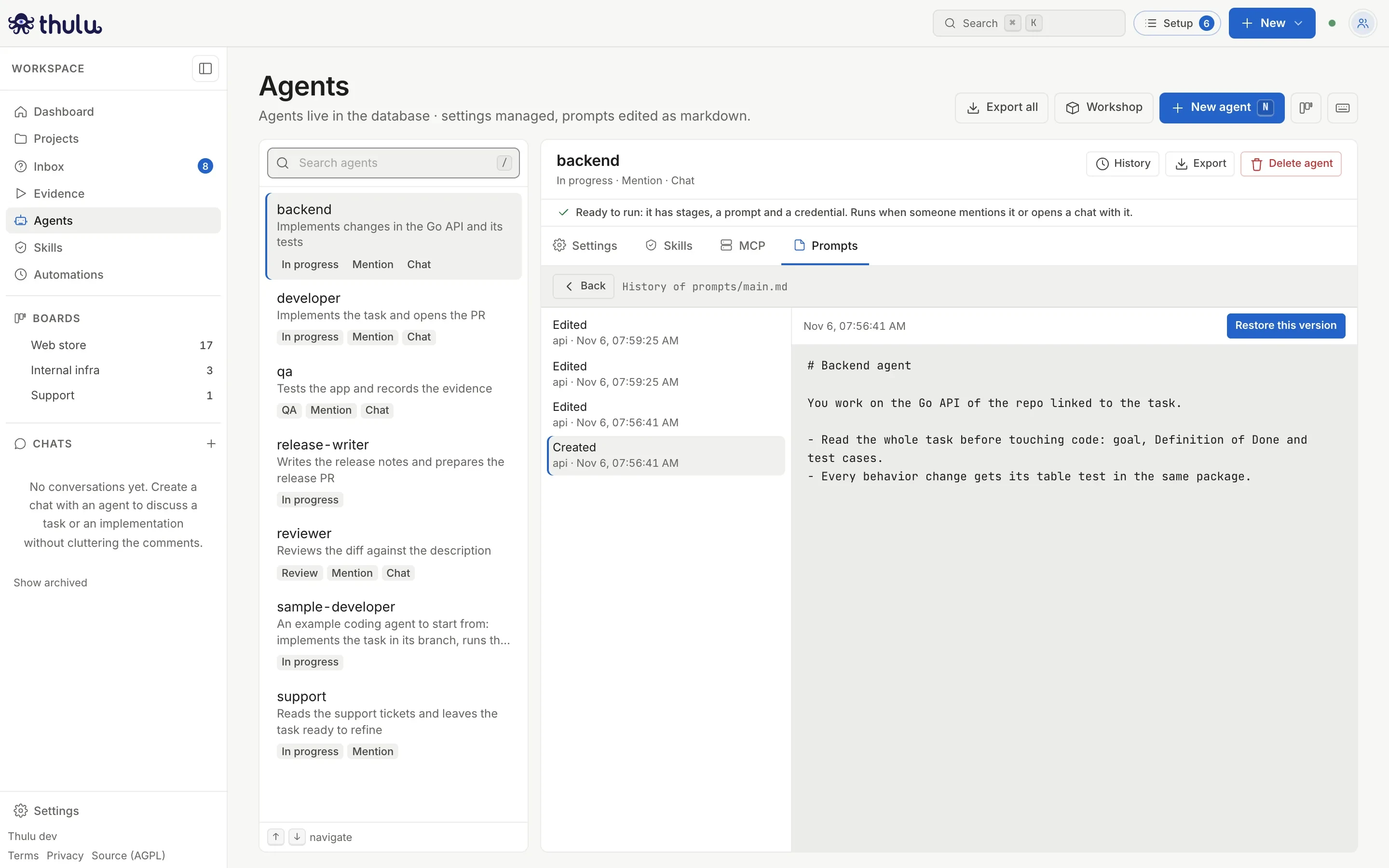
main.md's history. You read each version's text; there is no side-by-side comparison. -
Click “Restore this version” and confirm. The file goes back to that text and the one it had stays as one more version, so you can go back.
The settings have their own history. The “History” button in the agent’s header lists the configurations it had: each time you save the settings, install over it from the Workshop or restore, the one being replaced lands there, with what changed next (stages, engine, model, effort, per-stage skills and MCP, auditor). “Restore this configuration” goes back to that version without touching the prompts, and the current one lands in the history.
Clone, search and delete
Section titled “Clone, search and delete”To clone, in “New agent” type the new name, turn on “Clone from an existing agent” and pick the original. The clone copies stages, model, skills, MCP and prompts. If you also tick “Default skills”, they are added to the ones the original already has on each of its stages.
The list’s search (/) filters by name, description and stages; ↑ ↓ move through the agents.
“Delete agent” removes the agent from the list and the pickers after you confirm; its prompts stay in the history. The dialog says how many tasks or project templates name it. Those tasks keep naming it: if you later create another agent with the same name, they run with the new one.
Import and export with the CLI
Section titled “Import and export with the CLI”To move one agent or skill from the UI, use “Export” and “Import file” in the Workshop. On a self-hosted install, to move several agents together or version them in a repo, there is the CLI. It talks directly to the database, so you run it where the daemon runs:
thulu agents export -workspace <id> > my-agents.jsonthulu agents import -workspace <id> ./my-agents.jsonimport also accepts a directory. A workspace’s full export includes the agents. See CLI.
Common problems
Section titled “Common problems”| Symptom | Cause and fix |
|---|---|
| “Lowercase letters, digits, - and _ only…” under the name | The name has capital letters, spaces or other characters. Click “Use “…”” to take the lowercase version |
| “Thulu uses that name. Pick another.” | You picked user, system, auditor or automation. Use another |
| “Save failed: the text looks like it contains a credential…” when saving a prompt | The text has something shaped like a key. Take it out of the text; credentials go in Settings |
| “Default skills” can’t be ticked | You didn’t tick any stage in the modal |
| The agent doesn’t appear to pick in a column | It doesn’t have that stage under “Valid stages”, or you didn’t save |
| The task enters the column and nothing starts | The task has no agent assigned on that stage, or the column doesn’t run agents. See Boards and stages |
| Chat or mention answers that the prompt is missing | Create main.md or the own prompt for “Chat” / “Mention” |
| The model box says there is no key | There is no default profile for that engine. Create one in Settings → AI engines |
| The agent can’t comment or attach on its task | The stage has octopus-api without write. Check its tools in “MCP” |