

Git and GitHub
Thulu works on GitHub repos. Each task gets its own branch, task-<id>, in every repo it touches, and ends in one pull request per repo. The agents make the changes; Thulu publishes the branch to GitHub with the project’s credential, which never enters the agent’s container, and shows you the state of each PR on the task. By default no agent merges or triggers deploys: an admin decides whether to grant that to an agent, tool by tool.
It works with GitHub and GitHub Enterprise Server. If the code is not on GitHub, the project can be an uploaded folder, with no provider and no pull requests (see Projects).
How Thulu connects to GitHub
Section titled “How Thulu connects to GitHub”A project authenticates in one of three ways. You choose one when you create it, under “Repository access”:
| Option | What it does | When to use it |
|---|---|---|
| “GitHub App” | Thulu asks GitHub for a short-lived token (about an hour) for each operation, limited to the project’s repo and to the permissions that operation needs. It stores nothing long-lived. | Whenever you can. On the SaaS the App is already registered and you only have to install it on your organization. |
| “Saved credential” | Uses a GitHub personal token stored under Credentials. It is validated when you save it and you can rotate or disable it from there. | Self-hosted without an App, or a repo on an account where you cannot install the App. |
| “Public repo” | Clones without credentials. | To read a public repo. Without a credential, Thulu cannot push or open PRs. |
If a project is linked to the App, the App takes precedence: the project’s credential selector is disabled and says “The App installation above is what clones and pushes. Unlink it to use a credential instead.”
Recommended flow: install the App and create the project
Section titled “Recommended flow: install the App and create the project”On the SaaS, or on a self-hosted install where the operator has already connected the App, connecting a repo goes like this. You need the admin role in the workspace to create projects and install the App, and permission on GitHub to install Apps on the organization (if you do not have it, GitHub lets you request it from an admin).
-
Open “Projects” in the sidebar and click “New project” (or press N).
-
Under “Repository access”, the “GitHub App” option is already selected. If it does not appear, the App is not connected on this installation: see the self-hosted section below or use a token. If the App is not yet installed on your organization, click “Connect GitHub” (with the App already installed on some organization, the button says “Install on another organization”). Thulu takes you to GitHub, where you choose the organization, which repos to enable (all or some) and confirm the installation.
-
GitHub sends you back to Projects with the notice “GitHub connected — pick a repository” and the modal open again, with what you had already typed. Pick the organization and the repository: the name, the URL and the default branch fill in by themselves.
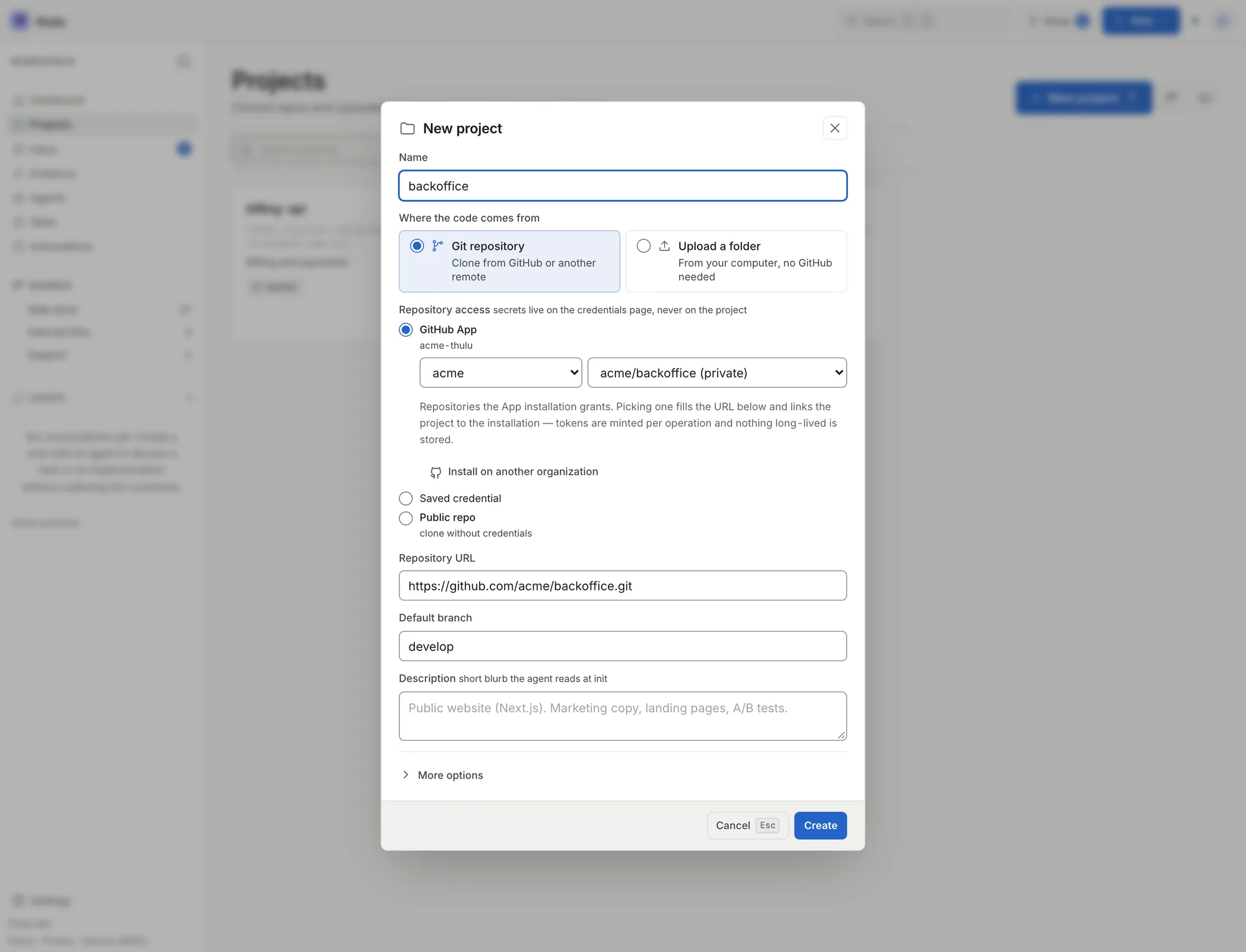
When you pick acme/backoffice, the modal fills in the name, the URL and the default branch (develop) that GitHub reports. -
Write a short description (the agent reads it at init), check the default board and click “Create”. The modal closes and Thulu clones the repo in the background with a read-only token; it stores only the link to the installation. The project card says “Cloning” until it finishes.
From then on, every task that links this project works on its own branch (see What happens to a task). For an agent to do the work and open the PR, the column has to run an agent that has argus-github; that is set up in Boards and stages and Agents.
If the connection fails, the notice says why: “the install link expired, was already used, or was opened in another browser”, “that installation is already connected to another workspace”, “your GitHub user can’t see that installation”, among others. If your organization requires an admin to approve Apps, you will see “Install requested — waiting for your GitHub org admin to approve” and the repo only appears once they approve it.
Move an existing project to the App
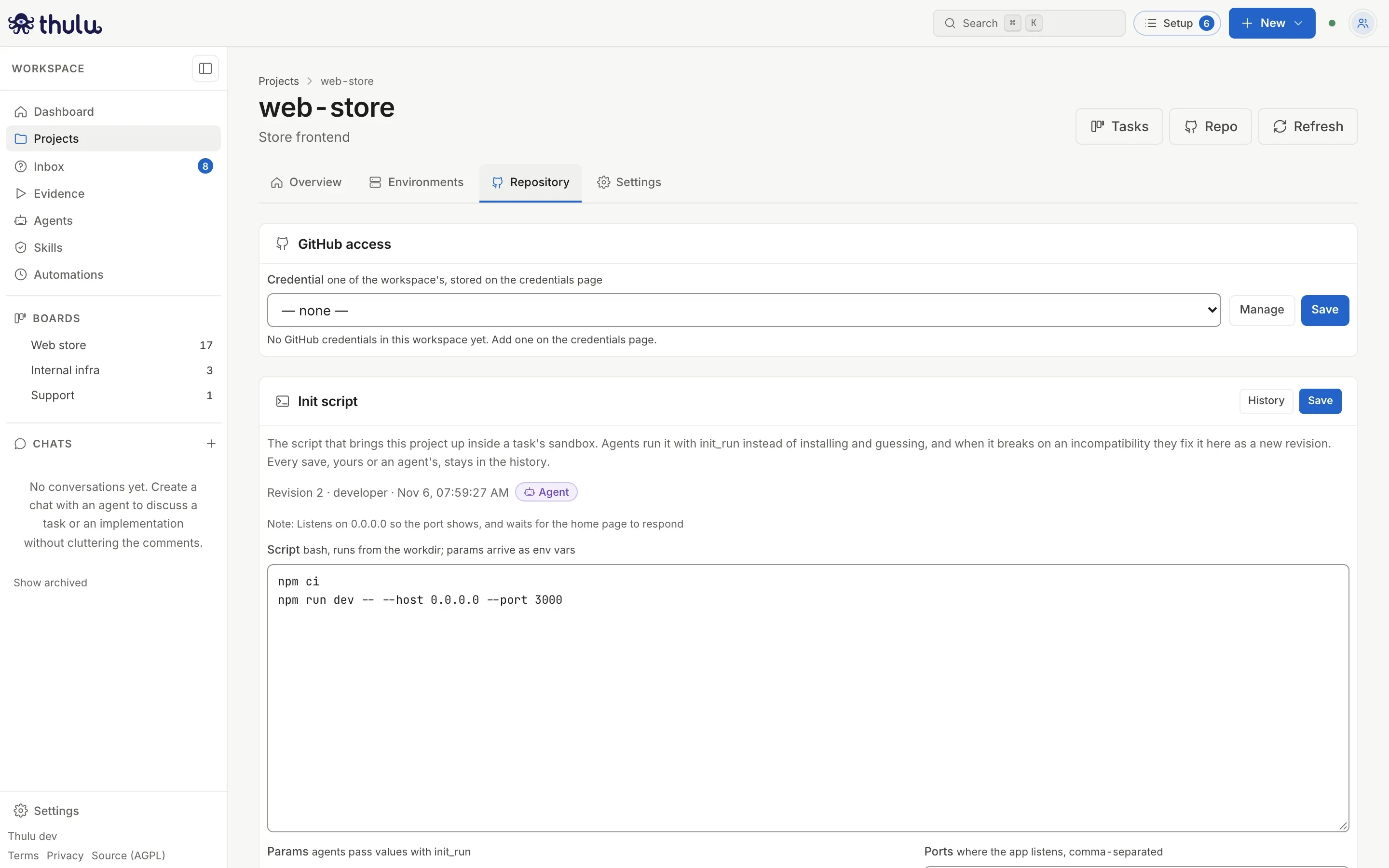
Section titled “Move an existing project to the App”If you created the project with a token or as a public repo and installed the App afterward, open the project, “Repository” tab, “GitHub access” panel. Pick the installation under “GitHub App installation” and click “Link”: Thulu checks that the installation reaches the repository before saving. From then on the App takes precedence and the credential selector is disabled. “Unlink” goes back to the saved credential or to public access; the App stays installed on GitHub.
Connect the GitHub App on a self-hosted install
Section titled “Connect the GitHub App on a self-hosted install”On self-hosted, the operator registers an App of their own on GitHub and gives its details to Thulu. The operator is a workspace owner named by OCTOPUS_OPERATOR_WORKSPACE; thulu init points that variable at the first workspace it creates. A single App serves all the workspaces of the installation. On the SaaS this step is already done: the panel is read-only and the only thing left active is “Install on an organization”.
Create the App on GitHub (recommended)
Section titled “Create the App on GitHub (recommended)”Under “Settings” → “Credentials”, the “GitHub App” panel offers “Create the App on GitHub”. GitHub opens its form with the permissions, the webhook and this installation’s addresses already filled in: you choose the “Organization” (empty, the App lands on your personal account), check whether agents will dispatch workflows or approve deployments (adds Actions and Deployments write), confirm the name on GitHub and come back with the App connected. The name it proposes is “Thulu” followed by the installation’s host.
GitHub has to be able to reach the installation’s address to send webhooks. If you opened Thulu from a local or private address, the modal warns you: open it from its public address before creating the App.
Connect an App you already registered
Section titled “Connect an App you already registered”-
On GitHub, register an App on your organization (Settings → Developer settings → GitHub Apps → New GitHub App).
Required repository permissions: Contents and Pull requests read and write, and Actions read. Every token Thulu requests to push, open PRs or read their state includes Actions read; without that permission GitHub rejects the token. Optional: Checks read (to see all the CI on the task), Actions write if agents will dispatch, retry or cancel workflows, and Deployments write only if you are going to grant
deployment_approve.As the Setup URL use
https://<your-thulu>/github/setupand check “Redirect on update”. If you prefer that GitHub identify whoever installs, turn on “Request user authorization (OAuth) during installation”: GitHub stops using the Setup URL and goes back to the Callback URL,https://<your-thulu>/github/oauth/callback, and in Thulu you will fill in the Client ID and Client secret. For the webhook, usehttps://<your-thulu>/github/webhookwith a secret, subscribed to the events you are going to use (pull request, reviews and comments, push, check suite, deployment status). If the App will be installed on another organization, choose “Any account” for where it can be installed.At the end, generate a private key: GitHub downloads a
.pemfile. -
In Thulu, go to “Settings” → “Credentials”. The “GitHub App” panel says “Not connected”. Click “Connect an existing App”.

Without an App, each project uses a personal token from the credentials list. -
Fill in “App ID” (it is in the App’s settings, under About) and paste the full
.peminto “Private key”. If you turned on OAuth or the webhook, open “OAuth and webhook” and fill in “Client ID” and “Client secret” (they are on the App’s page on GitHub) or the “Webhook secret” you chose. Click “Check and connect”: Thulu validates against GitHub that the key matches that App ID before saving. If the App is missing a required permission, the panel names it (“The App lacks permissions Thulu needs…”); if it lacks Checks read, it warns that the pull requests section will only see GitHub Actions checks.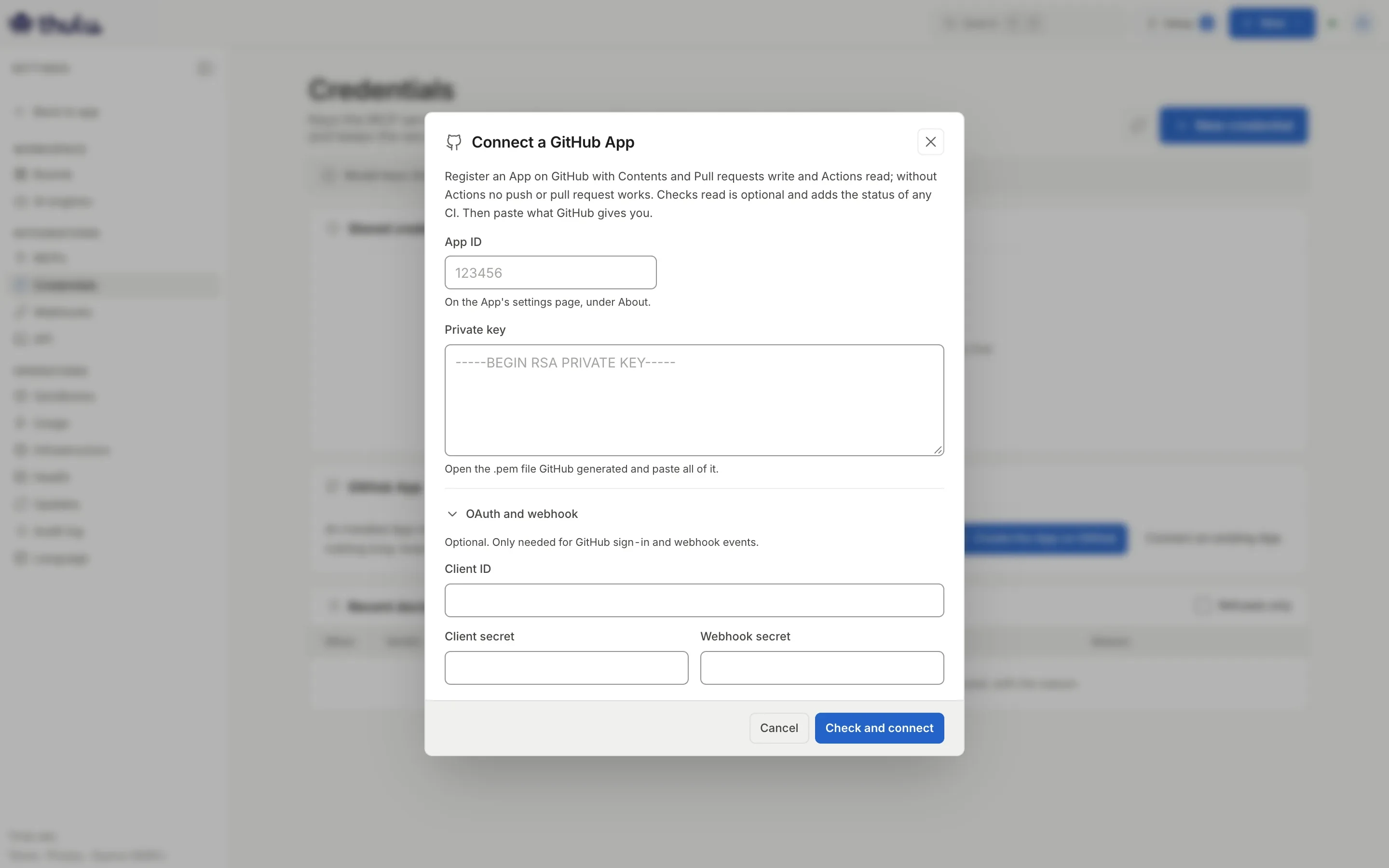
The text at the top of the modal asks for Contents and Pull requests write and Actions read. OAuth and webhook are optional: the webhook feeds automations and Evidence with GitHub events and refreshes the PR section instantly. -
With the App connected, click “Install on an organization”. GitHub sends you back to Projects with the “New project” modal open, as in the recommended flow. Each installation appears in the panel’s table with its organization, whether it covers all repos or only selected ones, and its status.
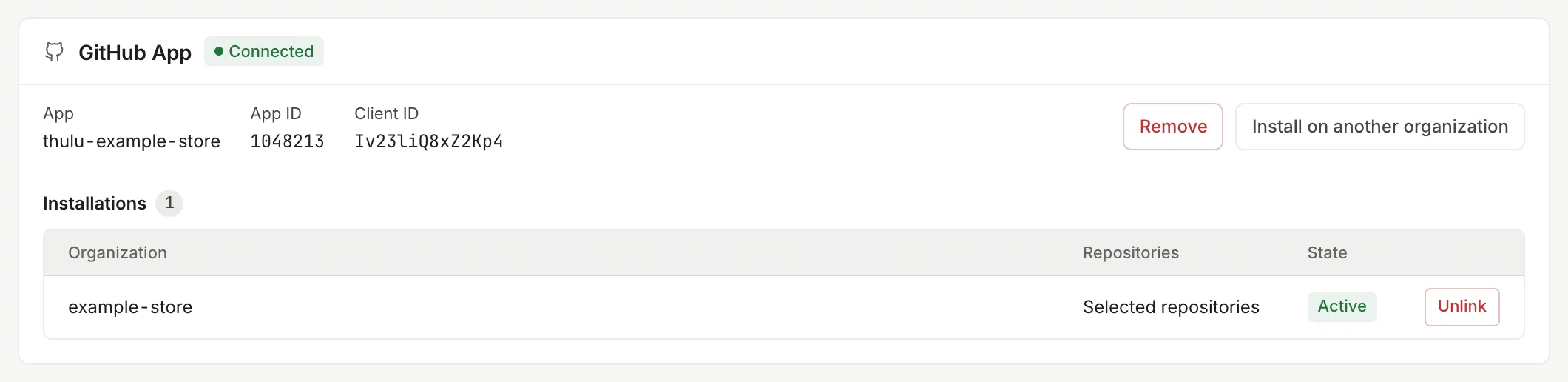
“Unlink” cuts that installation's tokens immediately; the App stays installed on GitHub.
If the App is configured through environment variables (OCTOPUS_GITHUB_APP_ID, OCTOPUS_GITHUB_APP_PRIVATE_KEY and the others), the panel says so and does not let you change it from the UI. For GitHub Enterprise Server, the operator points OCTOPUS_GITHUB_URL and OCTOPUS_GITHUB_API_URL at their server. Deployment details are in Self-hosted operations.
Project with a personal token
Section titled “Project with a personal token”-
Generate the token on GitHub. A classic token needs the
reposcope, plusworkflowif agents will dispatch Actions. -
In “New project”, choose “Saved credential” and click “New credential…”. Enter a name (for example “GitHub — deploys”), paste the token into “Personal access token” and click “Save credential”. Thulu validates it against api.github.com and stores it under Credentials; if GitHub rejects it, it is saved anyway with the notice that it will not be able to clone.
-
Fill in “Name”, “Repository URL” and, if you want one other than the repo’s own, “Default branch”, and click “Create”.
To change the credential of a project that already exists, open it, go to the “Repository” tab and pick another under “GitHub access”. The “Manage” button takes you to Credentials, where they are created, rotated and shared across projects. That walkthrough is in Credentials and engines.
What happens to a task: branch, worktree and push
Section titled “What happens to a task: branch, worktree and push”You do not create branches by hand. This is what Thulu does with each task that has linked projects:
- When the task leaves its first column, Thulu fetches the latest version of the default branch from GitHub and creates the
task-<id>branch with a worktree (a working copy of its own) in each linked project. If it could not fetch it, it leaves a comment on the task with the commit it started from, which may be behind. - A task with two repos has two worktrees and ends in two PRs, one per repo, on the same
task-<id>branch. - Subtasks work on the parent task’s branch and go into its pull request. On the subtask, “Branch and PR” says “Shared with the parent”.
- “Fork task” (the “…” menu on the task) creates a new worktree from the original’s branch. “Clone task” copies only the title, description, repos and assignments, with no branch.
- A column with “Push the branch” publishes the branch to GitHub when the run ends well. On the factory board, “In progress” has it turned on; it runs the agent you assign to the task (the workspace starts with no agents).
How commits reach GitHub depends on where the agents run. You do not have to configure it, but it explains some comments you will see on the task:
Since 0.3.3, the agent works in its own copy of the repo and uses git like any person: git commit, git fetch origin && git rebase origin/main and git push. The push reaches Thulu, which moves the task’s branch to what the agent sent and publishes it to GitHub before giving control back, so the agent can then open the PR. git fetch brings what GitHub has on main (Thulu refreshes it at most every 20 seconds per project).
If main moved ahead, the agent rebases and resolves conflicts in its copy, and Thulu publishes the new history with --force-with-lease. If the task’s branch has a commit that the agent’s copy does not carry, Thulu does not overwrite it: it does not publish that project and leaves a comment that starts with “The agent’s commits for project … could not be brought onto the task branch…”. The GitHub token never enters the agent’s pod or the sandbox.
The agent sees the worktree’s .git read-only: git log, git diff and git status work, git commit does not. Thulu commits the worktree at the end of each run and pushes it if the column has “Push the branch”. If the agent needs to save earlier, it asks Thulu to commit (tool commit) and to push (tool branch_push), and Thulu does it with the project’s credential. It only allows pushing to the task’s own branch.
The agent sees every branch of the project in its .git, including those of other tasks.
A commit that touches .github/workflows/ cannot be pushed with the App unless the operator turns on OCTOPUS_GITHUB_ALLOW_WORKFLOW_WRITES=1 and the App has the Workflows write permission: a pushed workflow runs on the runners with the repo’s secrets. Without that variable, GitHub rejects the push and the error names it.
A task’s pull requests
Section titled “A task’s pull requests”The agent opens the PR with its pr_create tool and the task records it right away (“Agent opened PR: …”).
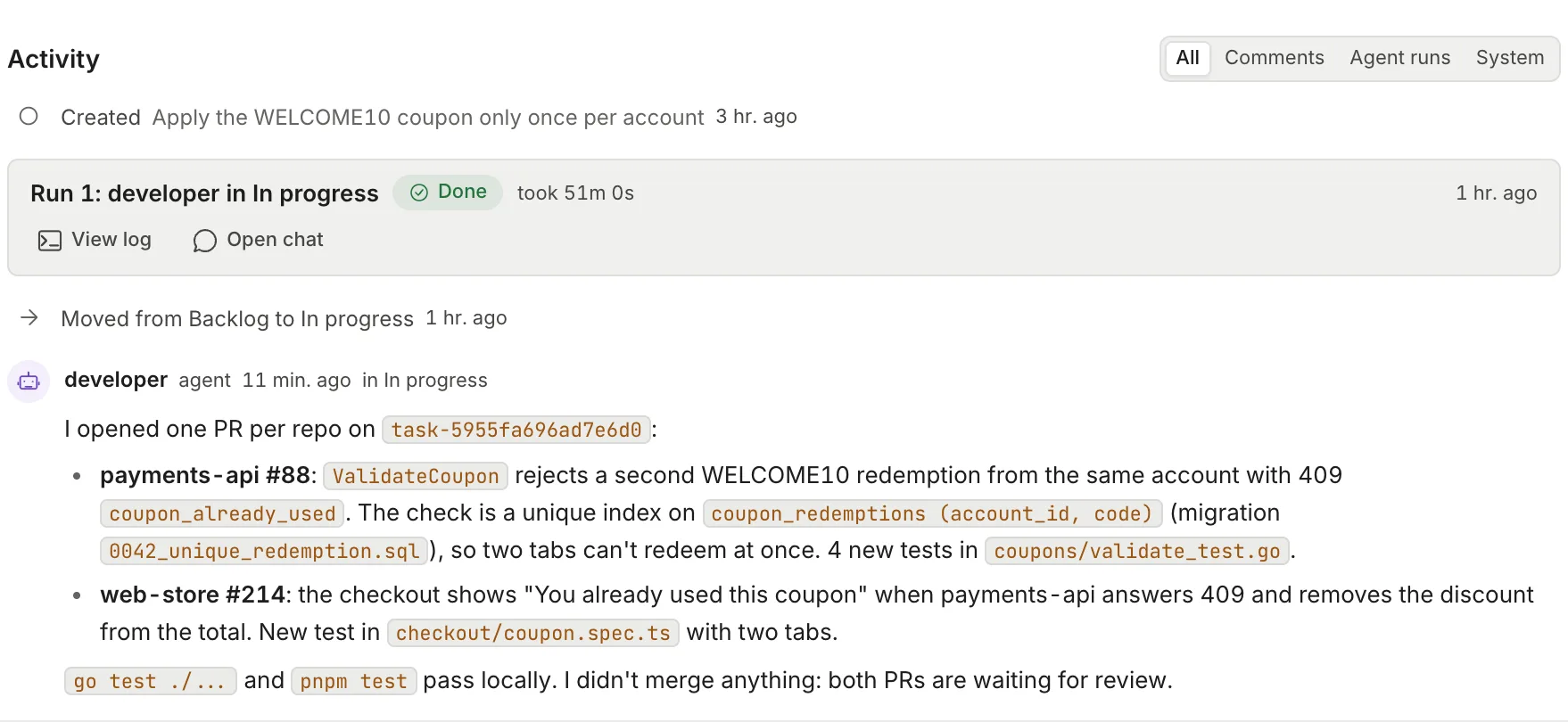
There are two other ways for it to open:
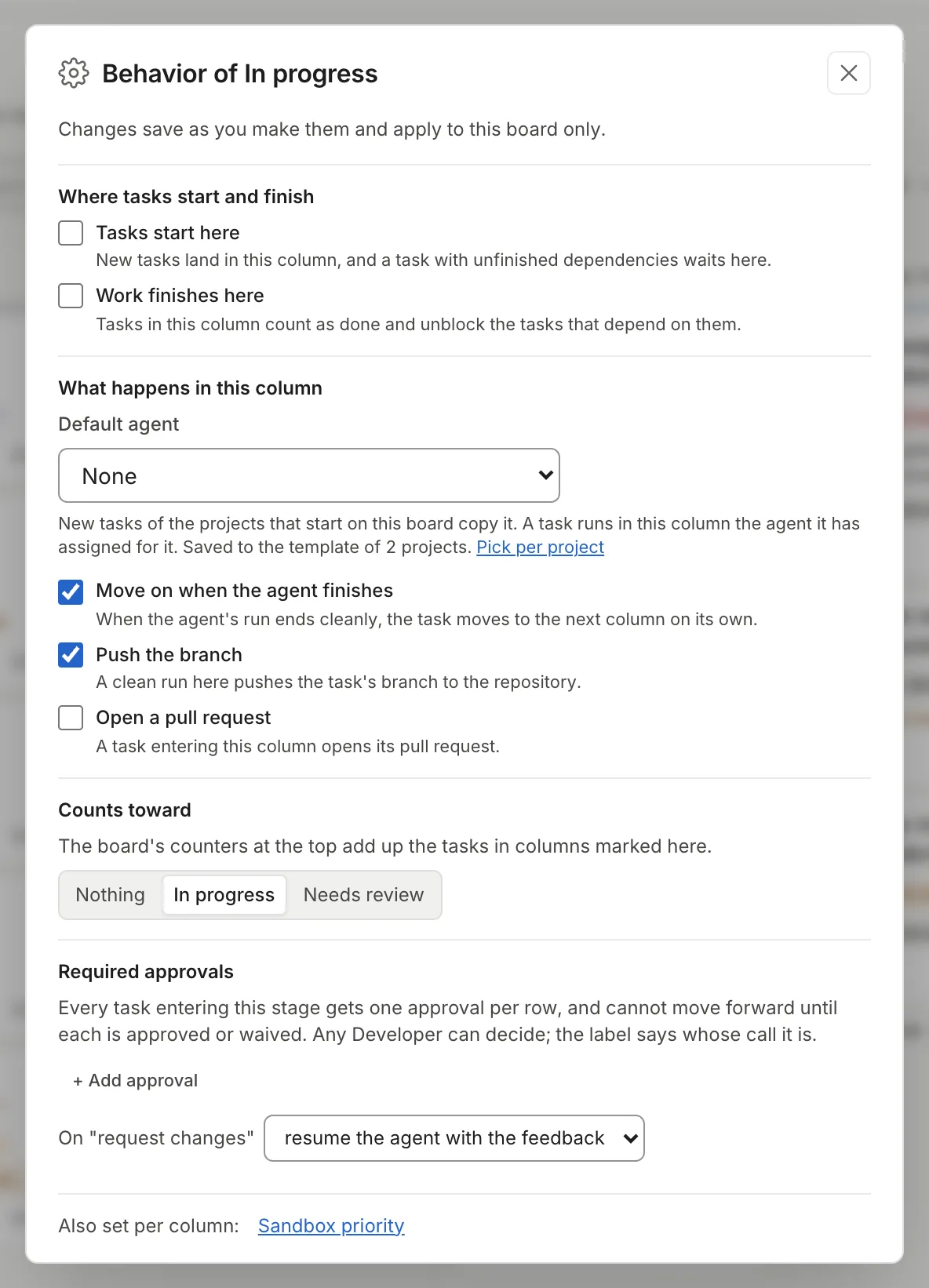
- A column with “Open a pull request” opens the PR of each repo that does not have one yet when a task enters it. The factory board has no column with that option. To turn it on, on the board click “Edit board”, open the column’s ⋯ menu, choose “Behavior” and check “Open a pull request”; it saves when you click it. The details are in Boards and stages.
- “Force PR” does the same by hand, in any stage.
See the status
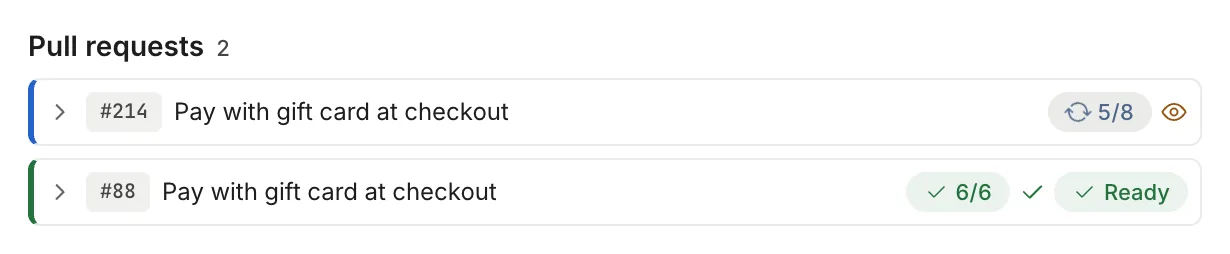
Section titled “See the status”Open the task. In the properties column, “Branch and PR” shows the branch (with a button to copy the name). PRs have their own section, “Pull requests”, at the full width of the task below the description, with one row per PR. On a subtask the section shows the parent task’s PRs. The row summarizes, from left to right: number, title, CI as passed/total (with an icon that spins while it runs), the review state (eye: review pending; check: approved; alert: changes requested) and “Ready” when it is approved, CI passed and GitHub can merge it. The left border takes the color of the most urgent item: red if CI failed, there are conflicts or changes were requested.
Clicking a row expands it with this data:
| Item | What it shows |
|---|---|
| Project | The Thulu project the PR belongs to. |
| Files, Lines, Commits | Number of changed files, lines added and removed, and commits. |
| Branch | task-<id> → base branch. |
| CI | How many checks passed, failed and are still running, out of the total on the last commit. |
| Review | “No review requested”, “Review pending”, “Approved” or “Changes requested”. |
| Merge | “Can be merged”, “Blocked by the branch’s rules”, “Behind the base branch”, “Conflicts with the base branch” or “GitHub has not worked it out yet”. |
| Updated | When it last changed on GitHub. |
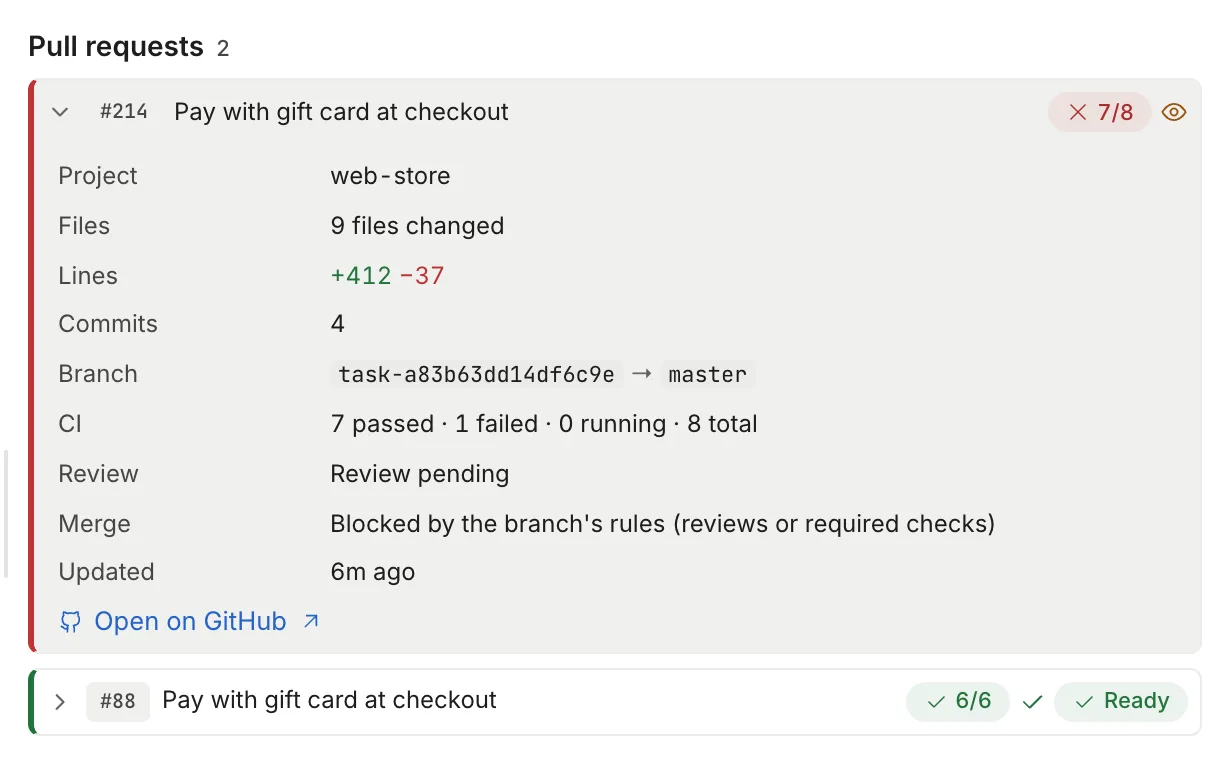
Below is “Open on GitHub”. Thulu reads this data with the project’s credential, keeps it for 30 seconds and requests it again every 20 seconds while something is moving (CI running or review pending) and every minute otherwise. With the App’s webhook active, a GitHub event refreshes it sooner.
If the project has no credential, the row keeps the link to the PR and says “No GitHub credential for this project.” with a link to add one. If the App does not have the Checks: read permission, CI counts only GitHub Actions jobs and the row says so.
Force PR
Section titled “Force PR”When the task has a branch and no PR, “Branch and PR” shows the “Force PR” button. It is also in the panel’s “…” menu, which you open with the period key; with that menu open, P runs it. Thulu pushes the branch if needed and opens a PR in each linked repo that does not have one, with the task’s title and, in the body, the description, the agents’ notes and a line saying Thulu opened it from Force PR. If the agent had already opened one, it links it to the task.
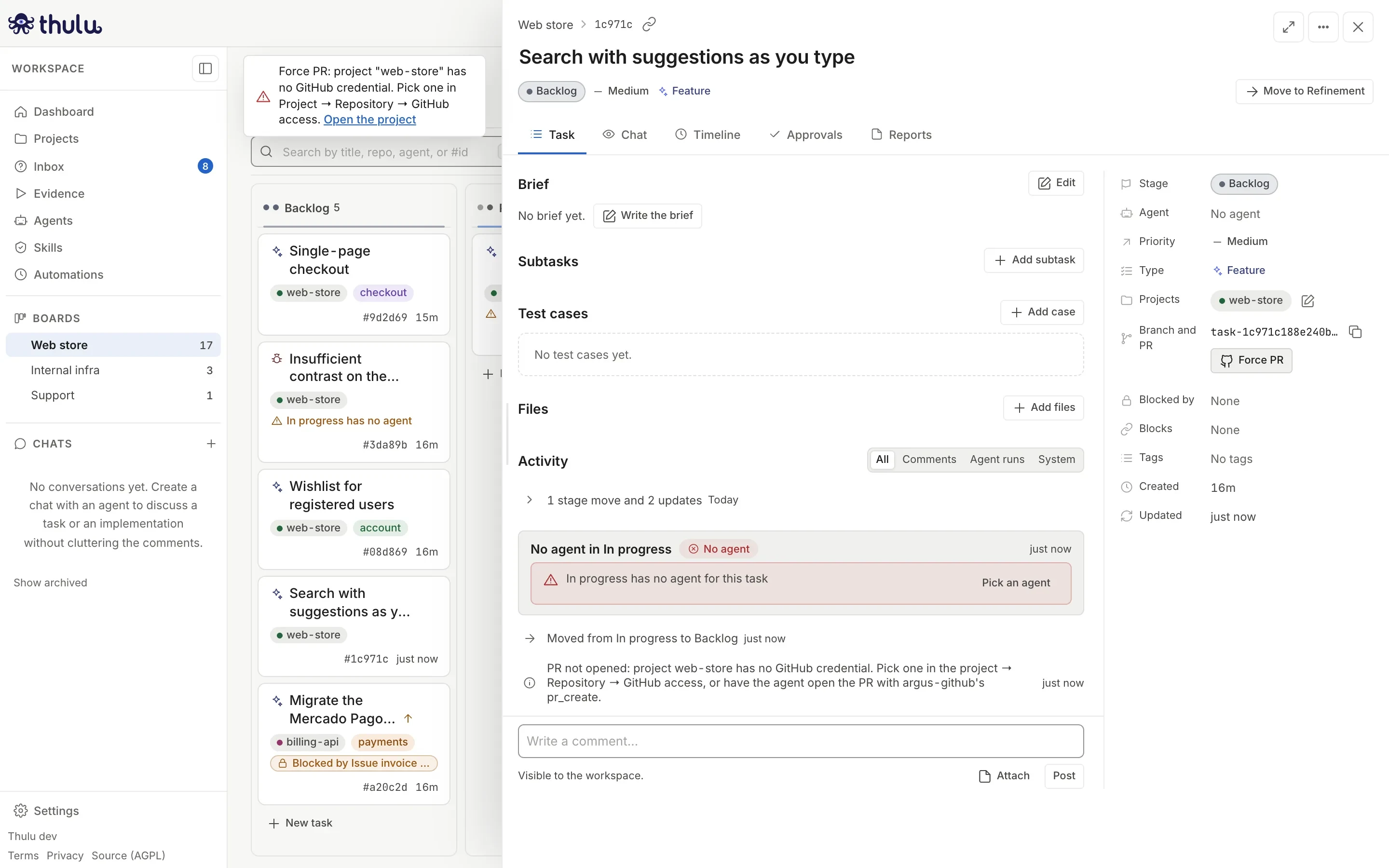
A project uploaded from a folder does not go through GitHub. If all of the task’s projects are uploaded, “Force PR” does not appear and the “Branch and PR” row offers “Merge into…”, which takes the task’s branch to the branch you choose. It is explained in Projects.
What an agent can do on GitHub
Section titled “What an agent can do on GitHub”Agents talk to GitHub through the argus-github MCP. An admin wires it per stage in the agent’s editor (“MCP” tab); the details of that screen are in MCPs and Agents. The token is resolved on the server side on every call: the agent never sees it.
| Granted with | What it includes |
|---|---|
argus-github@read |
Read PRs, their diff, files, comments, review threads, reviewers and CI; list labels; see the branch’s state; list Actions workflows and runs, their jobs, logs and artifacts. |
argus-github@write |
Everything in read, plus committing and pushing the task’s branch, opening PRs, commenting, reviewing, replying to and resolving threads, managing labels, reviewers and assignees, editing the PR, and retrying or canceling Actions runs. It is what an agent that implements needs. |
| By name only | pr_merge (merge a PR), run_dispatch (dispatch a workflow) and deployment_approve (approve a deployment waiting for review). No scope includes them, not even write. |
By default no agent merges or deploys: an admin decides whether to grant pr_merge or the deploy tools, and checks them one by one. If argus-github does not appear on the agent’s “MCP” tab, it is not enabled in the workspace: see MCPs.
Let an agent merge
Section titled “Let an agent merge”-
Open “Agents”, pick the agent and go to the “MCP” tab.
-
In the stage where you want it to merge, with argus-github turned on, click argus-github’s tools button. The list of 42 tools for that stage opens, grouped into Read, Write and “Deploy · granted by name”.
-
In the Deploy group, check
pr_mergeand click “Done”. Then “Save” in the agent’s editor. The stage ends up withargus-github@write+pr_merge: everything in write plus that tool.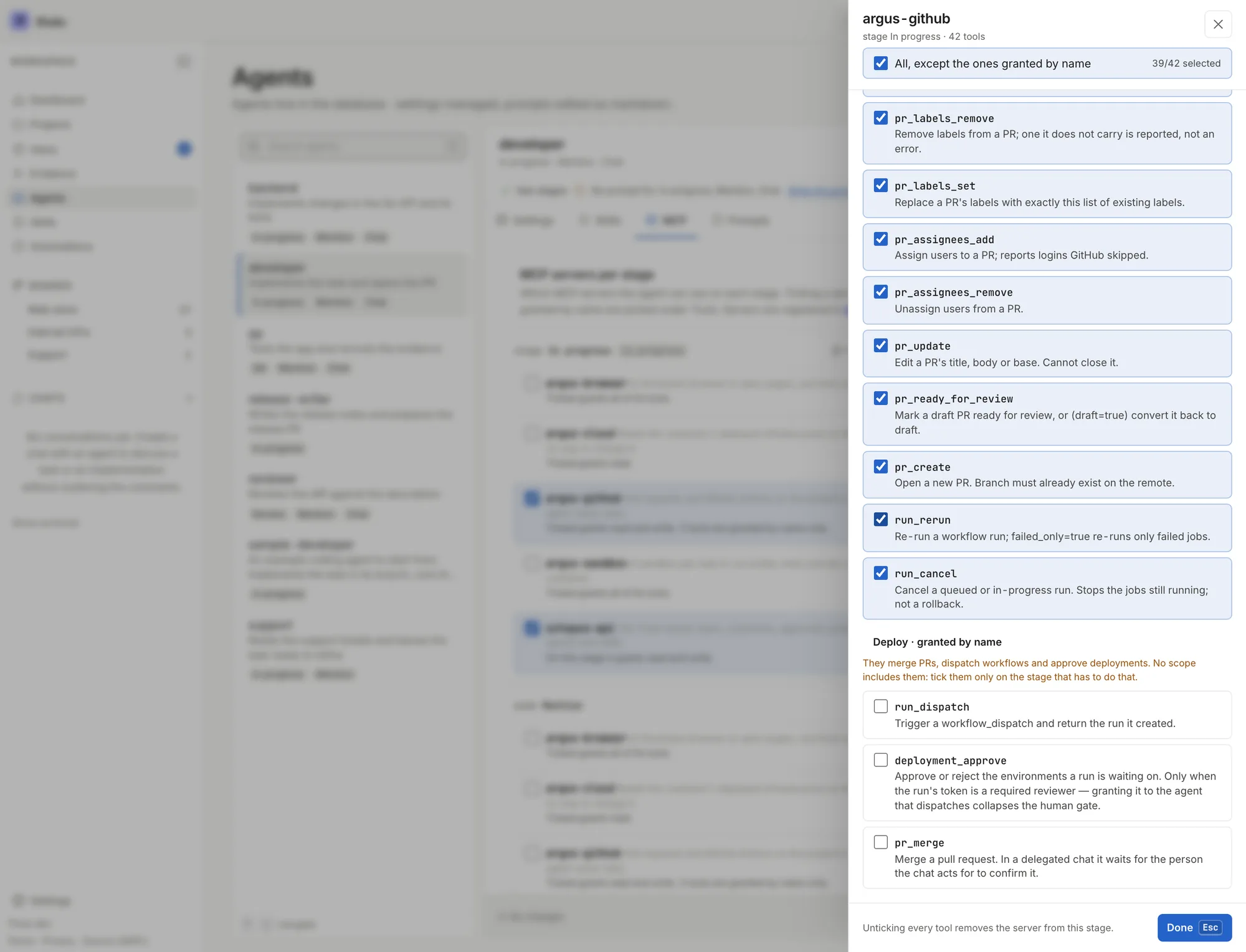
With argus-github checked on the stage, 39 of 42 are chosen: no scope covers the ones in the Deploy group and you check them one by one.
The checkbox at the top of the panel says “All, except the ones granted by name”: it checks everything a scope covers and leaves out pr_merge, run_dispatch and deployment_approve.
In a task run, the agent merges with the task’s token. In a chat with “Act for me”, pr_merge does not run immediately: it waits for the person to confirm it in Thulu, and the daemon runs it with a token for that single call (see Chat).
Deploy through GitHub Actions from an agent
Section titled “Deploy through GitHub Actions from an agent”An agent can dispatch a workflow, follow it until it finishes and read the logs if it fails. You need:
-
A workflow in the repo that accepts manual dispatch (
on: workflow_dispatch, with its inputs if it has any). This is done in the repo, outside Thulu. -
Permission for Actions: with the App, Actions write; with a classic token, the
workflowscope. Thulu only requestsactions:writefor a run whose stage grantsrun_dispatch,run_rerunorrun_cancel. -
A stage (for example a “Deploy” column on your board) where the agent has
run_dispatchby name, in addition to the Actions read tools. On the “MCP” tab of the agent’s editor, “Deploy template” grants on that stageargus-github@readplusrun_dispatch,run_watchandrun_logs. By hand:argus-github@read+run_dispatch, orargus-github@write+run_dispatchif it also has to retry. -
In that stage’s prompt, which workflow to dispatch and with which inputs. The agent uses
workflow_viewto read the inputs,run_dispatchto dispatch it,run_watchto wait for the result andrun_jobswithrun_logsto diagnose a failure.
With the App’s webhook active, Evidence environments can listen to these deploys (the deployment status event) and run the recorded cases after a successful one; see Evidence. And GitHub events (PR comment, review comment, review, PR, push, check suite) can start a recipe in Automations.
Common problems
Section titled “Common problems”| What you see | What is happening and how to get out |
|---|---|
| “No GitHub credential for this project.” on the PR row | The project has no App or credential that can read the repo. Link one under the project → “Repository” → “GitHub access”. If the project is linked to the App, check whether the “GitHub App” panel under Credentials warns about a missing permission (Actions read is required): add it on GitHub and accept the new permission on the installation. |
| Comment “Could not fetch the latest default branch from GitHub…” | The initial fetch failed (expired credential, suspended App). The branch started from a possibly old commit. Check the connection and, if needed, fork the task once it is fixed. |
| Comment “Auto-push of branch failed for project…” | GitHub rejected the push. If the error names OCTOPUS_GITHUB_ALLOW_WORKFLOW_WRITES, the agent touched a workflow. If not, check the credential; the agent or you can retry with “Force PR”. |
| Comment “The agent’s commits for project … could not be brought onto the task branch…” (Kubernetes) | The task’s branch has a commit that the agent’s copy does not have, for example because someone pushed by hand or the agent rewrote history with a squash. Thulu does not publish that project until the agent brings in that commit. |
| The row says “Only GitHub Actions: add Checks: read to the GitHub App…” | Accept the new permission in the installation’s settings on GitHub. |
| “GitHub connection failed (that installation is already connected to another workspace…)” | An installation belongs to a single workspace. Ask the operator to move it. |