

Test cases and videos
A task’s test cases say what has to work for the task to count as good: “WELCOME10 takes 10% off the total”, with its steps and the expected result. Each case has a key (TC-1, TC-2…), a status and a run history. When an agent with a browser tests them, each run leaves a video with subtitles and the verification of each case, annotated screenshots, the take (the JSON script that lets you repeat it) and a report in the “Reports” tab. Whoever reviews opens the task and watches the video instead of repeating the flow by hand.
This page covers cases as seen from a task. The library of cases that run on their own against each environment, with no task, is in Evidence.
Recommended flow
Section titled “Recommended flow”-
Open the task and scroll down to “Test cases”, below the description and the subtasks. Click “+ Add case”.
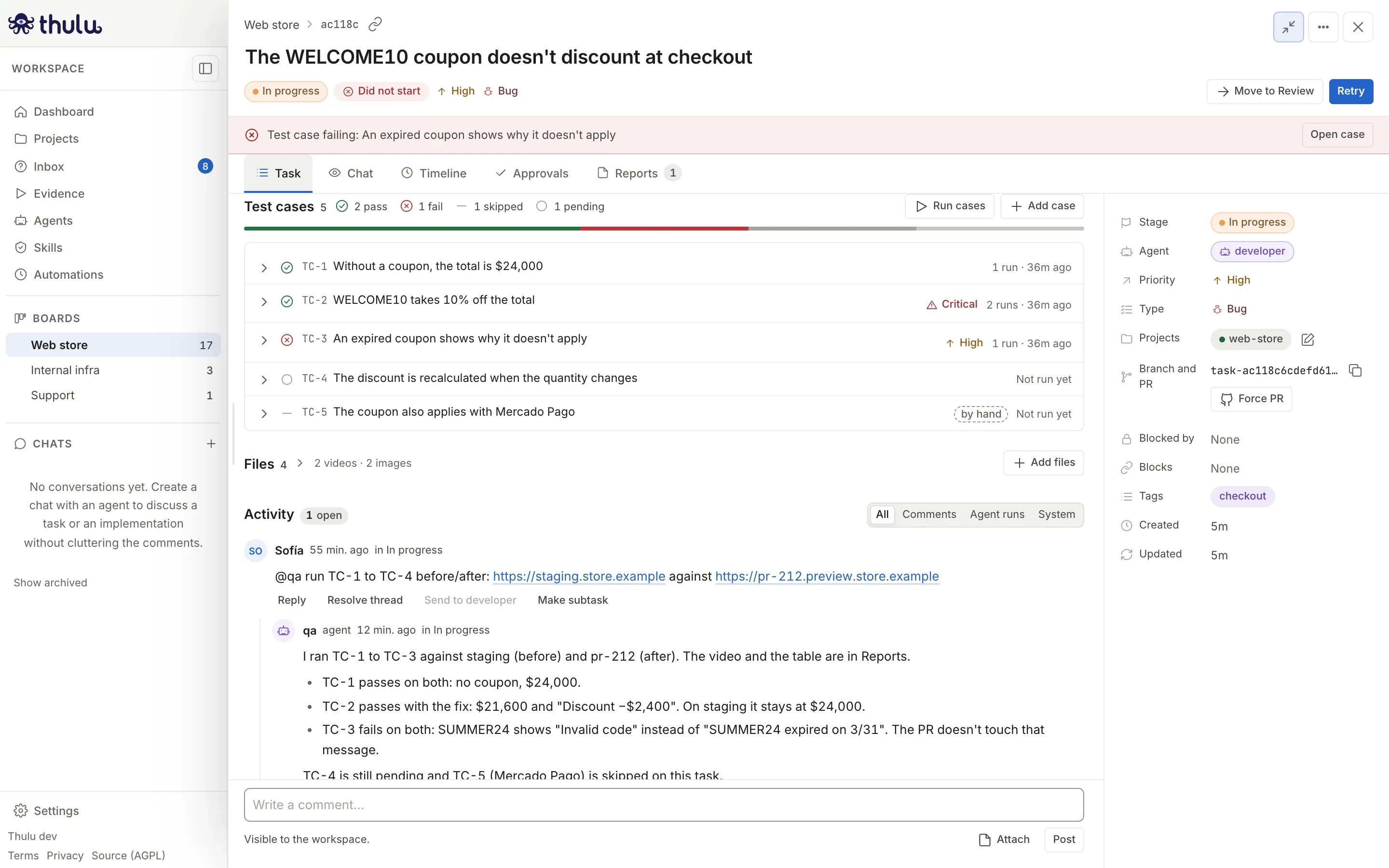
The block summarizes how many pass and how many are covered. If any fails, the task shows the notice "Test case failing" with an "Open case" button. -
Fill in the form. Only “Title” is required; “Priority” starts at “Medium”. Write one behavior per case and an expected result that can be checked by looking at the screen, with real values: “Total $21,600” instead of “the calculation comes out right”. If you leave the title empty, the form says “A title is required.” and does not save. Click “Save”: the case gets the next key.
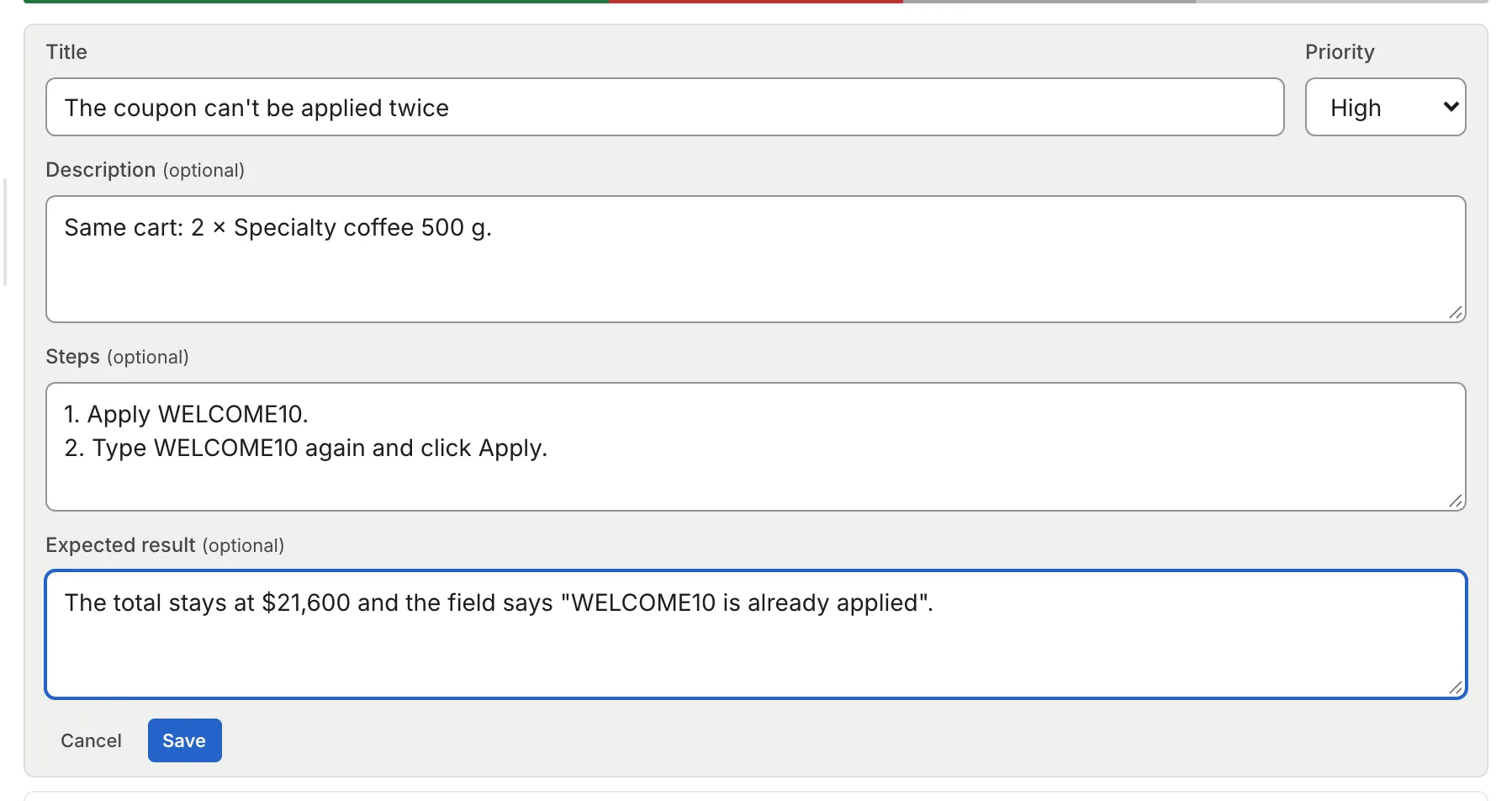
Description, Steps and Expected result accept markdown. The key is not chosen: the new case gets the one after the task's highest TC. -
Click “Run cases”. Choose the “Agent”, type the “URL to test” and, if you want a before/after, “Compare with”; tick the “Cases” and click “Launch”. Thulu posts a comment in Activity that mentions the agent (“@qa run test cases TC-1, TC-2, TC-3 of this task on
https://staging.store.example…”) with the instructions folded, and the notice says “Asked qa to run 3 cases. Follow it in the activity.”. The agent answers in that thread.The button appears off, with the reason, if no agent answers mentions or none has argus-browser on the stage it answers with. In the list, an agent without a browser shows as “qa (no browser)”. MCPs are configured stage by stage (see Agents and MCPs). An agent with argus-browser and octopus-api on the column also runs the cases when the task enters it; there the URL goes in the description.
The browser runs inside the installation, so the URL has to be reachable from there: a staging, a per-PR preview or the app the agent starts in the Sandbox. A
localhoston your machine does not work.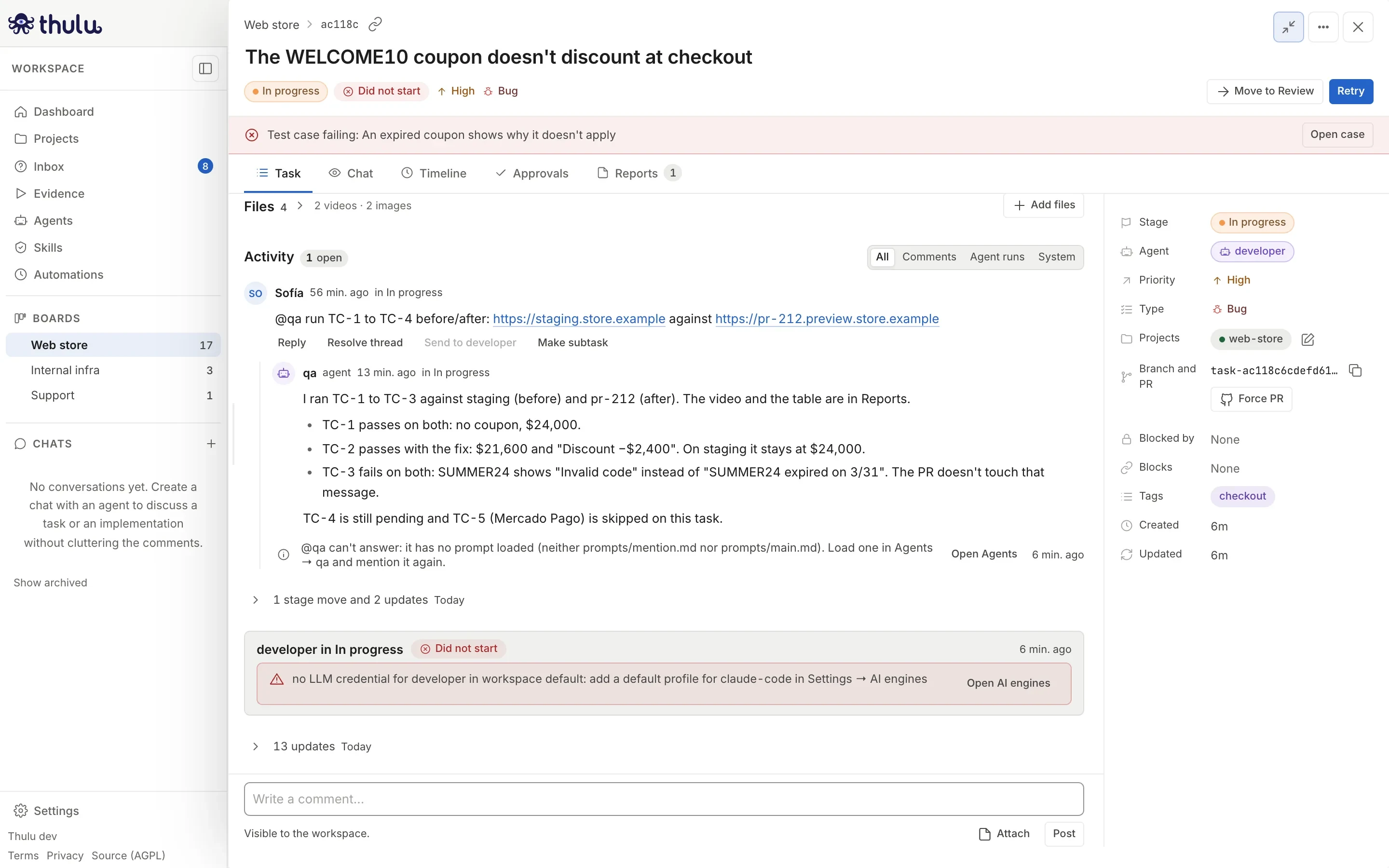
A request with both URLs and the agent's answer in the same thread: what happened in each case, with the observed value, and what was left unrun. -
When the run ends, each case the agent verified changes status and gets ticked “covered”. Expand a case to see its runs, newest to oldest: verdict, when, who, what was observed, the video, and the links “Take (JSON)”, “Captures” and “Open in Reports”.
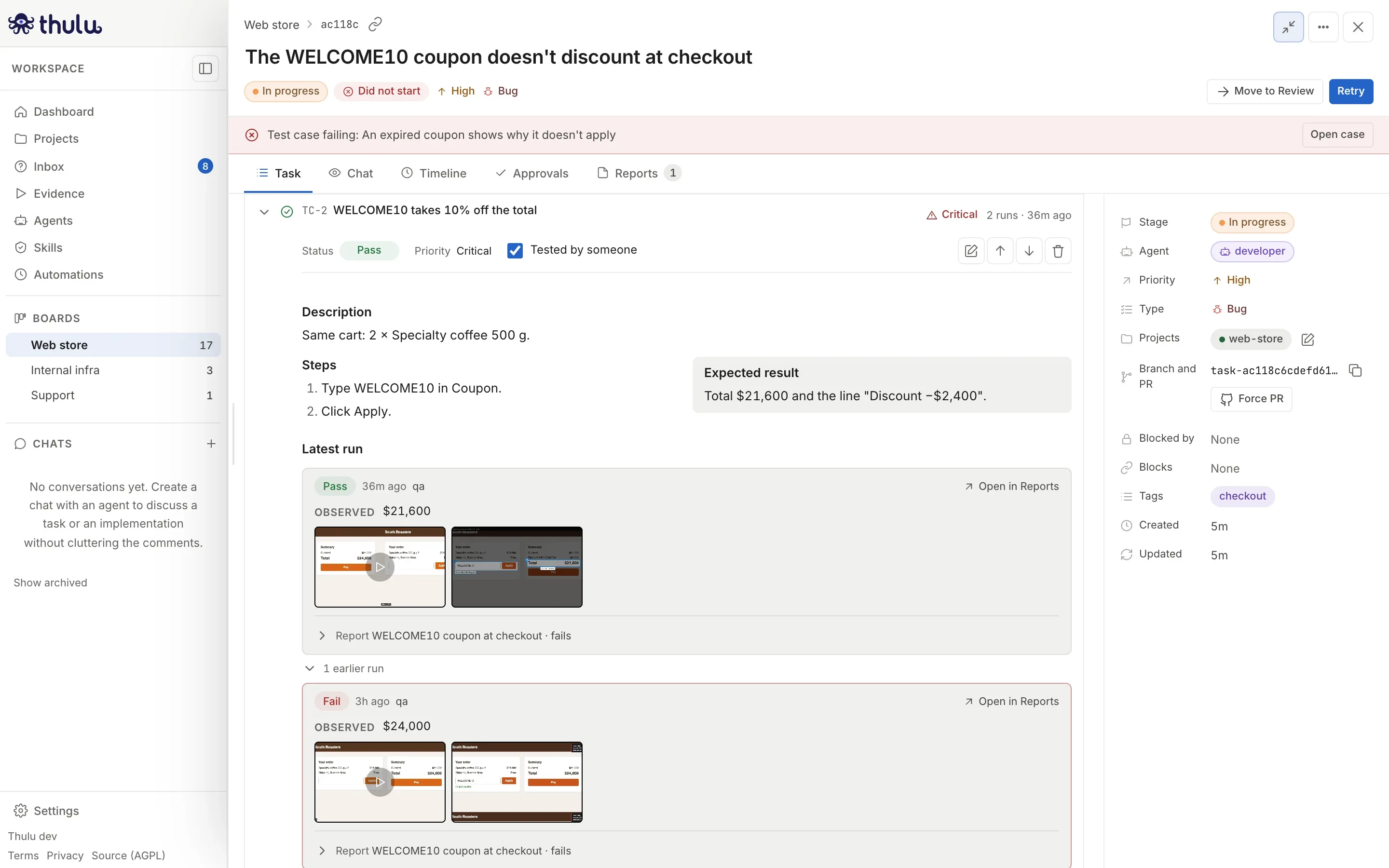
TC-2 with two runs: the one from 3 hours ago reproduced the bug (Fail, observed $24,000) and the latest, with the fix, passed. -
Watch the video. It shows the cursor, a ring on each click, the step as a subtitle and, at the moment of each verification, a green or red card with the expected and observed values. If the run was a before/after, both sides are synchronized step by step.
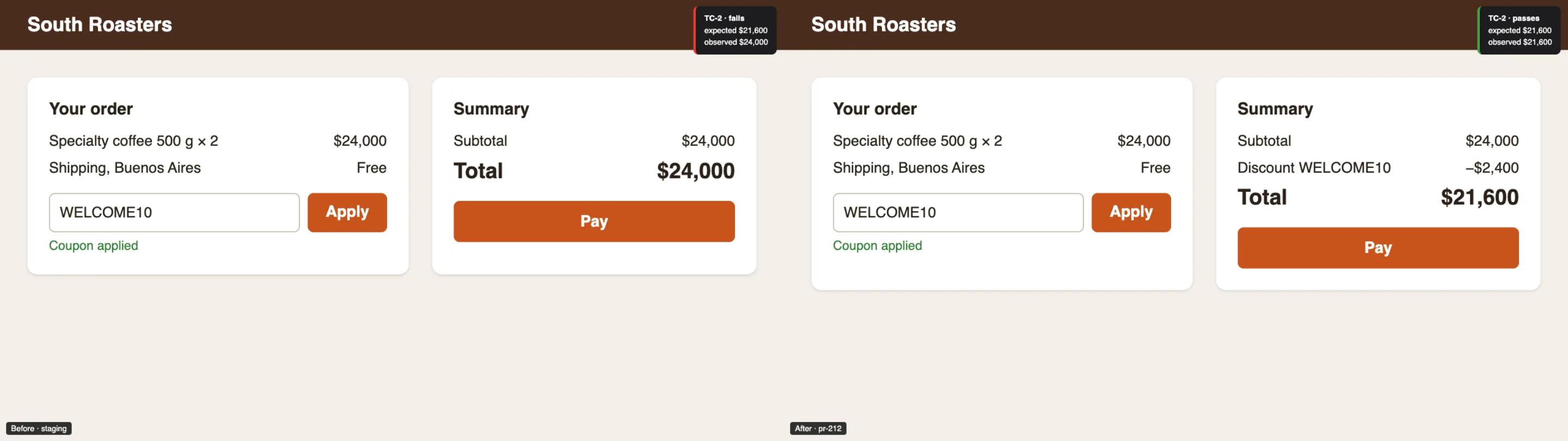
A frame of the before/after video: the same step against the old version (fails, the total is still $24,000) and the new one (passes, $21,600). -
If a case ended as “Fail”, read the “observed” of its run and the annotated screenshot. Fix the code and ask for the run again: each round is a new run, earlier ones are not edited.
Review a run
Section titled “Review a run”A run gathers everything an execution of a case left:
| Part | What it shows | Where |
|---|---|---|
| Verdict | “Pass”, “Fail” or “Blocked”. The case takes this status. | Run header |
| Observed | What was on screen, in one line (“Invalid coupon”) | Below the verdict |
| Video | MP4 with subtitles and verification cards; no dead waits | Inside the run |
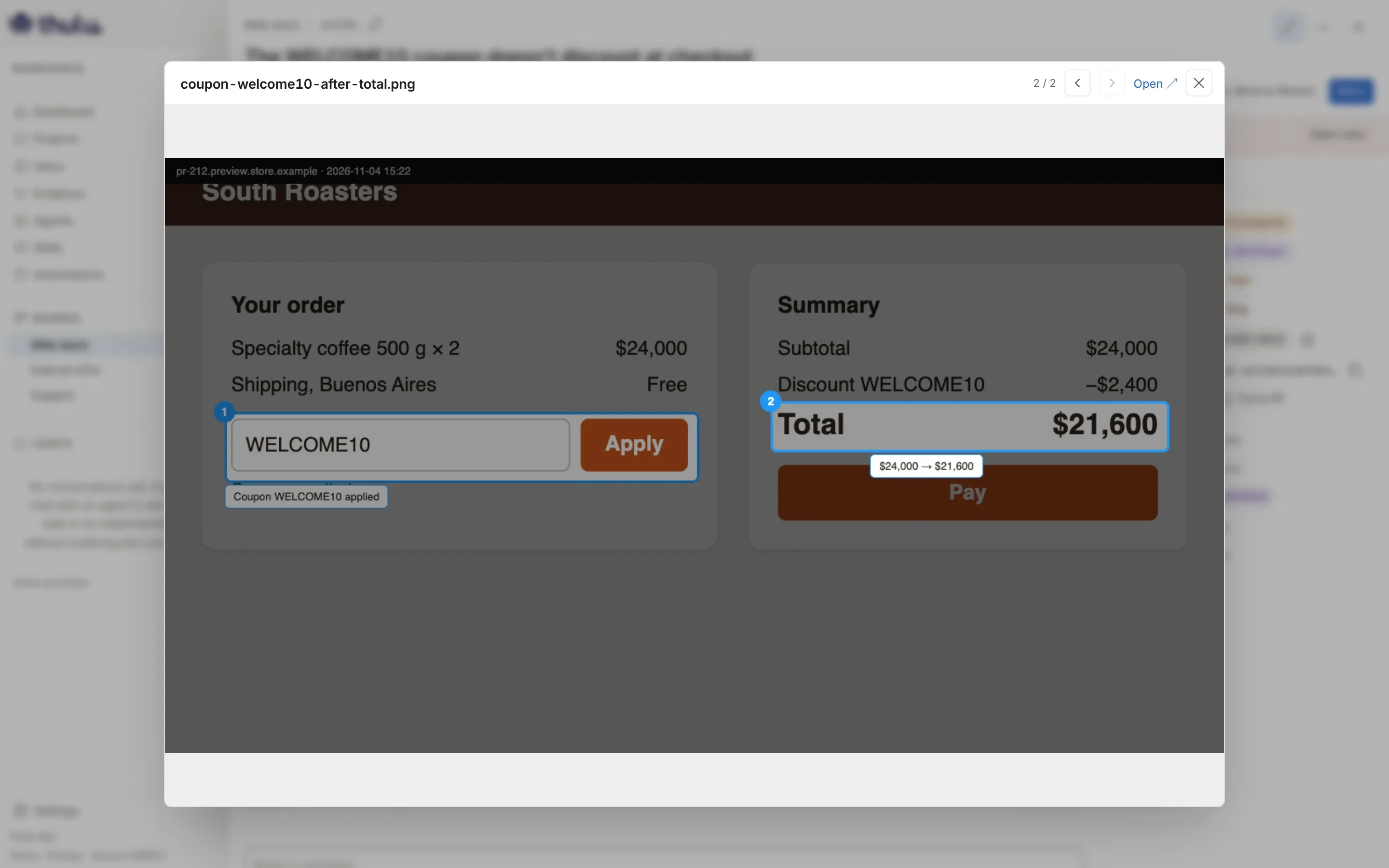
| “Captures (N)” | Screenshots with numbered zones, notes and the rest darkened | Opens the viewer with that run’s captures |
| “Take (JSON)” | The run’s script: steps, selectors and verifications | Downloads the file |
| “Report” | The full report, folded under the run, without repeating the video | “Open in Reports” opens it in its tab |
The task’s “Reports” tab gathers one report per publication, newest to oldest. The title ends in “passes” if everything passed and in “fails” if something failed; inside are the tested URL, the screen size, the duration, the video, the cases table (in a before/after, with one column per side), the captures and the chapters with their minute, folded.
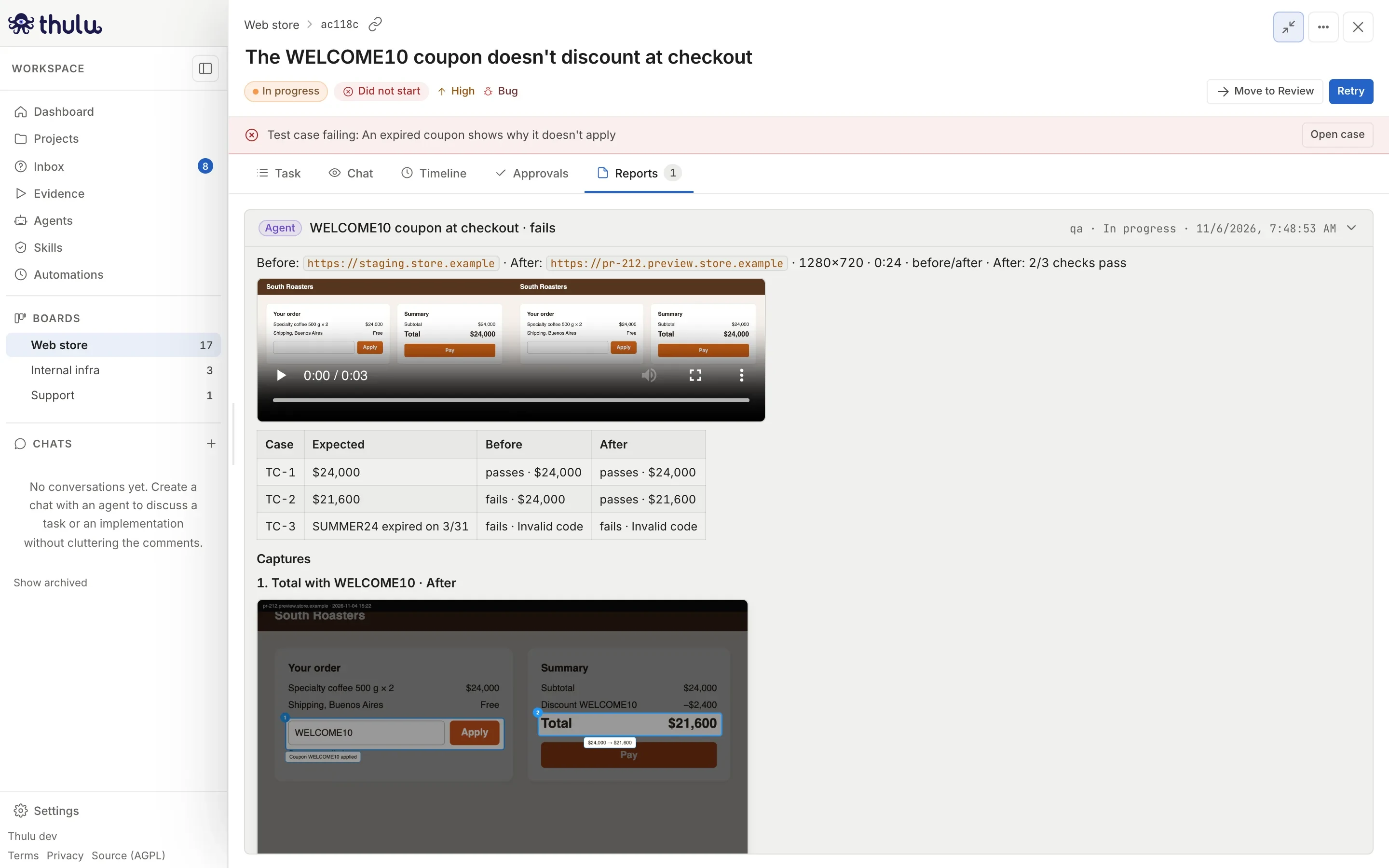
From a run, “Open in Reports” takes you straight to its report.
What a verification measures
Section titled “What a verification measures”The agent films with argus-browser’s evidence tool. Each case it verifies carries its key (TC-2) and, when possible, a measurement of the page that repeats the same way on every replay:
| Measurement | Compares | Example of expected |
|---|---|---|
| Text | An element’s visible text | $21,600 |
| Value | What a field holds | WELCOME10 |
| Visible / hidden | Whether the element is in view or not | hidden for “the error does not appear” |
| Count | How many elements match | 3 |
| URL | The current address | /orders/ |
| Title | The page title | Checkout |
The comparison can be exact, “contains” or a regular expression. By default, the tool waits up to 5 seconds for the value to match before marking the case failed, so a total that updates late does not give a false red. When the agent judges something that cannot be measured (“the icon is aligned”), the report marks it as observed by the agent.
Several verifications of the same case in one run make a single run: it passes if all pass. A key the task does not have (TC-9) is not recorded in any case; the agent’s answer lists it separately.
Statuses and “covered”
Section titled “Statuses and “covered””| Status | When |
|---|---|
| “Pending” | Nobody ran it. It is the status when created. |
| “Pass” | It ran and what was observed matches the expected result. |
| “Fail” | It ran and does not match. |
| “Blocked” | It could not run because of something outside the case: the environment is down, data is missing, another bug cuts the flow before. |
| “Skipped” | It was decided not to run it on this task. |
“covered” means someone tested it. A run ticks it by itself; you can also tick it by hand. You change the status from the row’s selector, but a change by hand leaves no run or video, and the row marks it “by hand”. Changing a case nobody ran to “Pass” asks for confirmation (“Mark TC-2 as passed?”). To leave a record, ask for the run.
Other flows
Section titled “Other flows”Edit, reorder and delete cases
Section titled “Edit, reorder and delete cases”Expand the case. “Edit” opens the same form in place; the ↑ and ↓ arrows move it in the list; “Delete” asks for confirmation and deletes the case with its runs. The videos and files of those runs stay on the task. Editing keeps the key and the history; deleting and creating again loses them.
Turn an old checklist into cases
Section titled “Turn an old checklist into cases”Old tasks have their cases as a ## Test Cases section with a checklist in the description. While the task has no cases, the block offers “Import from body”: each line becomes a case, a line that starts with a key (- [ ] TC-1: …) keeps it, and ticked ones (- [x]) come in as “Pass” and covered.
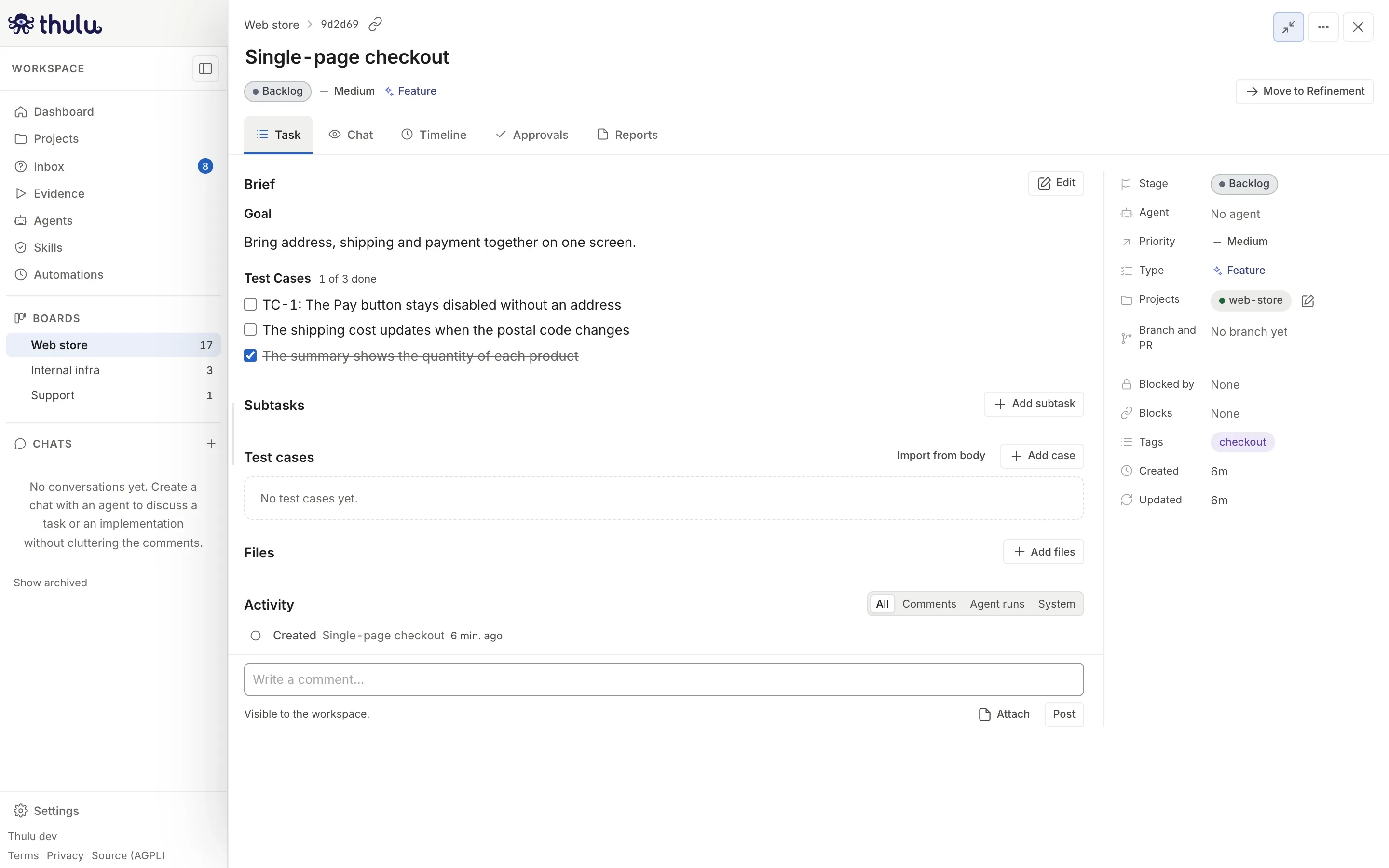
After importing, the notice offers “Remove the section from the body”. From that moment the rows rule: if you leave the section, the block warns “The body still has the Test Cases section with these cases, and nothing keeps it up to date.” and what you tick in the checklist no longer changes any case’s status.
Have an agent write the cases
Section titled “Have an agent write the cases”If the refinement stage has an agent with octopus-api, that agent can write the cases when planning the task, in the same format: one behavior per case, concrete steps and an expected result with values. Review them before moving the task to the stage that tests.
Take a case to the library
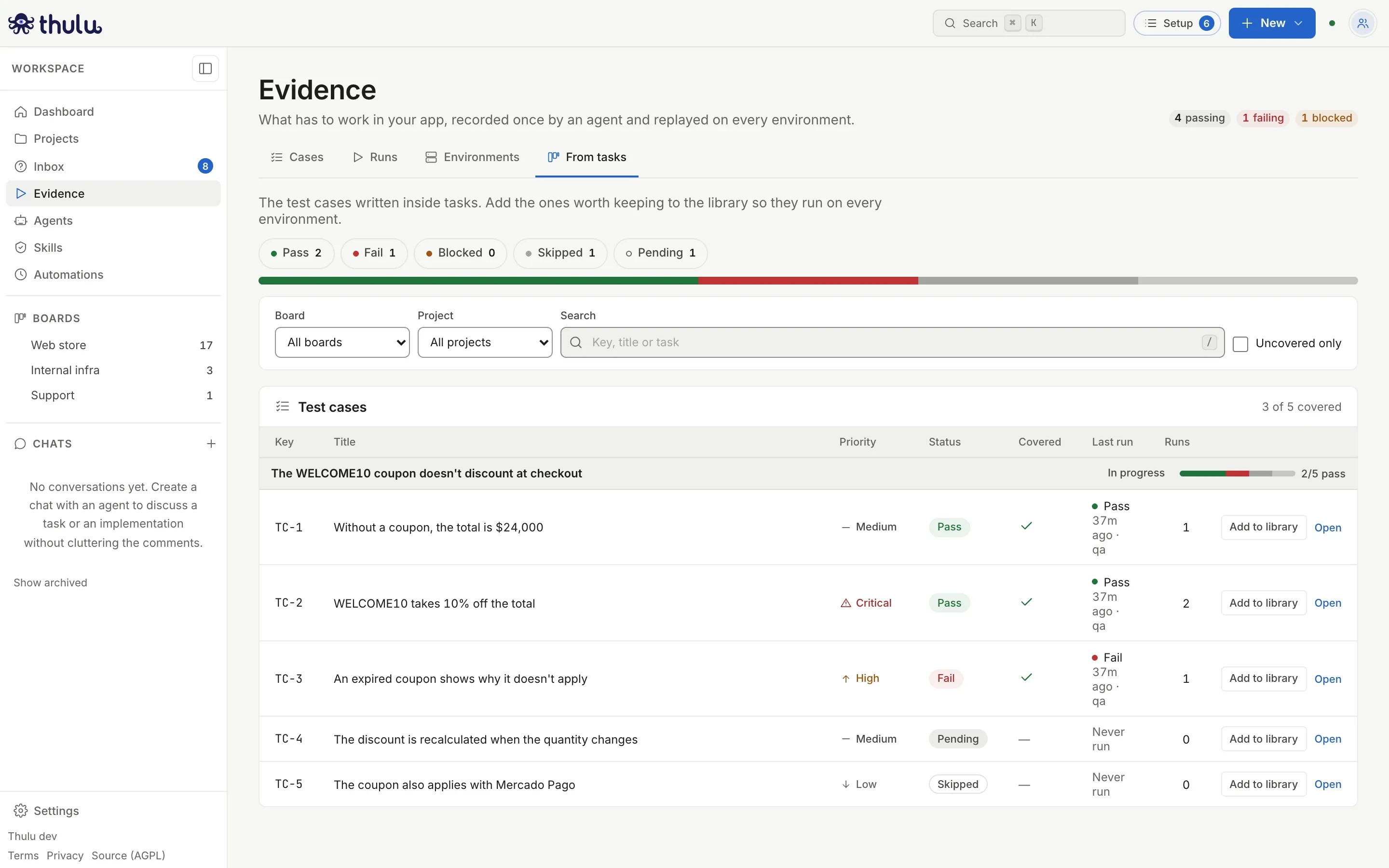
Section titled “Take a case to the library”A case worth repeating on every release is copied to the Evidence library. Open “Evidence” in the sidebar, “From tasks” tab, and click “Add to library” on its row. If the case already had a filmed run, it is copied with its take (“Added to the library as EV-1, with its recording.”) and from then on it runs on its own against each environment.
Link to a case
Section titled “Link to a case”/tasks/#task-<id>/TC-3 opens the task with that case expanded, for anyone with access to the workspace. The “Open case” button in the task’s notice does the same with the failing case; if several fail, the notice says how many (“2 test cases failing”) and opens the first.
Common problems
Section titled “Common problems”- A case at “Blocked”: the agent could not reach the test point. The run’s “observed” says why (for example, the environment returned 502). Fix the environment and ask for another run.
- The task’s “Files” grows with each publication: the video, the chapters, the take and the captures are grouped in one item per report. The run’s links point to those files; if you delete one, the run shows “file deleted”.
- A run that films flows that change data (creating an order, sending an email) is only repeated against disposable environments. The agent marks those steps and the tool refuses to replay the take unless the agent enables it on purpose, something that applies only against a preview or a test database.