

MCPs
An MCP is a tool server the agent can call while it works: read a PR, comment on the task, open a page in a browser, query logs. Each server exposes several tools, and you decide which agent uses which ones on each board stage. Thulu ships its own servers and lets you register others by URL.
The work is split across two screens, and both require the admin role in the workspace:
- Settings → “MCPs” (
/mcps/): which servers exist, where they come from and whether they respond. This is where you register your own. “Use in an agent”, at the top, takes you to the other screen. - Agents → “MCP” tab: which servers and which tools each agent receives on each stage. A server you don’t tick there reaches no run, even if it is up.
Agents reach MCPs through the daemon
Section titled “Agents reach MCPs through the daemon”The agent’s container receives neither the real URL of any server nor its credentials. It receives the list of servers its stage has granted, all pointing at the daemon’s MCP proxy (/mcp-proxy/<name>), and its run’s key. On every request the daemon checks that the run has that server granted, rejects a tools/call to a tool that isn’t on the granted list, filters tools/list and adds the matching credential to the request. An .mcp.json edited by the agent doesn’t open a new server for it, because the grant is checked against what it was given at startup.
Two servers go direct, without passing through the proxy: argus-sandbox, which the daemon itself serves per task, and the per-run argus-browser, which listens inside the agent’s container and only accepts that run’s key.
The native MCPs
Section titled “The native MCPs”| Server | Tools | What it is for | With no tools picked it grants |
|---|---|---|---|
octopus-api |
61 | Tasks, comments, attachments, questions, approvals, test cases, dependencies, agents, projects, metrics. It is what lets the agent work on the board. | Read only |
argus-github |
42 | PRs (read, comment, review, create, handle review feedback), commit and push of the worktree, GitHub Actions. The GitHub token never reaches the agent. | Read and write |
argus-browser |
29 | Chromium: browse, click, screenshots, scripts and filmed evidence. | The whole server |
argus-cloud |
6 | AWS and Google Cloud, read only: environments, resources, metrics, errors, logs, deploys (GCP only). | Everything (it has no write) |
argus-sandbox |
7 | Run commands, builds and dev servers in the task’s sandbox, and the project’s startup script. The daemon itself serves it per task, so it doesn’t appear in /mcps. |
The whole server |
argus-figma |
6 | Read Figma files, read only: structure, nodes, renders, comments and a team’s projects. It uses a personal Figma token saved in Credentials (provider figma); the token never reaches the agent. It ships turned off. |
Everything (it has no write) |
You choose the native ones at install time: thulu init shows a list to tick which ones to bring up. On Kubernetes you turn them on in the chart values with mcp.octopusApi.enabled, mcp.argusGithub.enabled, mcp.argusBrowser.enabled, mcp.argusCloud.enabled and mcp.argusFigma.enabled; the first three come on and argus-cloud and argus-figma come off (see Self-hosted install). In the compose files, argus-figma is the argus-figma profile. The /mcps page doesn’t install or uninstall servers.
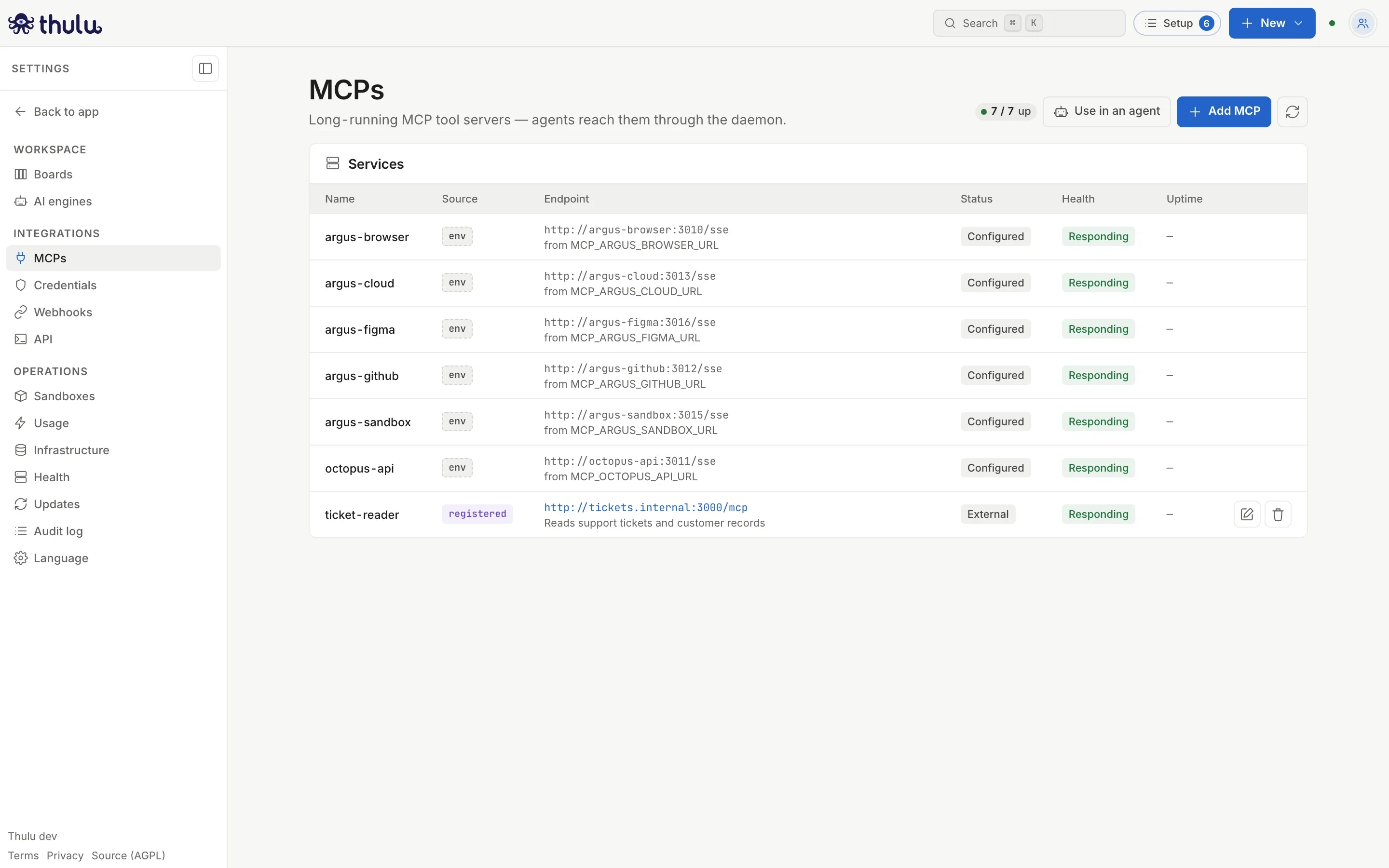
The “Source” column says where each row came from:
| Source | What it is | What you can do from the page |
|---|---|---|
env |
A URL the daemon started with (MCP_<NAME>_URL, written by thulu init or the chart). |
Nothing: change it in deploy/.env or in the Helm values. |
runtime |
A container or pod the daemon manages. | “Start”, “Stop”, “Restart”. |
registered |
A URL someone loaded from this page. | “Edit URL”, “Unregister” and, if it authenticates with OAuth, “Connect”. |
“Health” comes from the daemon opening the server’s URL and waiting for an answer, with a 3-second limit: “Responding”, “Starting” or “Not responding”. If it says “Not responding”, hover over it: the reason is in the tooltip. The counter at the top (“4 / 4 up”) counts the rows that responded. The table refreshes itself every few seconds; the arrows button next to “Add MCP” refreshes it right away.
Register your own MCP
Section titled “Register your own MCP”Use it for a server that already runs somewhere else: an internal service of your team, Jira, Slack or another third-party MCP. It has to speak MCP over Streamable HTTP or SSE, and the daemon calls the URL, not your browser or the agent. Only an admin of the operator workspace can do it (see the “Who can register” box below).
-
Open “Settings” (bottom left in the sidebar) and, under “Integrations”, go to “MCPs”.
-
Click “Add MCP”, top right.
-
Fill in “Name”: 3 to 64 lowercase letters, digits or dashes, starting with a letter and not ending in a dash (
ticket-reader). -
Paste the “URL” and click “Detect”. The daemon probes the URL without credentials and says “Answers Streamable HTTP.”, “Answers SSE.”, “Asks for authentication: pick a stored credential.” or that it asks for OAuth; depending on the answer, it preselects the “Transport” and the “Authentication”.
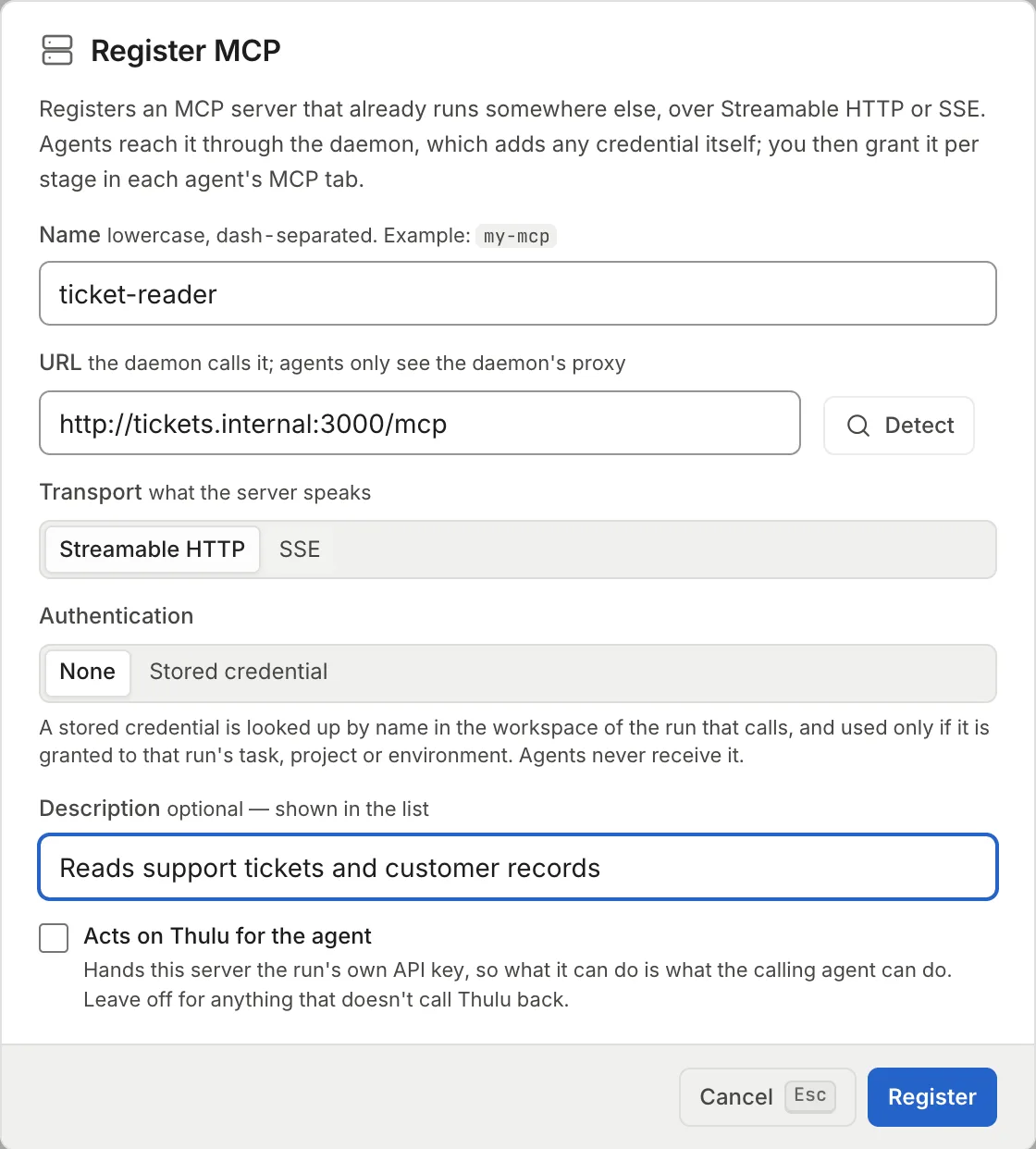
Detect picks the transport. The checkbox below stays off unless the server is yours and calls back into Thulu. -
Pick the “Authentication”:
- “None”: the daemon calls the server without a credential.
- “Stored credential”: type in “Credential” the name it has on the Credentials page of each workspace that uses this server. Optionally, a “Header template” (one
Name: valueper line, with{field}or{base64:a:b}taking the credential’s fields); empty, it sends the credential’s own header. The credential is used only if it is granted to the task, project or environment of the run that calls, and the agent never receives it.
-
If you want, a “Description”, shown in the table and in the agents’ MCP tab.
-
Leave “Acts on Thulu for the agent” off unless the server needs to call Thulu’s API. On, every request carries the run’s key, and the server can do everything that agent can.
-
Click “Register” (or Enter). “ticket-reader: registered” appears and the row is added with source “registered”; in a few seconds it shows its health.
The registration reaches the agents that start from that moment on, without restarting anything. For an agent to use it you still have to grant it in its MCP tab (next section).
Credentials for a third-party MCP
Section titled “Credentials for a third-party MCP”The credential is created in each workspace, in “Credentials → New credential”, and granted like any other (see Credentials and engines):
- A server that accepts a fixed token (for example, Jira with an Atlassian API token): provider “HTTP header (API token)”, with a bearer, user and token (Basic) or a header of your own.
- A server that asks for OAuth (Slack, Atlassian): register it with “Stored credential” and then click “Connect” on its row (or in Credentials). The daemon discovers the authorization server, registers the client if the server allows it (Slack asks for an app of your own, whose Client ID and Client Secret you paste by hand), and sends you to sign in on the server. The tokens stay encrypted in the daemon, which renews them before they expire. If the server rejects the renewal, the credential is left for “Reconnect”. “Disconnect” revokes the tokens and leaves the credential and its grants.
One registration serves all workspaces: each one resolves its own credential with that name. One that doesn’t have it gets an error on the call, and the rest keep working. For Figma use argus-figma: Figma’s remote MCP doesn’t accept clients outside its list.
To change the URL, the authentication, the description or the forwarding checkbox, use the pencil on the row (“Edit URL”): it opens the same modal titled “Edit ticket-reader”, with the name locked and a “Save” button. The name can’t be changed: you have to unregister it and create it again. The trash can (“Unregister”) asks for confirmation and doesn’t touch the origin server. If the daemon had a URL with the same name in its environment, agents go back to receiving that one.
Give an MCP to an agent
Section titled “Give an MCP to an agent”Permissions are given per agent and per stage: the same agent can read GitHub on “Review” and write on “In progress”. First you need an agent with at least one valid stage, picked in its “Settings” tab (see Agents); with no stages, the MCP tab only says “Pick at least one valid stage in the Settings tab.”
-
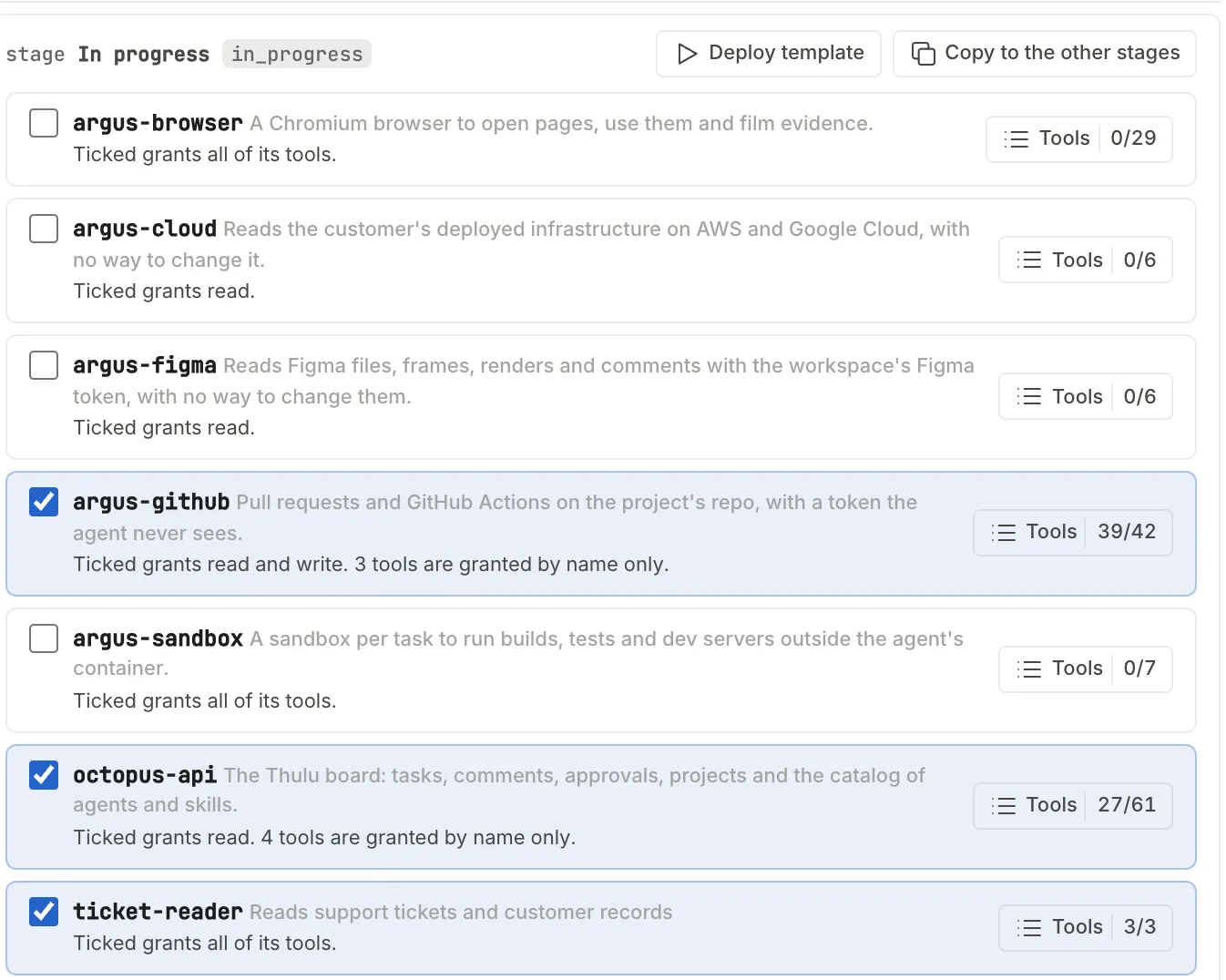
Go to “Agents” in the sidebar, pick the agent from the list on the left and open the “MCP” tab. You will see one block for each of the agent’s valid stages, with all the available servers.
-
Tick the server you want to give. It grants what its default scope covers (the table above), without the tools granted by name. The “Tools” counter says how many are granted out of the total, and the line below says what the stage grants.
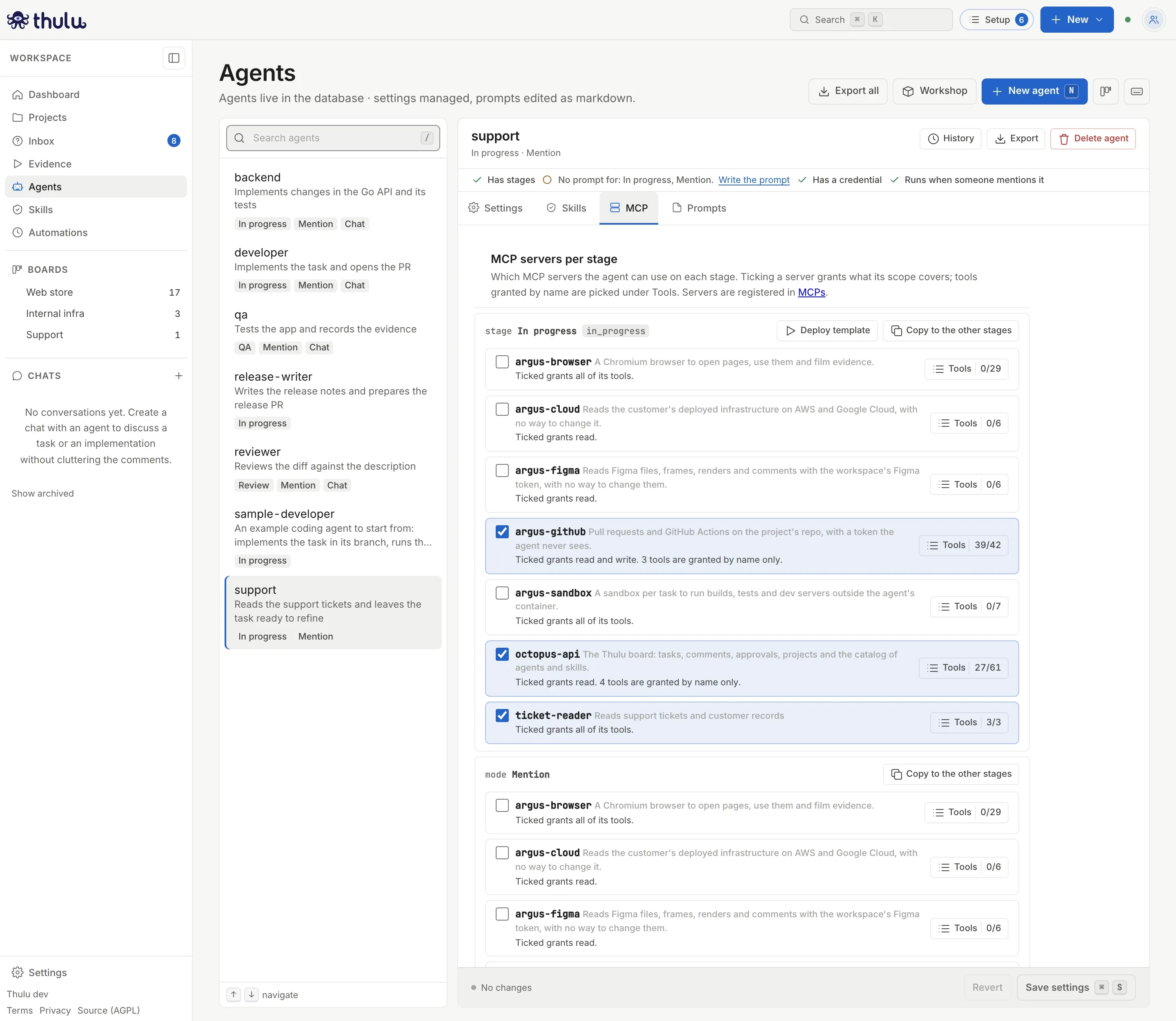
Each ticked server grants its default scope; deploy tools and other-board tools stay out. -
Click “Tools” to see the list with each tool’s description, grouped under “Read”, “Write”, “Admin” and the groups granted by name (“Deploy”, “Other boards”). Tick or untick and close with “Done” (or Esc). If you untick all of them, the server leaves that stage.
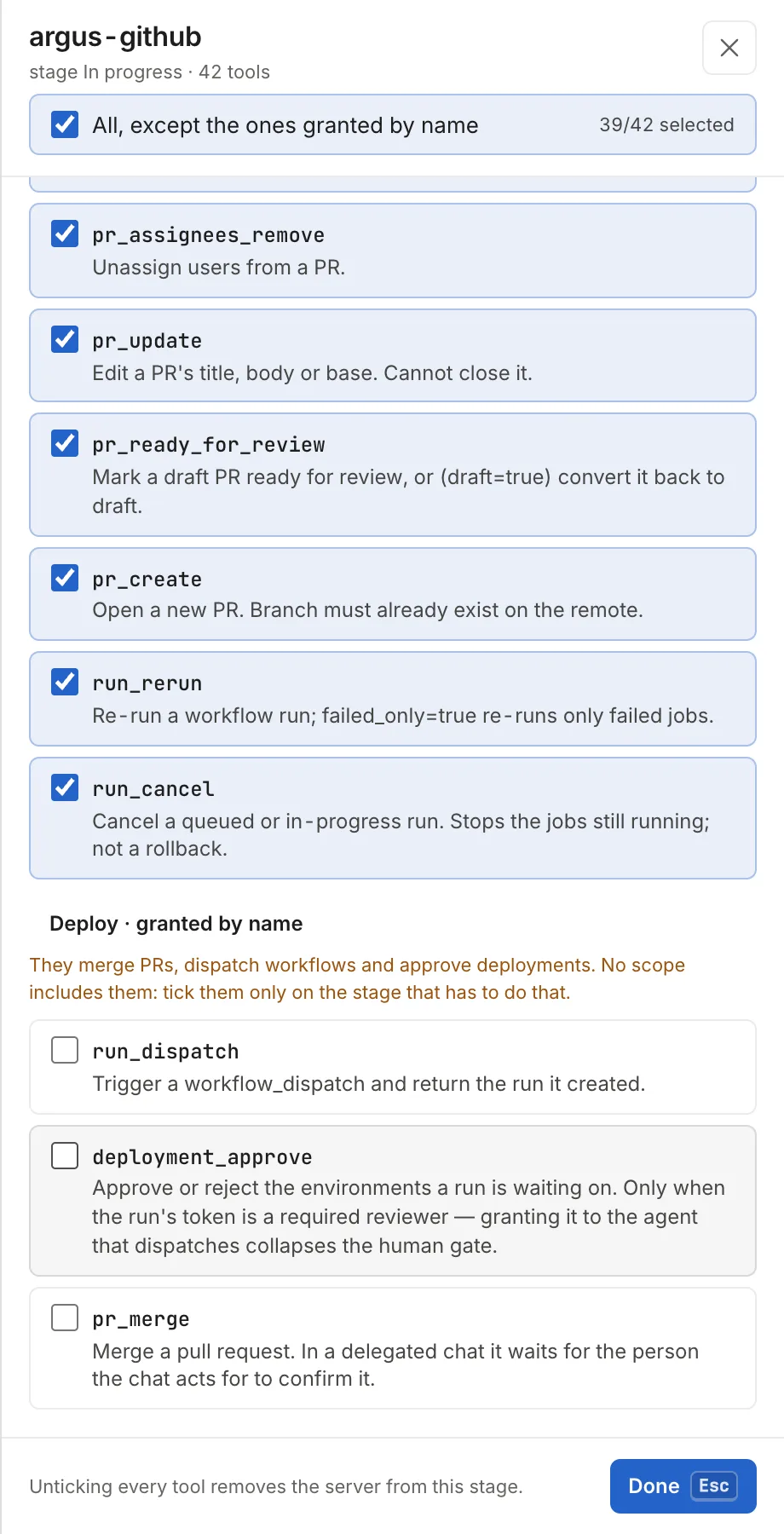
The Deploy group's tools belong to no scope: you tick them by hand, only on the stage that has to do it. -
Click “Save settings” in the bar at the bottom (or Cmd/Ctrl+S). “Settings saved” appears and the following runs get the change. Before saving, “Revert” discards what you touched. “Copy to the other stages” repeats the block on the agent’s other stages.
The deploy tools (run_dispatch, deployment_approve, pr_merge) let an agent dispatch workflows, approve a deploy or merge a PR. By default no agent merges: an admin decides whether to grant pr_merge and on which stage. For a stage that deploys with GitHub Actions, “Deploy template” grants argus-github@read plus run_dispatch, run_watch and run_logs.
When you tick octopus-api, argus-browser or argus-sandbox, the same agent’s “Skills” tab adds the system skills that go with that server (see Manuals for the native MCPs).
Scopes and per-tool permissions
Section titled “Scopes and per-tool permissions”Each tool of octopus-api, argus-github and argus-cloud belongs to a group. The “read” and “write” groups work as a ladder: write includes read. The deploy and other-board groups stay out and are granted only tool by tool.
| Group | What it includes | How it is granted |
|---|---|---|
| Read | See tasks, PRs, logs, resources | Default of octopus-api and argus-cloud |
| Write | Comment, create tasks, commit and push, comment on PRs, create PRs | Default of argus-github; on octopus-api with @write or by picking its tools |
| Deploy | run_dispatch, deployment_approve, pr_merge (argus-github) |
Only by ticking them by name |
| Other boards | boards_list, board_tasks_list, task_create_on_board, task_move_to_board (octopus-api) |
Only by ticking them by name |
argus-browser and argus-sandbox have no groups: they are granted whole or tool by tool.
The screen picks the shortest way to save what you ticked: if it covers a whole group, it saves the group; if you took something out, it saves the list. Stay on a whole group when you can, because a list stays fixed and the tools the server adds in a new version don’t reach the agent.
Through the API the same permission is written in mcp_by_stage of PUT /types/{agent}/settings, in this form:
| Value | Grants |
|---|---|
argus-github |
The server’s default (in this case, write) |
octopus-api@write |
Read and write |
octopus-api@write+boards_list |
Write plus a tool from another group |
argus-browser@screenshot+get_text |
Only those two tools |
Tools are separated with +, not with a comma.
Registered MCPs
Section titled “Registered MCPs”A registered MCP declares no groups. Ticked whole, with no suffix, it grants all its tools: the block says “Ticked grants all of its tools.” and the counter shows full (3/3). If you pick tools from the screen, the list of the chosen tools is saved and the proxy rejects any call to another one, even if the server doesn’t filter.
A server whose tools Thulu only knows from a probe, with no descriptor or registration, is different: granted whole, the block shows “default scope (unknown)” and the counter at ?/N, because the server applies its own default.
Manuals for the native MCPs
Section titled “Manuals for the native MCPs”Each native MCP travels with instructions for the agent: how to chain its tools, what to do on each error. You don’t have to grant them: they reach every run whose stage has that server ticked. Part of that knowledge is system skills (octopus-*), which you see in “Skills” and in the agent’s “Skills” tab with the reason next to them.
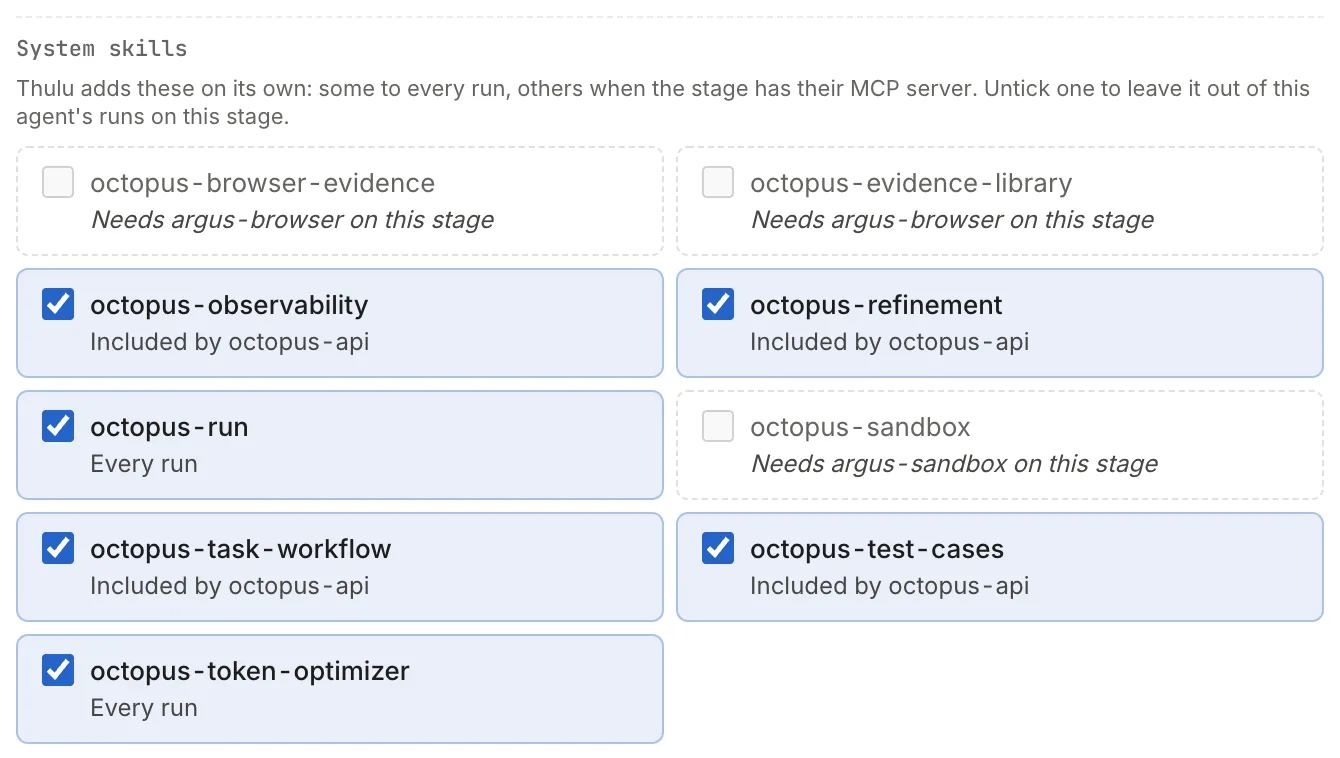
| System skill | Arrives with |
|---|---|
octopus-task-workflow, octopus-refinement, octopus-test-cases, octopus-observability |
octopus-api |
octopus-browser-evidence, octopus-evidence-library |
argus-browser |
octopus-sandbox |
argus-sandbox |
octopus-run |
Every run |
To leave one out on a stage, untick it in the agent’s “Skills” tab and save. Workspaces can read these skills but not edit them. Each server’s own manual (the one that explains its tools) has no screen: it travels with the run.
Common problems
Section titled “Common problems”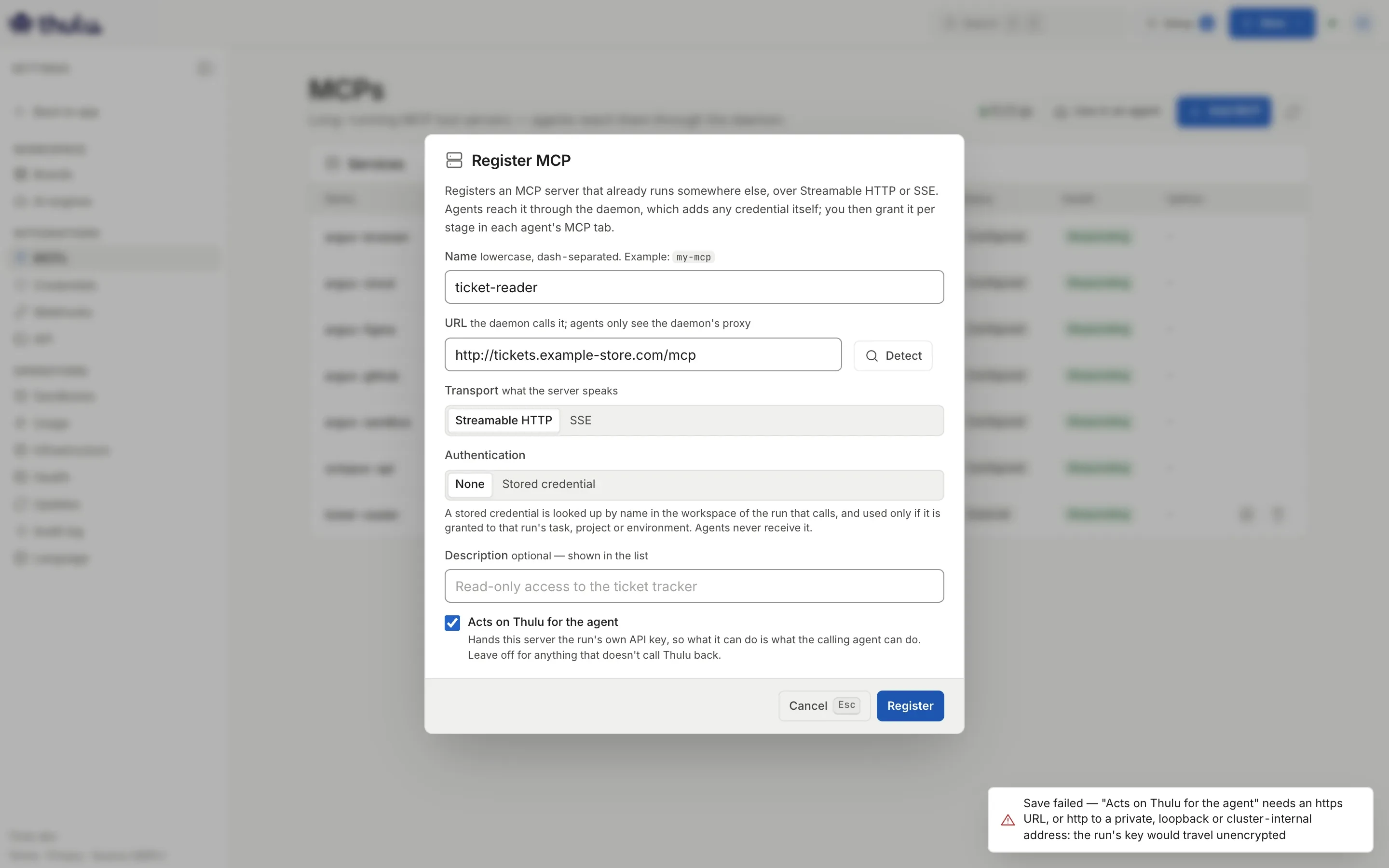
- The form marks a field in red: the name has capital letters or spaces, doesn’t start with a letter, ends in a dash or has fewer than 3 characters, the URL doesn’t start with
http://orhttps://, or you picked “Stored credential” without naming the credential. - “Detect” says it did not answer as an MCP server: the daemon didn’t reach the URL or the server speaks neither Streamable HTTP nor SSE. The daemon has to be able to reach the URL; that it opens in your browser proves nothing.
- Health “Not responding” on a registered row: the daemon couldn’t open the URL. The reason is in the tooltip.
- Health “Not checked” on the
envorregisteredrows: you are in a workspace that isn’t the operator. The daemon doesn’t probe the URLs for you; it doesn’t mean they are down. - The agent gets an error when calling a third-party MCP: the credential with that name doesn’t exist in the workspace or isn’t granted to the task, project or environment of the run. The decision is recorded in the credential’s panel. If it is an OAuth connection that says it needs to reconnect, click “Reconnect”.
- The agent says it doesn’t have a tool: check in its “MCP” tab that the server is ticked on that run’s stage and that the tool appears under “Tools”. If the tool is a deploy or other-board one, you have to tick it by hand.
- A server shows “all tools” instead of the “Tools” button: the daemon couldn’t read its list (it is down or doesn’t speak MCP). It is granted whole until it comes back.
- The agent can’t comment or move its task with
octopus-api: it has the server with no suffix, which is read only. Open “Tools” and tick the write ones it needs, or save it asoctopus-api@write.