

Workspaces and team
A workspace is a team’s space: it has its own boards, tasks, projects, agents, skills, credentials, MCPs and members. Nobody outside sees it, and what you configure in one doesn’t show up in another. An account can belong to several workspaces with a different role in each, and switches between them from the sidebar.
Switch workspace
Section titled “Switch workspace”-
At the top of the sidebar is the name of the workspace you are in, with its initial in a colored square. Click it.
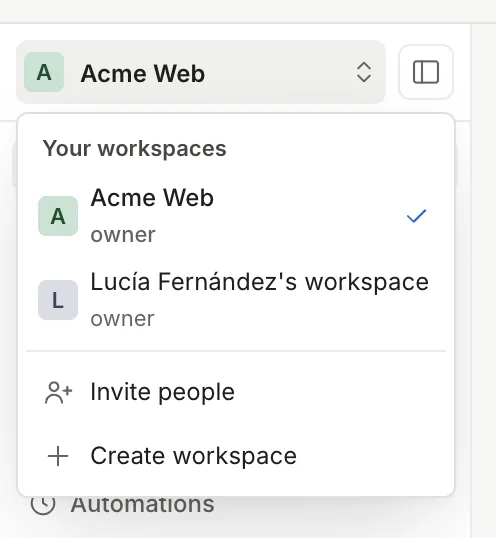
The menu lists your workspaces with your role in each. The check mark flags the current one. -
Pick another workspace from the list. The page reloads in that workspace and leaves you in the same section (if you were in Tasks, you stay in Tasks). From a project’s page you go back to the project list, because that project doesn’t exist in the other workspace.
When you sign in again, Thulu opens the last workspace you used.
You can also switch from Settings → “Account” → “Your workspaces”, with the “Switch” button on each row.
Create a workspace
Section titled “Create a workspace”-
Open the workspace menu and pick “Create workspace”.
-
Type the name and click “Create workspace”. If you leave it empty, the modal says “Give the workspace a name.”
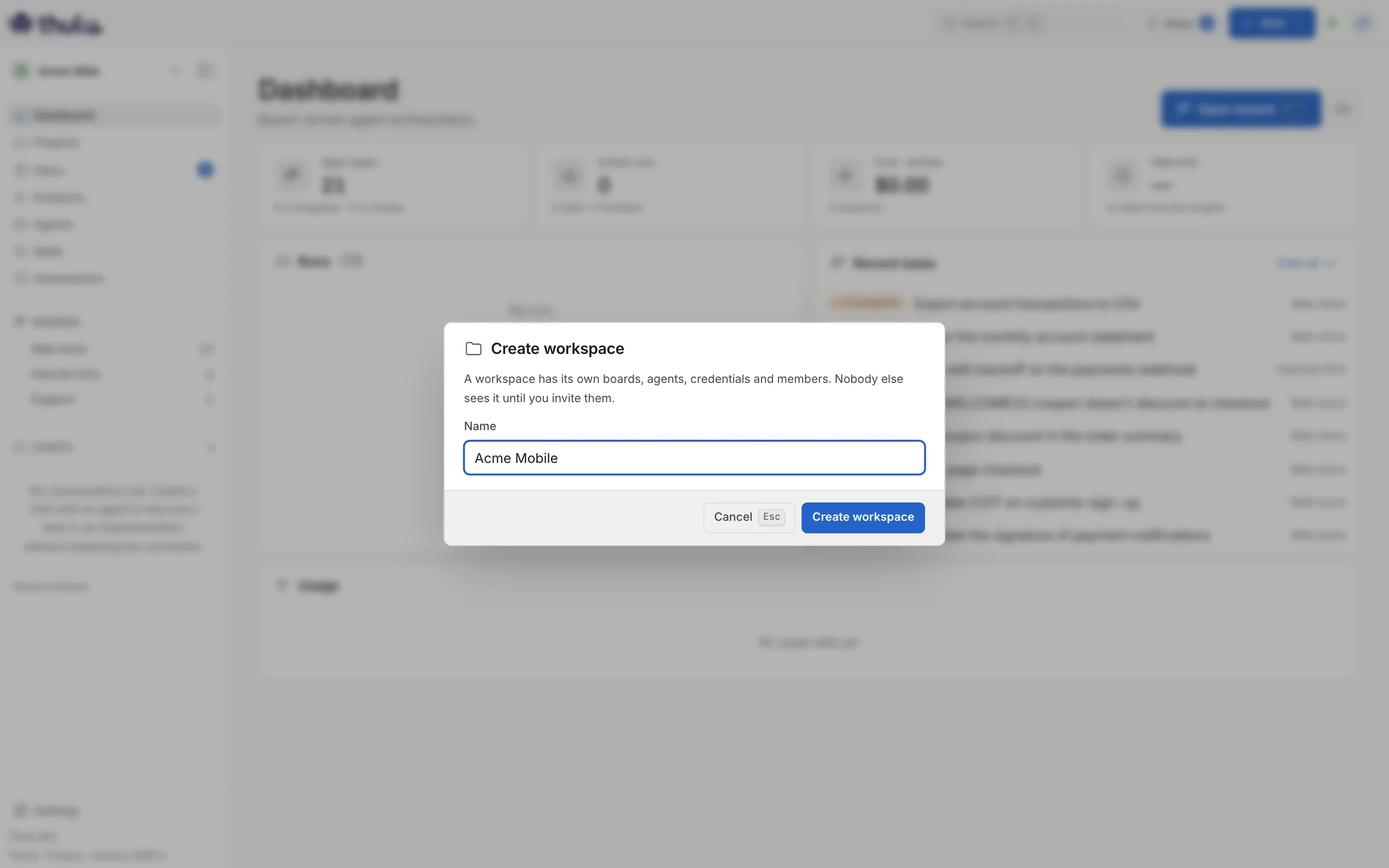
The name is the only field. Thulu builds the slug from it (acme-mobile); if it already exists, it adds a suffix. -
Thulu creates the workspace, leaves you inside as “owner” and takes you to the Dashboard. It starts empty: a single board with three stages (Backlog, In progress and Done; the names come out in the install’s language), no agents, no projects and the “Setup” checklist pending at the top right.
For what comes next in a new workspace, see Boards and stages, Agents and Projects.
When “Create workspace” is blocked
Section titled “When “Create workspace” is blocked”The item is always in the menu. When your account can’t create one, it is grayed out and says why, without opening the modal.
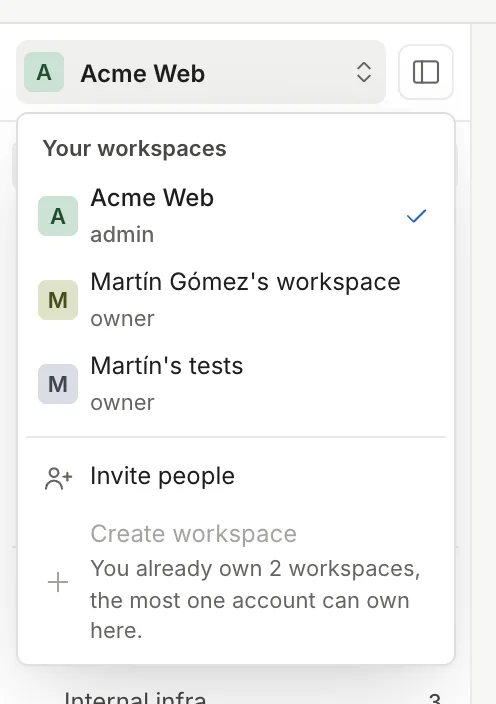
It happens in two cases:
| Case | What the menu says | What decides it |
|---|---|---|
| On SaaS, you already own 2 workspaces | “You already own 2 workspaces, the most one account can own here.” | The cap counts only the workspaces you own: workspaces you were invited to don’t add up. The workspace created with your first sign-in counts as one. To free a slot, hand one to someone else or delete it. |
| Self-hosted with a corporate identity provider (OIDC) | “Only the people who run this install create workspaces here. Ask them for one.” | By default only admins of the operator workspace can create workspaces, so that anyone who comes in through the company’s SSO doesn’t build a workspace of their own. Change it with OCTOPUS_ALLOW_PERSONAL_WORKSPACES=1. |
Creating workspaces doesn’t require a license. On a self-hosted install without corporate SSO, any member creates as many as they want from the menu, unless the operator sets a cap with OCTOPUS_MAX_OWNED_WORKSPACES. The variables are in Settings.
Rename a workspace
Section titled “Rename a workspace”In Settings → “Account” → “Your workspaces”, click “Rename” on the workspace’s row, type the new name and confirm. An owner or an admin can do it. Members see the new name in the menu and on invitations. The slug doesn’t change, so links and sign-in settings keep working.
The workspace created with your first sign-in is named after you, “Ana’s workspace” for someone called Ana. If you prefer another name, rename it.
Invite people
Section titled “Invite people”Inviting is for owners and admins. The “Invite people” item in the menu appears only if you have one of those two roles in the current workspace, and it takes you to Settings → “Members”. With another role, Members shows read-only, without the invite form, and says “Only owners and admins can invite people or change roles.”
-
Open the workspace menu and pick “Invite people”, or go through “Settings” (bottom of the sidebar) → “Members”. The subtitle says which workspace you are in: “Who has access to Acme Web and with which role.”
-
Type the email under “Email address” and pick the “Role”: “developer” (preselected), “viewer” or “admin”. “Owner” can’t be granted when inviting.
-
Click “Invite”. One of two things happens, depending on whether the person has ever signed in to Thulu:
- If they already have an account, they become a member right away and you see “Member added”. They see the workspace in their menu the next time they load a page.
- If they never signed in, you see “Invitation saved” and a row appears under “Pending invitations” with the “Pending” label. The first time they sign in with that email they land directly in this workspace, with that role, and no workspace of their own is created for them.
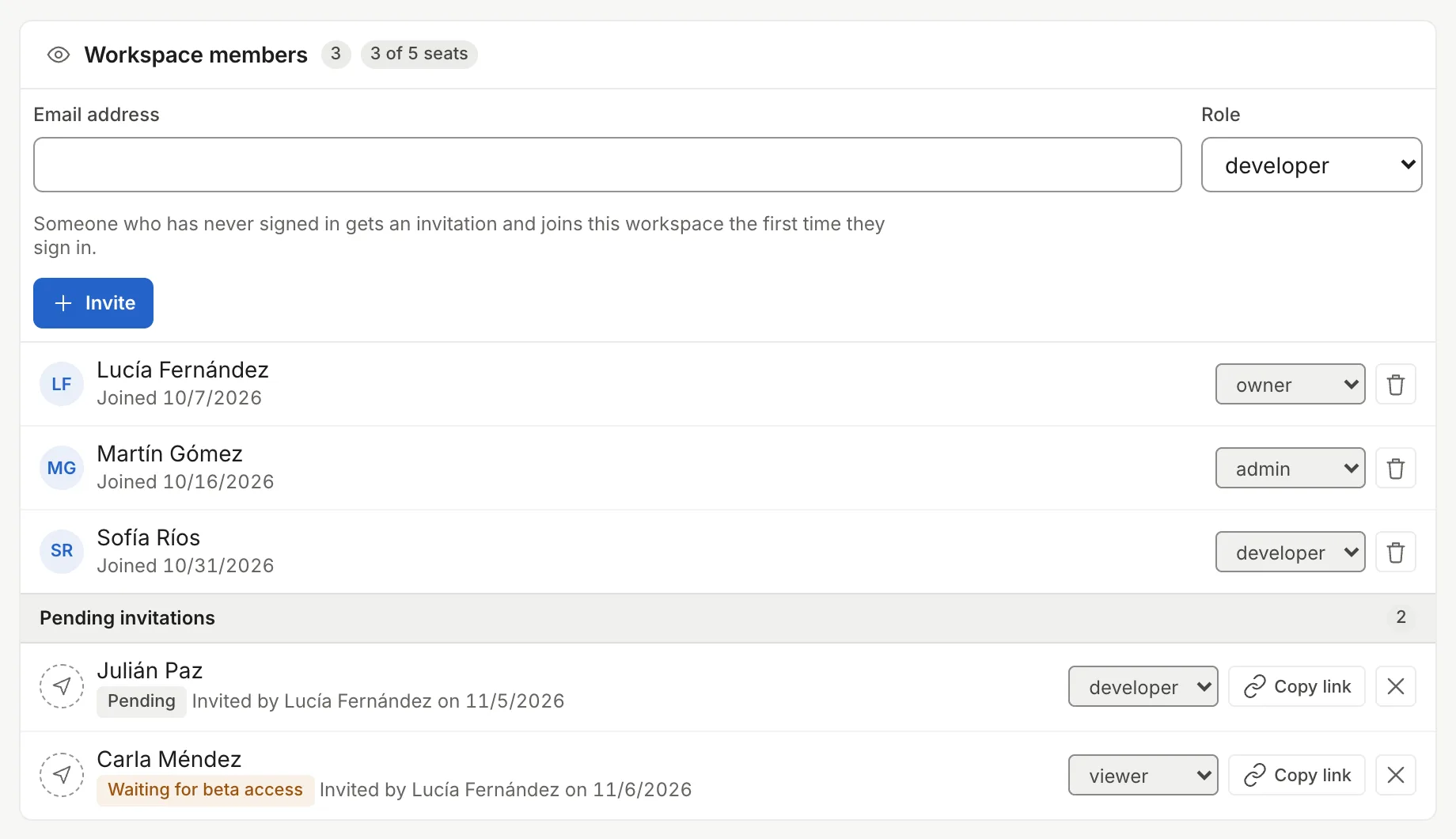
Three members and two invitations. Carla's is waiting for beta access. -
Tell the person. Thulu doesn’t send emails: the “Copy link” button on the row copies a link to the sign-in page with that invitation, so you can pass it along by chat or email. When they open it, the sign-in page says which workspace invited them and which email they have to use.
You can adjust each pending invitation from its row: the selector changes the role they will join with, and the cross (“Cancel invitation”) deletes it after you confirm. Inviting the same email again changes the existing invitation’s role instead of duplicating it.
Self-hosted has no seat cap. To owners and admins, Members warns when the install has more people than the free edition covers (4) or than the license’s seats field. The notice blocks nothing, sends nothing outside the install and is hidden with “Hide for 30 days”.
Invitations during the SaaS beta: the access list
Section titled “Invitations during the SaaS beta: the access list”During the beta, only emails the install’s operator approved can get into Thulu SaaS. An invitation decides which workspace the person lands in, but doesn’t let them in by itself.
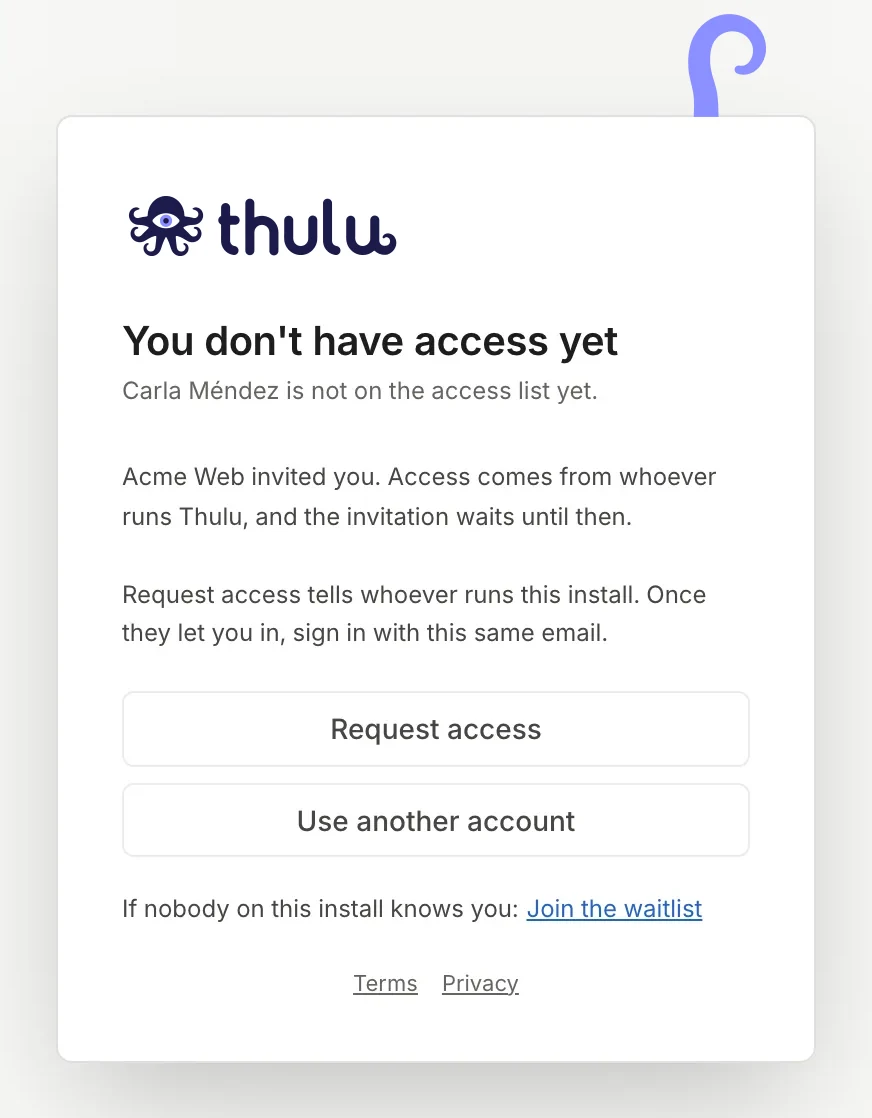
If you invite an email that isn’t approved yet, the row says “Waiting for beta access” and the toast says the person can sign in once they get access. If they try to sign in before that, the sign-in page stops them with “You don’t have access yet”, says which workspace invited them and offers “Request access”:
That email appears in the operator’s “Beta access” panel, under “Waiting for access”, with the workspace that invited it. One click on “Give access” approves it, and from then on the person signs in and lands in the workspace that invited them.
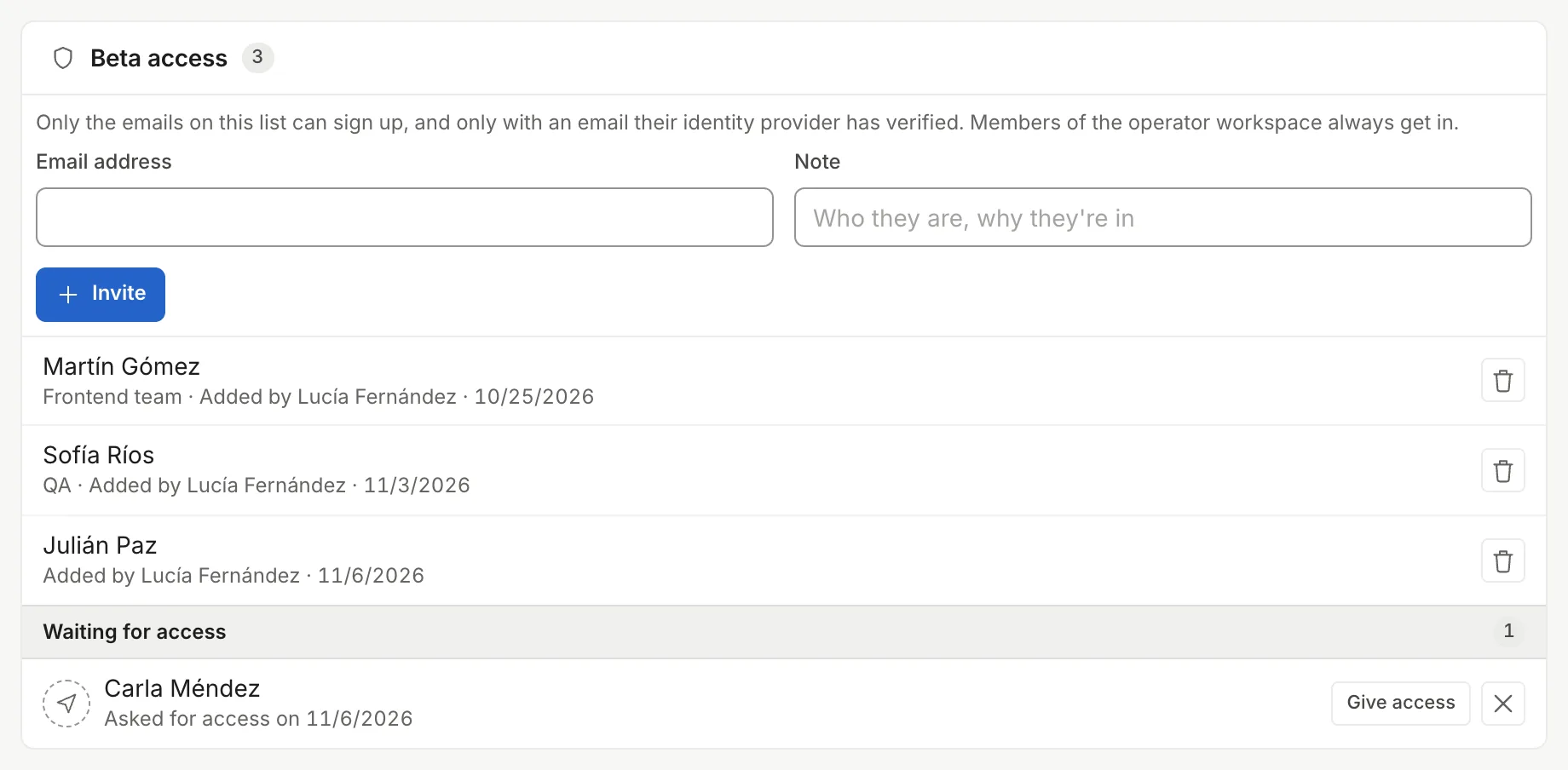
Only admins of the install’s operator workspace see this panel, and only while they are in that workspace. If you administer a customer workspace, you can’t approve your invitees: ask whoever operates the install for access. On a self-hosted install sign-up is open by default (OCTOPUS_SIGNUP_MODE), so the invitation is enough.
Each member has one role per workspace. There are four and you can’t create others. Each role can do everything the previous one can.
| Role in the UI | Can |
|---|---|
| “viewer” | See boards, tasks, projects, agents, skills, chats, evidence, Pending, usage and the member list. Creates and changes nothing: sees chats but can’t start one or write in them. |
| “developer” | Create, edit and move tasks, comment, answer agent questions, decide approvals, relaunch runs, use chats, load test cases and evidence environments, choose an agent’s model and see automations. Can’t delete tasks. |
| “admin” | Delete tasks; create and edit boards, stages, projects, agents, skills, automations, credentials, AI engines, MCPs and webhooks; see the audit log; invite and remove members and change their role (except the owner’s). |
| “owner” | Whoever created the workspace or received it. Also: allow or block delegated chats, connect the GitHub App, hand the workspace to someone else and delete it. Can’t be removed from the workspace. |
API keys also have a role, and never a higher one than whoever creates them. That is in Security and audit.
Change a member’s role
Section titled “Change a member’s role”In Settings → “Members”, pick the new role in the row’s selector: “admin”, “developer” or “viewer”. A dialog warns that the person will have to sign in again. With “Change role” you see “Role updated” and the change applies at once, because Thulu signs that person out of every session.
The owner’s row has no selector and no trash can, and the selector doesn’t offer “owner”. To change owner use “Transfer ownership” (below); the owner’s row reminds you with a link to Account.
Remove a member
Section titled “Remove a member”Click the trash can on their row and confirm with “Remove”. The person leaves the workspace and their sessions end. If they created API keys in this workspace, the dialog offers to revoke them in the same step; the ones you don’t revoke keep working after they leave. The owner can’t be removed.
Delegated chats
Section titled “Delegated chats”At the bottom of “Members” is “Delegated chats”, a checkbox only the owner can change (everyone else sees it on, but changing it gives them an error): it lets a chat’s agent act for the person who opened it for 8 hours. How it is used is in Chat.
Transfer or delete a workspace
Section titled “Transfer or delete a workspace”Both live in Settings → “Account” → “Your workspaces”, which lists each workspace with its slug, your role and the member count.
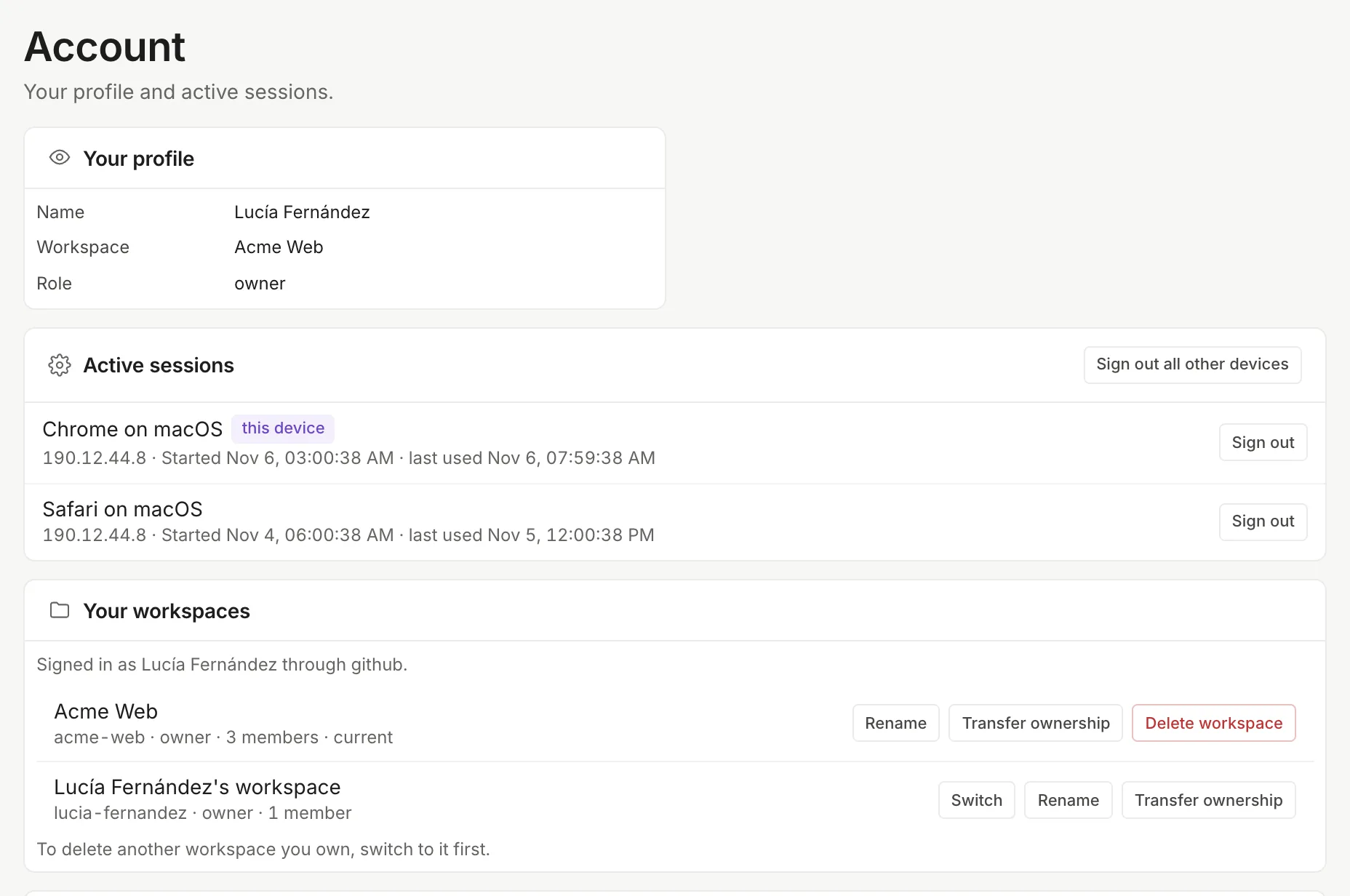
- On the workspace’s row, click “Transfer ownership”.
- Pick the person under “New owner”. If nobody else is there, the modal says “Nobody else is in this workspace. Invite someone first.”
- Click “Transfer”. You see “Ownership transferred”, that person becomes the owner and you stay on as admin. The page reloads with your new role.
- Switch to the workspace you want to delete: the button appears only on the current one.
- Click “Delete workspace”.
- Type the exact slug (the gray text under the name, for example
acme-web). The dialog’s “Delete workspace” button is enabled only once it matches. When you confirm, Thulu signs you out and takes you to sign in again.
It is deleted for all its members: tasks, projects and their clones, chats, credentials, webhooks and API keys. It can’t be undone. Only the owner can do it.
To delete your account, from the same page, you first have to transfer or delete the workspaces you own that other people use. Workspaces where you are the only member are deleted along with the account.
How people arrive on self-hosted with SSO
Section titled “How people arrive on self-hosted with SSO”On your own install, the first sign-in founds the workspace. Whoever comes after waits for an invitation, unless the operator changes that. What happens on each person’s first sign-in is decided by the operator with environment variables:
| Variable | What it does |
|---|---|
OCTOPUS_SSO_ALLOWED_DOMAINS, OCTOPUS_SSO_ALLOWED_GROUPS |
Who can sign in, by email domain or by provider group. Checked on every sign-in. |
OCTOPUS_SSO_DEFAULT_WORKSPACE |
The slug of the workspace where new people without an invitation land. |
OCTOPUS_SSO_DEFAULT_ROLE |
The role they join with. “viewer” by default; “owner” isn’t accepted. |
OCTOPUS_OIDC_GROUP_ROLE_MAP |
Maps provider groups to roles and applies them again on every sign-in. |
OCTOPUS_ALLOW_PERSONAL_WORKSPACES |
With 1, each new person without an invitation gets a workspace of their own instead of waiting. |
An invitation takes priority: whoever arrives invited joins the workspace that invited them, with the invitation’s role. Settings → “Members” shows what these variables resolved to in the read-only “Sign-in” panel: provider, allowed domains and groups, sign-up mode and where a newcomer lands. The detail of these variables is in Settings and in Self-hosted install.
Common problems
Section titled “Common problems”- “admin or API key required” when inviting or changing a role: your role in this workspace is developer or viewer. Check your role in the workspace menu, under the name.
- It signed me out suddenly: someone changed your role in a workspace (or you did). Sign in again and you come in with the new role.
- I can’t find “Members” in Settings: the install has no sign-in. In that mode there is one workspace and no team to manage.
- I made changes and can’t see them: check which workspace you are in. Boards, agents, credentials and projects belong to each workspace and aren’t copied from one to another.