
Credentials and engines
Thulu does not ship a model key of its own: each workspace uses its own (BYOK). You add that key under “Settings → AI engines” as a profile, and each agent runs with its engine’s default profile or with one you assign it. Separately, the “Credentials” page stores the GitHub, AWS, Google Cloud, Figma and third-party MCP keys that MCP servers use when an agent opens a PR, reads logs or queries a ticket. Both store secrets encrypted and neither shows them again: only a masked hint like …A0eZ. Each has a link to the other at the top.
Both screens are under “Settings”, which opens from the bottom of the sidebar or from your account menu: “AI engines” is under “Workspace” and “Credentials” under “Integrations”. You need the admin role.
Recommended flow: the model key
Section titled “Recommended flow: the model key”Without a default profile for Claude Code, no agent on that engine starts, and the card says so: “No default profile: runs on Claude Code will not start until you add a key”. It is the first thing to do after creating the workspace; the “Setup” button in the top bar lists it as “Model key (BYOK)”. On your own installation, thulu init already asks for this key and creates the profile.
-
Get the credential outside Thulu. The recommended form is an Anthropic API key (it starts with
sk-ant-api), billed to your API account. You can also run Claude through Amazon Bedrock or Google Vertex AI (see Bedrock, Vertex and custom endpoints) or without storing any key, with identity federation. -
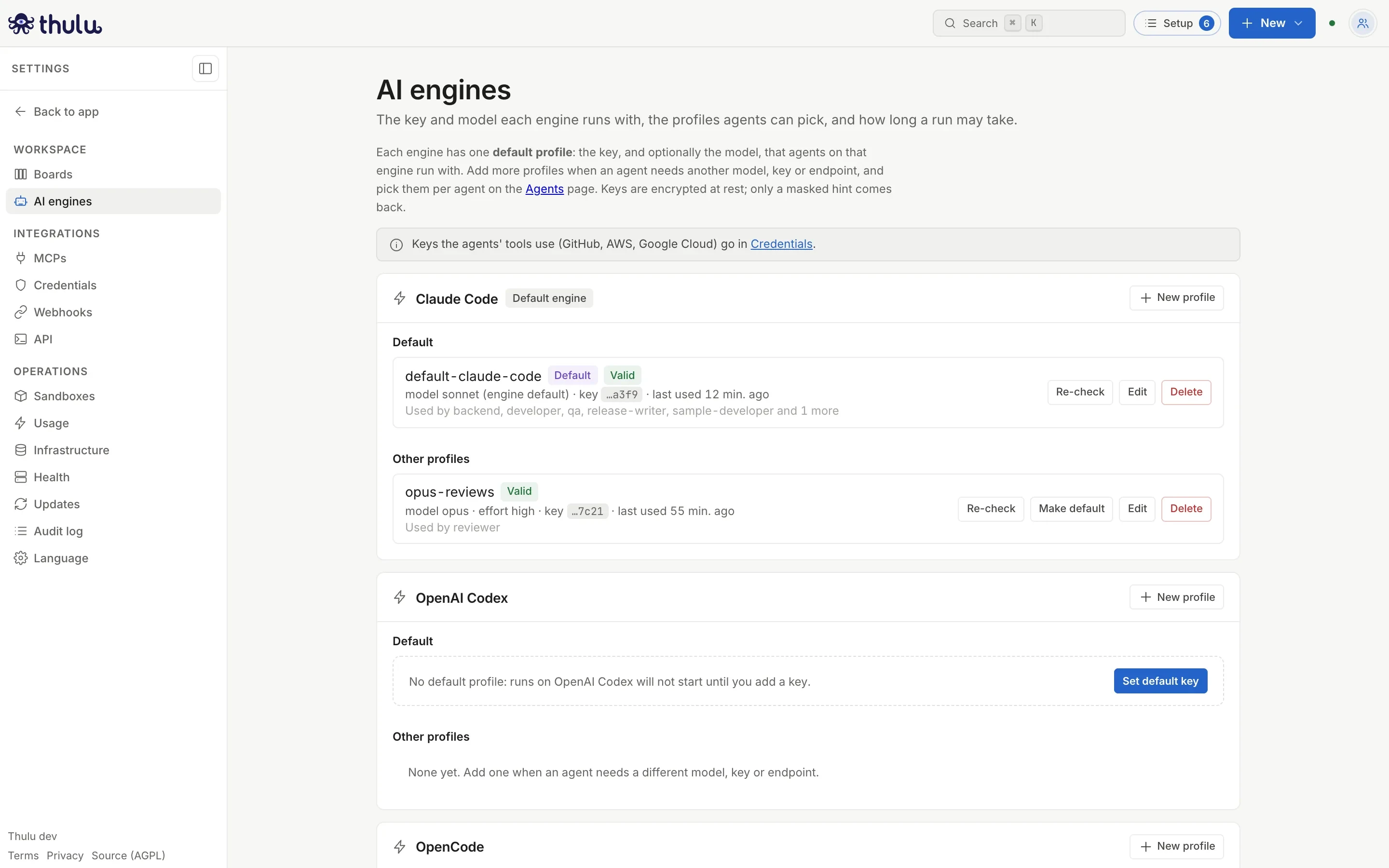
Open “Settings” and choose “AI engines”. Each engine has a card. Without a profile, the “Default” section shows the “Set default key” button.
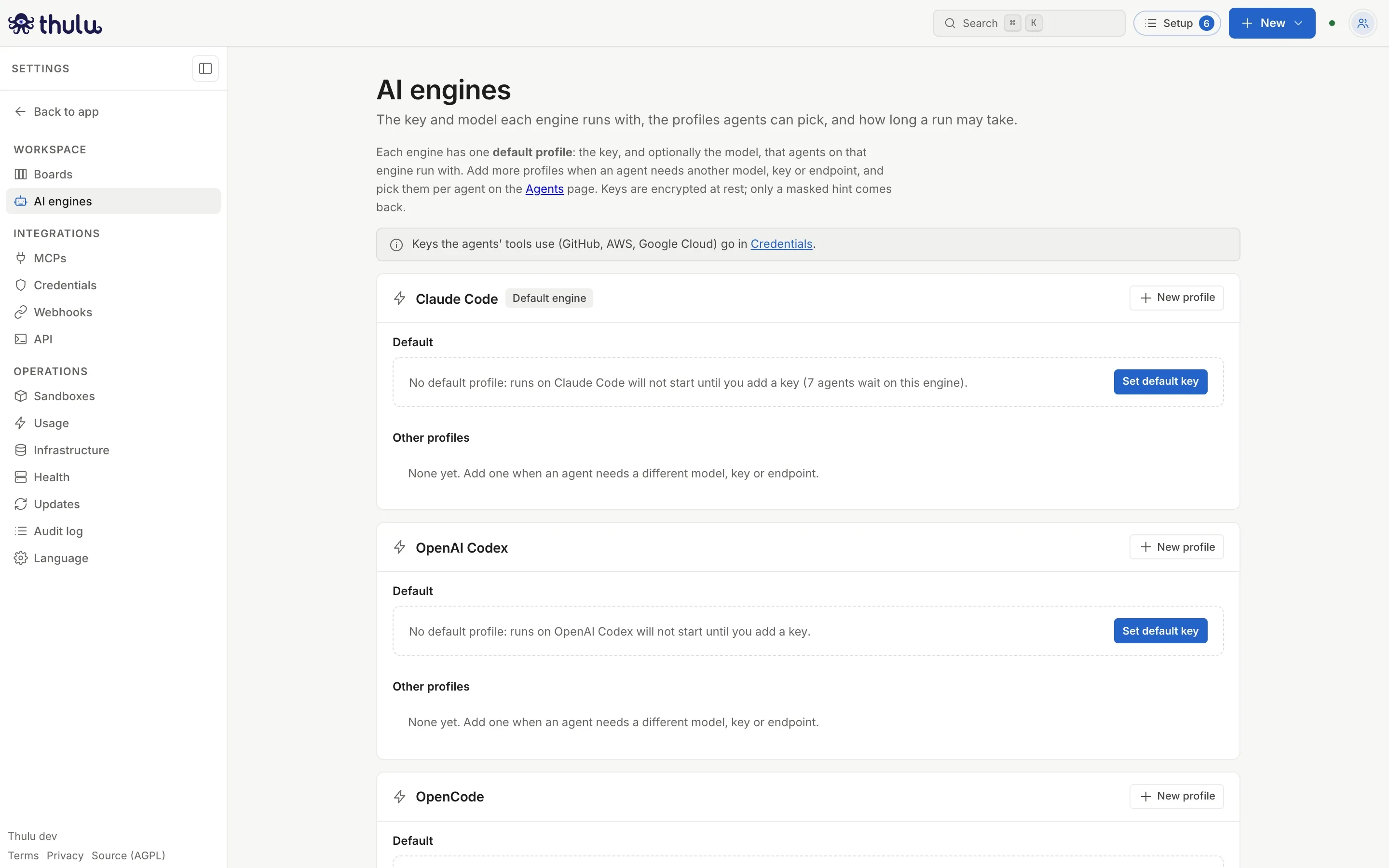
A new workspace: no engine has a key. Claude Code carries the "Default engine" mark, the one agents that do not pick an engine use. -
Click “Set default key” on Claude Code. The name is filled in (
default-claude-code) and “Default for Claude Code” is checked. -
Under “Credential” choose “API Key” and paste it into “Key”. Leave “Model” empty to use the CLI’s (sonnet) or type
opusorhaiku.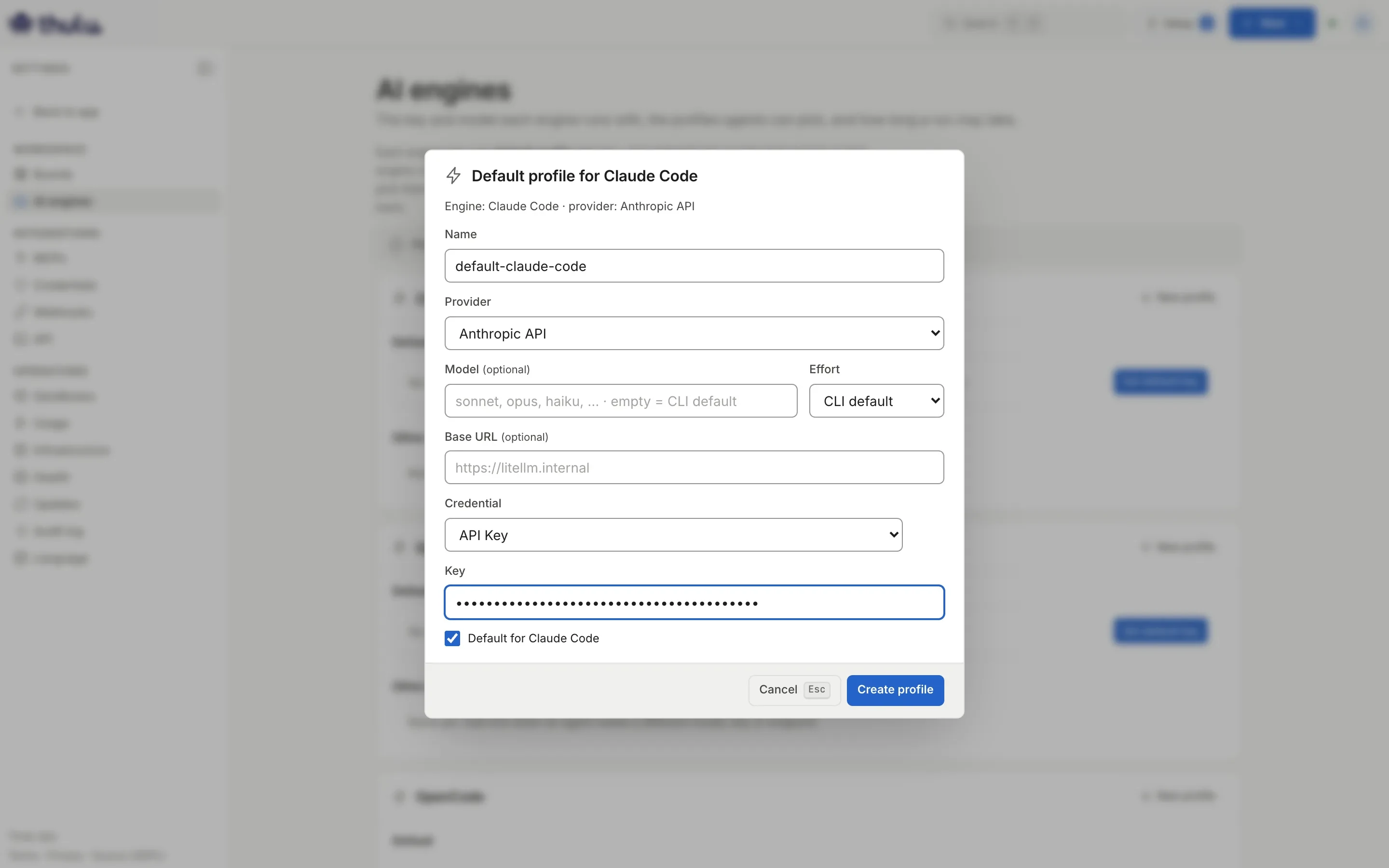
Model, effort and base URL are optional. -
Click “Create profile”. The notice “Profile "default-claude-code" created” appears and Thulu asks the provider whether it accepts the key: “The provider accepted the key of …” or “The provider rejected the key of …: check it before the next run”. The card shows the profile with the key hint, its status and which agents use it. Claude Code agents that have no profile of their own now run with this key.
The check asks for the provider’s model list, so it works for API keys. A subscription token or a cloud credential does not answer that list and its profile stays “Not checked”. If a run gets a refusal from the provider, the profile goes to “Refused on a run” with the HTTP code. “Re-check” repeats the test.
Named profiles
Section titled “Named profiles”A named profile is useful when an agent needs a different model, a different key (for example, another team’s, to separate costs) or a different endpoint. Agents do not use it until you assign it.
-
On the engine’s card, click “New profile”.
-
Fill in “Name” (for example
opus-reviews), “Model” (opus), “Effort” (“high”) and the “Key”. Leave “Default for Claude Code” unchecked. -
Click “Create profile”. The profile appears under “Other profiles” with “No agent uses it”.
-
Assign it from Agents: pick the agent, open its “Settings” tab and, in the “Model & credentials” box, leave the mode on “Profile”, pick the profile from the list and click “Save settings”.
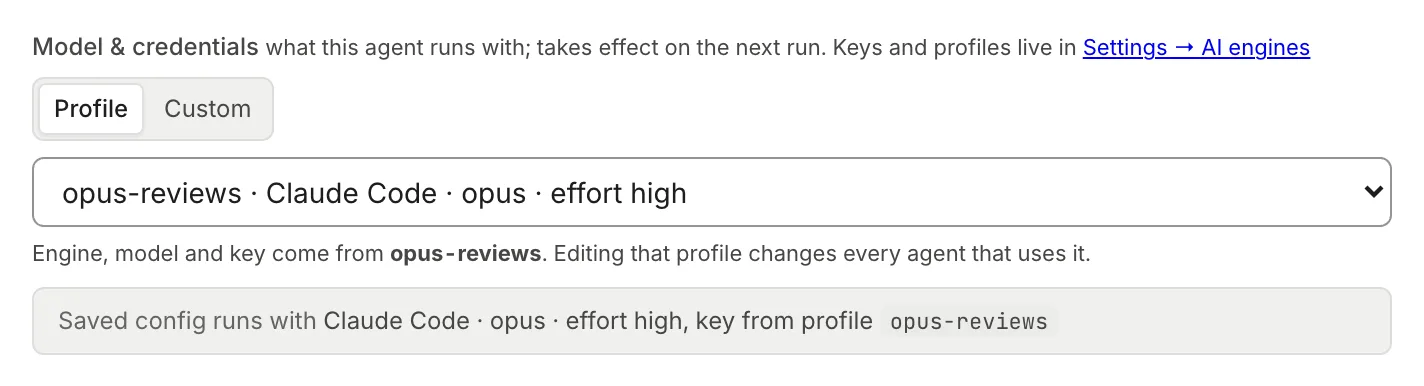
On the agent, the profile decides engine, model and key. The gray box below says what the saved settings run with.
How each agent picks its key
Section titled “How each agent picks its key”| Agent configuration | Engine and model | Key |
|---|---|---|
| “Profile” → “Default for Claude Code” | Those of the default profile | The default profile’s. If someone changes the default, the agent changes with it |
| “Profile” → a named profile | Those of that profile | That profile’s. Editing the profile changes every agent that uses it |
| “Custom” | Whatever you choose in “Engine”, “Model” and “Effort”; empty takes the default | Always the engine’s default profile’s |
Agents never store a key of their own. The details of the “Model & credentials” box are in Agents. If the person who launches the run connected their personal login, that run uses the login instead of the profile’s key.
Change the default, edit or delete
Section titled “Change the default, edit or delete”- “Make default” on another profile asks for confirmation and says how many agents change (“1 agent without a profile of their own switch to this key and model on their next run”).
- “Edit” leaves the key empty: if you paste nothing, the stored one is kept. On the default, the checkbox is locked; to stop it being the default you have to make another profile the default.
- “Delete” does not let you remove a profile that an agent uses: first move those agents to another profile. Deleting the default leaves the engine without a key, and the confirmation says so.
Changes apply from the next run. A run in progress continues with what it started with.
Bedrock, Vertex and custom endpoints
Section titled “Bedrock, Vertex and custom endpoints”In the Claude Code modal, “Provider” offers “Anthropic API”, “Amazon Bedrock” and “Google Vertex AI”. Each shows different fields:
| Provider | Fields | Notes |
|---|---|---|
| Anthropic API | “Credential”, “Key”, “Base URL” (optional) and “Send the key as” (appears when you type a base URL) | The base URL points at a proxy such as LiteLLM. “Authorization: Bearer” is for gateways that do not accept the x-api-key header. With a base URL, Thulu does not check the key’s prefix |
| Amazon Bedrock | “Region”, “Small model” (optional), “Access key ID” and “Secret access key”, “Session token” (optional) or “Bedrock API key (optional)” | With the credential fields empty it uses the installation’s cloud identity (IRSA), if the operator enabled it |
| Google Vertex AI | “Region”, “Project ID”, “Service account key JSON” | Same as Bedrock: empty uses Workload Identity |
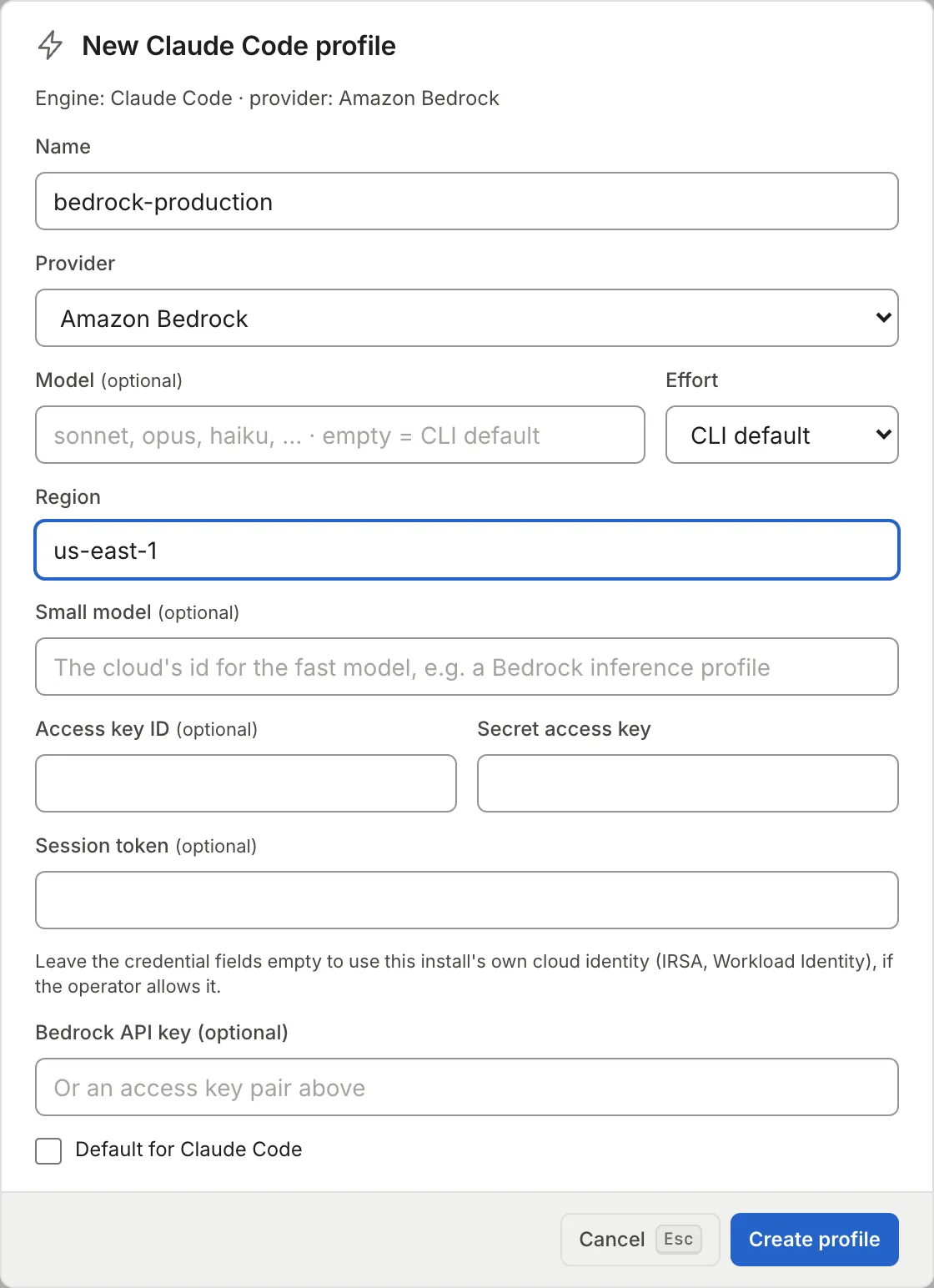
The OpenAI Codex and OpenCode cards follow the same steps, with “OpenAI API” or an “OpenAI-compatible API” (DeepSeek, OpenRouter) as the provider.
Identity federation: no stored key
Section titled “Identity federation: no stored key”A Claude Code profile against the Anthropic API can authenticate without storing any key. Under “Credential” choose “Workload identity federation”: each run receives an identity token that the daemon signs, and Anthropic exchanges it for a short-lived access token according to a federation rule in the Claude Console. Anyone who reads a container’s environment gets a token that expires with the run.
It needs three things:
- A fixed https address for the daemon, which is the token issuer:
OCTOPUS_WORKLOAD_IDENTITY_ISSUERorOCTOPUS_DOMAIN. With neither, the profile is not saved. Once registered with Anthropic, it is best not to change it. - In the Claude Console, register that issuer, create a service account and a federation rule that filters by the subject prefix the form shows, so the rule admits only this workspace’s runs. If Anthropic cannot reach the daemon over the internet, choose inline JWKS and paste the key set the form shows.
- In the profile, the rule’s IDs (
fdrl_…), the organization’s, the service account’s (svac_…) and, only if the rule covers several Anthropic workspaces, the workspace’s (wrkspc_…).
The issuer token’s maximum lifetime at Anthropic has to cover the run’s time limit (see below). It does not work for Bedrock or Vertex.
Your own Claude login
Section titled “Your own Claude login”On a Docker installation, “AI engines” shows the “Your own engine login” panel. “Connect” opens Claude’s sign-in page, you approve with your account and paste the code it shows you. From then on, the runs you start use that login instead of the workspace’s key, one at a time: the others wait in the queue. Runs started by automations, agent mentions or API keys keep using the workspace’s.
“Disconnect” signs the login out and deletes its volume. If a run is still using it, wait for it to finish.
Run time limit
Section titled “Run time limit”At the bottom of “AI engines”, “Run time limit” says how many minutes an agent run can last in this workspace before Thulu stops it and says so on the task. Without a value of its own, the installation’s applies, and the workspace cannot exceed the maximum the installation sets. “Use default” clears the workspace’s own value. Only an admin changes it.
Service credentials
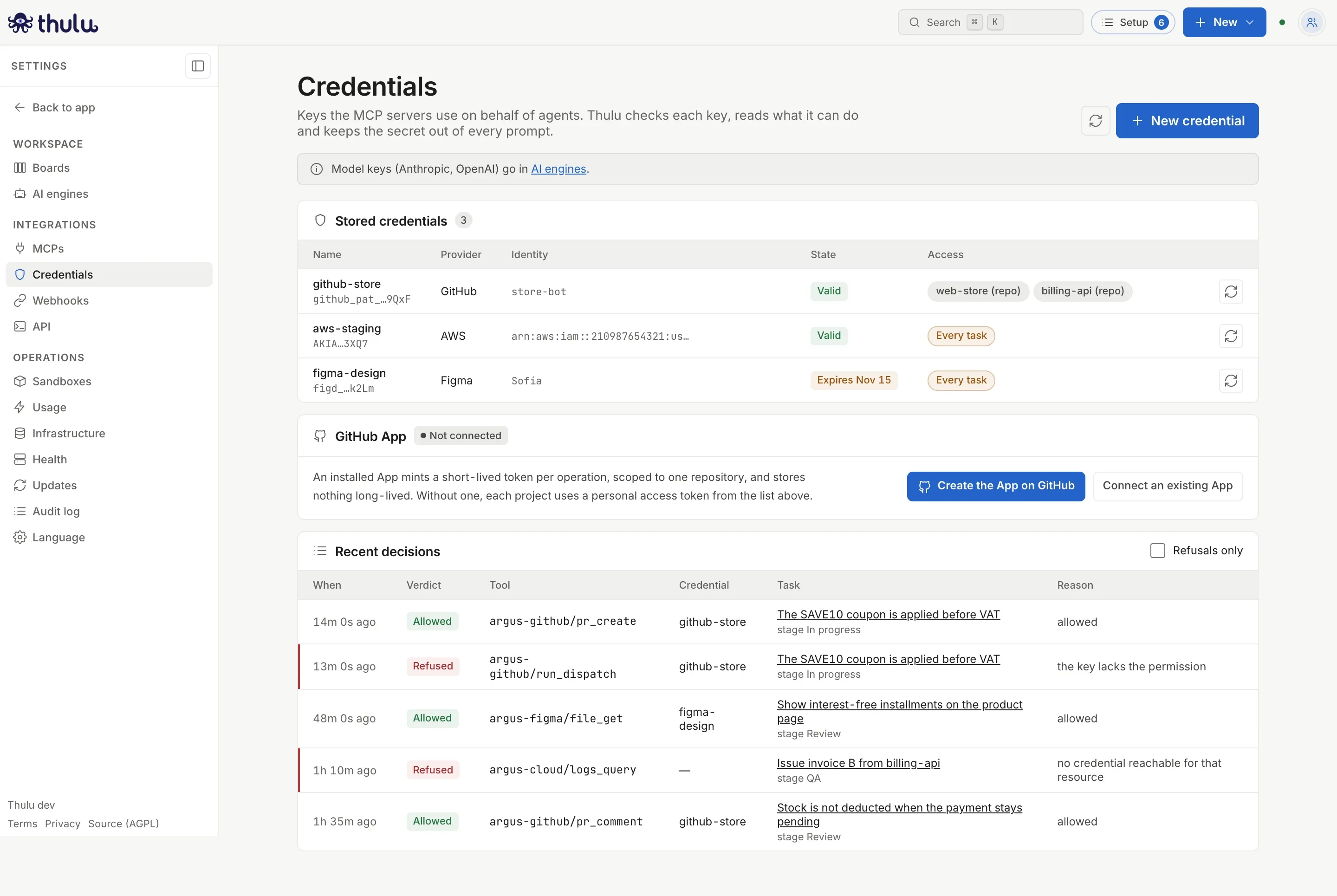
Section titled “Service credentials”The “Credentials” page stores the keys MCPs use on an agent’s behalf: argus-github for PRs and Actions, argus-cloud for logs and metrics, argus-figma for reading designs, and the third-party MCPs registered in MCPs. Thulu checks each one when you save it where the provider allows, finds out what permissions it has and ties it to the projects or environments you choose.
| Provider | Types | What for |
|---|---|---|
| GitHub | “Personal access token” | PRs, Actions and git when the project does not use the GitHub App |
| AWS | “Access keys” | argus-cloud |
| Google Cloud | “Service account key” | argus-cloud |
| Figma | “Personal access token” | argus-figma, read-only |
| “HTTP header (API token)” | “Bearer token”, “User and API token (Basic)”, “Custom header” | A third-party MCP that accepts a fixed token (Jira with an Atlassian token, for example). There is no generic check: it stays “Not checked” until a call uses it |
| “OAuth connection (MCP server)” | “Connection to an MCP server” | A third-party MCP that asks for OAuth (Slack, Atlassian, Linear). You connect it with “Connect” and the daemon stores and renews the tokens |
-
Create the key at the provider. For GitHub, a personal access token. Classic ones report their scopes and Thulu maps them to tools:
repoenables PRs and Actions,public_repoonly PRs on public repos; addworkflowif agents edit.github/workflows. Fine-grained tokens are accepted, but GitHub does not report their permissions and all the tools stay enabled. For Figma, a token withcurrent_user:read,file_content:read,file_comments:readandprojects:read. -
Under “Credentials”, click “New credential”.
-
Enter a “Name” (agents see it, for example
github-store), pick the “Provider” and paste the fields it asks for: “Token” for GitHub or Figma, “Access key ID” and “Secret access key” for AWS, “Key file (JSON)” for Google Cloud. For a third-party MCP, the name has to be the same one its registration asks for under MCPs. -
Under “Which tasks can use it”, check the projects or environments. An environment marked “production” shows in red. “Every task in this workspace” reaches everything, and shows in yellow in the list.
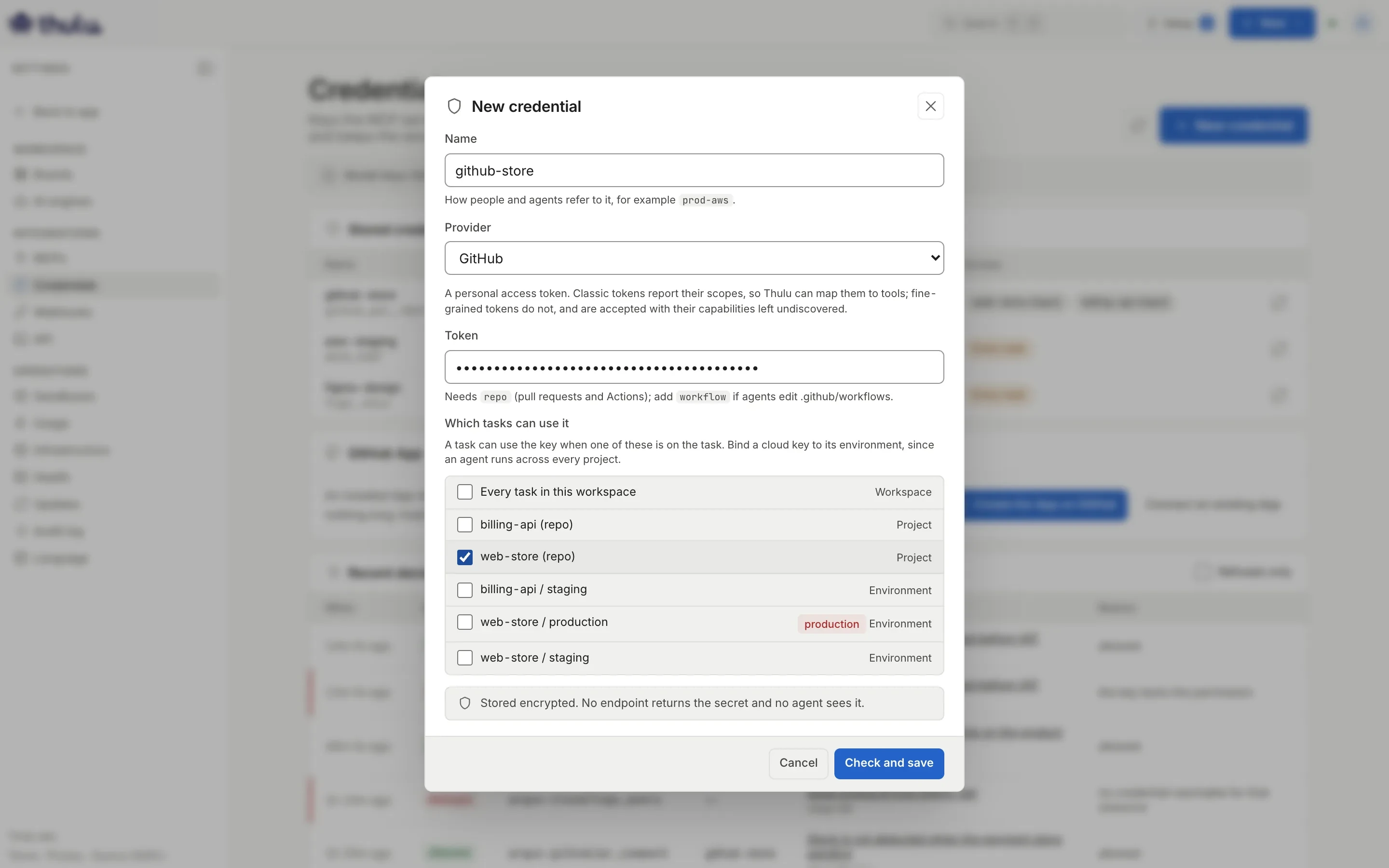
A GitHub token is tied to the project (web-store). A cloud key is best tied to its environment: tied to the project, any task of that project can use it. -
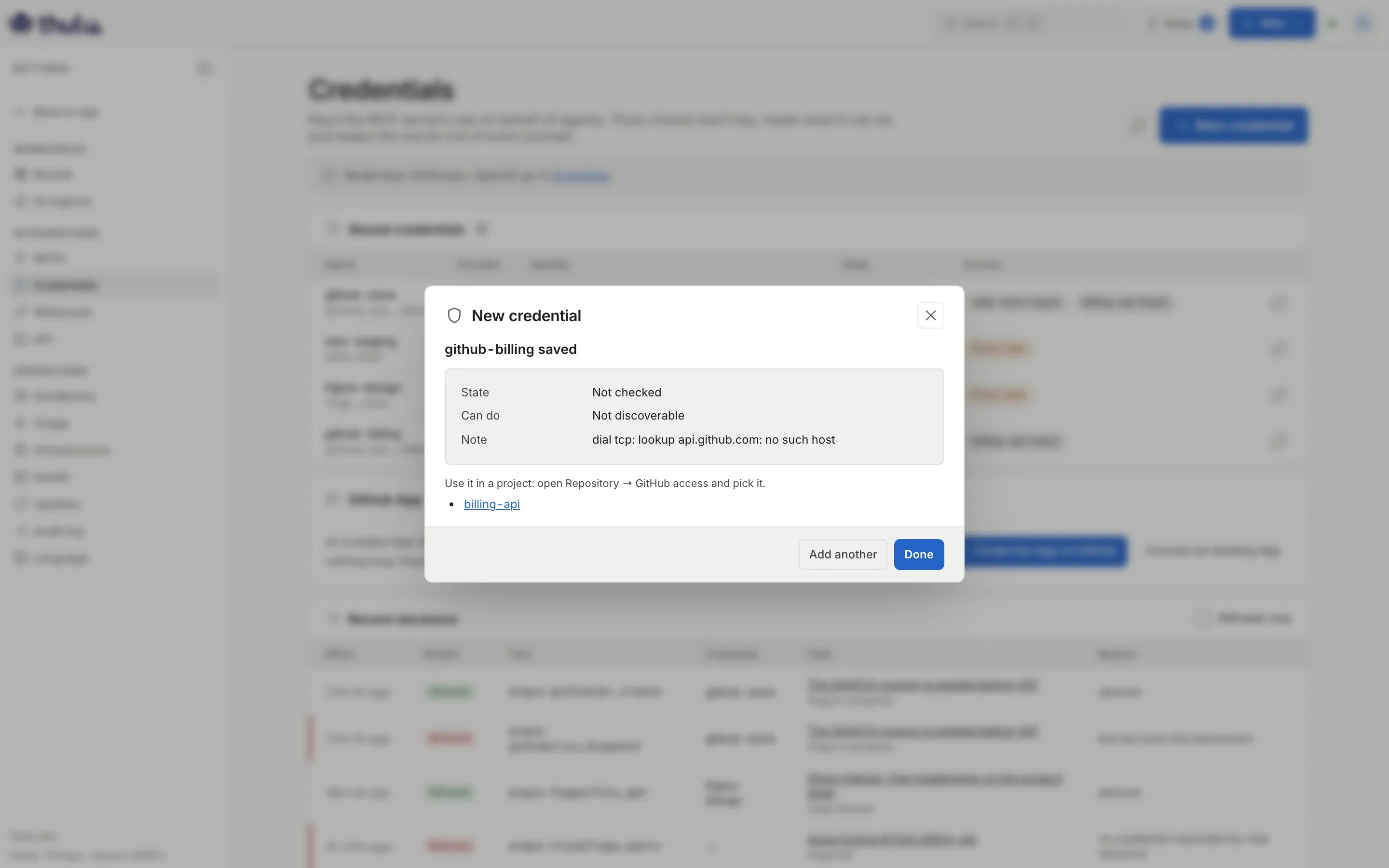
Click “Check and save”. The modal shows the result: state, identity, how many permissions it found and how many tools are available. “Done” closes; “Add another” goes back to the form.
-
If it is a GitHub token to clone and push, the result reminds you: “Use it in a project: open Repository → GitHub access and pick it.” (Git and GitHub).
Saving without checking any access is valid, but the credential is useless until you choose something: the notice and the “Access” column say “No access yet”. If Thulu cannot reach the provider, the credential is saved anyway as “Not checked” (see Common problems).
Which tools it enables and who uses it
Section titled “Which tools it enables and who uses it”Click a row to open the detail. At the top are “Re-check” and “Disable”; below, the identity, the key hint, the expiry and the last check.
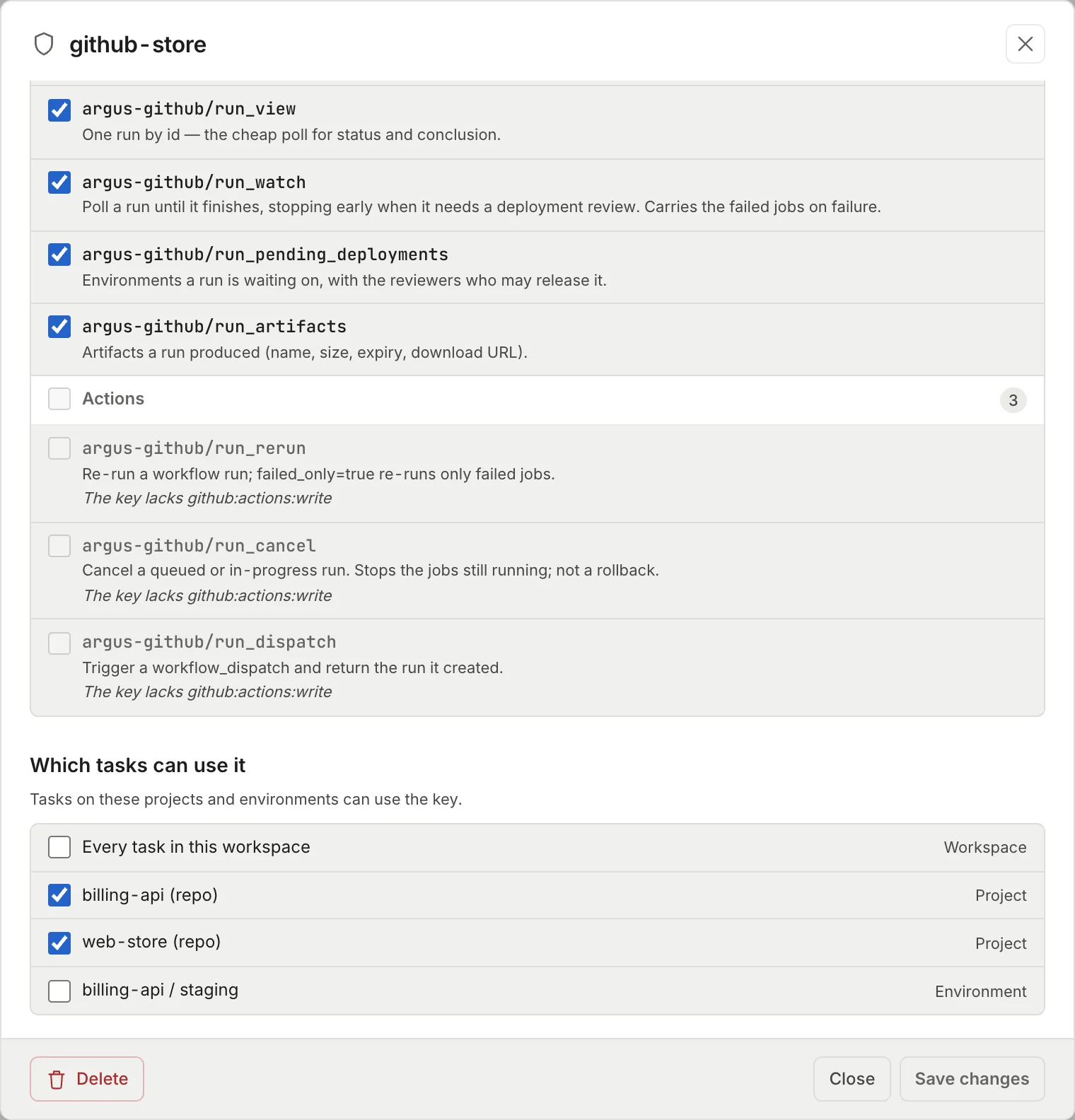
- The tool list is grouped into “Read”, “Write” and “Actions”, with a search box (“Search tools”) and a checkbox per group to turn them all on or off.
- To keep any agent from using a tool with this key (for example
pr_merge), uncheck it and click “Save changes”. - “Which tasks can use it”, at the bottom of the detail, changes the access.
- “Rotate key” replaces the secret without touching who can use it or which tools stay on. “Rename” changes the name.
- “Disable” turns the whole credential off without deleting anything. Tasks keep starting, without those tools.
- “Delete credential” removes the secret, the access and the tool settings. The key stays valid at the provider: revoke it there too.
The “Recent decisions” panel lists each tool call that asked for a credential: when, “Allowed” or “Refused”, the tool, the credential, the task and the reason (“the key lacks the permission”, “no credential reachable for that resource”, “several candidates; the agent must name one”). “Refusals only” filters.
States
Section titled “States”| State | What happens |
|---|---|
| “Valid” | The provider accepted it |
| “Expiring” / “Expires Oct 20” | It has an expiry date coming up (temporary AWS credentials, GitHub tokens with an expiry) |
| “Expired” / “Invalid” | A task that needs this credential for its tools does not start: a “Launch blocked” comment is left with the credential and the affected tools |
| “Not checked” | Thulu could not ask the provider, or the type has no check (HTTP header). The detail warns: “Could not find out what this key allows: every tool stays enabled.” |
| “Disabled” | You turned it off. It does not block: the task runs without those tools |
Thulu re-checks each credential by itself every 6 hours. To launch a task with an expired credential, rotate it or disable it: once disabled, the run starts without the tools that depended on it.
GitHub App
Section titled “GitHub App”The “GitHub App” panel on this page connects an App that replaces personal tokens for git: it mints a short-lived token per operation, limited to one repository. It serves every workspace of the installation, so connecting or removing it belongs to an admin of the operator workspace. On the SaaS the App comes connected and you only install it on your organization. On your own installation, “Create the App on GitHub” opens GitHub’s form with the permissions, the webhook and the URLs already filled in, and comes back with the App connected; “Connect an existing App” asks for the “App ID” and the .pem of an App registered by hand. The full steps are in Git and GitHub.
If the App was configured with environment variables (OCTOPUS_GITHUB_APP_ID and the others), the panel shows it as “From environment” and does not let you change it from the UI.
Common problems
Section titled “Common problems”| Symptom | Cause and way out |
|---|---|
| The run does not start: “no LLM credential for … add a default profile for … in Settings → AI engines” | The agent’s engine has no default profile. Add it under AI engines |
| “The AI engine rejected the credential (HTTP …)” on the task | The provider did not accept the key on the run. The profile goes to “Refused on a run”: edit it and paste a new key |
| “API key starts with sk-ant-api” when creating a profile | You pasted a token of another kind. Change “Credential” or the key and click “Create profile” again |
| The agent’s box says the settings have no key, or the selector shows “no key: will not start” | That engine has no default profile |
| “"opus-reviews" is used by reviewer. Move those agents to another profile first.” | The profile has agents assigned. Change them under Agents and delete again |
| A new credential stays “Not checked” with “Could not reach …” | Thulu did not reach the provider (network, proxy, DNS). Click “Re-check” once there is outbound internet |
| An agent says it cannot dispatch a workflow | Look at “Recent decisions” with “Refusals only”: “the key lacks the permission” is the token (a classic one needs the repo scope, not only public_repo); “not offered at this stage” is the agent’s MCP configuration (MCPs) |
| A federated profile is not saved | OCTOPUS_WORKLOAD_IDENTITY_ISSUER or OCTOPUS_DOMAIN is missing on the daemon |