

Workshop
The Workshop is a catalog of agents and skills to install in your workspace, plus a way to carry agents and skills from one Thulu install to another in a JSON file. It helps you get started, because a new workspace comes with no agents, and to move what you built on a Docker Thulu to the cloud, or the other way around.
The catalog travels inside the daemon’s binary: what you can install depends on the Thulu version you run, and Thulu doesn’t download it from the internet. Today it ships two sample agents and one skill: sample-developer (a coding agent to copy and adapt: it implements the task on its branch, runs the tests and commits), changelog-writer (writes the CHANGELOG entry for a task’s work) and the skill it uses, changelog-style. They are starting points: you write your team’s agents yourself or import them.
To install or import you need to be a workspace admin. Any member can browse the catalog and export.
Install an agent in an empty workspace
Section titled “Install an agent in an empty workspace”-
Open “Agents” in the sidebar and click “Workshop”, top right next to “New agent”. If the workspace has no agents, the list also says “Install ready-made agents from the Workshop, or create your own.” with another “Workshop” button.
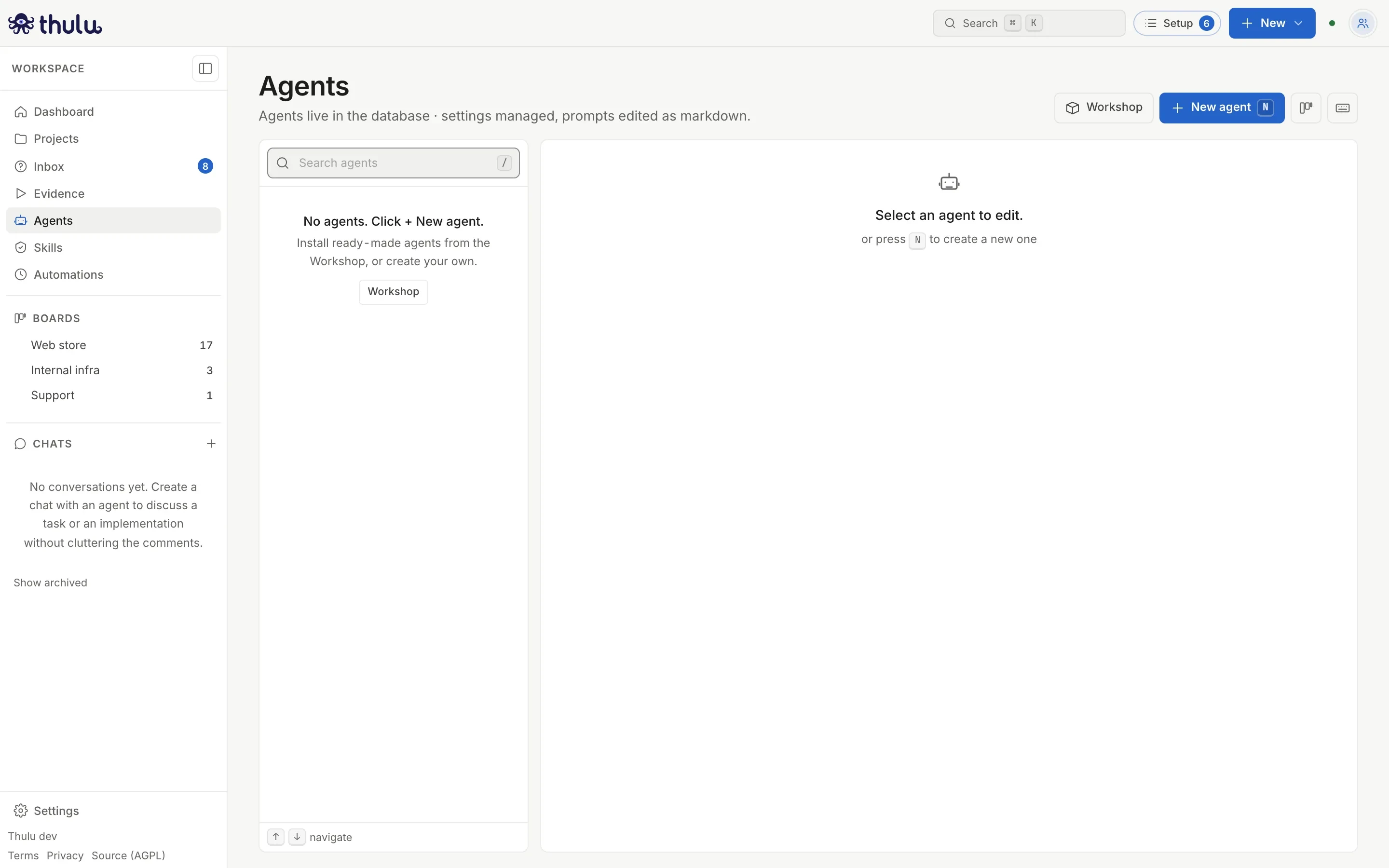
With an empty workspace, the Workshop opens from the header or from the list. -
The Workshop modal opens on the “Agents” tab, with a counter of how many it ships. If you open it from “Skills”, it starts on the “Skills” tab. At the top you have the search (“Search by name, description or tag”) and the catalog’s tags as chips: if you pick several, the list shows only what has all of them. Descriptions come out in the UI’s language.
-
Pick an agent from the list. Its detail appears on the right: what it does, the skills it uses, its stages (with the name they have on your board, or “No board has this stage”), its MCP, the image if it runs with its own, the revision, the tags and its files (collapsible, with each prompt’s text). Below it says how many skills it brings (“Brings 1 skill.”).
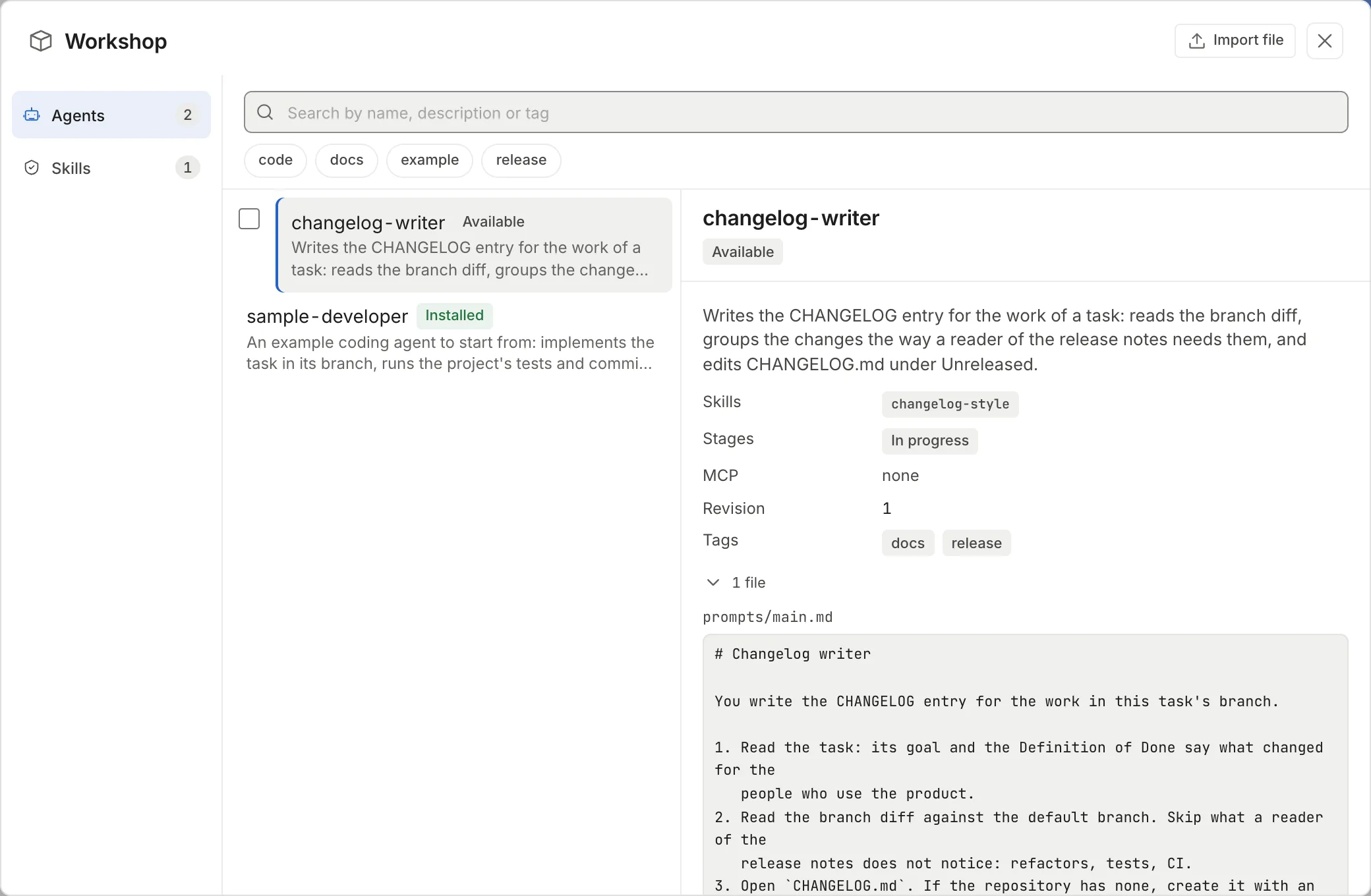
The detail shows everything that will be installed, including each prompt's text. -
Click “Install”. The modal changes to “Review before installing”: the list of everything it will write, with the agent and each skill it brings, and notices if something is missing for it to work.
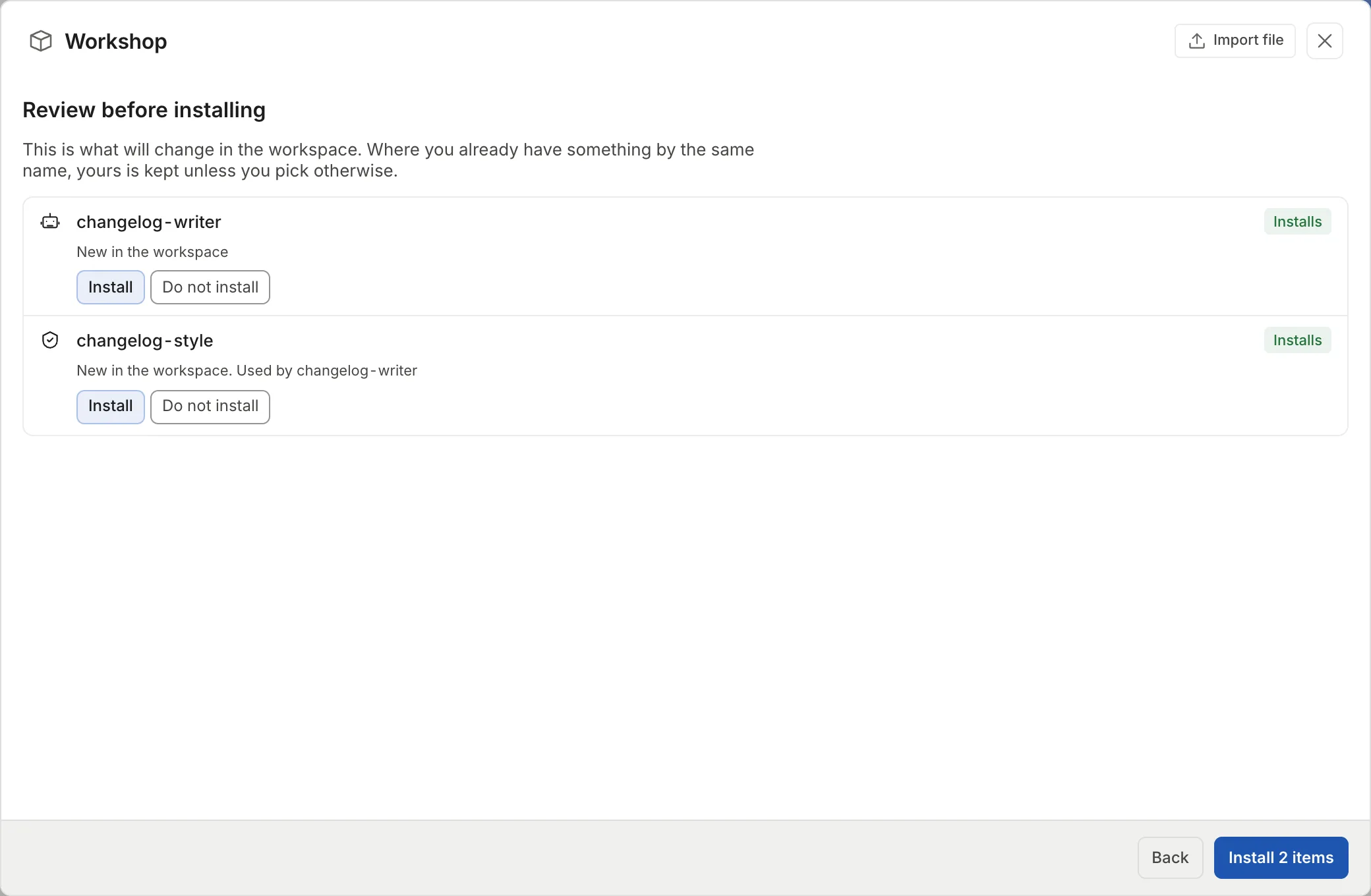
The agent brings its skill in the same plan. -
Click “Install 2 items”. Everything is written together or nothing is written. The modal shows “Done” with what happened (installed, updated, replaced, copies with their new name and what was left out) and “Back to the catalog”; the Agents list now shows the agent.
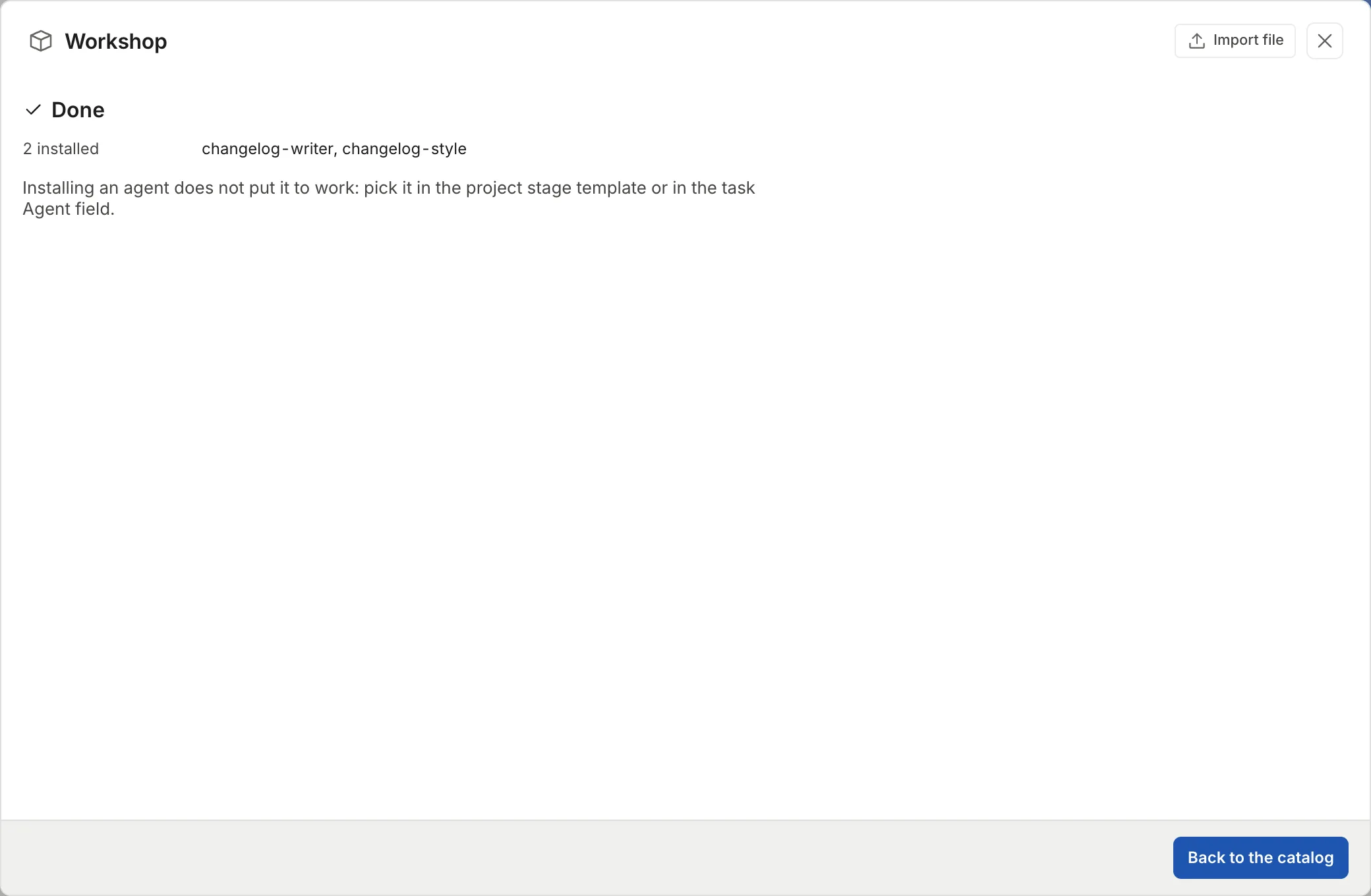
The result says what was written and reminds you that installing doesn't put the agent to work.
To install several at once, tick the box of each one in the list and click “Review and install N”: a single plan comes out with all of them.
From there the agent is yours: close the modal and edit it in Agents like any other, and its skills in Skills. Installing doesn’t put it to work. The two sample agents come with in_progress among their valid stages; the agent that runs on each stage is picked in the project’s “Stage template” or in the task’s Agent field (see Projects and Boards and stages).
Installing a single skill is the same from the “Skills” tab. A skill that asks for others in its requires brings them in the same plan, and its detail shows “Requires” and “Used by” (the catalog’s agents that bring it).
How to read the plan
Section titled “How to read the plan”Before writing anything, the Workshop compares each item with what the workspace already has and classifies it. The catalog list shows the same status with a short word:
| In the list | In the plan | What happens by default | What else you can pick |
|---|---|---|---|
| “Available” | “New in the workspace” | “Install” | “Do not install” |
| “Installed” | “You already have it, identical” | not touched | nothing |
| “Update” | “A newer revision ships and you have not changed yours” | “Update” | “Keep yours”, “Install as a copy” |
| “You have another” | “You already have a different one by this name” | “Keep yours” | “Replace”, “Install as a copy” |
| “Reserved name” | “The name belongs to an Thulu skill” | “Do not install” | “Install as a copy” with another name |
When an item has more than one option, the row shows a selector with the options and a label on the right with what will happen (“Installs”, “No change”, “Updates”, “Replaces”, “Copy”, “Left out”). Every time you change an option, the plan is recalculated and the notices change according to what will be written. The final button says what it does: “Install 3 items”, “Update 1 item” or “Apply 2 changes” if it mixes them, and it is disabled with “Nothing to install” if everything stays as it is.
When you apply, the daemon builds the plan again against the workspace as it is at that moment. If someone changed something while you were looking and your option no longer applies, that item goes back to its default option, which never overwrites what is yours.
Update what you installed
Section titled “Update what you installed”Each catalog item has a revision number, and a new Thulu version can ship a newer revision. The Workshop remembers which revision you installed and whether you edited it afterwards.
- If you didn’t touch it, the “Workshop” button on Agents and Skills adds a counter (“1 update in the Workshop”) and the item’s row in your list carries the “Update” label. In the catalog the detail says, for example, “2 (you have 1)”, the button is “Update” and the plan already comes with “Update” picked.
- If you edited it (a prompt, a skill file or the agent’s settings), it shows as “You have another” and the plan adds “You edited it after installing it”. By default your version is kept.
What came in through a file is recognized too: if you import another version of the same agent and you hadn’t touched it, the plan says “The file brings another version and you have not edited it” and offers to update it.
When you already have something with the same name
Section titled “When you already have something with the same name”If the catalog or a file brings an agent or a skill with a name you already use and the content is different, the detail shows “Review and install” and the plan lets you pick per item:
- “Keep yours” (default): it isn’t touched. If it is a skill that an agent brings, the plan warns “changelog-writer will use your changelog-style, not the Workshop one” and suggests installing it as a copy.
- “Replace”: the new version is written on top. The previous files stay in the editor’s history, and for an agent the settings it had stay in its settings history (“The current configuration stays in the agent history”), so it can be restored.
- “Install as a copy”: it is installed alongside with the name you put in “Copy name” (it proposes a free one, like
changelog-style-2). The agents that come in the same plan switch to using the copy; yours keep using yours.
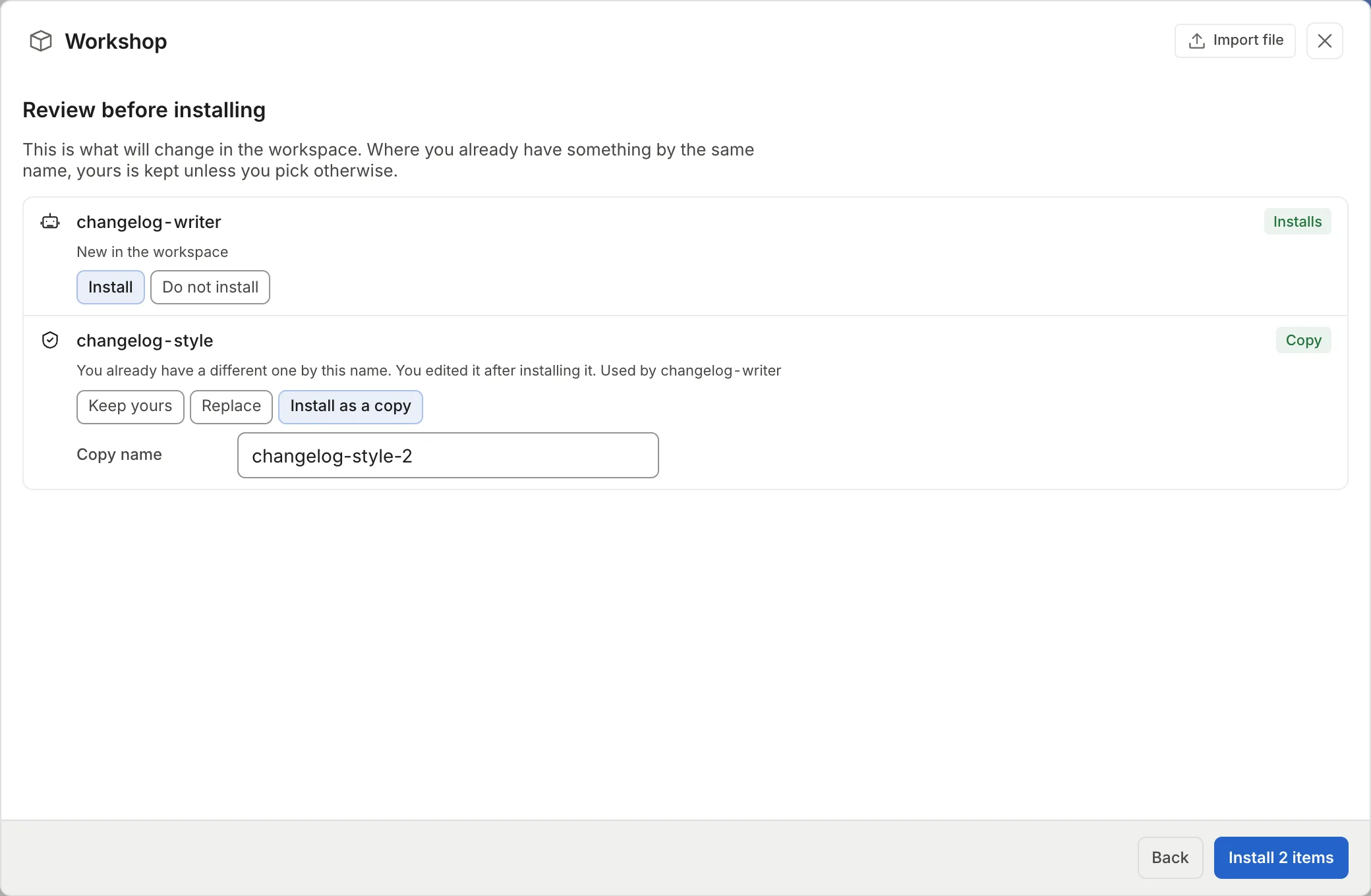
An agent installed together with a copy of its skill keeps receiving updates: the Workshop compares its skill with the copy it keeps.
Export and import between installs
Section titled “Export and import between installs”Use it to move agents from a Docker Thulu to the cloud, from the cloud to Docker, or between two workspaces.
Export
Section titled “Export”-
In “Agents”, pick the agent. In the editor’s header, next to “Delete agent”, click “Export”. To download all the workspace’s agents in a single file, use “Export all” in the page header.
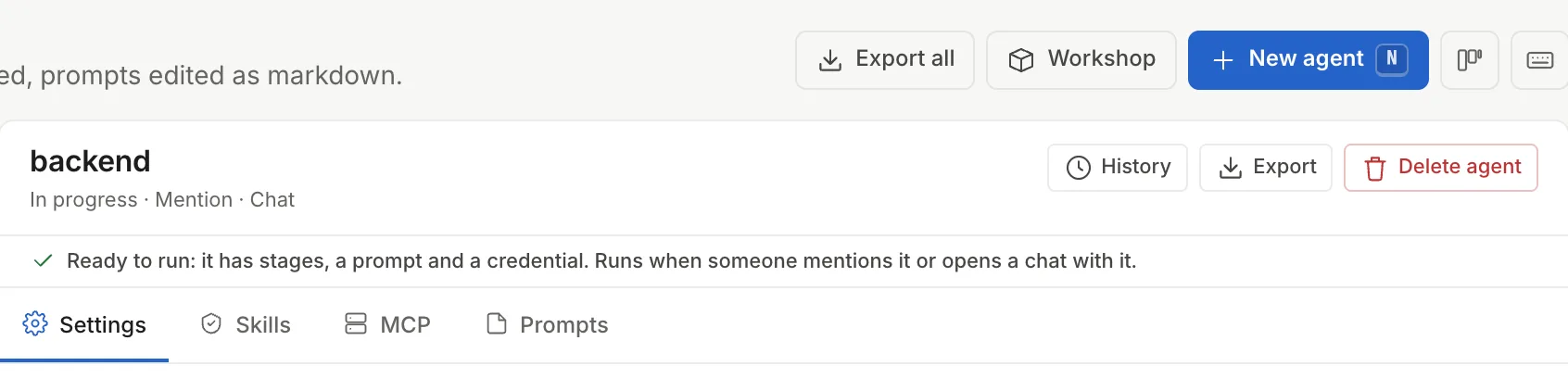
"Export" is in the header of every agent editor. -
octopus-agent-<name>.json(oroctopus-agents.jsonwith all of them) is downloaded with the agents, their prompts and the workspace skills they use, plus the ones those skills ask for. System skills (theoctopus-*ones) don’t travel: each install has its own.
For a skill it is the same from “Skills”: the “Export” button is in the skill’s header and downloads octopus-skill-<name>.json; “Export all” downloads octopus-skills.json. System skills don’t have that button.
Import
Section titled “Import”-
On the other install, open “Agents” or “Skills” and click “Workshop”.
-
Click “Import file” in the modal’s header and pick the JSON, or drag it onto the modal (“Drop the JSON file to import it”).
-
The same plan appears as for a catalog install, with the text “This is what the file brings.” Resolve the conflicts as above and click the final button.
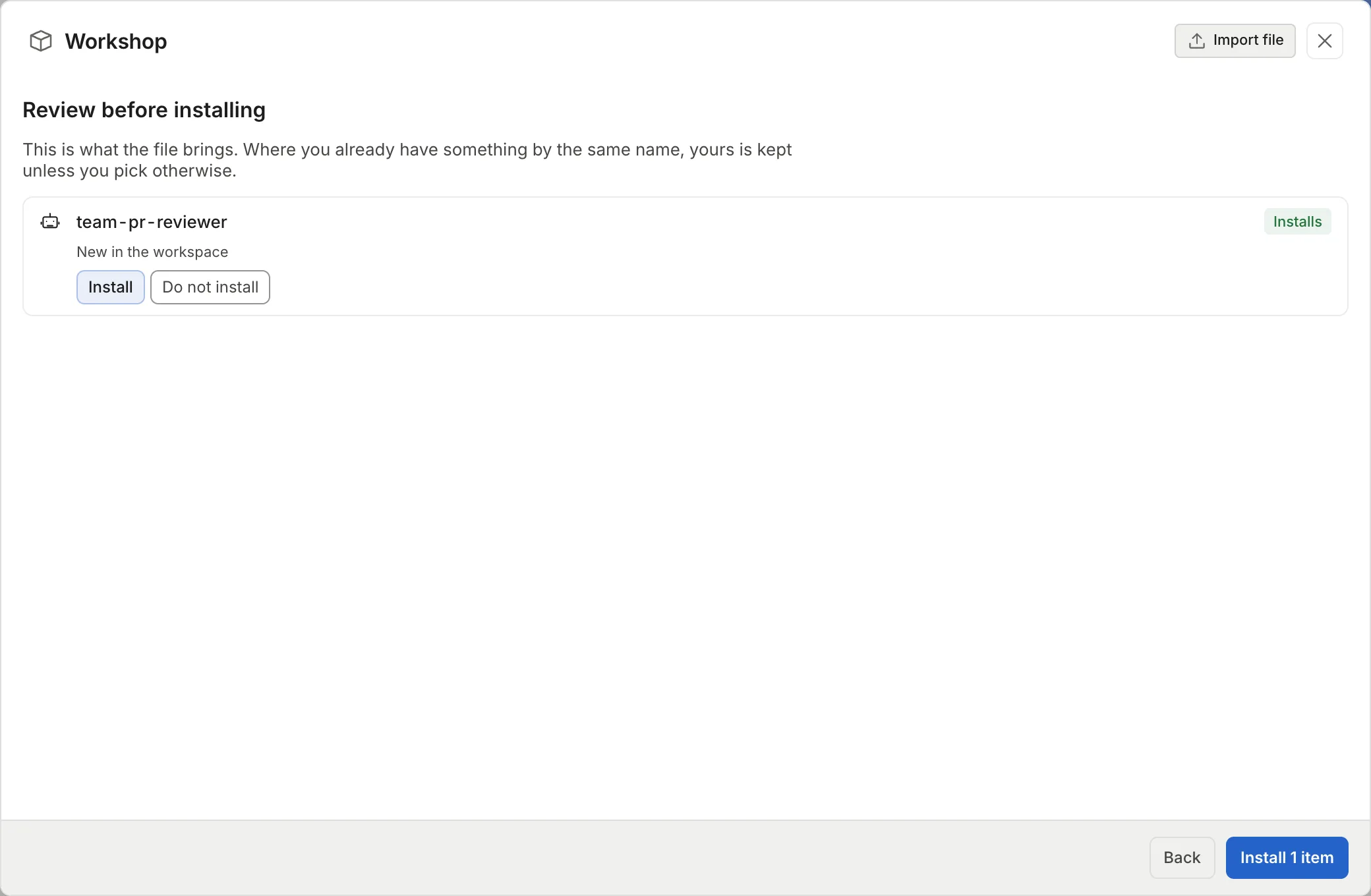
An imported file's plan is the same as the catalog's.
The file is readable JSON: prompts travel as text, so you can review it before importing. What isn’t text travels as base64.
| Limit | Value |
|---|---|
| File size | 3 MB |
| Agents per file | 50 |
| Skills per file | 200 |
| Files in total | 2000 |
On a self-hosted install, thulu agents export -workspace <id> > agents.json also writes all the workspace’s agents to a file the Workshop imports. The MCP manuals that file carries are skipped, because they belong to the install and not to the workspace. The command is in CLI.
Plan notices
Section titled “Plan notices”The plan checks what the agent needs to work on this install. Yellow notices let you install; red ones disable the final button until you pick “Do not install” on the item that causes them.
| Notice | Type | What it means |
|---|---|---|
| “uses skills nothing brings and the workspace lacks” | warning | The agent will run without those skills. |
| “uses MCP servers this install lacks” | warning | Those tools won’t be in its runs. See MCPs. |
| “is set up for stages no board has” | warning | Add the stage to a board or edit the agent. |
| “will use your …, not the Workshop one” | warning | You kept your skill of the same name; if you want the catalog’s, install it as a copy. |
| “runs its own image … Check that it exists on this install” | warning | A catalog agent with its own image, on Docker. |
| “needs its own image … and the cloud cannot run custom images” | blocks | A catalog agent with its own image, on SaaS. Pick “Do not install” to install the rest. |
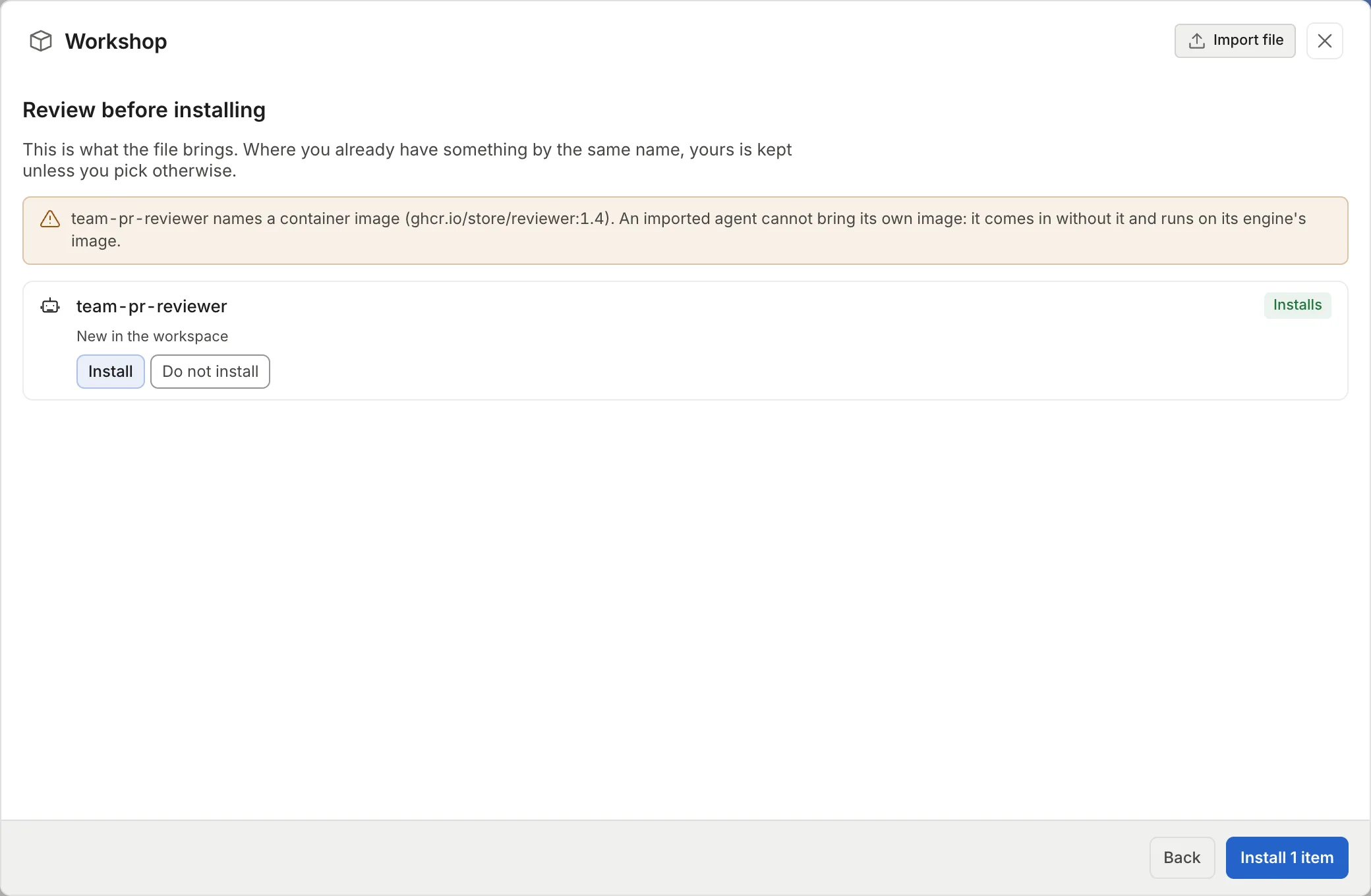
| “names a container image … comes in without it and runs on its engine’s image” | warning | An agent imported from a file with image, on Docker and on SaaS. An import never brings its own image. |
| “uses a name reserved for Thulu skills and is left out” | warning | A skill with the octopus- prefix. To import it, pick “Install as a copy” and give it another name. |
| “looks like it contains a secret. The rest of the file still installs” | warning | That agent or skill has something shaped like a key or token and isn’t imported. |
| “The file carries manuals for N MCP servers. They are not imported” | warning | It comes from a thulu agents export file. |
Who can do what
Section titled “Who can do what”Any workspace member can open the Workshop, browse the catalog and export. Installing, updating and importing is for admins only: the others don’t see “Import file” and the detail says “Only a workspace admin can install.” Each install or import is recorded as a single workshop.applied event in the audit log, with everything it wrote (see Security and audit).
The Workshop and thulu export/import
Section titled “The Workshop and thulu export/import”They are different things and don’t replace each other:
| Workshop | thulu export / thulu import |
|
|---|---|---|
| What it moves | Agents and skills | A whole workspace: boards, tasks, projects, attachments, metrics, agents, settings and MCP |
| Where | In the UI, on Docker and on SaaS | From the command line, against the daemon’s container; self-hosted only |
| Format | A JSON | A versioned .tar.gz |
| Against what is already there | Plan with conflicts; yours is kept by default | Restores with the same ids, meant for a new install |
To migrate a whole install, see Self-hosted operations. To carry agents you built to another workspace or to the cloud, use the Workshop.
Common problems
Section titled “Common problems”- You deleted an agent from the Workshop and want it back: the catalog says “You deleted it from the workspace. Installing it enables it again.” and the plan installs it again.
- “The file is larger than 3 MB.” or “The file is not valid JSON.”: the browser rejects it before sending it. Split it into several exports or check that it wasn’t cut off.
- “file version N is not supported”: the file uses a format this Thulu doesn’t read, usually because a newer version exported it. Update the destination install.
- “this is not an Thulu agents and skills file”: the JSON isn’t a Workshop export or a
thulu agents exportfile. - “no free name left for a copy of the agent …”: the copies
-2to-99already exist. Type another name in “Copy name” or pick “Replace”. - An agent or a skill in the file “looks like it contains a secret”: the rest is imported. Take that text out of the JSON and keep the secret in Credentials and engines.
- The installed agent doesn’t run on any task: installing doesn’t assign it to anything. Pick it in the project’s “Stage template” (Projects) or on the task.