

Inbox
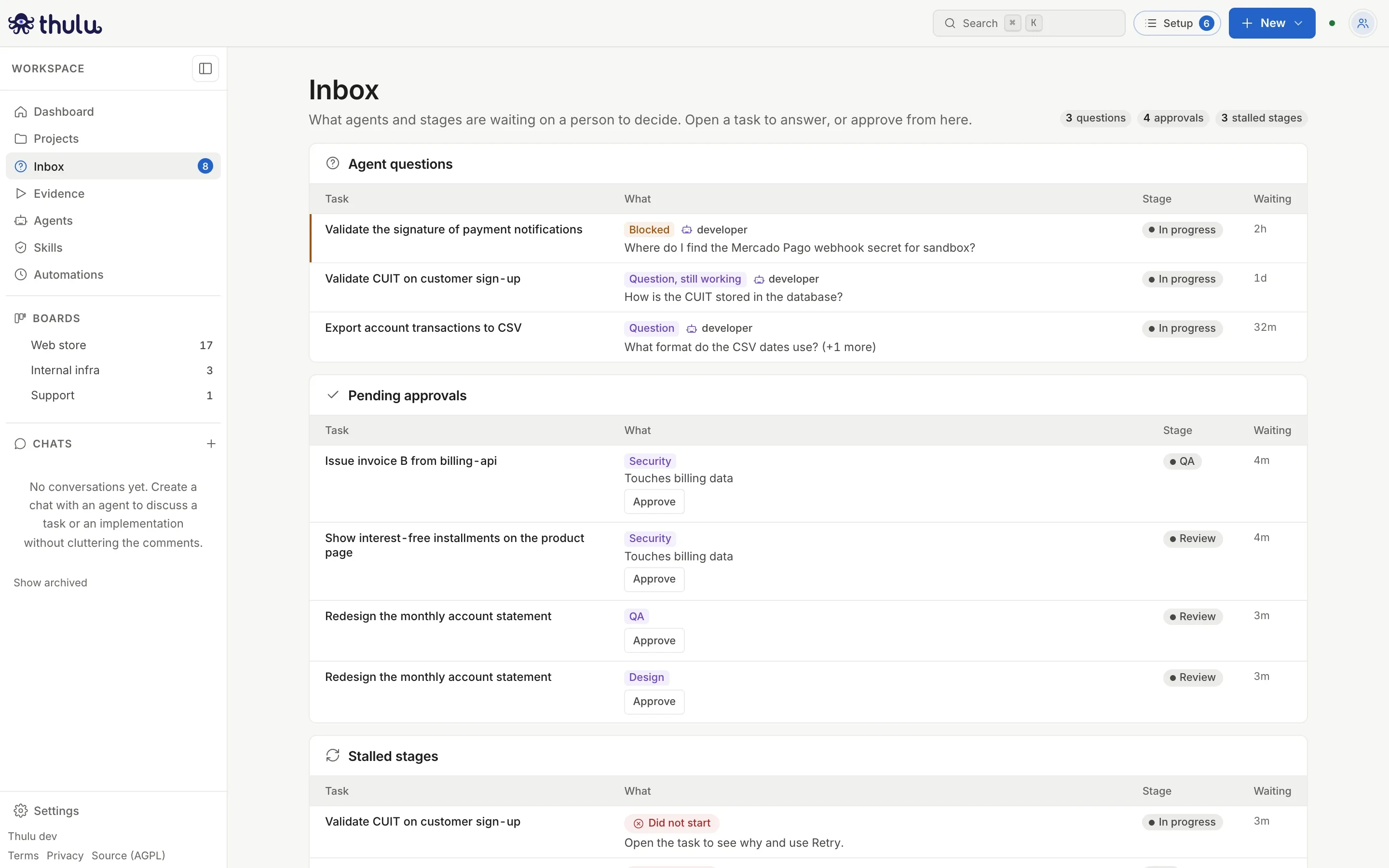
“Inbox” gathers what waits on a decision from a person in the workspace: the questions agents asked while working, the approvals a stage requires before it lets the task leave, and the stages that stalled because a run failed or did not start. Approvals are approved from the same row; to answer a question, request changes or waive, you open the task with one click.
Any role can see it. To answer, approve or cancel you need the Developer role or higher. An agent never answers its own question or approves anything.
For an agent to be able to ask a question or request an approval, it needs the octopus-api MCP with write permission (the tools task_ask and task_request_approval; see MCPs). Without that, it can only leave the doubt in a comment. The approvals a stage requires do not depend on the agent: they are configured on the board (below).
What the tray shows
Section titled “What the tray shows”It opens from “Inbox” in the sidebar, which shows next to it how many tasks are waiting. At the top right the page counts questions, approvals and stalled stages, and the list refreshes by itself when something changes.
| List | What goes in | Order |
|---|---|---|
| “Agent questions” | Open questions, blocking or not. “Blocked” when the agent cannot go on, “Question” when it waits and “Question, still working” when it does not block | Blocked first, then the oldest |
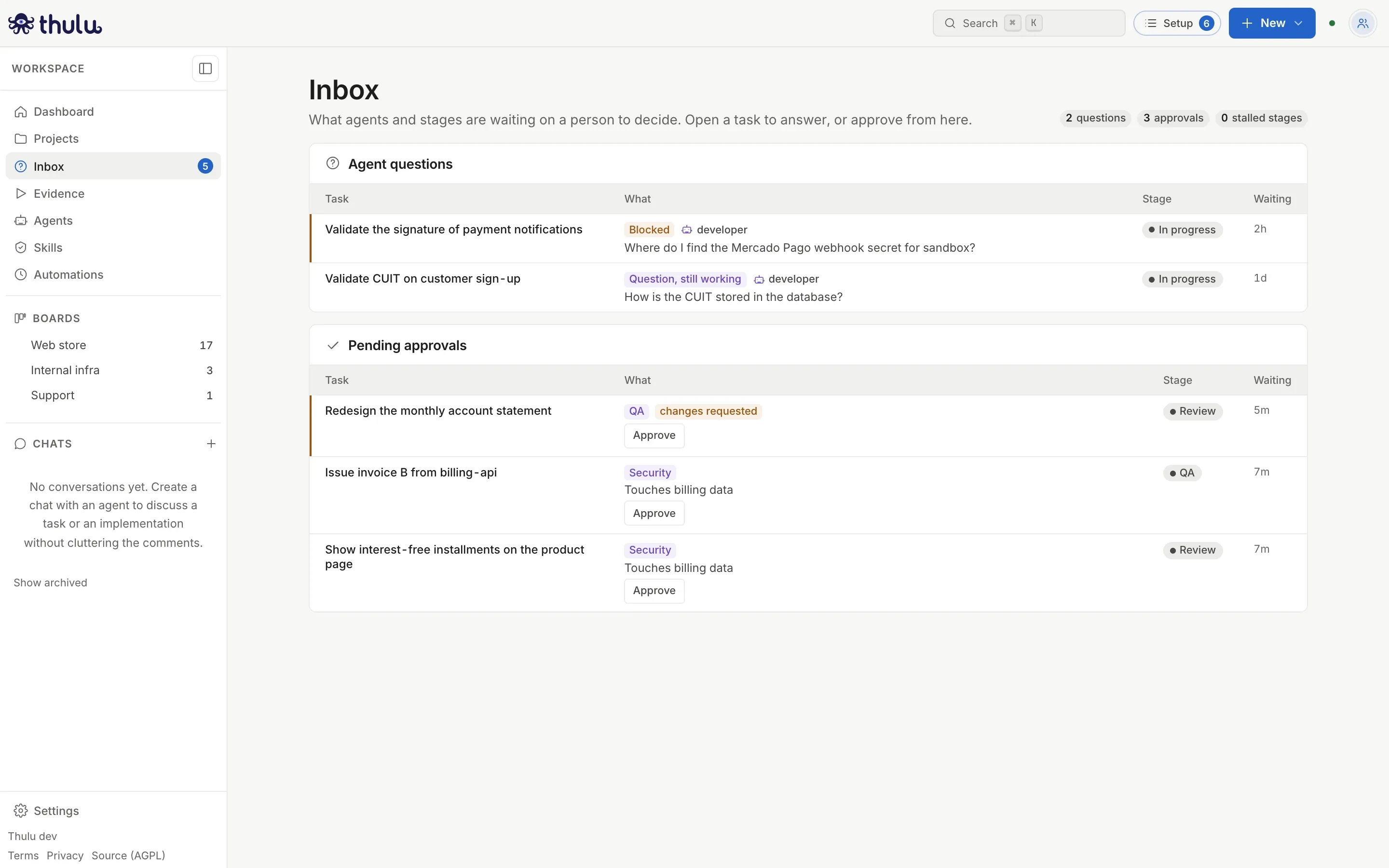
| “Pending approvals” | Pending approvals and the ones with “changes requested”, with an “Approve” button on each row | Changes requested first, then the oldest |
| “Stalled stages” | Tasks whose run failed, ran out of turns, was stopped by the auditor, did not start, has no agent, has an expired credential or could not be resumed. Each row says what to do (“Open the task and use More turns”) | — |
Each row carries the task, what is being asked (the first question, with “+1 more” if the agent asked several in the same call, or the approval’s label and reason), the stage and how long it has been waiting. An approval’s row opens the task straight on the “Approvals” tab.
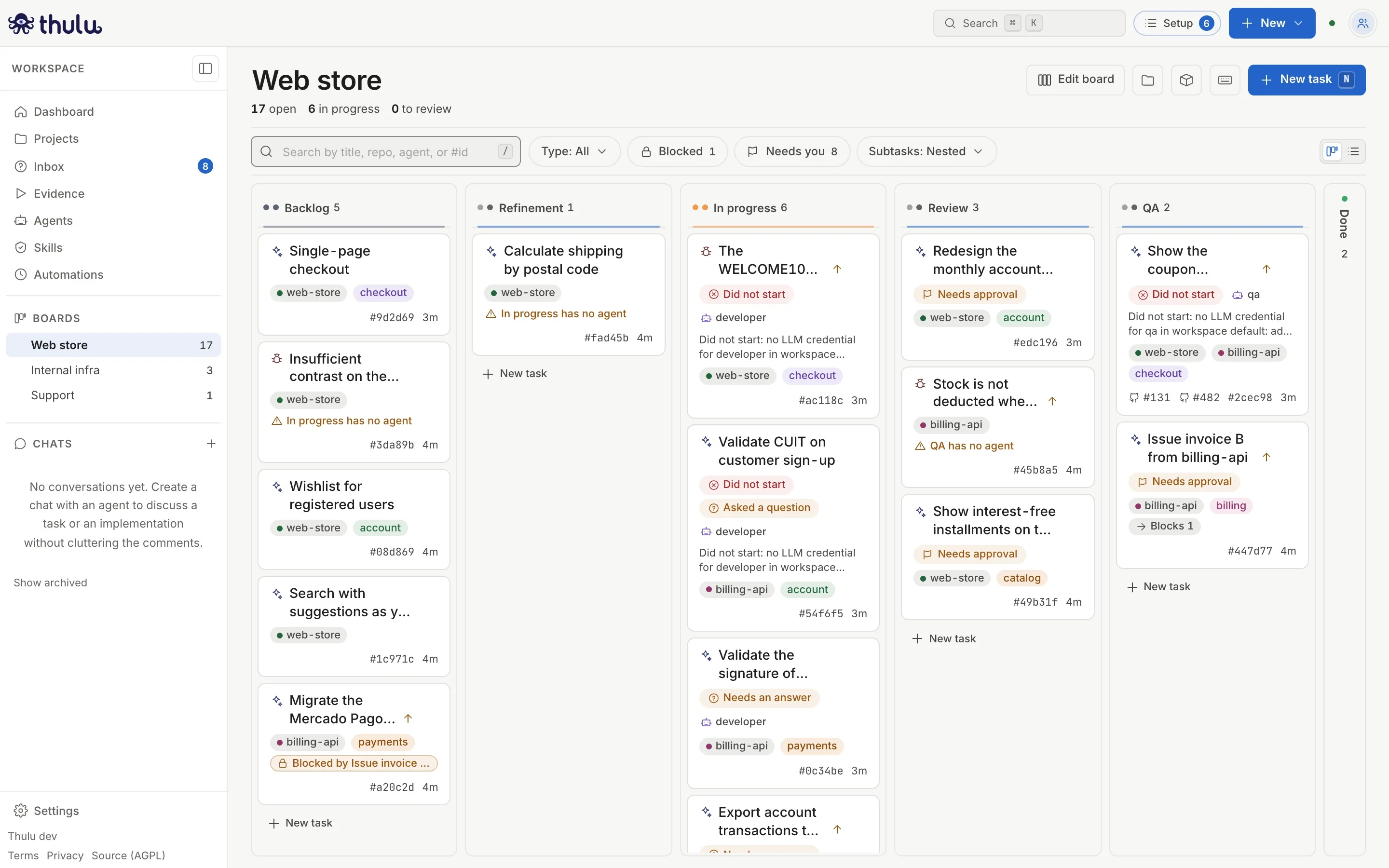
On the board, the cards that wait show “Needs an answer”, “Needs approval” or “Asked a question” (a question that does not block), and the “Needs you” filter leaves only those, plus the runs that failed, were stopped or did not start.
Answer a question
Section titled “Answer a question”This is the most common flow: an agent needs a decision that was not in the task and stopped the run until someone answers.
-
Open “Inbox” and click the task title. The task detail opens on the board, with a strip at the top: “backend asked a question”.
-
Click “Answer” (in the strip or at the top right). The view scrolls down to the question, which stays pinned above the activity until you answer it.
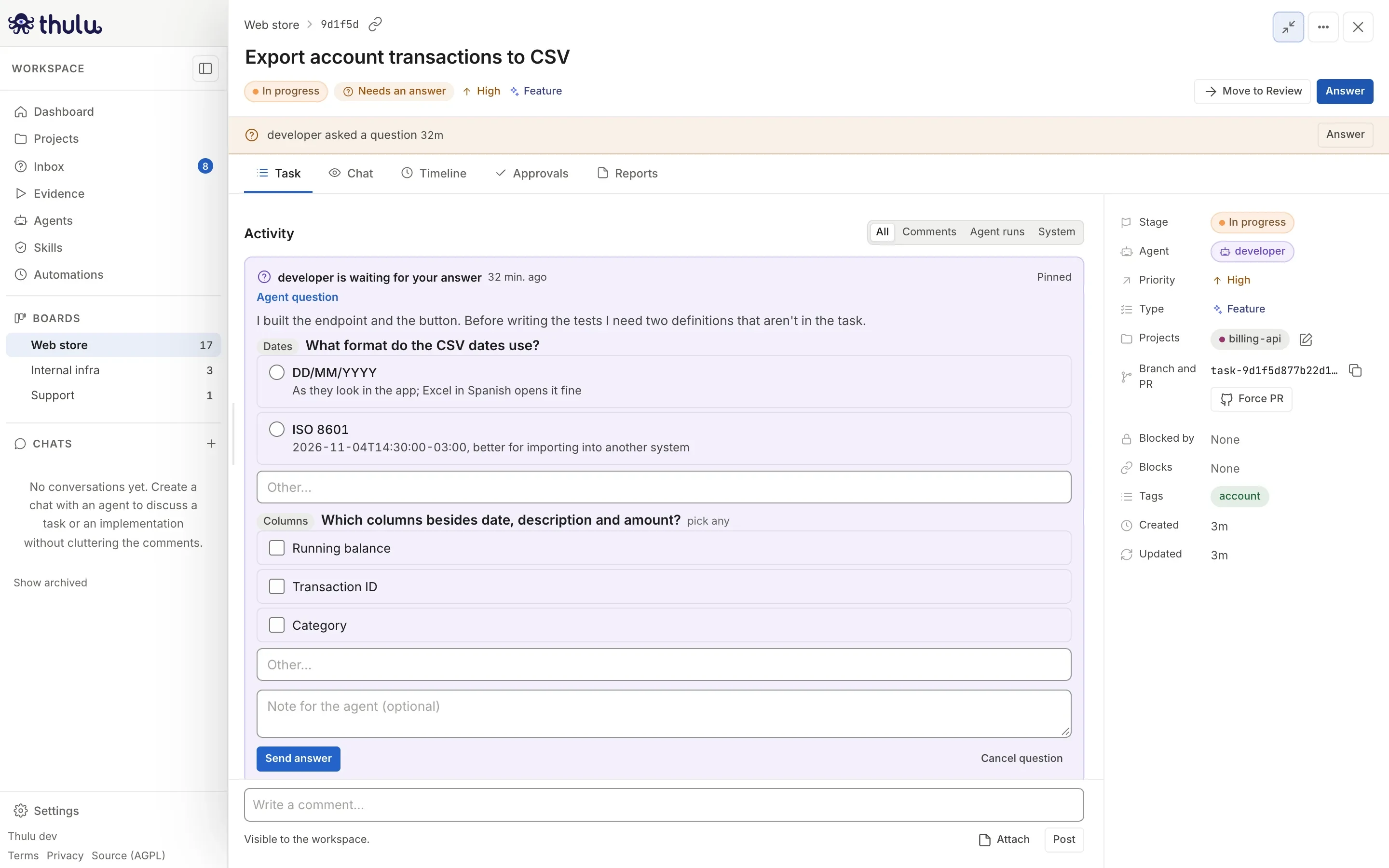
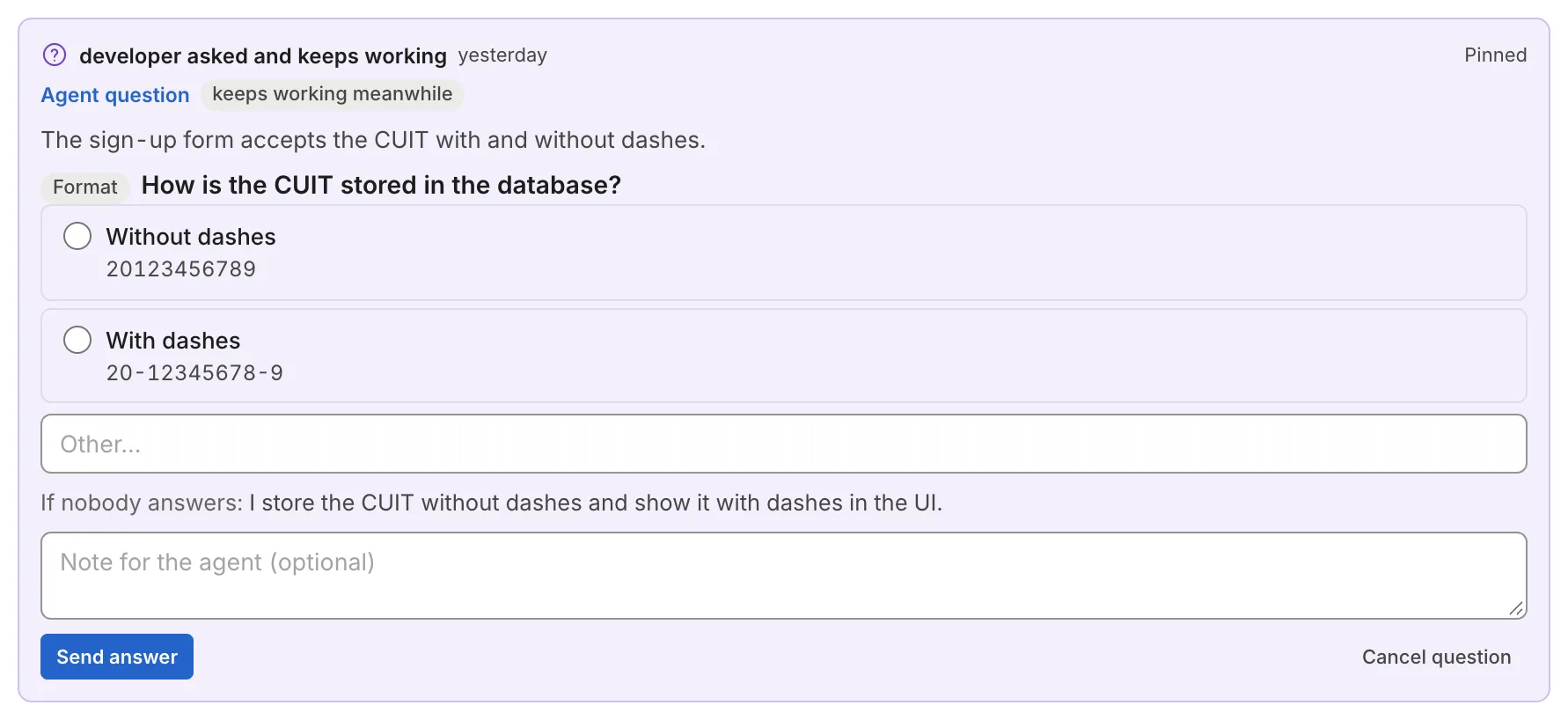
The pinned question: the context the agent gave, a single-choice question, a multiple-choice one, the “Other…” fields and the note. -
For each question choose an option or write your own in “Other…”. The ones that say “pick any” accept more than one.
-
If you want to add something that does not fit in the options, write it in “Note for the agent (optional)”.
-
Click “Send answer”. If any question is unanswered, the form says so below in red and sends nothing.
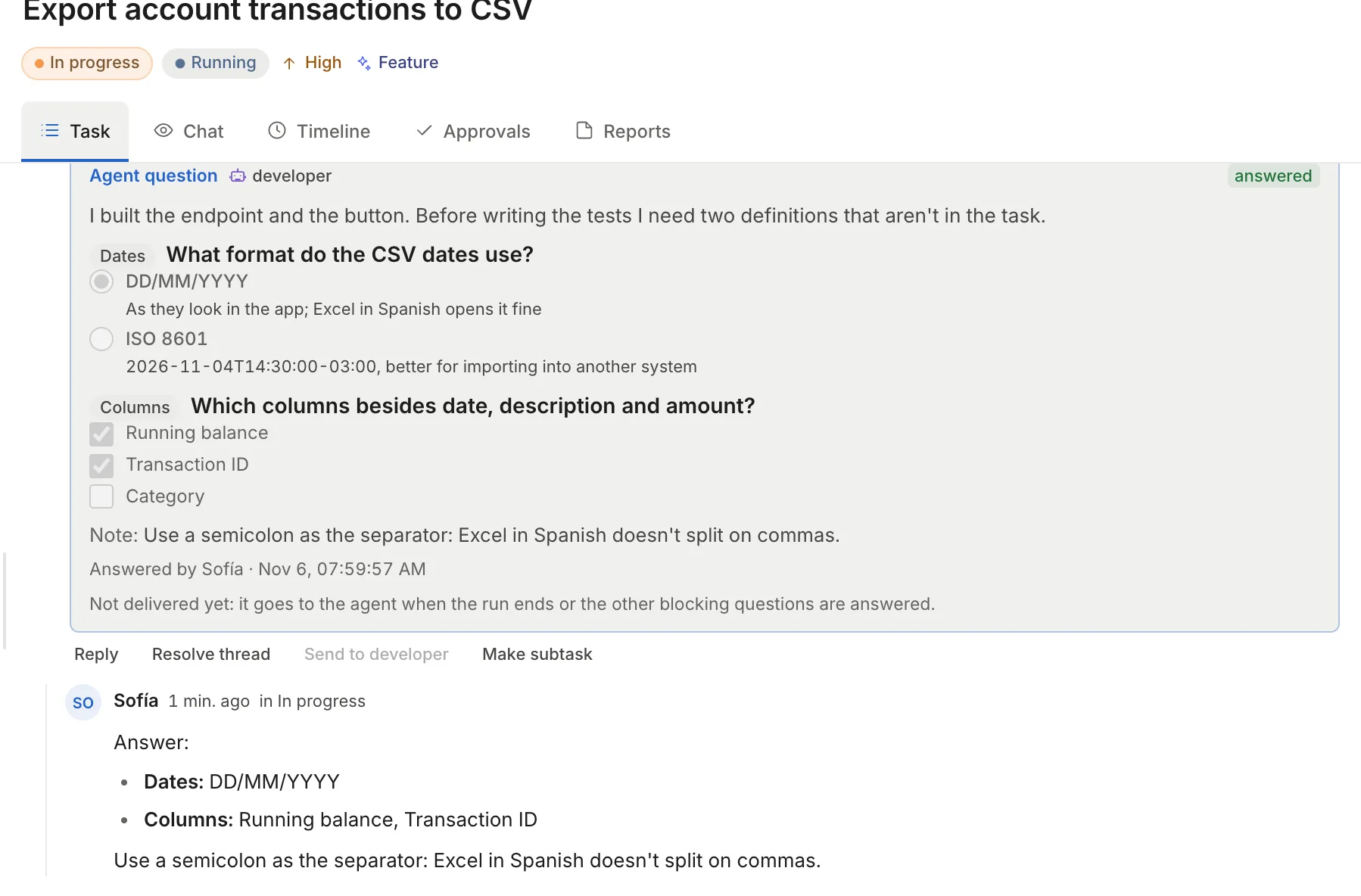
When you send, the question stays in the activity as answered, with what you picked and who answered, and your answer appears as a reply in the thread. Below, the card says where the answer went: “The run that asked got it while it worked”, “The stage resumed with this answer” or “No run was listening: it stays in the thread and the next run reads it”.
What happens to the run while it waits
Section titled “What happens to the run while it waits”It depends on whether the question blocks. The agent decides when asking.
| Blocking (“Question” or “Blocked”) | Not blocking (“asked and keeps working”) | |
|---|---|---|
| The run | Ends its turn and the task changes to “Needs an answer”. No container or pod is left running | Keeps working with what the agent said it would do (“If nobody answers: …”) |
| Meanwhile | The auditor does not run and the stage does not advance. In Docker mode the sandbox is released after 30 minutes; the working copy is kept 14 days by default | Nothing changes on the task |
| When answered | If the run is still alive and runs on Docker with Claude Code, the answer enters the conversation in progress. If it already ended, Thulu relaunches the stage’s agent in the same session with your answers, and when it ends the auditor and the stage advance run like a normal run | On Docker with Claude Code the live run receives it. On Kubernetes, with another engine or if the run already ended, it stays in the thread and the next run reads it. Nothing new starts |
| If nobody answers | The task stays waiting | The agent goes on with its plan |
If the agent asked several blocking questions in the same run, it resumes only when all are answered or canceled.
Moving the task to another stage or relaunching it cancels the open questions: a system reply stays in the thread (“Canceled without an answer: the task moved to another stage.”) and the task leaves the wait.
A blocked agent
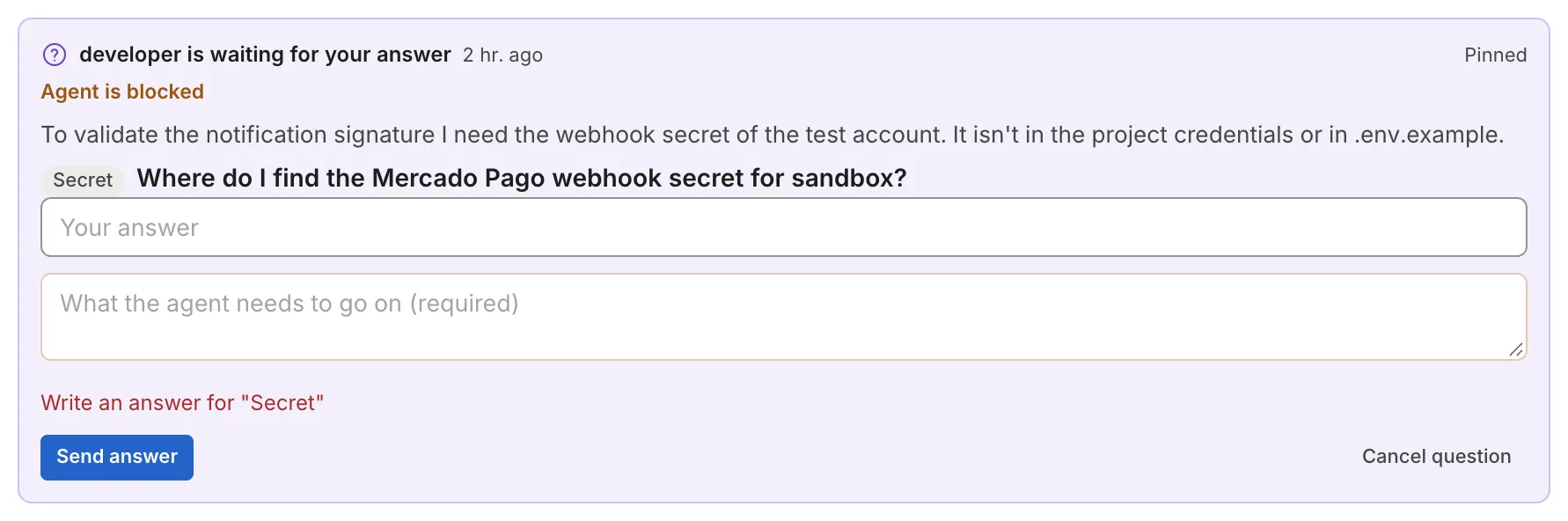
Section titled “A blocked agent”“Blocked” means the agent cannot go on without something only a person can give: access, a credential, which of two contradictory requests wins. The form is the same, but it requires text in “Other” or in the note (“What the agent needs to go on (required)”). If the agent marked that it is asking for a credential, it also warns that what you write stays visible in the thread, with a link to Credentials.
A question that does not block
Section titled “A question that does not block”The agent asks it when it has a reasonable default and does not want to stop. The task’s strip says “backend asked and keeps working”, and the card shows “keeps working meanwhile” and “If nobody answers:” with what it will do. Answer it if the default does not suit you; if you do not mind, you can cancel it.
Cancel a question
Section titled “Cancel a question”“Cancel question”, at the bottom right of the card, asks for confirmation (“Cancel this question?”) and closes the question without an answer; the thread keeps “Canceled by …, without an answer.”. Canceling does not relaunch the agent by itself. If it was the last open blocking question and you answered others from the same run, the agent resumes with those answers; if none was answered, the task stays still in its stage until someone moves or relaunches it.
Approve, request changes or waive
Section titled “Approve, request changes or waive”An approval is a signature needed before the task moves forward out of a stage. In the “Approvals” tab each one says where it comes from, next to the status:
| Origin | How it arises |
|---|---|
| “asked by Review” | The stage requires it: it opens by itself when the task enters (see below for how it is configured). The approval’s key stays in the tooltip |
| “agent” | The agent asked for it while working, with a reason (“Changes the limits the backend validates…”) |
| “person” | Someone asked for it by hand with “Ask for an approval” |
| “system” | Thulu opened it so someone reviews something an agent proposed, such as a dashboard or a metric mapping. Approving it activates what was proposed |
-
In “Inbox”, click “Approve” on the row if you do not need to look at anything else, or click the task to decide with more context.
-
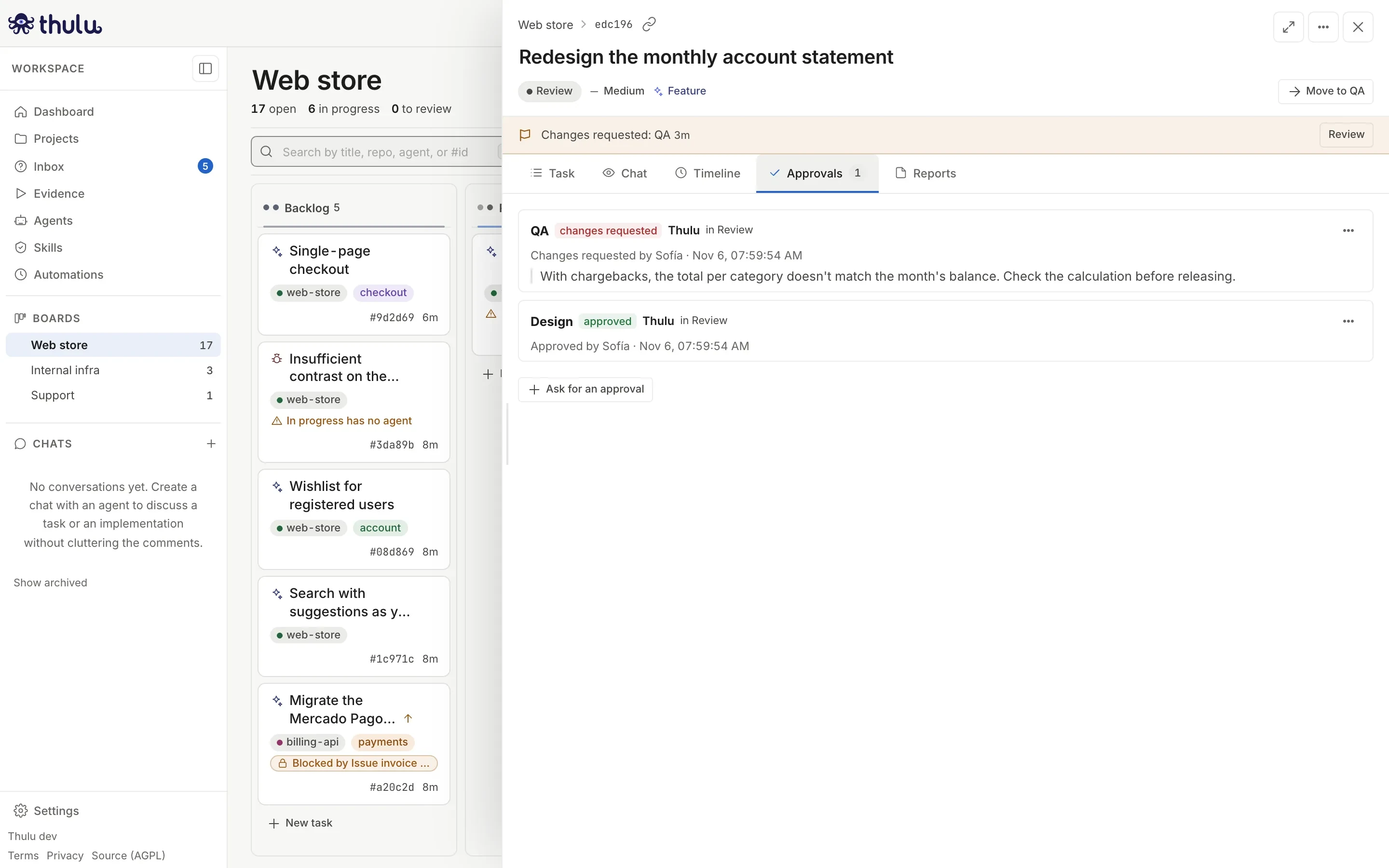
The detail opens on the “Approvals” tab. From the “Task” tab, the same place opens with “Review” in the strip at the top (“Waiting for your approval: QA”, or “2 approvals waiting” if there are several).
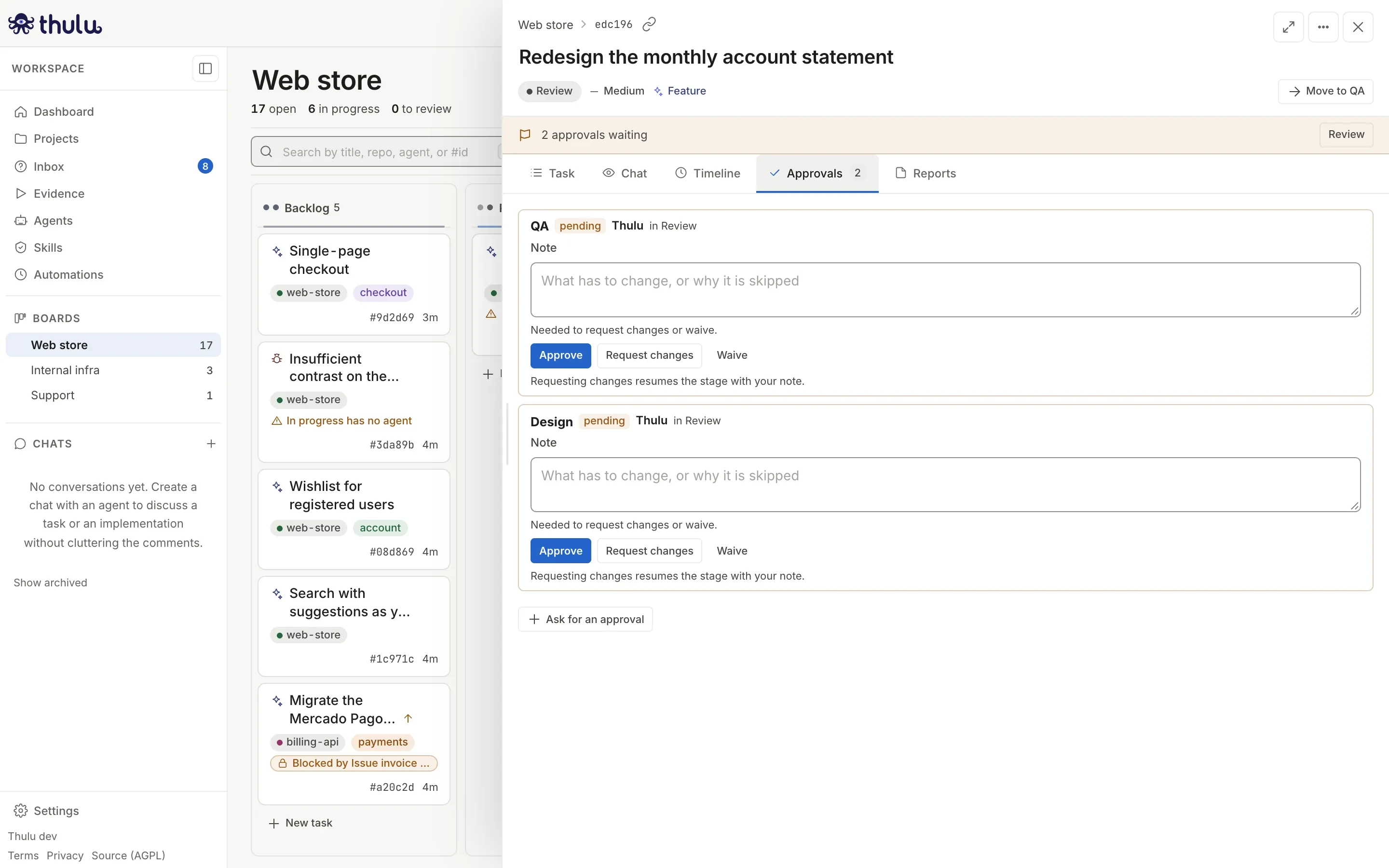
Two approvals that the Review stage asks for. Each one is decided separately. -
Choose what to do with each one:
- “Approve”: asks for no note.
- “Request changes”: write in “Note” what has to change and click the button. Without a note it is not sent. Below, a line says what will happen (“Requesting changes resumes backend with your note”, “sends the task back to In progress” or “keeps the task in Review”).
- “Waive”: write why it is not needed. It also requires a note.
-
If the stage does not advance by itself, move the task with “Move to …” when all are approved or waived.
While any is pending or has changes requested, moving the task forward fails with a notice that names the ones missing. Moving backward is always possible.
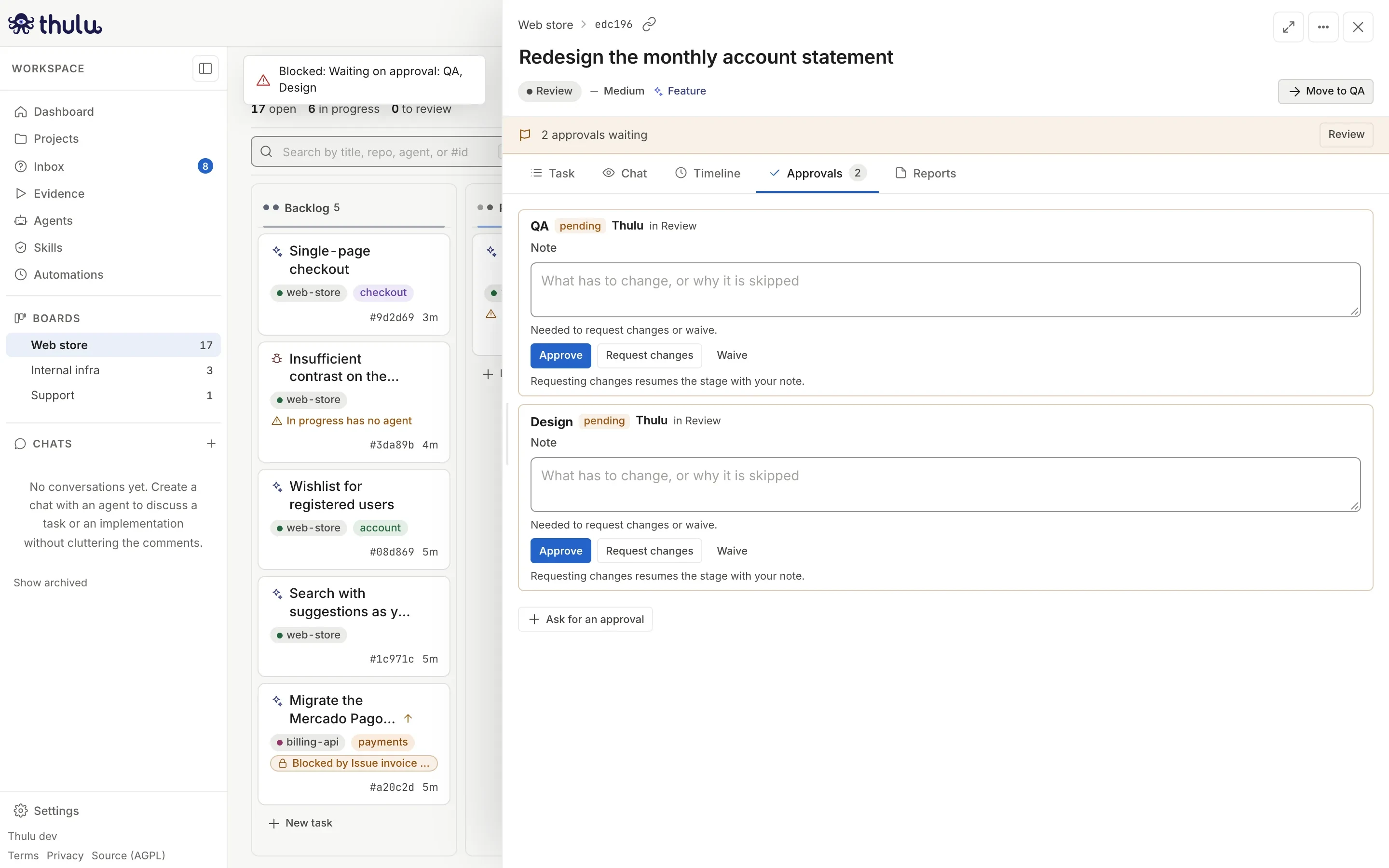
A decision is not final: the “⋯” button of an already-decided approval offers the other two decisions. The ones an agent or a person asked for can also be deleted from that menu; the ones the stage requires cannot be deleted, they are waived with a note.
What happens after deciding
Section titled “What happens after deciding”- All approved or waived in a stage that advances by itself: the task was at “Needs approval” and moves to the next column without anyone dragging it. In a stage with no automatic advance it stays still and you move it.
- “Request changes”: it depends on what whoever built the board configured for that stage.
| Stage setting (On “request changes”) | What happens |
|---|---|
| “resume the agent with the feedback” (default) | Thulu relaunches the stage’s agent with your note. When it ends, the approval goes back to “pending” for you to look at again |
| “move the task back” | The task goes back to the column you choose in the “to” selector that appears next to it, or to the board’s default return column, and starts like any task that enters there. Only an earlier column is valid |
| “stay here, a person decides” | Only the status remains; someone decides what to do |
If you request changes while the stage’s agent is still running, nothing is interrupted: your note reaches it when that run ends.
The approval with “changes requested” stays in the tray, at the very top, until the agent delivers and it goes back to “pending”. The task’s strip keeps showing it (“Changes requested: QA”).
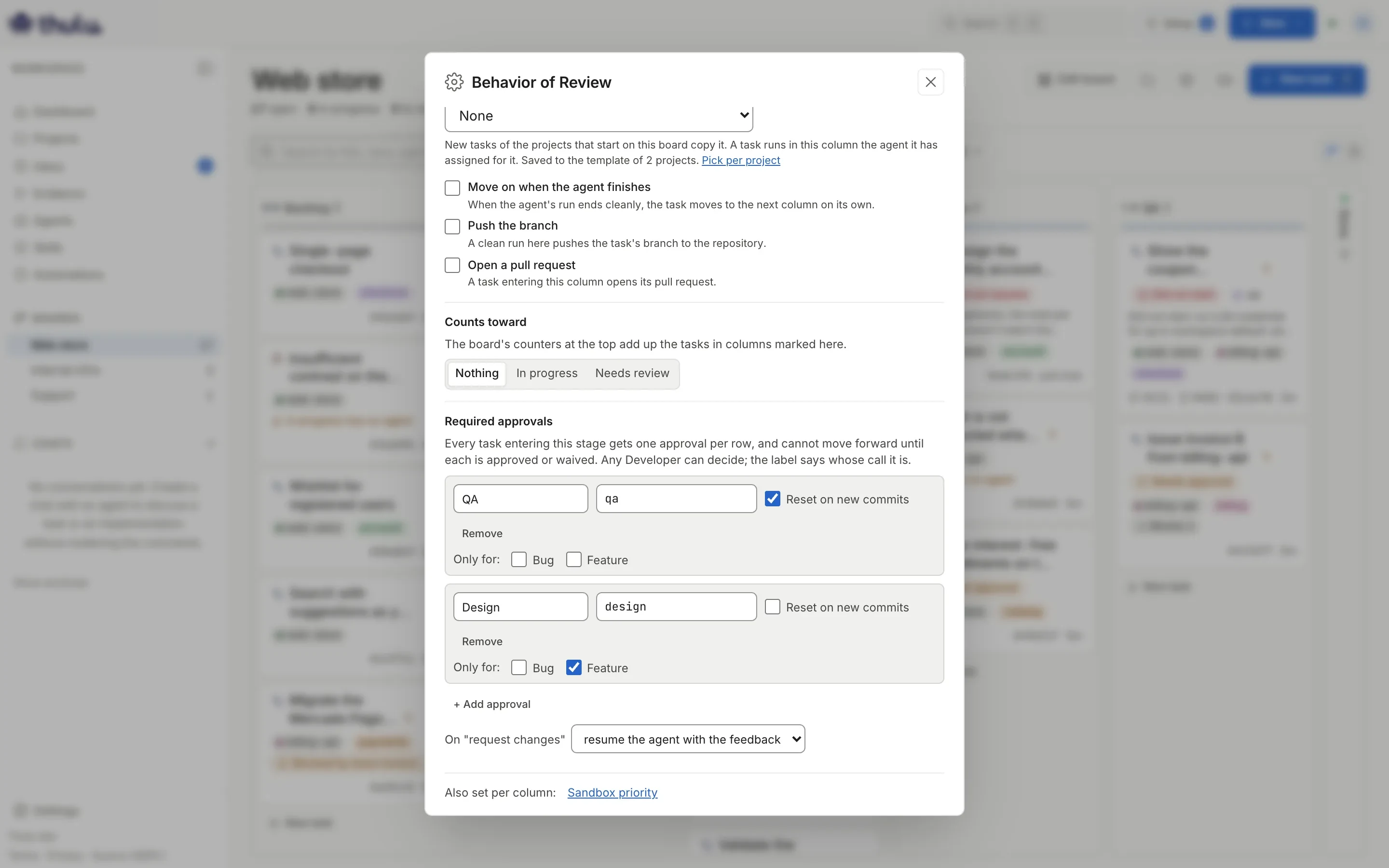
With “Reset on new commits” on in the stage, an agent run that leaves new commits puts an already-given approval back to “pending”, just like when GitHub dismisses an old review. The ones an agent or a person asked for are always reset that way.
Ask for an approval by hand
Section titled “Ask for an approval by hand”In the “Approvals” tab of any task, “Ask for an approval” opens two fields: “Who signs off” (for example “Security”) and “Why (optional)”. Click “Ask”. The approval lands on the current stage and stops the exit just like the stage’s own.
Configure a stage’s approvals
Section titled “Configure a stage’s approvals”Approvals of origin “stage” are defined on the board: “Edit board” → “⋯” on the column → “Required approvals”. Click “+ Add approval” for each signature. Each row has a label (“Design”), a key (lowercase, no spaces; if you leave it empty it comes from the label), “Reset on new commits” and, if the board has task types, “Only for:”. Below you choose what “Request changes” does. Changes save on their own; close the dialog and click “Done editing”. Approvals arise when a task enters the stage. A task that was already there receives them the first time someone tries to move it forward: the move fails and they appear in its “Approvals” tab. The detail is in Boards and stages.
Limits
Section titled “Limits”| What | Limit |
|---|---|
| Questions per agent call | 1 to 4, each with up to 6 options (0 options = free answer) |
| Calls to ask per run | 3 |
| Open questions per task | 5 |
| Pending approvals requested by agents on a task | 10 |
| Rows per list in Inbox | The 500 oldest |
Common problems
Section titled “Common problems”- “Blocked: Waiting on approval: …” when moving: decide or waive the approvals the notice names. To move anyway without signing, “Waive” with a reason leaves a record of who did it.
- The task does not appear in “Inbox” even though the agent commented a doubt: if it wrote it as an ordinary comment, it is not a question. Answer it in the thread with a mention (see Conversation and threads).
- You do not see the buttons or you get an error when answering: you need the Developer role or higher (see Workspaces and team).
- You want to find out without opening the UI: Thulu sends no email or Slack. You can subscribe a webhook to question.asked and approval.requested in “Settings” → “Webhooks” (see Settings).