

Board
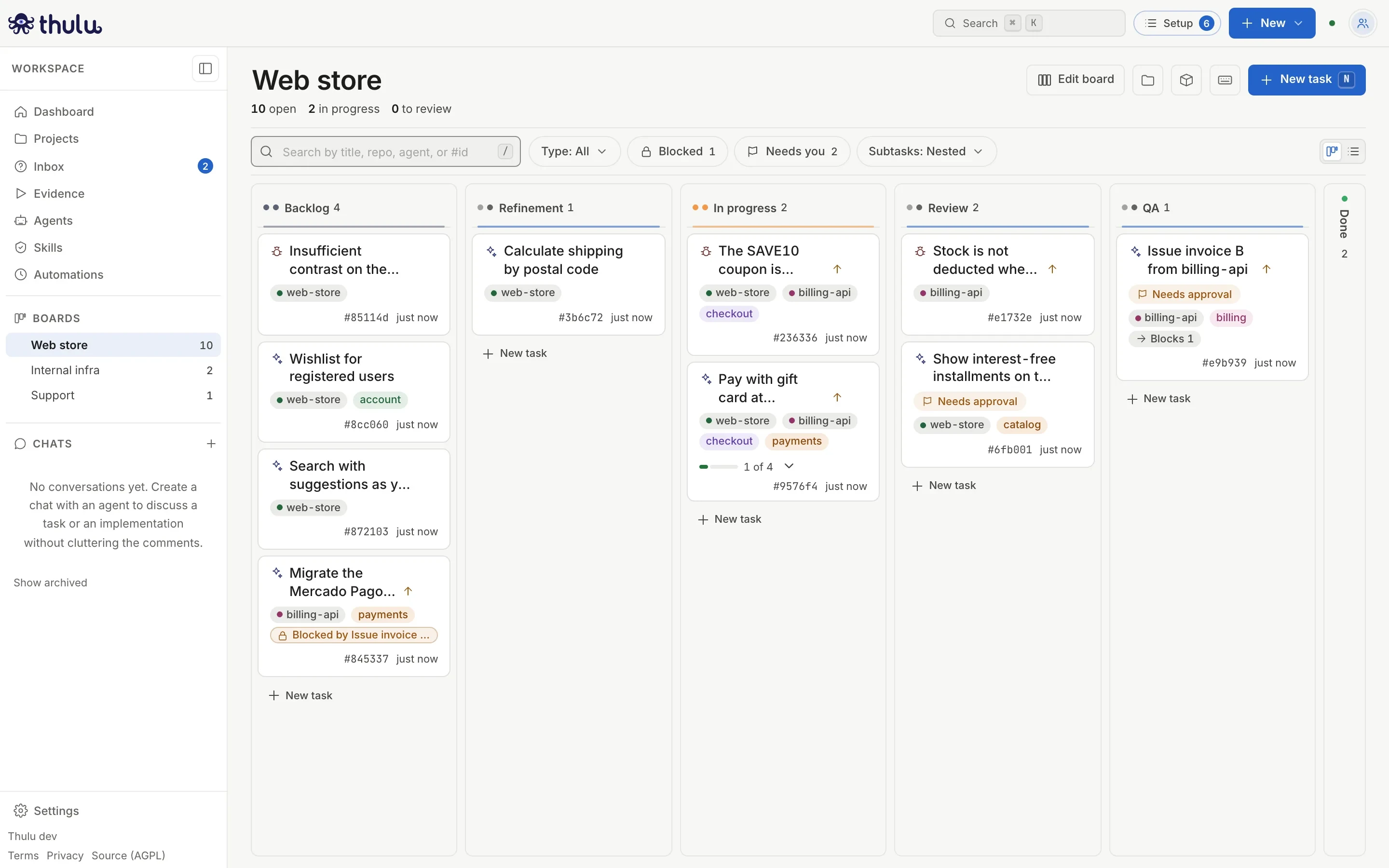
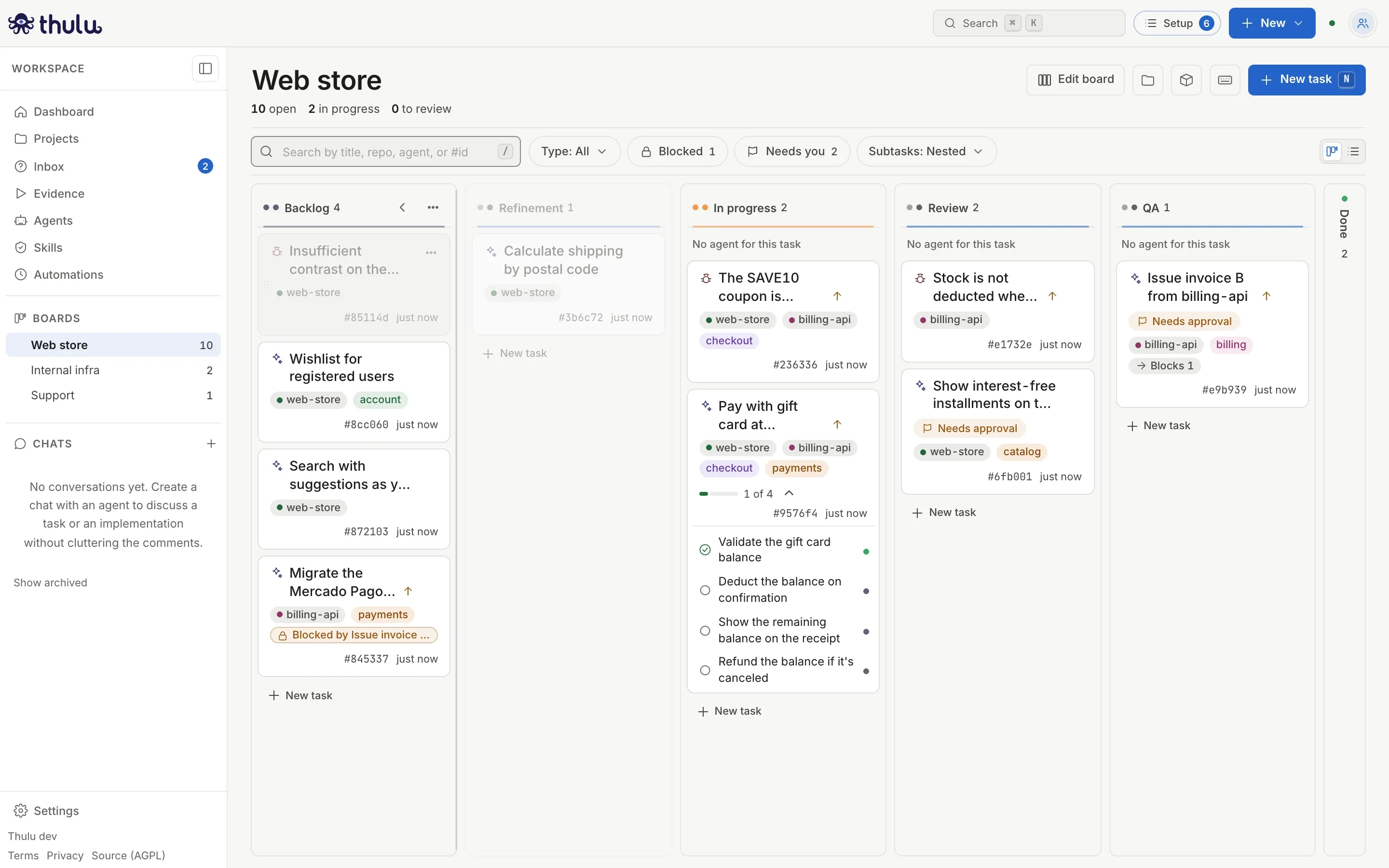
The board is the “Tasks” screen (/tasks/). Each column is a stage of the board and each card is a task. Moving a card to another column changes its stage, and if the task has an agent assigned for that stage, the agent starts working. A workspace can have several boards; you switch between them from the sidebar.
Read the board
Section titled “Read the board”Below the board name there are three numbers: open tasks, in progress and to review. Open tasks are the ones not in a final stage; “in progress” and “to review” come from how each stage is configured (see Boards and stages). Subtasks are not counted.
Within each column, the most recently modified task sits at the top.
A card shows, from top to bottom:
| Part | What it says |
|---|---|
| Icon and title | The icon is the task type (“Feature”, “Bugfix”). On the right, an arrow for high priority and a triangle for urgent. The title is cut at two lines. |
| Status | “Running”, “Queued”, “Needs an answer”, “Needs approval”, “Asked a question” (the agent asked and keeps working), “Failed”, “Out of turns”, “Stopped by the auditor”, “Stopped”, “Did not start”, “No agent”, “Credential expired” or “Could not resume”. When the status comes with a reason, the reason goes next to it. It also shows the agent of the stage the task is in. |
| Repos and tags | One chip per linked repo and up to two tags; if there are more, “+n”. |
| Dependencies | “Blocked by …” when another task holds it, and “Blocks 1” on the task that holds another one. |
| Next agent | If the status has nothing to report, which agent starts when the task moves to the next column (“Review: reviewer”), or “Review has no agent” if that column has none for this task. |
| Footer | Subtask progress (“1 of 4”), PR number, short id and age. |
Click a card, or focus it and press Enter, to open the task in the side panel. What is inside is covered in Tasks.
Subtasks on the parent card
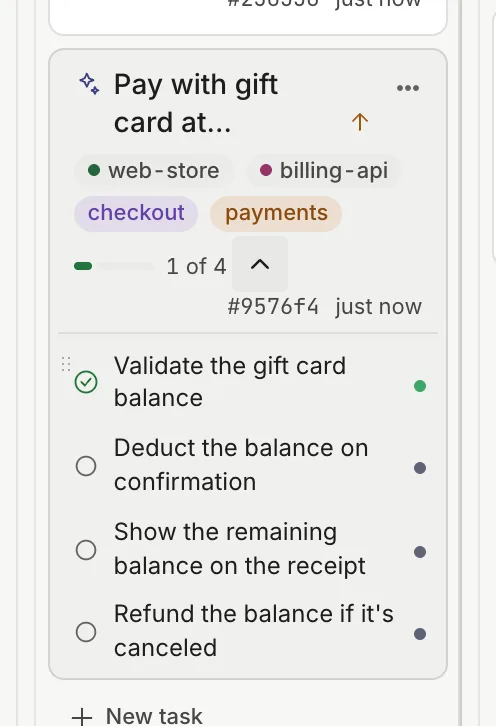
Section titled “Subtasks on the parent card”By default subtasks have no card of their own: the parent shows “1 of 4” with a colored bar, and the arrow next to it expands the list. Each row carries a status icon (a padlock if it is blocked, a check if it is done) and a dot in the color of the stage it is in. If a subtask needs someone, the parent says so in its status row (“1 subtask blocked”).
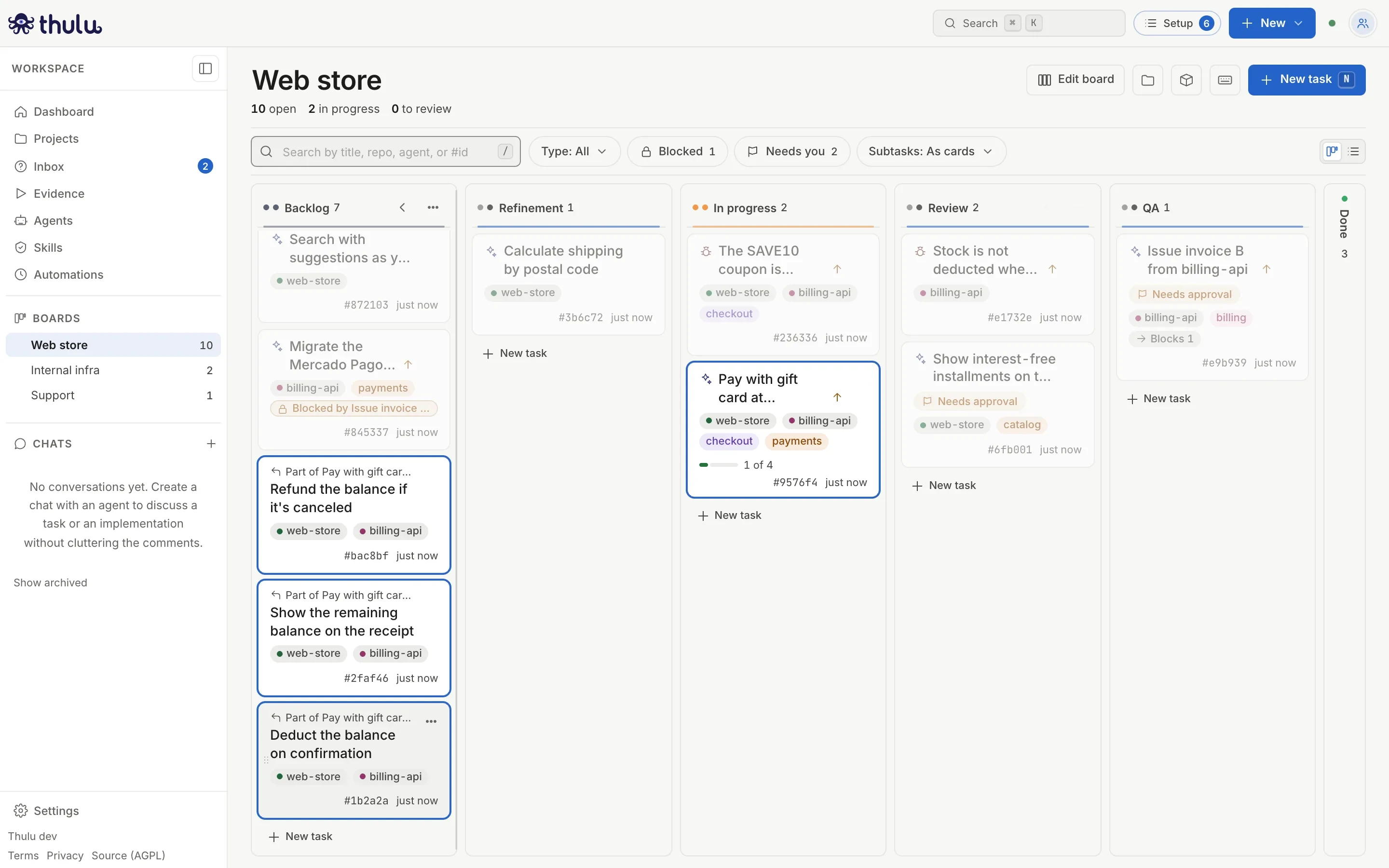
To see each subtask as a card in the column of its stage, switch “Subtasks: Nested” to “As cards”. Each one shows “Part of …” above the title, and when you hover one, its parent and siblings are highlighted.
Recommended flow: from Backlog to Done
Section titled “Recommended flow: from Backlog to Done”-
Pick the board in the “Boards” section of the sidebar. Thulu remembers the last one you used in this browser, and the address becomes
/tasks/?board=<id>so you can share it. -
Create the task with “New task”, at the top right (or the N key). Check the “Board”, choose the repos by clicking their chips, check the “Type”, write the “Title” and the “Description” and, if needed, the “Priority” and the “Tags”. Click “Create”: the task enters the first stage of the board and opens in the panel. Link at least one repo if you want an agent to work on it: the task takes the agents of each column from the “Stage template” of that project, and the modal says which ones it will copy.
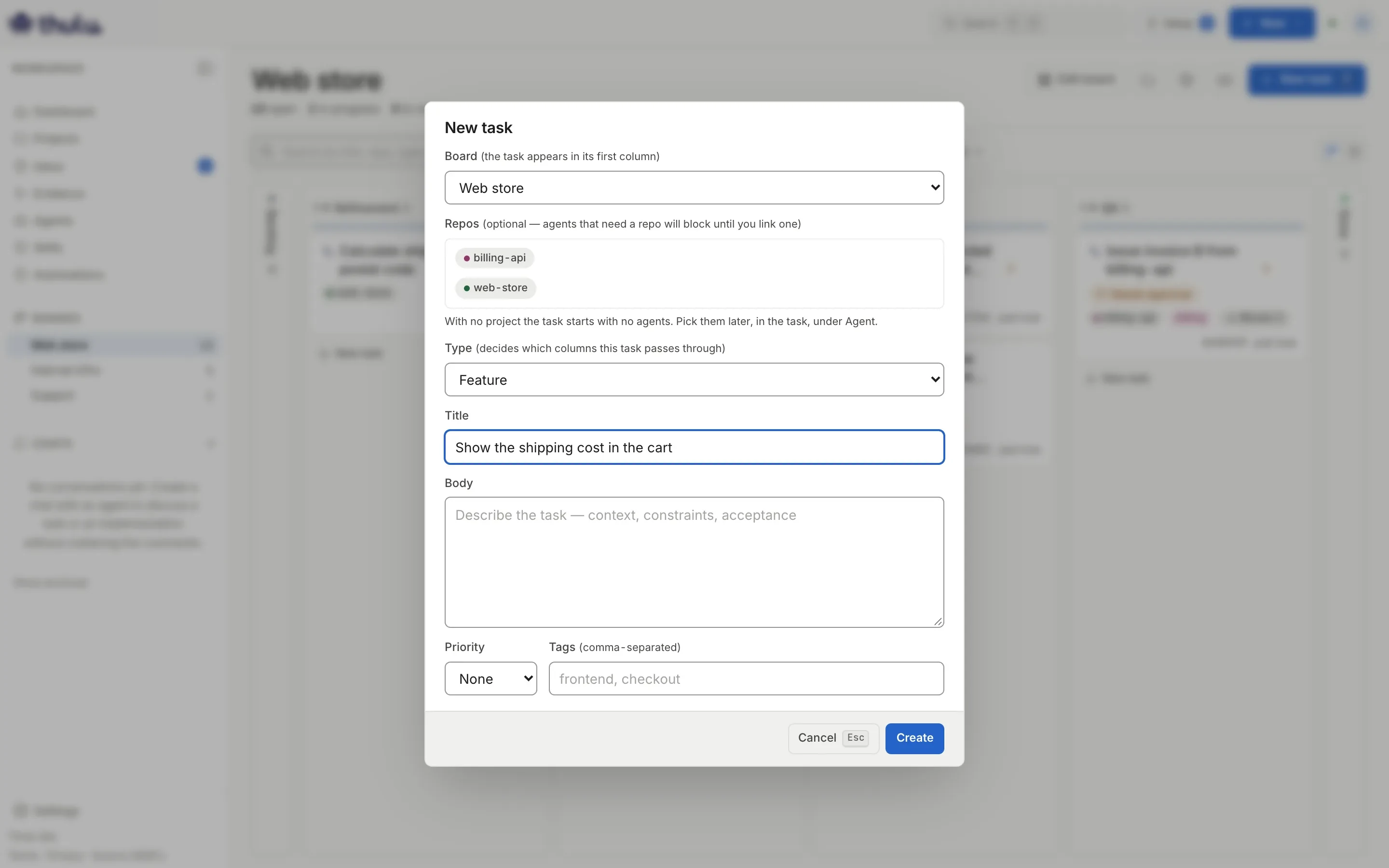
The "New task" modal. The type comes preselected with the one the board marks as default. -
When the task is ready to be worked on, drag it to the next column. While you drag, the columns the task’s type skips are dimmed and do not accept the card, and under the name of each column that runs agents you see “Starts frontend” or “No agent for this task”.
Dragging a Bug from Backlog: Refinement is dimmed because that type skips it. -
If the task has an agent for the destination column, the notice says “→ In progress · frontend starts in 6 s” with an “Undo” button. After 6 seconds the run starts and the card changes to “Running”; you follow what it does in Agent runs. If it has no agent, the card changes column and nothing else happens. You see and change each column’s agent in the task’s “Agent” property (Tasks).
-
Use “Needs you” to see only what is waiting for a person: agent questions, pending approvals and runs that failed, were stopped or did not start.
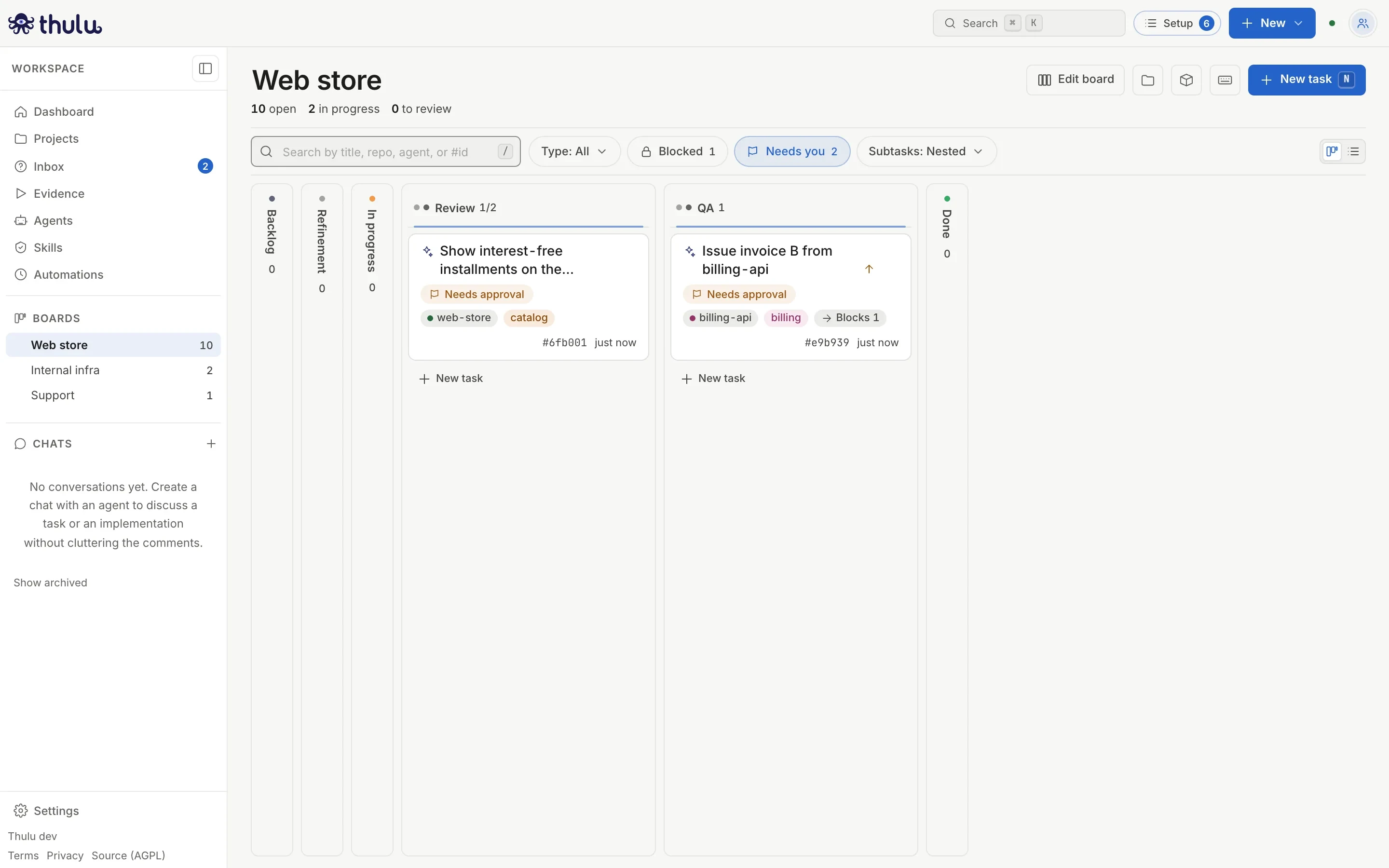
With "Needs you" active two cards remain; columns with no results fold. -
Open each one, resolve what it asks and move it to the next stage until it reaches the last one.
Other common tasks
Section titled “Other common tasks”Create a task directly in a column
Section titled “Create a task directly in a column”At the foot of each column there is a “New task” that opens a field in place. Type the title, choose the repo in the selector (it suggests the last one you used) and press Enter. Esc cancels; clicking outside with text typed also creates it.
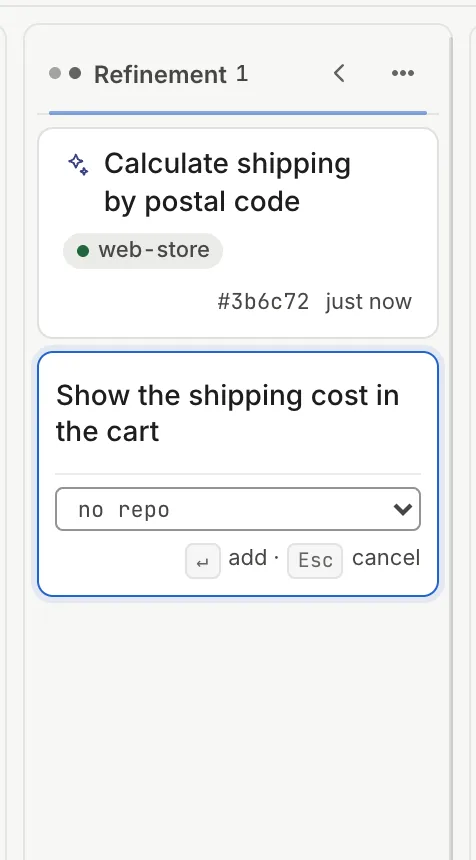
The task starts in that column with the board’s default type. If the chosen repo brings an agent for that column, the run starts at once, just as with a drag. With “no repo” there is no agent.
Move without dragging
Section titled “Move without dragging”Each card has a “…” menu (also with right click or the period key). “Move to…” lists only the stages the task’s type goes through, with a check on the current one.
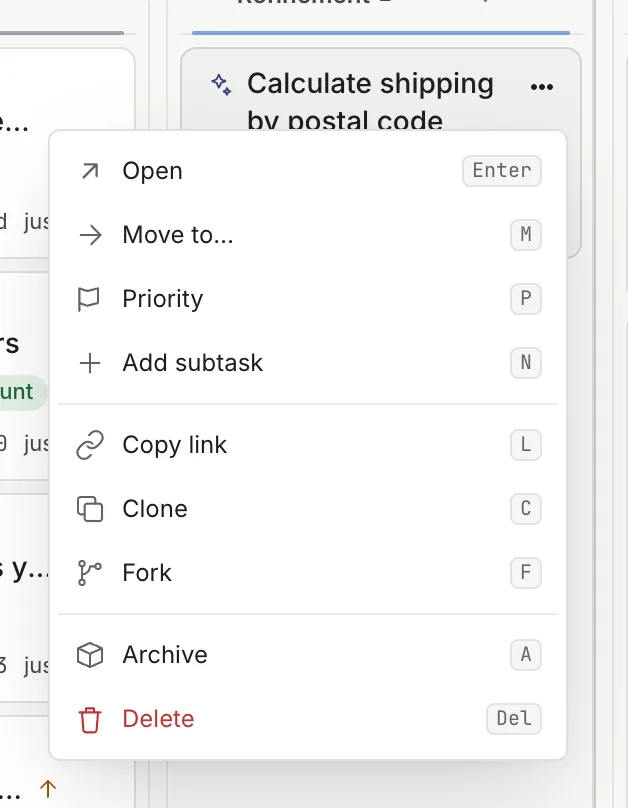
| Action | Key | What it does |
|---|---|---|
| “Open” | Enter | Opens the task in the side panel. |
| “Move to…” | M | Changes the stage, with the same rules as dragging. |
| “Priority” | P | Urgent, high, medium, low or none. |
| “Add subtask” | N | Opens the task with the subtask field focused. It does not appear on a subtask. |
| “Copy link” | L | Copies the direct link to the task. |
| “Clone” | C | New task “Copy of …” in the first stage of the board, with the description, repos, agents and tags; no comments or history. Opens the copy. |
| “Fork” | F | A “Fork of …” copy in the same stage, with comments, approvals, events and attachments, and its own branch that starts from the current branch. Opens the copy. |
| “More turns” | T | Appears only if the run ran out of turns. Relaunches the current stage’s agent with double the turns. |
| “Archive” | A | Takes the task off the board without deleting its history; if it has subtasks, it archives them too. Only on top-level tasks. Archived tasks are seen and restored from the “Archived” button in the header. |
| “Delete” | Del | Asks for confirmation and, if the task has subtasks, lists them: they are deleted with it. Only an admin can delete; for everyone else it appears disabled with the reason. |
Move with the keyboard
Section titled “Move with the keyboard”Focus a card (Tab) and use the arrow keys to move between cards. To change its stage, press Space to pick it up, the left and right arrows to choose the column (they skip the ones its type does not go through) and Space to drop it. Esc leaves it where it was. A notice at the foot of the board keeps saying which column it is over.
Filter and search
Section titled “Filter and search”| Control | What it leaves on screen |
|---|---|
| Search box (key /) | Tasks whose title, repo name, current-stage agent or short id (#c82712) contains the text. It does not search the description. Esc clears it. |
| “Type: All” | Tasks of the types you check, including “Untyped”. It appears only if the board has types. |
| “Blocked” | Tasks held by an unfinished dependency. The number next to it says how many there are. |
| “Needs you” | Open questions, pending approvals and runs that failed, were stopped or did not start. |
| “Subtasks: Nested / As cards” | How subtasks are drawn. |
In nested mode, if a filter finds a subtask, the parent card stays visible and expands to show it. Filters, mode and folded columns are remembered per board in this browser; the search is not. If nothing matches, the board shows “No tasks match” with a “Clear filters” button.
Fold and widen columns
Section titled “Fold and widen columns”The “‹” arrow in a column’s header folds it into a vertical strip with its name and count; a click on the strip opens it again. A folded column still accepts cards when you drag.
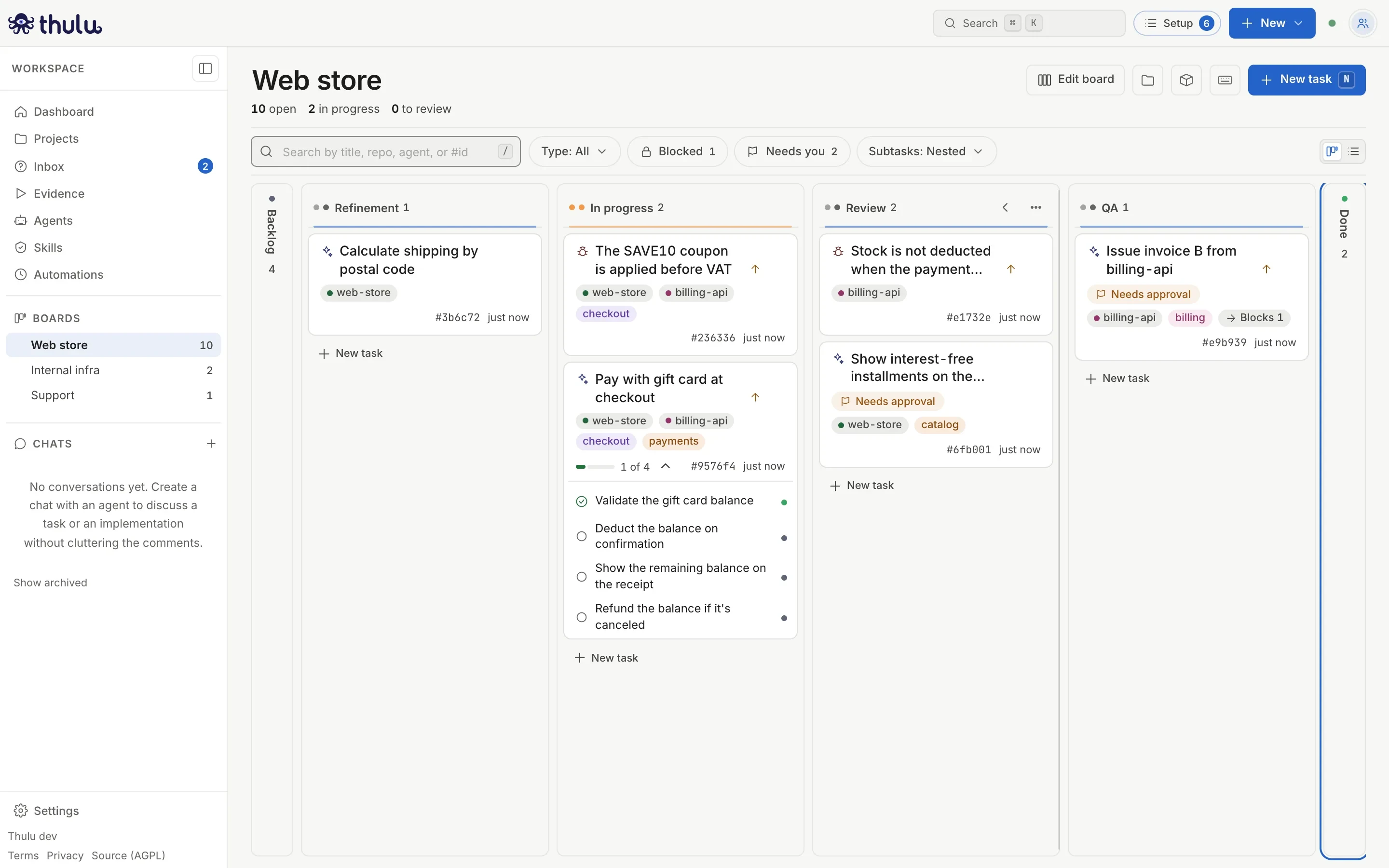
Thulu also folds on its own:
- empty columns, until you start dragging a card;
- final stages (Done) when not all the columns fit in the screen width.
What you fold or open by hand wins over the automatic behavior. To change a column’s width, drag its right edge; a double click returns it to the normal width.
Switch boards
Section titled “Switch boards”The “Boards” section of the sidebar lists the workspace’s boards with the number of open tasks in each, the same number as “open” in the header. One click switches the board without reloading the page and closes the task you had open. To create a new board or change its columns, go to Boards and stages.
The board name, at the top left, is edited by clicking it: Enter saves and Esc undoes. Only someone who manages boards can rename it. That same permission enables “Edit board” and the “…” menu of each column, which are explained on the configuration page.
See the board as a list
Section titled “See the board as a list”The two buttons at the right of the filter bar (or the V key) switch between the board and a list. The list shows the same tasks as the board, one per row, with columns for stage, status, priority, agent, repos, tags, subtasks and last update. Filters, search and the subtask mode apply the same in both views.
- To change the stage, click the stage in the row and choose another one. It is the same “Move to…” as in the card menu: if the new stage has an agent, the agent starts behind the same 6 s Undo.
- A click on a column title sorts by it. The second click reverses the order and the third returns to board order (column by column, left to right).
- “Group” splits the list into one section per stage. By default the list does not group; when grouped, final stages start folded.
- With a nested subtask, the arrow next to the parent’s title shows its subtasks below.
- The up and down arrows walk through the rows, Enter opens the task and M, P and “.” work as on cards.
In the list you cannot drag and you cannot edit columns: that stays on the board. When the screen gets narrow, the least used columns hide first; title, stage, status and the “…” menu always stay.
The chosen view (board or list, the grouping and the order) is saved to your account, so it follows you to another browser or machine. It is yours: it does not change what other workspace members see.
From the phone
Section titled “From the phone”On a narrow screen the board shows one column at a time, with tabs at the top to jump between stages. Filters gather into a “Filters” button and “New task” becomes a “+”. Moving is done from the card’s “…” menu with “Move to…”.
Board shortcuts
Section titled “Board shortcuts”The keyboard button (or the ? key) opens the full list. The ones for the board:
| Key | Action |
|---|---|
| N | New task |
| V | Switch between board and list |
| / | Go to the search box |
| Esc | Close a modal or panel, or clear the search |
| Arrows | Move between cards |
| Enter | Open the focused task |
| Space | Pick up the card; arrows move it, Space drops it, Esc cancels |
| M | Move to a stage |
| P | Choose the priority |
| . or Shift F10 | Card menu |
| G and then P, A or D | Go to Projects, Agents or Dashboard |
Shortcuts inside an open task are in Tasks.
Common problems
Section titled “Common problems”
- “Bugfix skips Refinement”: you dropped the card in a column its type does not go through. Choose another column or change the task’s type.
- “Blocked: Waiting on approval: …”: the current stage asks for approvals before advancing. You resolve them in the task’s “Approvals” tab.
- “Blocked: Agent “…” needs a linked repo”: the task has an agent for that column but no repo. Link a project from the task or choose another agent.
- “Move failed — reverted”: the daemon rejected the change for another reason. The card goes back to its column.
- “Can’t reach the daemon — showing data from …”: the board keeps showing the last thing it loaded and updates by itself when the connection returns.
- The card says “No agent”: the column has no agent for this task. The system comment says so with the column’s name; choose the agent in the task’s “Agent” property or in the project’s “Stage template” and relaunch the stage from the task.
- The card says “Did not start” or “Credential expired”: the reason is next to the status. If it mentions the LLM credential, an engine profile is missing or expired (Credentials and engines); the task offers the direct link.
- You moved a parent task to Done with open subtasks: Thulu asks first. The subtasks stay in their columns.