

Skills
A skill is a Markdown text with instructions an agent receives when it runs on a stage: how to write release notes, what to check on a screen, what format the team’s commits follow. You write them once on the “Skills” page (/skills/) and grant them to each agent per stage in “Agents”. A skill executes nothing: if the agent needs a tool (a browser, GitHub), that is an MCP.
The page shows two groups. “This workspace” holds your team’s skills: people with the admin role in the workspace create and edit them, and the rest of the members can read them. Granting a skill to an agent also requires the admin role. “Thulu” holds the system skills, which come with the install and nobody in the workspace can change. If you deleted any, a third group appears, “Deleted”. The “Workshop” button opens the catalog to install sample skills or import one from a file (Workshop).
How a skill reaches the agent
Section titled “How a skill reaches the agent”Each run receives the skills granted to that agent on that stage, plus the system skills that apply. What the model sees depends on the engine and on one field of the skill:
- With Claude Code, each skill arrives as a file the model opens when it judges that it applies. Until it opens it, it only sees the name and the description. A vague description means the skill is never used.
- With an engine that doesn’t discover skills, all of them are pasted whole into the prompt.
- A skill with “Delivery” set to “Always in the prompt” (
enforcement: always) is pasted into the prompt in both cases. Use it for rules that have to hold on every turn.
You can force one mode or the other per agent with “Skills delivery”, in its “Settings” tab (“Auto — follow the engine”, “Native” or “Inline”). See Agents.
Recommended flow: write a skill and grant it to an agent
Section titled “Recommended flow: write a skill and grant it to an agent”-
Open “Skills” in the sidebar and click “New skill”. Fill in “Name” (lowercase letters, digits and dashes, for example
release-notes) and “Description”, and click “Create”.Write the description for the model: what the skill covers and when to use it (“How to write the release notes for a release: sections, tone and which changes to mention”). It is what the model reads to decide whether to open it.
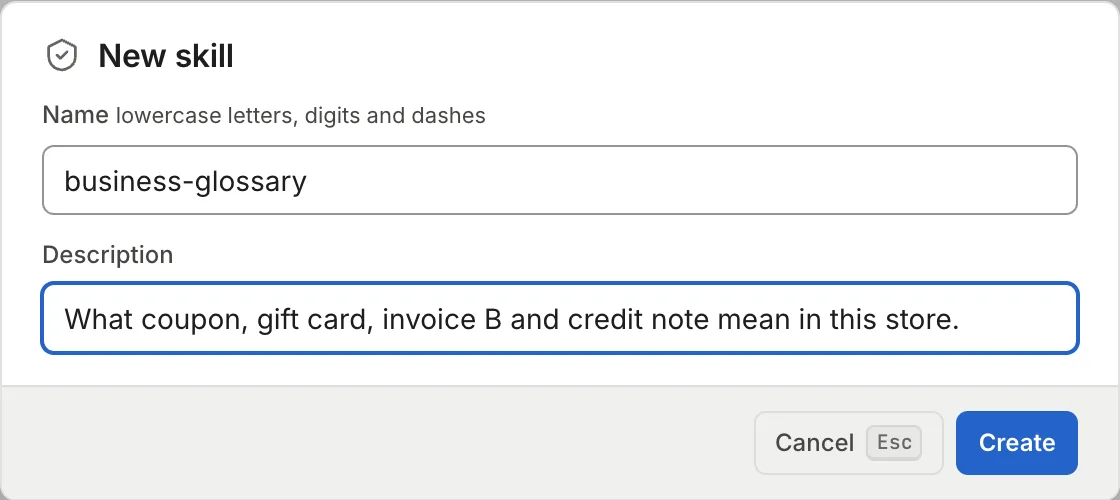
The name can't be changed afterwards; the description is edited in the skill's header. -
The
prompt.mdeditor opens with a one-line title. Replace it with the instructions and save with “Save” or ⌘S. The orange dot next to the file name means unsaved changes; if you leave with changes, Thulu asks you to confirm.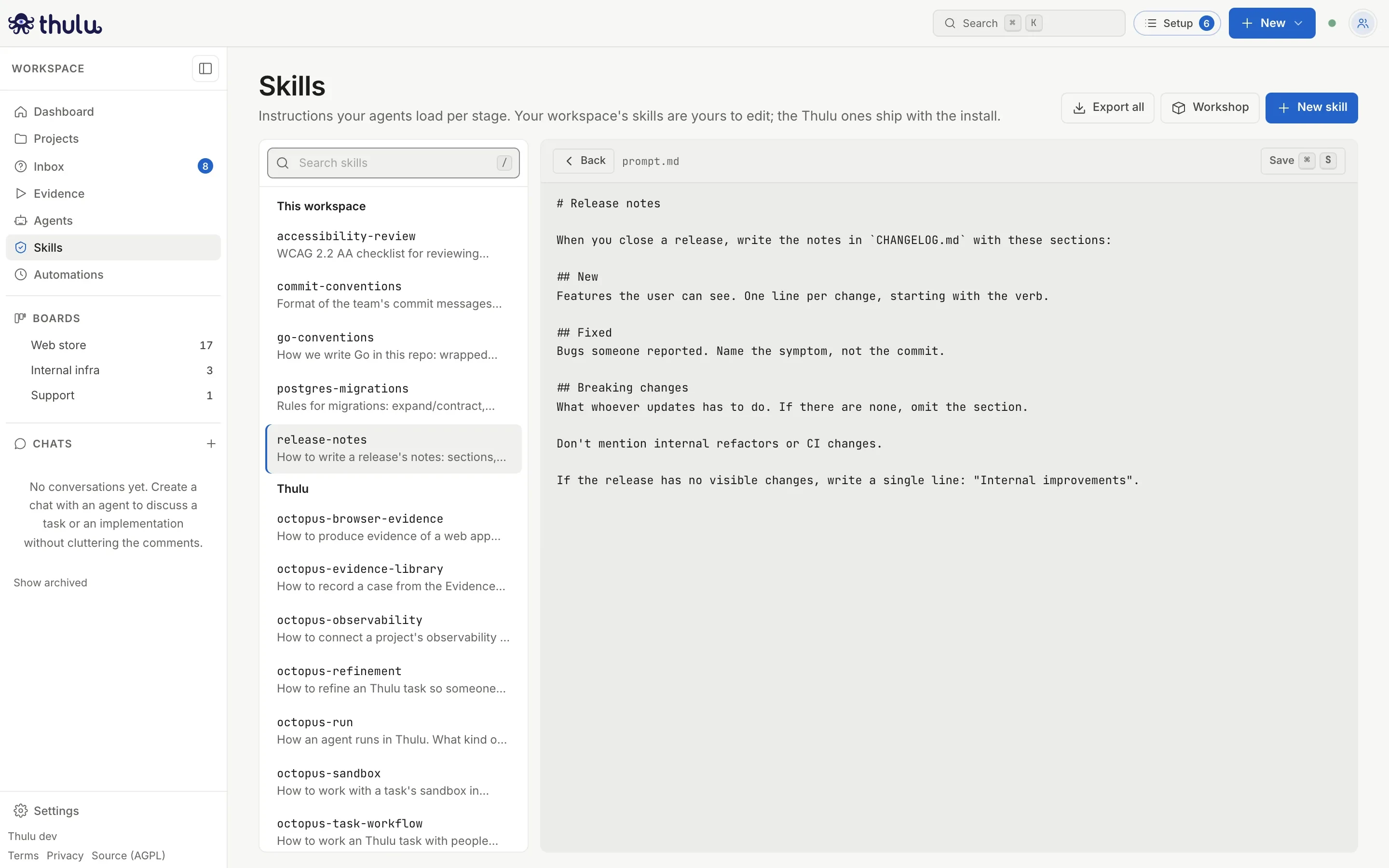
prompt.md is what the agent receives. Plain Markdown, no preview. -
In the skill’s view, the “Used by” section says which agents grant it and on which stages. While nobody grants it, it says “No agent grants it yet.” with the link “Grant it in Agents”. Follow it and pick the agent in the list on the left. If the agent has no stages yet, tick them under “Valid stages” in the “Settings” tab. To create the agent or understand stages, see Agents.
-
Open the “Skills” tab. There is one block per valid stage with a checkbox for each workspace skill. Tick the skill on the stages that need it (“Copy to the other stages” repeats it on the rest) and click “Save settings”, in the bar at the bottom.
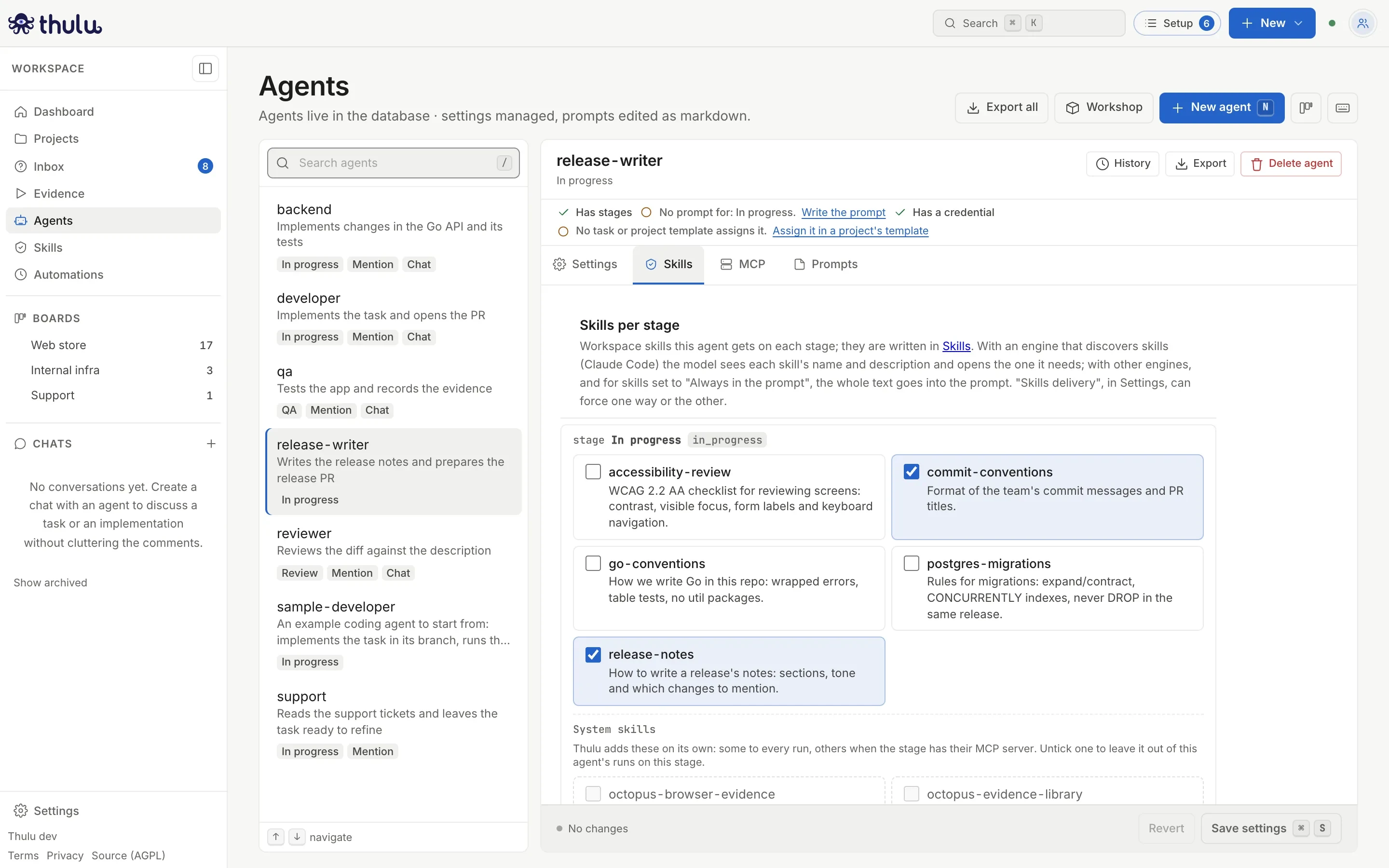
Above, the workspace skills granted on the stage. Below, the system ones Thulu adds on its own.
The grant applies from the next run. Runs already underway continue with what they had. “Settings”, “Skills” and “MCP” share “Save settings”, so you can switch between those three tabs without saving.
Other tasks
Section titled “Other tasks”Add reference files
Section titled “Add reference files”In a skill’s view, type a path in the field above the list (for example references/example.md) and click “Add file”. The empty editor opens; write the content and save. Each file has “Edit”, “History” and “Delete” (with confirmation); prompt.md and skill.yaml can’t be deleted individually because they are the skill: that is what “Delete skill” is for. A deleted file stays in the list as “Deleted”, with its history so you can restore it.
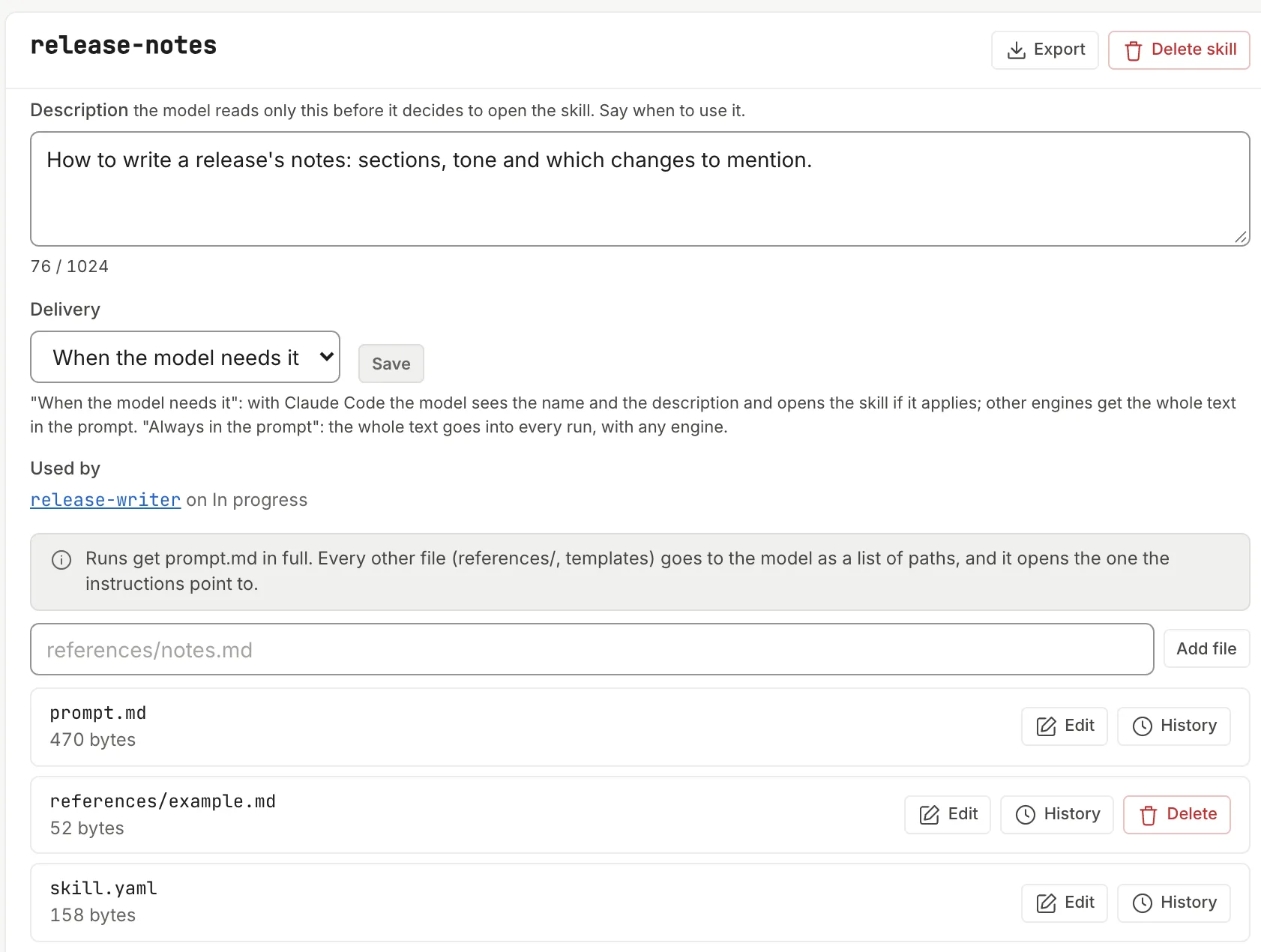
The run receives all of the skill’s files. The model gets prompt.md whole and the rest (what is in references/, templates, scripts/) as a list of paths: it opens the one the instructions name. For it to use them when appropriate, say in prompt.md when to open each file.
Change the description or the delivery
Section titled “Change the description or the delivery”The skill’s header has two fields. “Description” is the only thing the model reads before deciding whether to open the skill, up to 1024 characters, with a counter next to it. “Delivery” chooses between “When the model needs it” (on_demand) and “Always in the prompt” (always). Use “Always in the prompt” only for rules that break silently if the model doesn’t read them: the whole text goes into every run.
Both also live in skill.yaml, which you can edit by hand with “Edit” on its row:
| Field | What it does |
|---|---|
name |
The skill’s name. It is fixed when you create it. |
description |
What the model reads before opening the skill. If it contains a colon, put it in double quotes. |
type |
knowledge when created. Today it doesn’t change how the skill arrives. |
enforcement |
on_demand (or empty) or always, the same as the “Delivery” field. |
requires |
Other related skills. It is saved but has no effect: granting a skill doesn’t grant the ones it names. |
If the YAML is malformed, the save fails with “Could not save the file:” followed by the reason, and the file stays as it was. Check quotes and indentation.
Go back to an earlier version
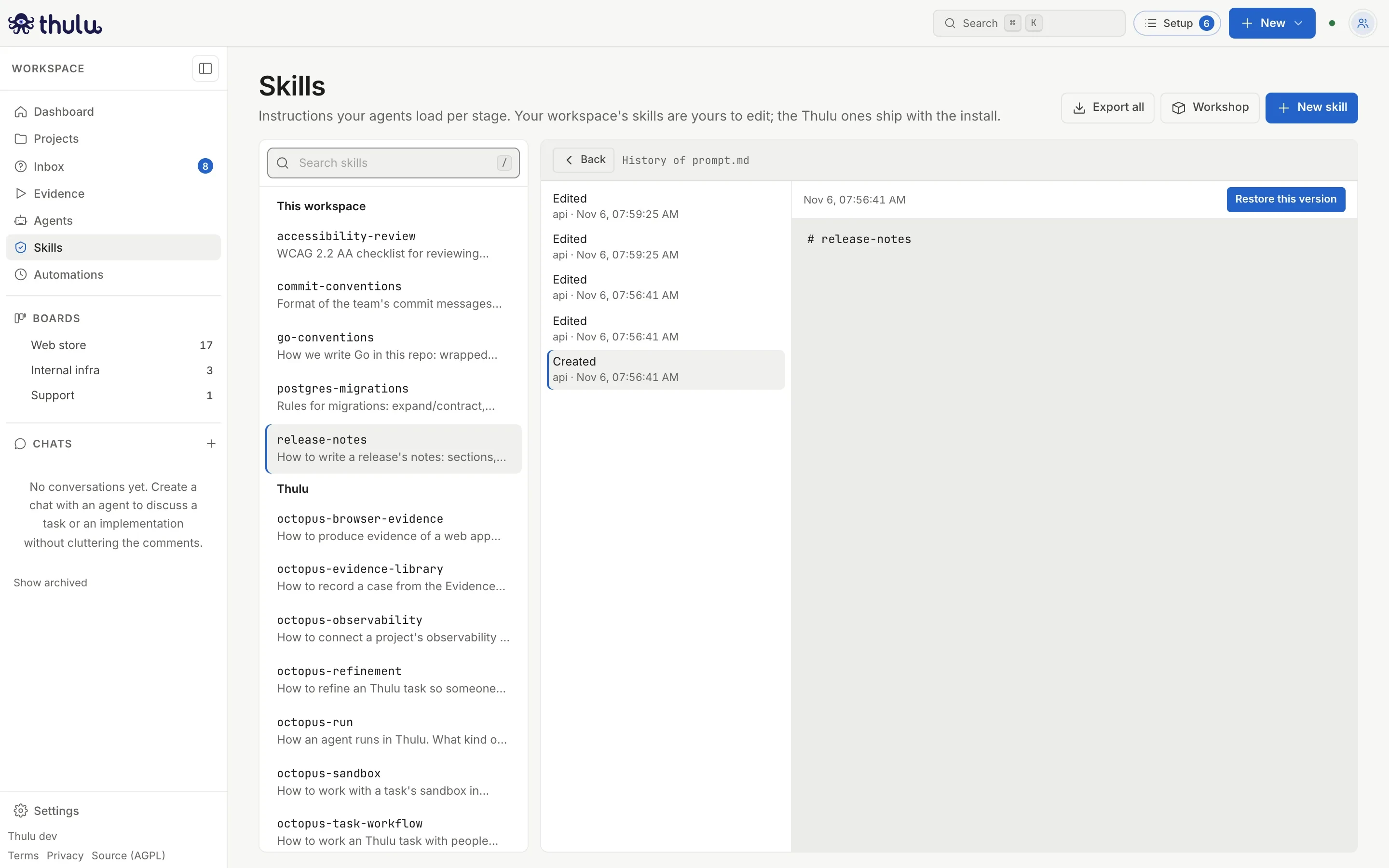
Section titled “Go back to an earlier version”Every save is kept in the file’s history. Click “History” on the file’s row, pick a version from the list to see its content, click “Restore this version” and confirm. The most recent version doesn’t have the button because it is the one the file already has. The restore is also recorded in the history, so it can be undone.
Delete a skill
Section titled “Delete a skill”Open the skill and click “Delete skill”. The dialog lists the agents that grant it and offers “Remove it from these agents too”: if those grants stay, they hand those agents any skill created later with the same name. Confirm with “Delete”. The skill stops reaching runs from the next one and moves to the “Deleted” group, where “Restore skill” brings back all its files. The grants that were removed when you deleted it don’t come back.
System skills
Section titled “System skills”The skills in the “Thulu” group teach the agent to work inside Thulu: where the repos are, how to ask a question or request an approval, how to bring up the sandbox. They teach Thulu, not your team’s stack. They come inside the install with a version number and are updated with each release. The octopus- prefix is reserved: no workspace skill can start with it.
Nobody grants them. Each run receives the ones that apply to its stage: octopus-run always arrives, octopus-token-optimizer arrives when the agent has “Large reads” turned on, and the rest arrive when the stage has wired the MCP the skill names in its “MCP” label.
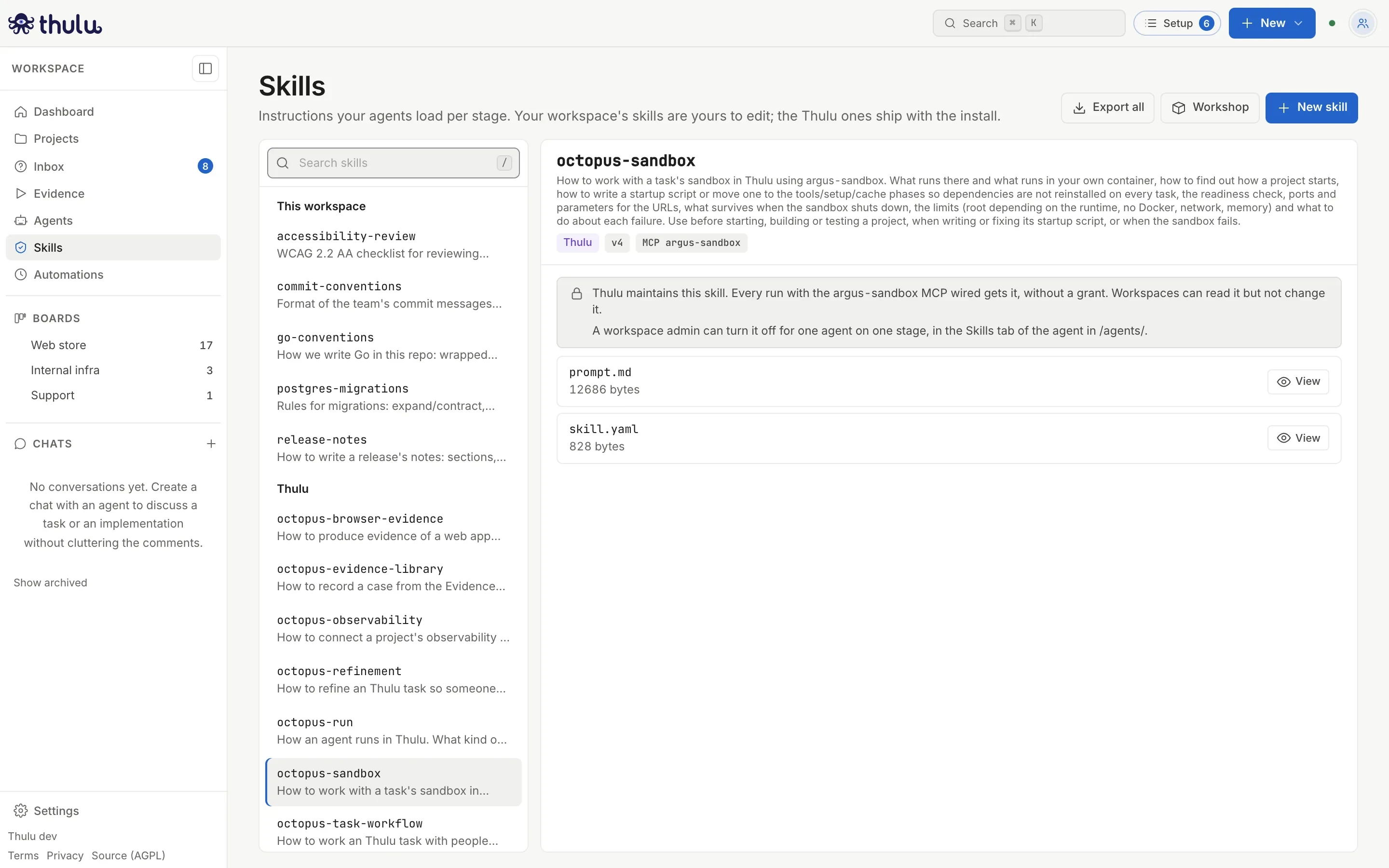
| Skill | Arrives when the stage has | What it is about |
|---|---|---|
octopus-run |
always, pasted into the prompt | Run types, where the repos and the output folder are, who commits and opens the PR, what happens to the task when it finishes |
octopus-task-workflow |
octopus-api | Asking, requesting approval, comments, threads, mentions and subtasks |
octopus-refinement |
octopus-api | Refining a task so someone else can work it without asking again |
octopus-test-cases |
octopus-api | Writing and maintaining a task’s test cases |
octopus-observability |
octopus-api | Connecting a project’s observability and building dashboards |
octopus-browser-evidence |
argus-browser | Recording videos and annotated screenshots as evidence |
octopus-evidence-library |
argus-browser | Recording a case from the Evidence library from a chat |
octopus-sandbox |
argus-sandbox | Bringing a project up in the sandbox, the init script and the limits |
octopus-token-optimizer |
“Large reads” turned on in the agent | Sending large-file reads to the model the agent chose |
Turn off a system skill for an agent
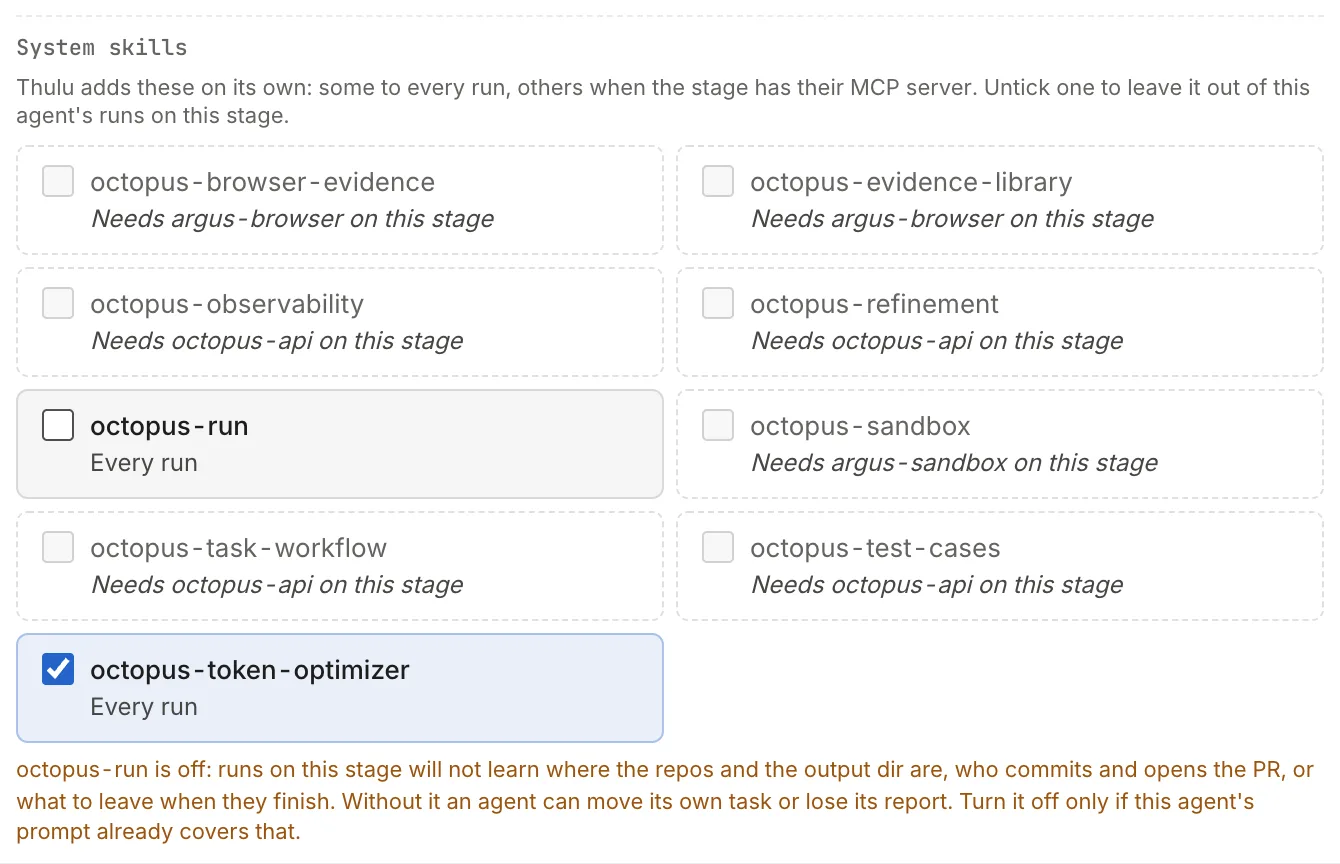
Section titled “Turn off a system skill for an agent”In the agent’s “Skills” tab, below the workspace skills, each stage has the “System skills” block. Each checkbox says why it arrives: “Every run”, “Included by argus-sandbox” or, unticked and disabled, “Needs octopus-api on this stage” when the stage doesn’t have that MCP. Untick the one you don’t want and click “Save settings”. It applies only to that agent on that stage.
When you wire an MCP in the “MCP” tab and go back to “Skills”, that MCP’s skills become active.
Default skills when creating an agent
Section titled “Default skills when creating an agent”The “New agent” modal (“New agent” button in “Agents”) has “Default skills”, with a checkbox for each workspace skill. They apply to every stage you tick under “Stages” in the same modal; with no stage ticked they can’t be picked.
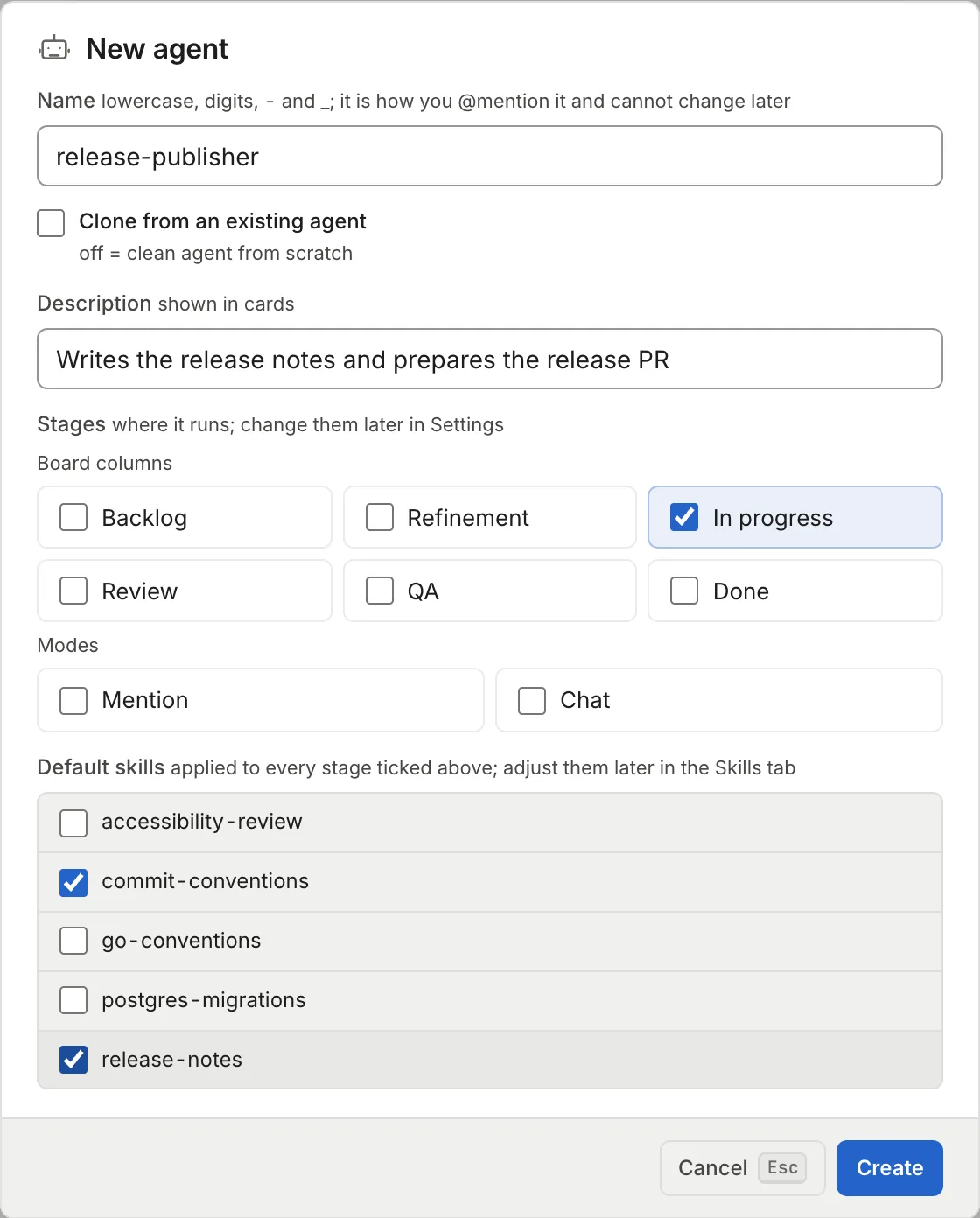
If you tick “Clone from an existing agent”, the new agent copies the original’s stages and skills, and the ticked skills are added to the ones it already had on each of its stages.
Common problems
Section titled “Common problems”| Symptom | Cause and fix |
|---|---|
| “invalid skill name: use lowercase letters, digits and dashes” | The name has capital letters, spaces or accents. Use release-notes, not Release Notes. |
| “that name belongs to a system skill; pick another (names starting with octopus- are reserved)” | The name starts with octopus- or matches a system skill. |
| “this workspace already has a skill named …” | It already exists. Find it with “Search skills” (it also searches the description). |
| The agent’s Skills tab says “Pick at least one valid stage in the Settings tab” | The agent has no saved stages. Tick them in “Settings” and save. |
| The agent doesn’t apply the skill even though it is granted | With Claude Code, the model decides whether to open it based on the description. Make it concrete and add a “Use when…”, or switch it to enforcement: always if it has to hold every time. |
“Could not save the file: …” when editing skill.yaml |
The YAML isn’t valid. Most common: a description with a colon and no quotes. To change the description, use the header field. |
| A skill from another workspace doesn’t appear | Each workspace has its own library. See Workspaces and team. |