

Boards and stages
A board is the flow tasks move through: an ordered list of columns (stages) with their own rules. In each column you decide which agent runs by default, whether the branch is pushed or a pull request is opened, and which approvals are needed to move on. A workspace can have several boards, and each task stays on the board where you created it.
You edit all of this in Settings → Boards: open “Settings” at the bottom of the sidebar and pick “Boards” under “Workspace”. You need the admin role; with any other role the page is visible but read-only.
The factory board
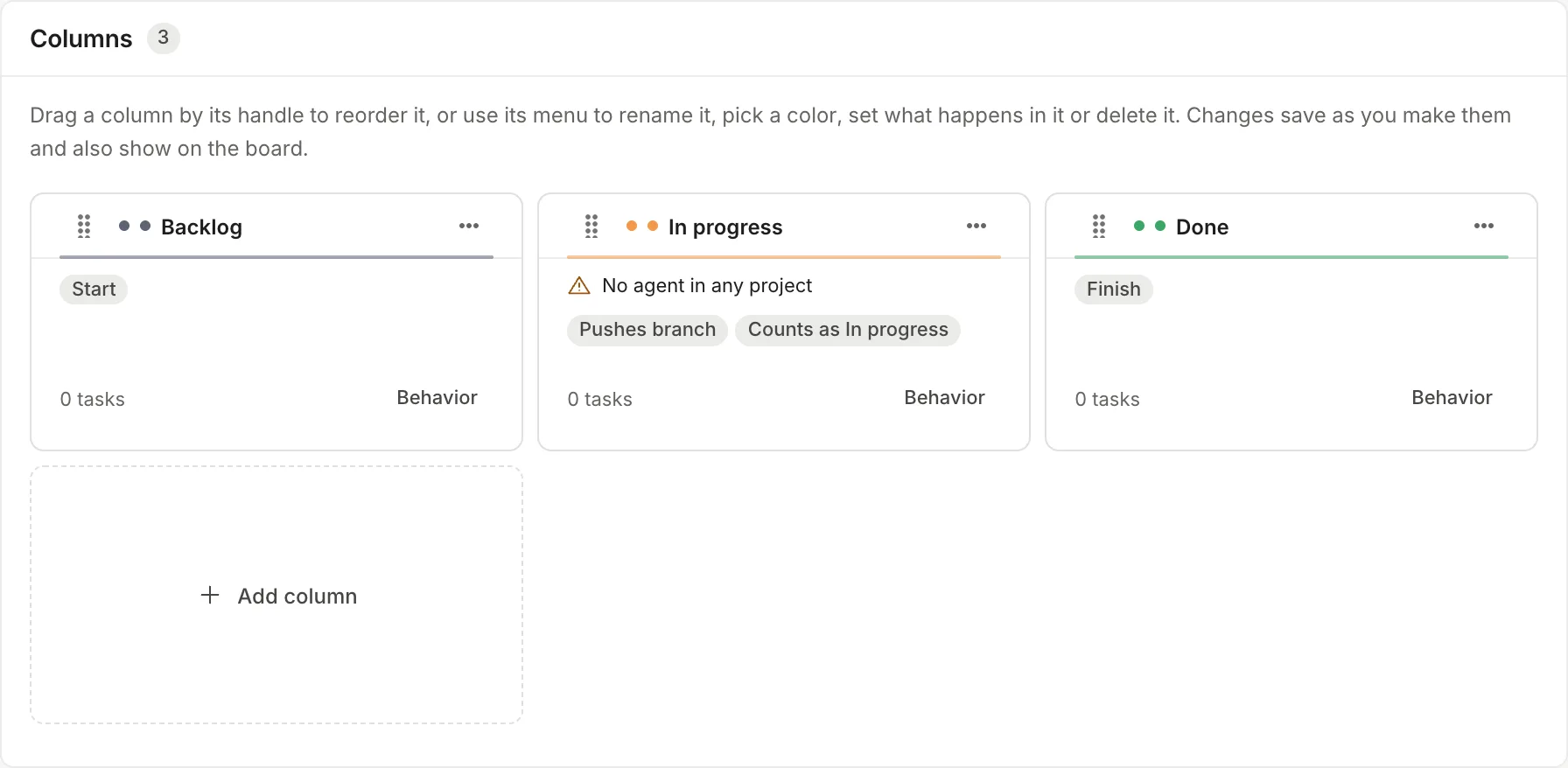
Section titled “The factory board”A new workspace starts with a three-column board and no agents:
| Column | What it does |
|---|---|
| Backlog | Start: new tasks land here. |
| In progress | Pushes the branch when a run finishes cleanly and counts toward the “In progress” counter. Runs an agent only if the task has one assigned for this column. |
| Done | Finish: the task counts as finished. |
The board is called “Default”. No column advances on its own, requires approvals or opens pull requests. Until you change them, the board and its columns show in each person’s language; a name you edited stays as you wrote it.
Recommended flow: build your team’s workflow
Section titled “Recommended flow: build your team’s workflow”The example turns the factory board into Backlog → Refinement → Development → Code review → Done, with an agent in Development and a design approval in Code review. For the agent to work you will need an agent already created and a project with its repository; you can set up the columns first and add those afterwards.
-
In Settings → Boards, click the board’s name (or its ⋯ menu → “Edit columns and types”). The page has three panels: “Name and description”, “Columns” and “Task types”. Everything saves as soon as you change it; there is no Save button.
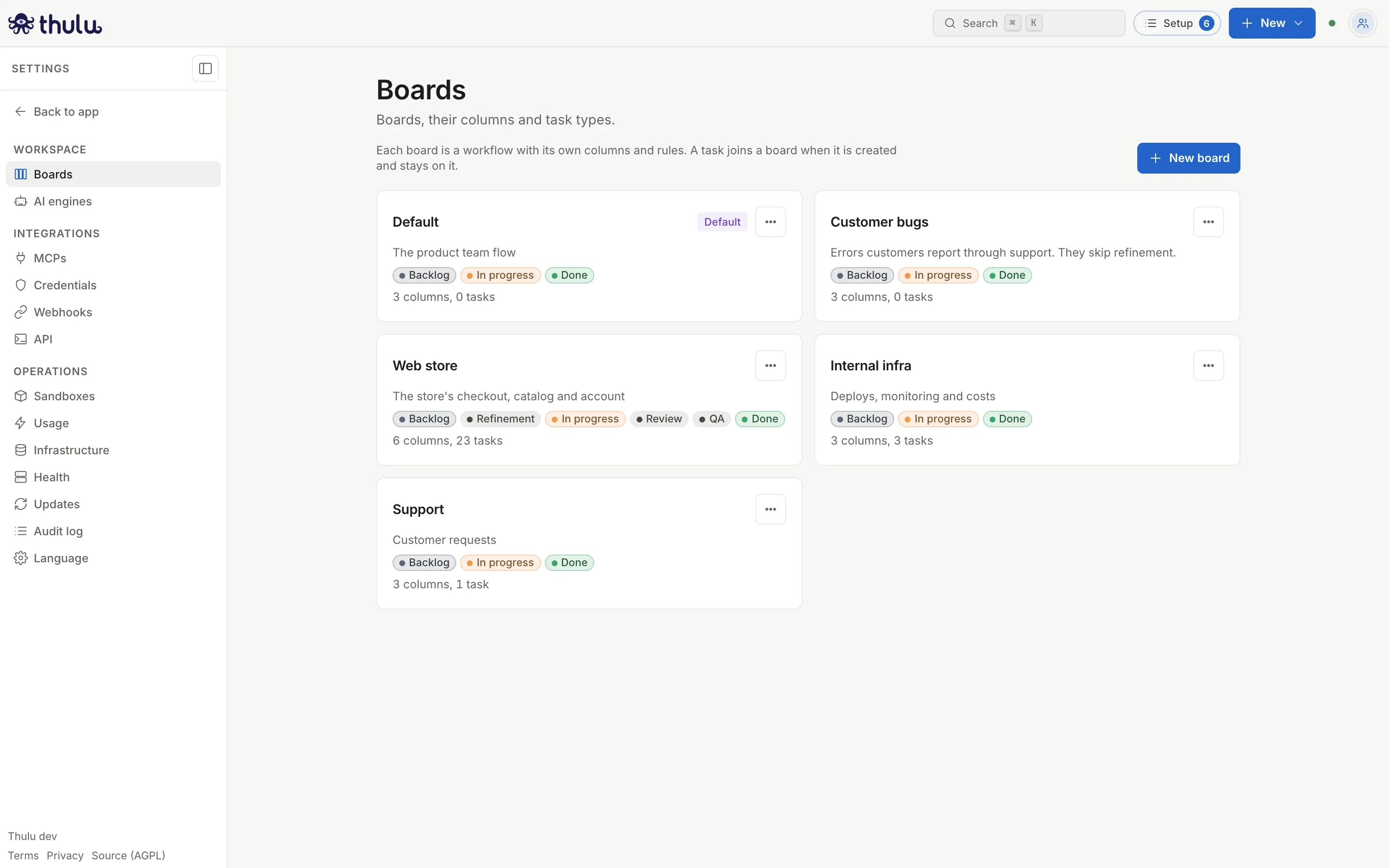
Each card shows the board's columns and how many tasks it has. -
Rename the columns that don’t fit. In the column’s ⋯ menu choose “Rename”, type the name and press Enter. You pick the color from the same menu. The column id (
in_progress) doesn’t change, only the name you see, and the new name applies to this board only. -
Add the missing columns from the ⋯ menu of the neighboring column: “Add column before” or “Add column after”. The “Add column” button at the end puts the new column before the finish column. Type the name and press Enter; below it you see the id it will be saved with.
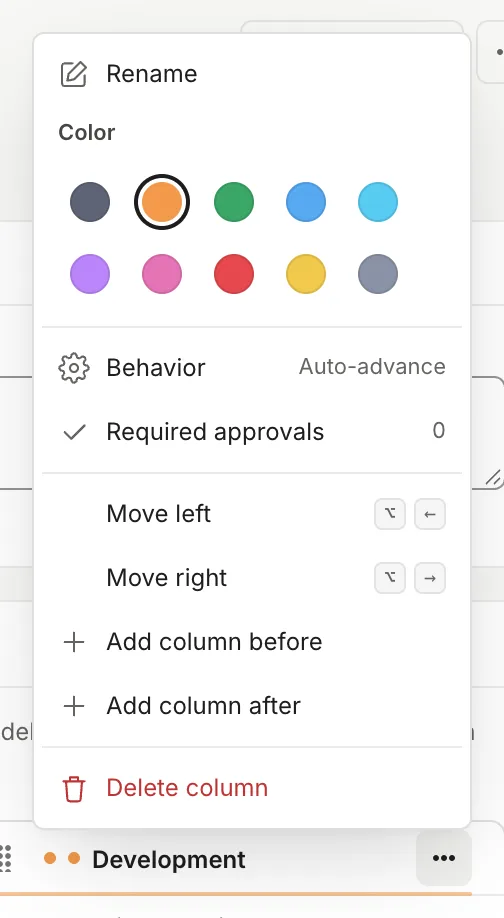
Each column's ⋯ menu gathers all its actions. -
Reorder the columns by dragging them by the handle (the six dots to the left of the name). The other columns shift one place at a time as you drag; if you drop outside the panel, the column goes back where it was. You can also use “Move left” / “Move right” in the menu, or Alt + arrow (⌥ + arrow on a Mac) with the handle focused.
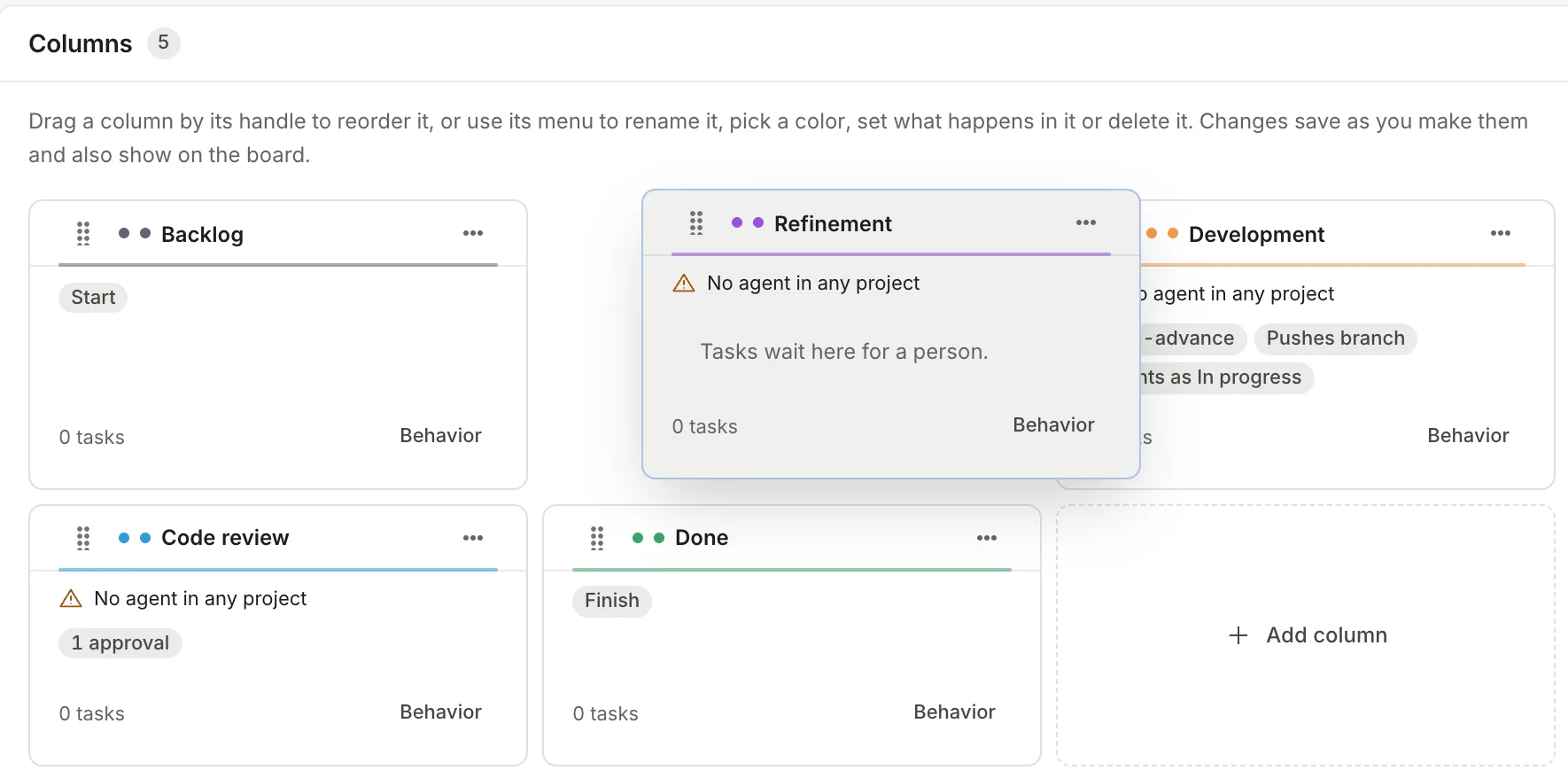
Dragging by the handle reorders as you move. When you drop it, the change is already saved. -
Define what happens in each column. Open “Behavior” (button at the bottom of the column or menu item) and turn on the switches you need. For the column where an agent works: “Move on when the agent finishes” and “Push the branch”.
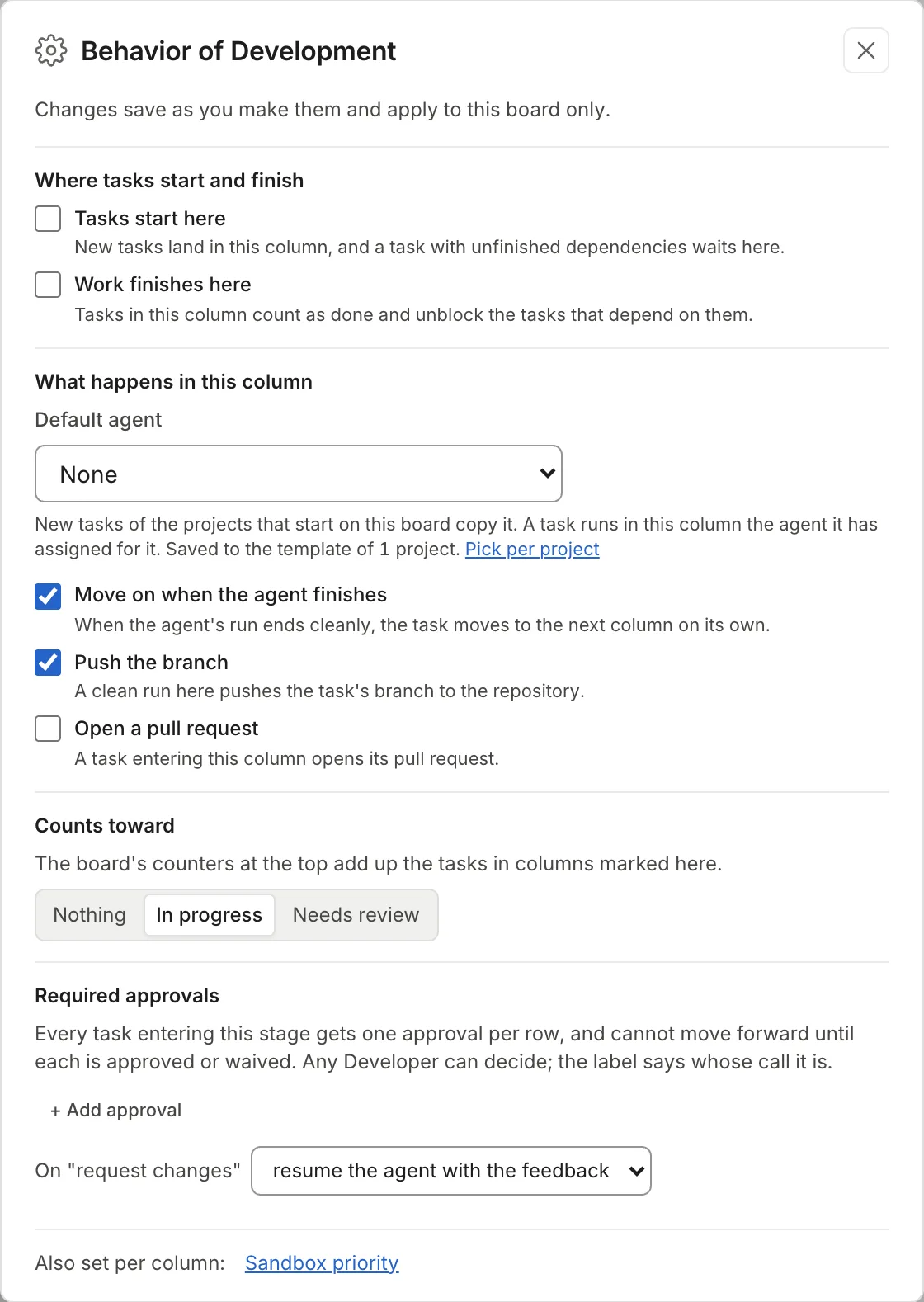
The dialog explains each switch and, in the middle columns, lets you pick the default agent. -
Pick which agent runs in that column. In the same dialog, “Default agent” lists the agents that have this column among their “Valid stages” (see Agents); if there are none, it says “No agent covers this column yet.” with the link “Set one up in Agents”. Your choice is saved in the “Stage template” of the projects that start on this board, and the notice says how many (“Development: implementer in 2 projects”). If each project has a different one, the selector says “Different in each project” and “Pick per project” takes you to Projects. The column shows the result: “Runs implementer” or “No agent in any project”. The start and finish columns don’t run agents.
If no project starts on this board, the dialog doesn’t show the selector: you pick the agent in each project’s template. New tasks copy their project’s template when they are created. A task with no project, or created before you picked the agent, gets none: pick it in the task detail, under “Agent”, which lists each column of the board with its agent. If the task is already sitting in that column, the run starts as soon as you assign it.
-
If a column needs a person’s sign-off, open “Required approvals” in its menu, click “+ Add approval” and type the label (for example “Design”). If you leave the key empty, it is derived from the label.
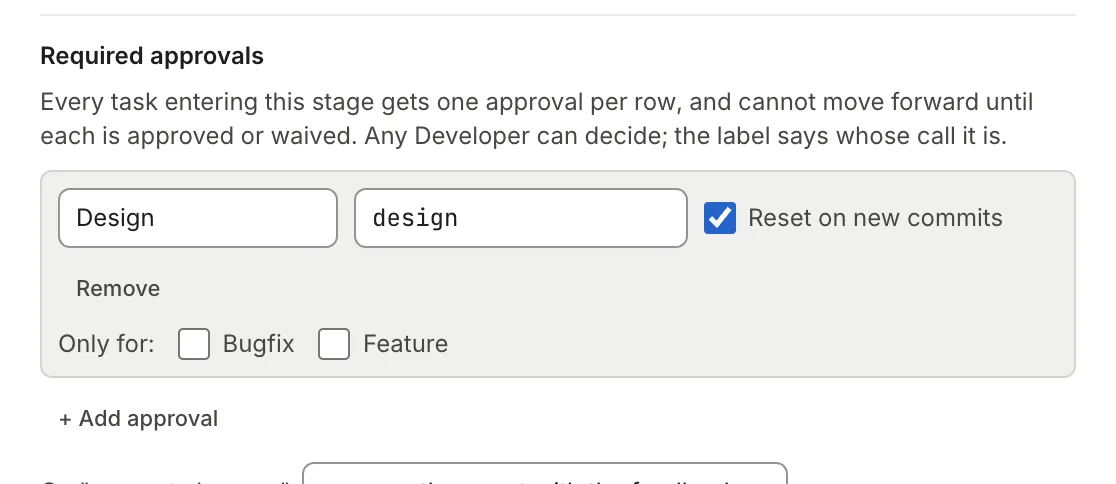
Each row is an approval that every task entering the column receives. The column shows the chip "1 approval". -
Try the flow with a task: on the board, click “New task”, pick the project under “Repos” and move it to the column with the agent (see Tasks). The run starts on its own. If the task stays put with a system comment, that task is missing its agent (see Common problems).
Other tasks
Section titled “Other tasks”Create another board
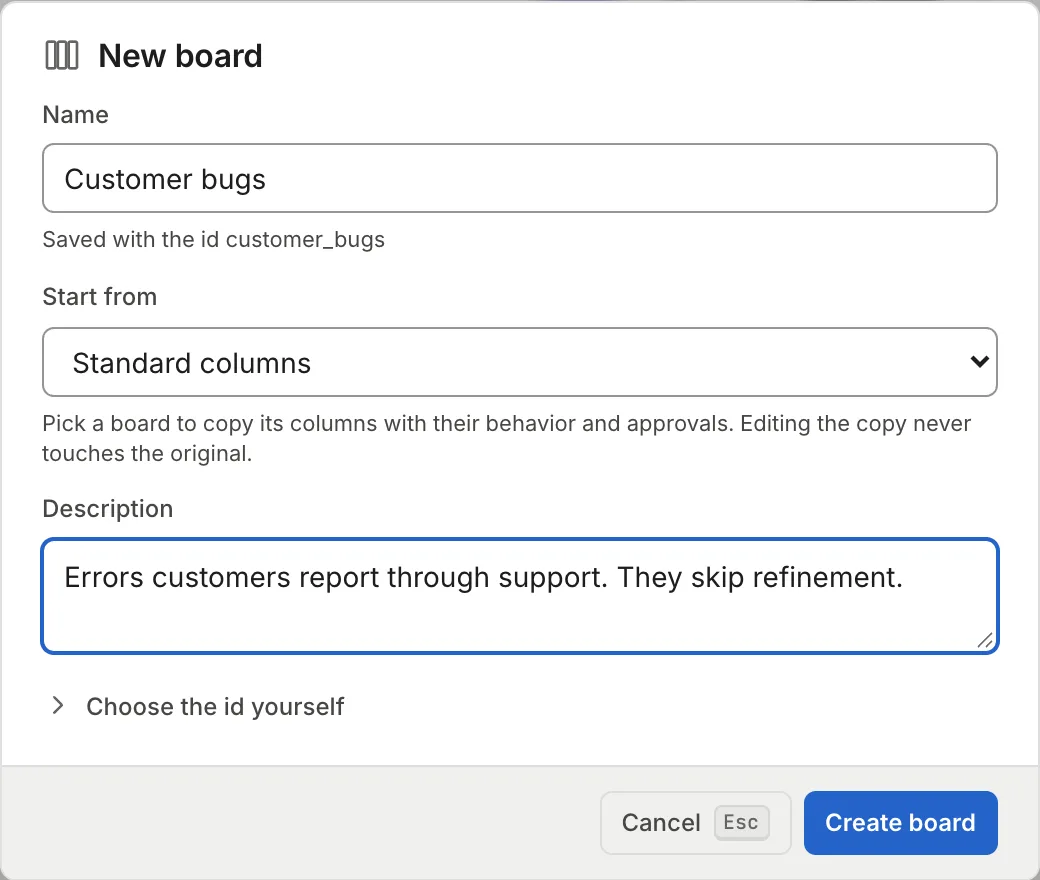
Section titled “Create another board”Use another board when a type of work needs columns that behave differently, for example customer-reported bugs that skip refinement.
- In Settings → Boards, click “New board”.
- Type the name. The id is derived from the name and can’t be changed afterwards; if you want a different one, open “Choose the id yourself”.
- Under “Start from” pick “Standard columns” (the three factory ones) or “A copy of” another board, which copies the columns with their behavior and approvals. Editing the copy doesn’t touch the original.
- Optional: a description of up to 280 characters, shown under the name.
- Click “Create board”. The new board’s detail page opens so you can edit it.
From each card’s ⋯ menu you can also “Duplicate” a board or “Make default”. The default is where tasks land when they don’t pick a board or inherit one from their project; each project can have its own “Default board” in its settings.
Define task types
Section titled “Define task types”A task type walks the same columns of the board but can skip some. Use it when the differences are in the route and not in the behavior: a fix that skips Refinement, a feature that goes through it.
- In the “Task types” panel, click a template under “Or start from:” (“Feature”, “Bugfix”, “Chore”, “Spike”) or type a name under “Add a type” and click “Add type”.
- Under “Walks through”, untick the columns that type skips. The first and last columns always stay ticked: every type starts and finishes in the same place.
- Optional: change the icon or the color, and tick “Default” for the type that new tasks without a type receive.
The panel shows “Unsaved changes…” and a moment later “Saved”. If you remove a type that has tasks, or make a type skip a column where tasks of that type are, the panel asks which column to move them to before saving.
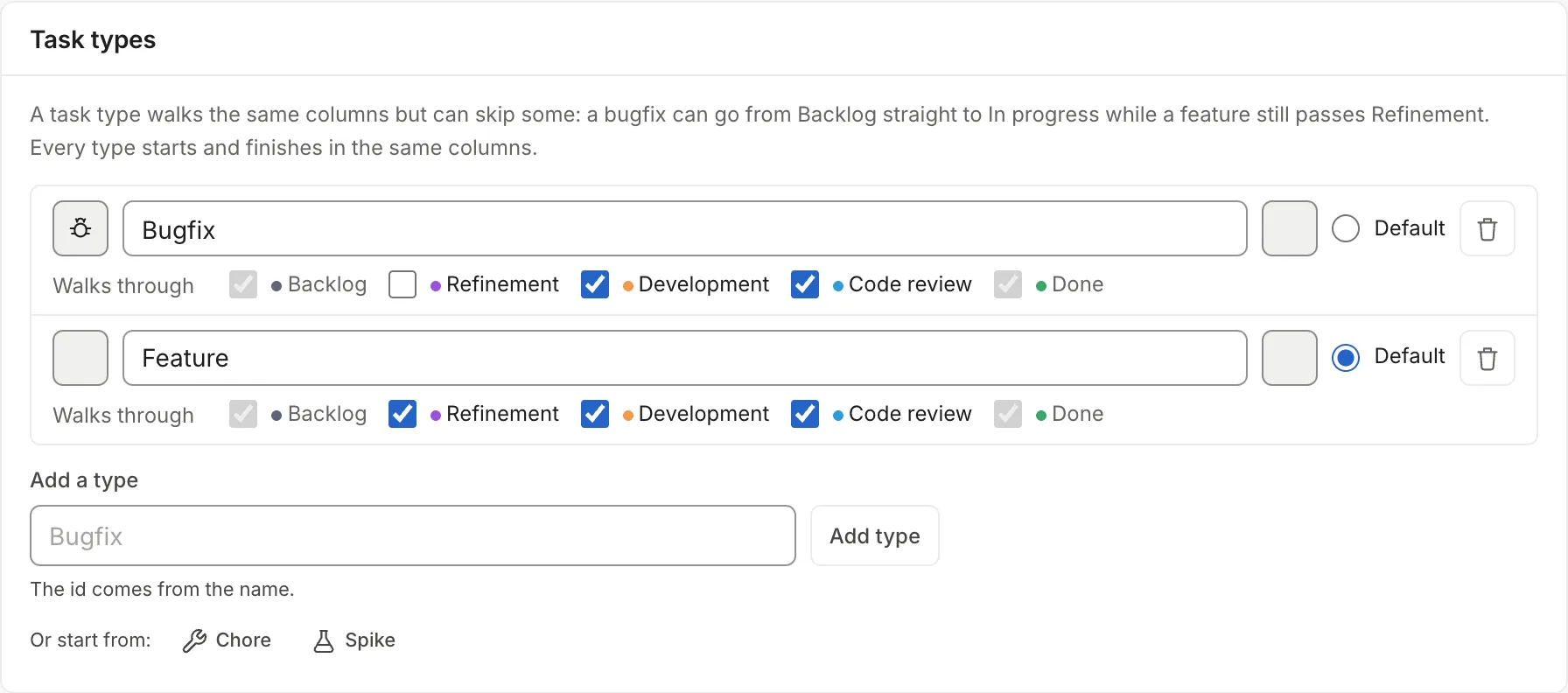
A task can’t enter a column its type skips: the board won’t let you drop it there and auto-advance passes it over.
Edit columns from the board
Section titled “Edit columns from the board”The same editor is on the board screen: open it from “Boards” in the sidebar (or with “Open board” in Settings) and click “Edit board”. The button only appears with the admin role. The columns show their handle and their ⋯ menu, and you rename a column by double-clicking its name. “Done editing” returns to the normal view. Task types and the board name can only be edited in Settings.
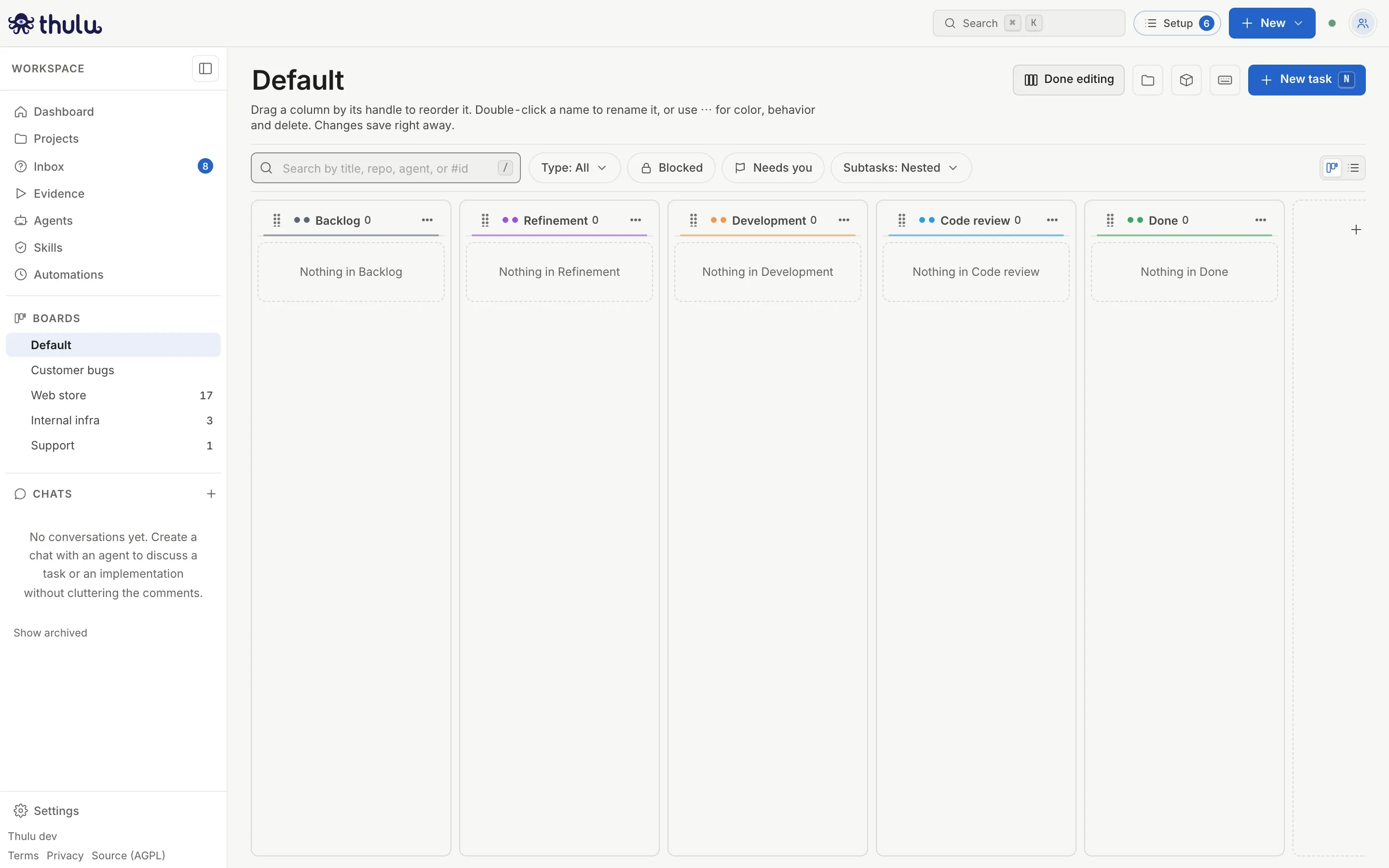
Delete a column or a board
Section titled “Delete a column or a board”Choose “Delete column” in the ⋯ menu. If the column has tasks, the dialog asks which column to move them to (“Move 2 tasks to”) before enabling the delete. The column’s behavior and approvals are lost and this can’t be undone. You can’t delete the start column (first make another one the start), or the only finish column.
To delete a board, use “Delete board” in its ⋯ menu. If it has tasks, you pick another board as the destination; each task lands in the column with the same id or, if there is none, in the first one. The columns, behavior and task types are deleted with the board and this can’t be undone. You can’t delete the default board until you make another one the default.
In both cases, tasks that move don’t launch agents in the destination column.
A column’s behavior
Section titled “A column’s behavior”The switches apply only to the board where you change them. The dialog disables combinations that can’t happen and says why next to the switch.
| Switch | What it does | Limits |
|---|---|---|
| “Tasks start here” | New tasks land in this column. A task with unfinished dependencies waits here. | Exactly one per board. To change it, pick another. |
| “Work finishes here” | Tasks in this column count as finished and unblock the ones that depend on them. | At least one per board. It can’t also be the start column. A finish column doesn’t advance the task or run agents. |
| “Move on when the agent finishes” | If the run finishes cleanly, the task moves on its own to the next column. | With pending approvals the task waits instead of advancing. |
| “Push the branch” | A run that finishes cleanly pushes the task’s branch to the repository. | Needs the task to have a project. |
| “Open a pull request” | A task entering this column opens its pull request. | Root tasks only: subtasks share the parent task’s pull request. |
| “Counts toward” | Picks which counter at the top of the board its tasks count toward: “Nothing”, “In progress” or “Needs review”. The column’s chip says so: “Counts as In progress”. |
“Default agent” isn’t a switch: it picks the agent that new tasks copy (see step 6 of the flow). A run starts when the task enters a column for which it has an agent assigned. At the bottom of the dialog, “Sandbox priority” takes you to Sandbox.
Columns created with earlier versions may show one more switch, “Every approval blocks the task”: any approval on the task keeps it in the column, not only the required ones. Turn it off to rely on required approvals.
Approvals are configured in the same window, under “Required approvals”:
| Option | What it does |
|---|---|
| Label and key | Each row is an approval the task receives on entry. The label says whose call it is; any person with the developer role or higher can decide. An agent never approves. |
| “Reset on new commits” | If a run leaves new commits in this column, the approval goes back to pending. On by default. |
| “Only for:” | Limits the approval to certain task types. With none ticked, it applies to all. It appears when the board has types. |
| On “request changes” | “resume the agent with the feedback”, “move the task back” to an earlier column, or “stay here, a person decides”. |
While any approval is pending, the task doesn’t advance to the next column. Approvals are decided from the task and from the Inbox.
Common problems
Section titled “Common problems”The “Columns” panel warns you when the start column isn’t the first, or when a column ended up after the finish column (“Tasks that finish never reach it”). The warnings don’t block anything; they describe what will happen to tasks.
A task can’t be moved to a column its type skips. If you try it through the API, the response is 409 with the available columns; change the task’s type or pick another column.